
Participant
April 4, 2025
Question

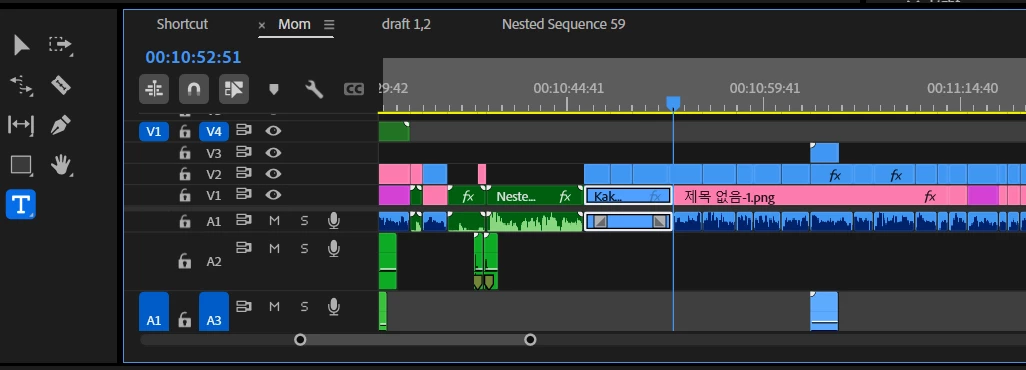
Slip in between two sources
  • April 4, 2025
  • 3 replies
  • 247 views

Hi, everyone.

As you guys see, to drag and drop the specific clip on Video 4 and Audio 3, I clicked those buttons.

but it doesn't really work and it just goes to the video, audio 1 dubbing the files which had existed... 

How can you deal with this.

Save me !!!

    3 replies

    R Neil Haugen
    Legend
    April 24, 2025

    And are you dragging them from someplace else on that timeline? As there is an intriguing behavior for that which confuses many users.

    Everyone's mileage always varies ...
    Ann Bens
    Community Expert
    Community Expert
    April 24, 2025

    Can you make a screenrecording of what is happening.

    Dragging from where? project panel, source monitor or from outside Premiere?

    Community Expert
    April 24, 2025

    Here’s how to fix it: How to Properly Drag Clips to Specific Tracks in Premiere Pro

    1. Check Source Patching (The Left Side of the Timeline):

      • On the far left of your timeline, you'll see icons labeled like V1, A1, A2, etc. under the source patching section.

      • These control where your video and audio will land when you drag a clip from the Source Monitor or Project panel.

      • Make sure the "V" and "A" blocks are aligned with Video 4 and Audio 3.

        • Drag the blue boxes (V1 for video, A1 for audio) up to V4 and A3.

        • If these aren’t set, Premiere defaults to V1 and A1.

    2. Disable Unwanted Track Targets:

      • If V1 and A1 are still active, Premiere might prioritize them.

      • Click to deactivate V1 and A1 if you're not using them for this drop.

    3. Manual Placement:

      • If dragging from the Project panel ignores your target settings, try this:

        • Drag the clip directly onto Video Track 4 and Audio Track 3 in the timeline instead of relying on automatic placement.

        • Hold down Ctrl (Cmd on Mac) while dragging to get more precise control.

    4. Use Insert or Overwrite Properly:

      • If you're dragging from the Source Monitor, use the Overwrite (.) or Insert (,) key after setting the source patching correctly.


    Quick Summary:

    • Align source patching (V/A blocks) to your desired tracks.

    • Disable default tracks if necessary.

    • Drag directly onto the track if Premiere still defaults incorrectly.

    • Use keyboard shortcuts for precision.

    Let me know if this helps! If you're still having issues, check if track locking or sync-lock is interfering.

    Illustrator is open almost 24/7 and just about the same for Bridge and Photoshop