melisa.suzan
Participant
June 25, 2026
Answered

some graphics templates elements don't align properly

  • June 25, 2026
  • 2 replies
  • 23 views

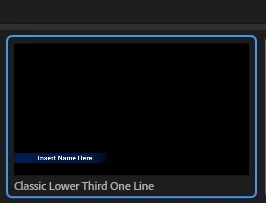
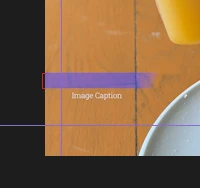
i’m trying to use very basic lower thirds, and each time i try putting them onto my timeline the text and box are just not aligned how its supposed to be in the preview, and it’s the same for almost every one. the only one’s that seem to work normally are the sports ones. i don’t understand what it is i’m doing or not doing in order for them to work correctly.


    Correct answer PaulMurphy

    Moving graphics to a different aspect ratio automatically adjusts each layer's position and scale. This works well when you're copying graphics between sequences that share the same aspect ratio, but it can cause misalignment when the aspect ratios differ.
     

    Here's a way to keep everything aligned:

    1. Add the graphic template to a 16:9 sequence.
    2. In the Properties panel, add a new Rectangle shape.
    3. Turn off the Rectangle's fill, and name it "Anchor."
    4. Move the playhead to the first frame of the graphic.
    5. Select the text layer, then scroll to the bottom of the Properties panel.
    6. Under Responsive Design - Position, set Pin To to "Anchor."
    7. In the graphic next to Pin To, click the left and bottom lines. This pins the text layer to the bottom left of the shape.
    8. Repeat these steps for the other shape layer.

    When you copy and paste the graphic to a 9:16 sequence, the text and shape should stay together. To adjust the overall position of both, deselect them in the Properties panel and adjust Position. This adjusts the Vector Motion settings, which are the overall settings for the graphic.


    2 replies

    PaulMurphyCommunity ExpertCorrect answer
    Community Expert
    June 25, 2026

    Moving graphics to a different aspect ratio automatically adjusts each layer's position and scale. This works well when you're copying graphics between sequences that share the same aspect ratio, but it can cause misalignment when the aspect ratios differ.
     

    Here's a way to keep everything aligned:

    1. Add the graphic template to a 16:9 sequence.
    2. In the Properties panel, add a new Rectangle shape.
    3. Turn off the Rectangle's fill, and name it "Anchor."
    4. Move the playhead to the first frame of the graphic.
    5. Select the text layer, then scroll to the bottom of the Properties panel.
    6. Under Responsive Design - Position, set Pin To to "Anchor."
    7. In the graphic next to Pin To, click the left and bottom lines. This pins the text layer to the bottom left of the shape.
    8. Repeat these steps for the other shape layer.

    When you copy and paste the graphic to a 9:16 sequence, the text and shape should stay together. To adjust the overall position of both, deselect them in the Properties panel and adjust Position. This adjusts the Vector Motion settings, which are the overall settings for the graphic.

    Averdahl
    Community Expert
    Community Expert
    June 25, 2026

    I can reproduce this if the timeline have another aspect ratio than 16:9.

    For example, adding it to a timeline that is 1920x1080 is ok but not if the timeline is 1080x1920. The first  one is 16:9 and the second is 9:16. To fix, adjust the position of the text layer manually seems the easiest way.


    melisa.suzan
    Participant
    June 25, 2026

    ah that makes sense, thank you! the only thing with adjusting the text manually, is that it interferes with the path movements/key frames, so i’m not too sure on how i can move the text without disturbing the key frames. i’ve been trying to do so, but it completely ruins the effects and i can’t seem to just edit all the keyframes in a way i’d usually do with anything else as it changes the movement entirely (looks like it goes too fast) it’s a bit more advanced than what i’ve been used to.. great learning moment for me though i suppose 😅