Inspiring
November 7, 2023
Question

Sporatic green pixels popping up in exported video

  • November 7, 2023
  • 2 replies
  • 1839 views

I keep getting these random green pixel dots popping up sporadically on my exported video. The dots don't appear when I'm in the edit sequence, only on the exported file. See the photo below or attached of one of the dots.
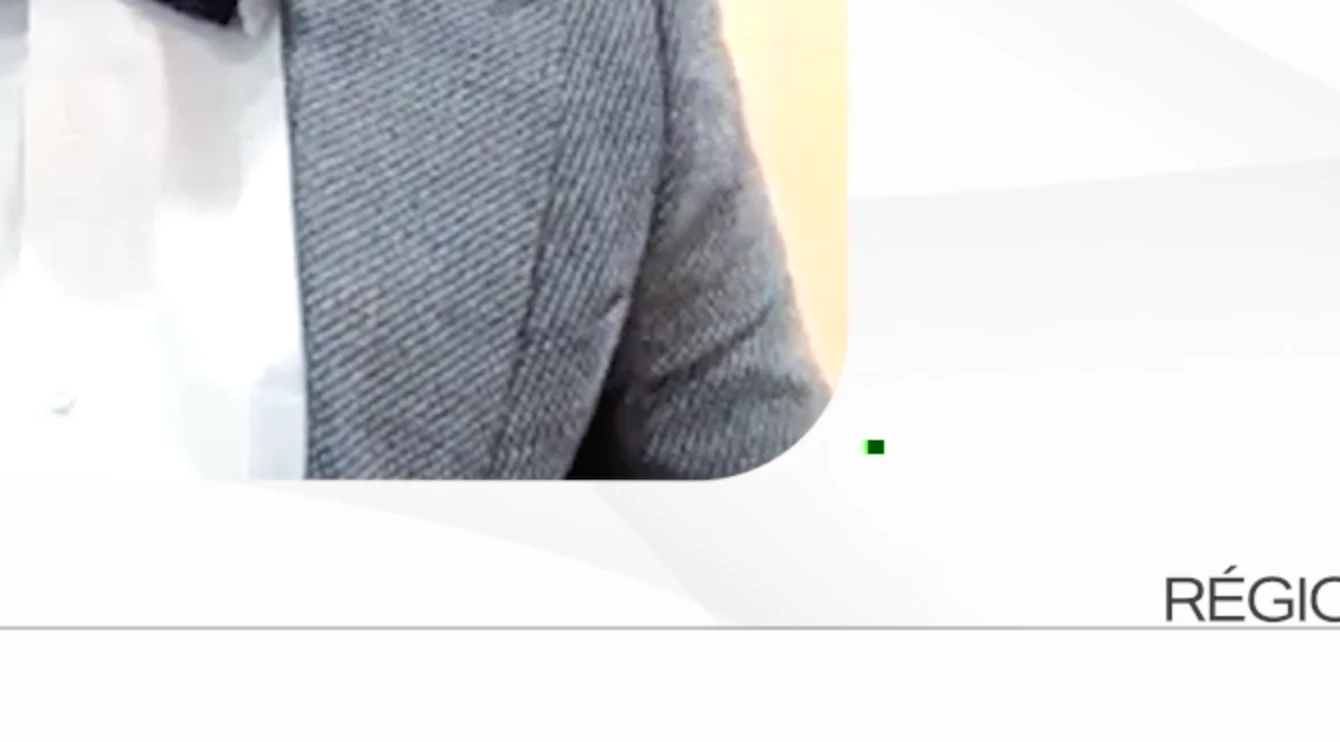
 

It seems like it's in that same vein of those green frames you'll get if you haven't encoded your footage to CBR. But I did encode my footage in Handbrake already, so it is CBR. I've restarted Premiere multiple times and re-exported, but no luck.


I haven't had this problem before, and I haven't changed anything about my system or settings recently that would have caused this. A couple other discussion threads mention changing the GPU acceleration on the Project Settings, but that option isn't available on Apple Silicon.


My system specs:

Adobe Premiere Pro version number: 24.0
Operating system: macOS Ventura 13.4.1
System Info: Mac Studio, Apple M1 Max chip, 64GB RAM, 2 TB local hard drive, working on project off of 1 TB Portable SanDisk SSD connected via USB-C

Video format: Video used in the sequence is 30fps, CBR, MP4 H.264, transcoded in Handbrake prior to bringing into Premiere. The file I'm exporting out is an Apple Pro Res 422 HQ master file with captions, which is then encoded to H.264 in Media Encoder.

This topic has been closed for replies.

2 replies

Peru Bob
Community Expert
Community Expert
November 8, 2023

Delete the Media Cache and Media Cache files:
https://community.adobe.com/t5/premiere-pro/faq-how-to-clear-your-media-cache-in-30-seconds-in-premiere-pro-2020/m-p/11017257/thread-id/260446?page=1

If that doesn't work, try resetting the preferences:
https://community.adobe.com/t5/premiere-pro/faq-how-to-reset-trash-preferences-in-premiere-pro/td-p/8236158?page=1

If that doesn't work, try resetting the Workspaces:
Reset a workspace
Reset the current workspace to return to its original, saved layout of panels.
1. Do one of the following:
• Click the Workspace menu icon and select Reset to Saved Layout.
• Choose Window > Workspace > Reset to Saved Layout.
from here:
https://helpx.adobe.com/premiere-pro/using/workspaces.html

If that doesn't work, try Preferences > Audio Hardware and set Input to None.

If that doesn't work, try creating a new project and import the old one into it.

Inspiring
November 8, 2023

@Peru Bob  okay, thanks. Making my way down your list now. Also, I did notice that the green artifacts do appear in the edit sequence, not only the exported video.

Inspiring
November 8, 2023

@Peru Bob  okay, none of those specific things worked, but what I did was import my project into a new project and then un-nested the talking head video that I have in the center of the frame. I exported it, and it looks like the random artifacts are no more. I would still like to know why having that clip inserted as a Nested Sequence would've caused that, especially because the artifacts were appearing on the main sequence (meaning the artifacts were not confined to the edges of the Nested clip).

Peru Bob
Community Expert
Community Expert
November 7, 2023

Does it happen with both direct export from Premiere Pro and export through Adobe Media Encoder?

Inspiring
November 8, 2023

@Peru BobIt happens on the export that I do from Premiere and then the compressed export I do of that file in Encoder. I'll try the direct export from Encoder now and see what that does.

Inspiring
November 8, 2023

@Peru Bobyes, still happens on direct export to Media Encoder. I also updated my system drivers (now on Sonoma 14.1.1) and still having the same issue. I feel like the next step would be for me to copy/paste into a new sequence or project, but I don't know which stage of the editing process would be instigating this so not sure which step needs to be re-done or bypassed.