
Participant
May 15, 2018
Answered

Stripes Glitch Bug on right video border CC2017 HELP

  • May 15, 2018
  • 2 replies
  • 3495 views

Hi,

I have to work with a 2017 version at work and it has an annoying bug in AE and Premiere - i experienced this bug myself in that version at home.

Now i have no choice, i need a fix somehow since at work we cant upgrade to 2018 for licensing reasons.

There are black and white lines appearing on the right border of the video. Looks like it only appears when lumetri has been added. i have different lumetri on adjustment layers which i need for color matching. How can i get rid of those lines????

I'm freaking out....spending all day fighting adobe problems instead of doing actual work...every effin day
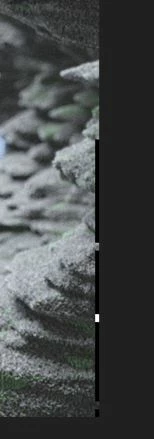
This picture is from media encoder export dialogue, it also appears like this in preview and in the actual export. its not the same on every frame, the blocks change on every frame and its never the same when i render multiple times.

This topic has been closed for replies.
Correct answer jameslee101

OK, so I have found a more efficient workaround - it's still not ideal, but it 100% fixes the problem, and is a little more foolproof than some of the other options above (at least for my experience).

This is assuming that you are using Lumetri in adjustment layers and suspect that is your problem:

1. Work in adjustment layers, business as usual.

2. When you're ready to export, duplicate the timeline to create a new timeline.

3. paste-attribute the adjustment layer lumetri into the clips themselves.

4. Disable the adjustment layer(s).

5. Render out without the white/black lines.

This process essentially takes the effects you had in your AL's and just puts it [them] directly into your clips. Seems silly that it behaves if Lumetri is in the effect of a clip, but not an adjustment layer effecting the clip.

Hope this helps. Would like to thank @Ann Bens for pointing me to this thread and helping. Hope this helps you!

2 replies

jameslee101Correct answer
Participant
September 5, 2018

OK, so I have found a more efficient workaround - it's still not ideal, but it 100% fixes the problem, and is a little more foolproof than some of the other options above (at least for my experience).

This is assuming that you are using Lumetri in adjustment layers and suspect that is your problem:

1. Work in adjustment layers, business as usual.

2. When you're ready to export, duplicate the timeline to create a new timeline.

3. paste-attribute the adjustment layer lumetri into the clips themselves.

4. Disable the adjustment layer(s).

5. Render out without the white/black lines.

This process essentially takes the effects you had in your AL's and just puts it [them] directly into your clips. Seems silly that it behaves if Lumetri is in the effect of a clip, but not an adjustment layer effecting the clip.

Hope this helps. Would like to thank @Ann Bens for pointing me to this thread and helping. Hope this helps you!

Participating Frequently
November 14, 2019

Hey guys!

I'm having the same issue but it the last version 

AFTER EFFECT, and i'm not using the lumetry or any color change. 

The problem just appear when I export! in Mp4 and MOV

like this example:


francis-crossman10980533
Inspiring
May 16, 2018

I have seen a pesky bug that seems to be rather related. Are you using a GPU that supports CUDA?  Try changing the renderer to OpenCL, Software, or Metal (File Menu/Project Settings/General/Renderer).

In my testing, I found that this only happens when you meet all of the following very specific set of criteria:

  • CUDA renderer
  • Timeline resolution height is equal to or greater than the width (for example 1080x1080 - Instagram anyone?)
  • Lumetri Color on an adjustment layer with blacks and white parameter adjusted

Changing any of those criteria seems to make this problem go away.  I hope this solves it for you.  If you are experiencing this problem with some other setup, please let us know.  Good luck!

searsluxAuthor
Participant
May 16, 2018

I switched renderers without any change.

You are right concerning the resolution, its a video in 1080x1920, so HD portrait mode.

And yes, lumetri is triggering the problem - even after turning off all effects inside the lumetri its there as long as lumetri is active.

My solution was taking it home and exporting it from my personal up to date version.

But i will run into this more often at work. well... no idea

francis-crossman10980533
Inspiring
May 16, 2018

I'm glad that you have a workaround, but it sounds rather frustrating. We are already chasing down an extremely similar bug that I'm sure is related, but your setup is a bit different.  Can you give me some more details about the two systems: OS, CPU, GPU, storage, exact PPro release versions (example 12.1.2), etc., the more detail the better.

Also, I think I have a pretty good understanding of your workflow, but it would be extremely helpful if you are able to write down precise steps to reproduce this bug.  For example:

  1. Create a sequence that is 1080x1920 using these custom settings . . .
  2. Bring in 4k footage shot on iPhone 8 plus which is oriented in portrait
  3. Scale and reframe footage using the effects control panel
  4. Add an adjustment layer on the top-most track extending the duration of the timeline
  5. Add Lumetri Color effect to the adjustment layer and do not adjust any parameters
  6. Immediately I see terrible crud on the right side of the frame that looks like thin black and white blocky stripes
  7. If I remove Lumetri it goes away

Thanks for reporting this and adding more detail, it goes a long way to helping us fix the problem.