
Participant
November 15, 2023
Answered

Stuttering playback, even with audio only

  • November 15, 2023
  • 4 replies
  • 1142 views

I have a fresh install of Premiere pro and Rush does the same thing.

The playback from both source and program sequence drops about 20 frames per second on a 60fps video.


My PC specs:

  • Ryzen 5, 5600x cpu
  • 48 GB of RAM
  • 1tb Samsung Evo 970 NVME SSD
  • Nvidia RTX 3070ti
  • Windows 11


There is horrible stutter on the playback. I've tried these common suggestions.

  • Rebooted PC
  • Updated Nvidia drivers
  • went down to 1/16 quality for playback
  • Made sure render is set to GPU acceleration (CUDA)
  • Checked RAM usage, 20GB available to use
  • CPU utilization only around 30%
  • removing all the video from the sequence, it still happens with audio only. Not sure how it could drop frames when there are no frames to drop, but it found a way.


I had Rush first before getting premiere. Rush worked fine for a while until it bugged out and started doing the stutter. Premiere did it immediately. Runs fine on my laptop with a 12th gen intel i7 and no GPU.


Any ideas?
This topic has been closed for replies.
Correct answer Griffin22339810kw4c

Replying to my own post, found the fix.

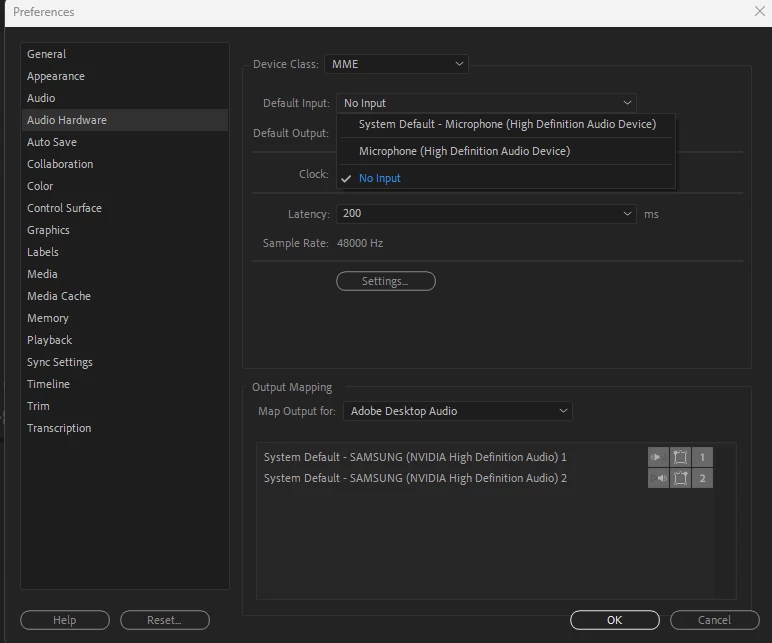
Go to Preferences/Audio Hardware, select no input for the default.

No idea why this works, but it does.

Aparently this bug has been around since at least 2020. Amazing that it hasn't been fixed yet.


4 replies

Community Expert
July 12, 2024

@Kevin-Monahan this is so frequent now, should it be included in known issues

so that the team works on a fix for it? or if it is specific to certain sound cards/drivers etc...?

Kevin-Monahan
Community Manager
Community Manager
July 12, 2024

Good point, @Carlos Ziade. You're right, it's the cause of a lot of issues and very hard to discover the fix. I'll see if a bug has been filed on the issue. Thanks fo raising the issue.


Thanks,
Kevin

Kevin Monahan - Sr. Community and Engagement Strategist – Adobe Pro Video and Audio
Participant
July 12, 2024

this saved my life thank you this worked even in 2024

MyerPj
Community Expert
Community Expert
November 15, 2023

What type of media in addition to the 60fps. Is it by chance variable frame rate?

In Preferences/audio hardware set Default Input to 'no input', make sure on the program monitor Wrench icon, to select (have checked) High quality playback.


You can use the free MediaInfo program to get info on your clips. Get the program from the link below and using the 'Tree' view post a screenshot of your clip info: https://mediaarea.net/en/MediaInfo/Download

Griffin22339810kw4cAuthorCorrect answer
Participant
November 15, 2023

Replying to my own post, found the fix.

Go to Preferences/Audio Hardware, select no input for the default.

No idea why this works, but it does.

Aparently this bug has been around since at least 2020. Amazing that it hasn't been fixed yet.