firmatias
Participant
November 28, 2024
Answered

TAMAÑO PISTA DE VIDEO Y AUDIO EN ADOBE PREMIERE

  • November 28, 2024
  • 1 reply
  • 171 views

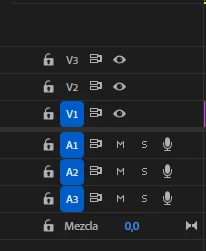
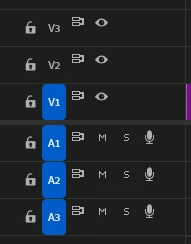
Hola comunidad.... quiero hacer una consulta de algo que me molesta. En la ultima actualización de Adobe Premiere me paso que las pista de audio y video se me abren más estiradas que en versiones previas (foto uno), ya que siempre las use en un tamaño más reducido (foto dos). Creo que investigue bastante las preferencias y configuraciones, pero no logro saber si se puede hacer que el programa no inicie con las pistas de audio y video así de largas-


Gracoas


This topic has been closed for replies.
Correct answer PaulMurphy

To adjust track heights in Adobe Premiere Pro, you can use the following keyboard shortcuts:

  • Expand All Tracks: Shift + =
  • Collapse All Tracks: Shift + -
  • Increase Video Track Height: Cmd (Mac) / Ctrl (Windows) + =
  • Decrease Video Track Height: Cmd (Mac) / Ctrl (Windows) + -
  • Increase Audio Track Height: Opt (Mac) / Alt (Windows) + =
  • Decrease Audio Track Height: Opt (Mac) / Alt (Windows) + -


Additionally, you can save custom track height presets for quick access:

  1. Adjust the track heights to your preference.
  2. Click on the Timeline Display Settings (the wrench icon) in the timeline panel.
  3. Select Save Preset... from the dropdown menu.
  4. Name your preset and, if desired, assign a keyboard shortcut for easy recall.
  5. Click OK to save the preset.


For more detailed information, refer to Adobe's official guide on working with the timeline panel: Working with the Timeline panel.

1 reply

PaulMurphyCommunity ExpertCorrect answer
Community Expert
November 28, 2024

To adjust track heights in Adobe Premiere Pro, you can use the following keyboard shortcuts:

  • Expand All Tracks: Shift + =
  • Collapse All Tracks: Shift + -
  • Increase Video Track Height: Cmd (Mac) / Ctrl (Windows) + =
  • Decrease Video Track Height: Cmd (Mac) / Ctrl (Windows) + -
  • Increase Audio Track Height: Opt (Mac) / Alt (Windows) + =
  • Decrease Audio Track Height: Opt (Mac) / Alt (Windows) + -


Additionally, you can save custom track height presets for quick access:

  1. Adjust the track heights to your preference.
  2. Click on the Timeline Display Settings (the wrench icon) in the timeline panel.
  3. Select Save Preset... from the dropdown menu.
  4. Name your preset and, if desired, assign a keyboard shortcut for easy recall.
  5. Click OK to save the preset.


For more detailed information, refer to Adobe's official guide on working with the timeline panel: Working with the Timeline panel.