
Participant
September 5, 2017
Question

Text not appearing/invisible within Essential Graphics Templates

  • September 5, 2017
  • 5 replies
  • 9260 views

Hi, I've been scouring the forums and can't seem to find a solution to this issue.

The only other instance of this problem was left unanswered here

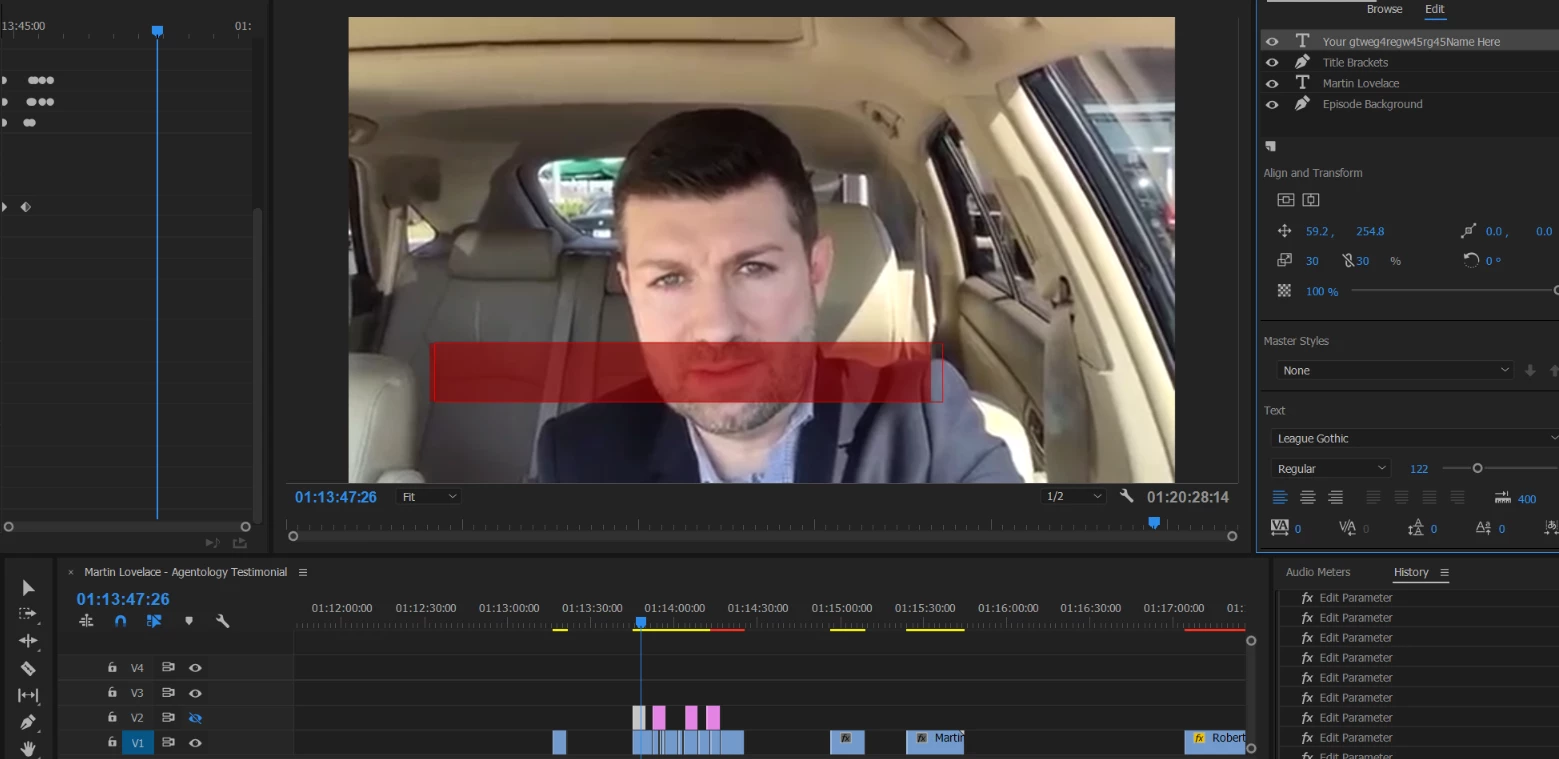
The default text, nor the edits that I make, do not appear within the program monitor. Is there something to change within the Program Monitor settings or something to fix this??
    5 replies

    Participant
    December 19, 2022

    Check that you have the font that came with the template, if you're using one, installed. Or use a different font in essential graphics and see if it appears.

    Participant
    March 23, 2025

    same exact issue i am facing , tried all but no result


    MyerPj
    Community Expert
    Community Expert
    March 23, 2025

    On my machine Ctrl-T will actually put a text graphic on the screen. Try that, then make sure of the colors, fontsize, etc.

    Participating Frequently
    August 20, 2022

    For anyone else encountering this problem, this can also present if the Essential Graphics clip is "disabled" (Right Click > Enable). For me this happened accidentally when Premiere was being especially laggy as I ended up clicking things that weren't displayed on screen. Disabled clips are even less noticable due to only changing color slightly in the timeline. If there isn't another Essential Graphics track nearby, it can be difficult to tell that the color has changed.

    Participant
    November 30, 2022

    I am having the same exact issue. The layer is enabled and does not display at all on V1,2 or 3. I am using the newest version of the software. I have also tried using the menus Graphics and Titles > New Layer > Text . Same results.

    Participating Frequently
    April 16, 2021

    It seems the view of the track where tour text clip is placed is disabled:

    February 26, 2021

    Try moving it up to V2 or V3. 

    Participant
    April 16, 2021

    what does that mean and how do i do it?

    Participant
    August 16, 2022

    Hopefully you've found a solution after all this time, but in case you haven't, V2 and V3 refer to the video tracks in the timeline. They are asking you to click and drag the clips containing text to a track above the track that the video clips are on, because Premiere Pro is putting your text underneath your video instead of on top of it. I faced the same problem, so I hope this helps!

    Vidya Sagar
    Adobe Employee
    Adobe Employee
    September 19, 2017

    Hi raymonl32986922,

    Sorry for the issue with text. In the Essential Graphics panel > Edit > Appearance section > check if "Fill" is enabled. Also, change the fill color & test.

    Thanks,

    Vidya.