Participant
December 10, 2021
Answered

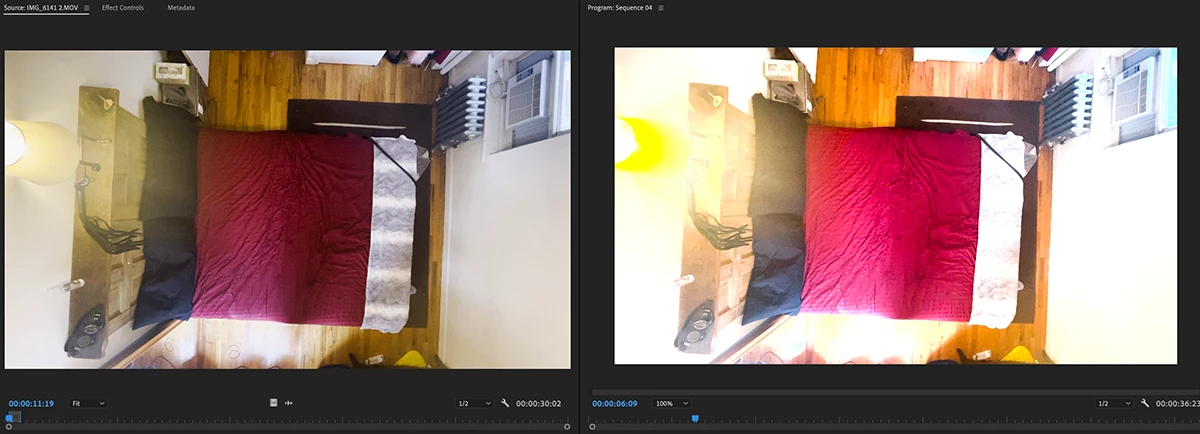
The video color changes once I drag a video to the timeline.

  • December 10, 2021
  • 5 replies
  • 37142 views

The source video is a .mov video. when I drag it to the timeline, the colors dramatically change to overexposure that I cannot fix or use. Image attached

Correct answer Kevin J. Monahan Jr.

Hi LinkNYC,

Sorry about that. There was a new feauture introduced in v.22 around HDR/HLG footage - commonly shot with iPhone and Sony Cameras. Is this you? If so:


  1.  Select all clips from the same camera in the Project panel.
  2.  Choose Clip > Modify > Interpret Footage
  3.  Override the color space to Rec709 (bottom of the panel)
  4.  Add the footage to a new sequence


You should now have your footage looking the same as you shot it in Rec709 color space. 

Is all OK now?


Thanks,
Kevin

5 replies

Participant
August 7, 2025

I had this issue too. I uploaded videos taken with iphone. It may have been cinematic mode, or HDR, not sure.


What worked for me is :

Lumetri Color -> Settings -> checked box for Display Color Management and Extended Dynamic Range Monitoring,


Hope this works fpr people

Participant
August 25, 2025

I'm not seeing how to get to settings from lumetri color. I just have all the edits in the window.

R Neil Haugen
Legend
August 25, 2025

The Settings tab of the Lumetri panel. 

Everyone's mileage always varies ...
Participant
August 4, 2025

Hi.
I just want to add that videos taken with an mobile (Iphone).
When I transfer them to the computer with a cable and then add them from the computer to the timeline , also can turn out overexposed. 

When I transfer the same videos to the computer by transfering direct to a folder on onedrive, and then add the to the timeline, will turn out perfect.
Dont know why, but can be worth trying changing video transfer method.
/Marie

R Neil Haugen
Legend
August 4, 2025

That would indicate that some of the file metadata gets changed in the process used for the "overexposed" version. Which is strange, but ... ah well.


One thing to suggest ... could you install the free utility MediaInfo, which shows all the file metadata quite nicely. Then drag/drop each onto it, and in MediaInfo, go to the Tree view, and do screengrabs of the Video section?


Drag/drop directly onto the text reply area, so they just appear in the reply, and we don't have to click or download to see the image.

Everyone's mileage always varies ...
johnsproof87
Participant
November 8, 2024

Go to sequence settings, and click on both Maximum Bit Depth & Maximum Render Quality check boxes  ☑️

Peru Bob
Community Expert
Community Expert
November 9, 2024

@johnsproof87 

Maximum Render Quality is only needed if the sequence pixel size is different from the export pixel size.

R Neil Haugen
Legend
December 10, 2021

As noted, there are a ton of new color management settings spread all over the app. And some new intended default behaviors. That sadly, are not entirely consistent.


So I wrote an article for this forum that specifically lists the changes to settings and defaults. And shows what is happening, and how to work within the new setup.


There are a lot of changes, and it can be confusing at first. Once you understand however, we do have many more options than we had before.


Neil


Premiere Pro 2022 Color Management for Log/RAW Media


Everyone's mileage always varies ...
Kevin J. Monahan Jr.
Community Manager
Kevin J. Monahan Jr.Community ManagerCorrect answer
Community Manager
December 10, 2021

Hi LinkNYC,

Sorry about that. There was a new feauture introduced in v.22 around HDR/HLG footage - commonly shot with iPhone and Sony Cameras. Is this you? If so:


  1.  Select all clips from the same camera in the Project panel.
  2.  Choose Clip > Modify > Interpret Footage
  3.  Override the color space to Rec709 (bottom of the panel)
  4.  Add the footage to a new sequence


You should now have your footage looking the same as you shot it in Rec709 color space. 

Is all OK now?


Thanks,
Kevin

Kevin Monahan - Sr. Community and Engagement Strategist – Adobe Pro Video and Audio
Ann Bens
Community Expert
Community Expert
December 10, 2021
Kevin J. Monahan Jr.
Community Manager
Community Manager
December 10, 2021

I just love this video too. I'll embed it.


Kevin Monahan - Sr. Community and Engagement Strategist – Adobe Pro Video and Audio