


Inspiring
March 2, 2025
Answered

Time remapping issue

  • March 2, 2025
  • 3 replies
  • 758 views

I'm using 4K footage: Type: MPEG Movie: File Size: 3.50 GB
Image Size: 3840 x 2160; Frame Rate: 23.98; Total Duration: 00:05:00:17; Pixel Aspect Ratio: 1.0
Alpha: None; Color Space: Rec. 709; Color Space Override: Off; Input LUT: None
Video Codec Type: HEVC 10 bit 4:2:0

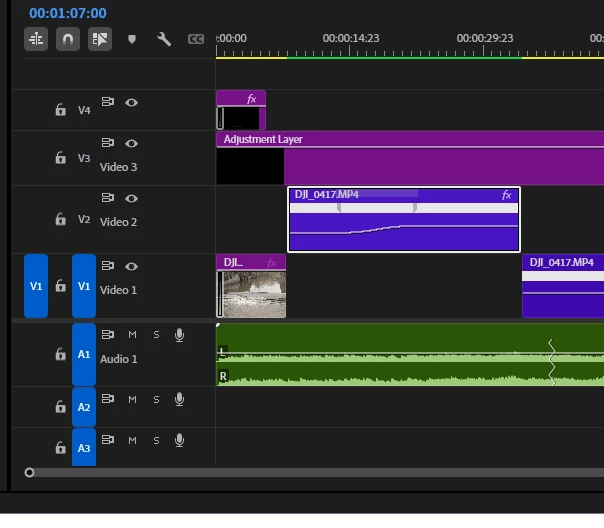
I have an adjustment layer and an audio track.

I added time-remapping to a clip (26s long, after remapping) near the start of a sequence. I set time interpolation to optical flow. I rendered selection on the clip and it played back fine at full res.. (The effect was perfect of water flowing over a weir, gradually speeding up.)

I did some more edits on the sequence, but not directly affecting the remapped clip. Now, the whole sequence does not play back correctly. (The timecode runs along, but the image is frozen.) Also, the exported sequence freezes when it hits the remapped clip. Help!
 

Correct answer Ted_2023

UPDATE:
I've tried running FFmpeg on the failing export and it shows no errors.

I've compared MediaInfo on the original (working) export against the failing export. It shows the only difference is the Bit Rate: 41Mb/s for the "good" video" and 19.5Mb/s for the failing video. I put this down to the possibility that, although the failing video contains timecodes for the whole duration of the export, it does not actually contain data for all "frames"...???


FURTHER UPDATE:

I think I've fixed it. I had moved the Media Cache Database into the same temporary folder as the Media Cache. It seems this confuses the system, but nothing told me NOT to do that.

3 replies

Peru Bob
Community Expert
Community Expert
March 4, 2025
Ted_2023Author
Inspiring
March 4, 2025

Thanks. I'm grateful for your help, but I want to find out what has gone wrong... presumably with Premiere Pro, or the way it interacts with my system. It was working fine until I added further edits to the original edit with time-remapping. My system (i9, 32Gb, RTX 2070, 2 x Samsung SSD) was handling these drone footage files perfectly well in February and now it is not. 

Ted_2023AuthorCorrect answer
Inspiring
March 4, 2025

UPDATE:
I've tried running FFmpeg on the failing export and it shows no errors.

I've compared MediaInfo on the original (working) export against the failing export. It shows the only difference is the Bit Rate: 41Mb/s for the "good" video" and 19.5Mb/s for the failing video. I put this down to the possibility that, although the failing video contains timecodes for the whole duration of the export, it does not actually contain data for all "frames"...???


FURTHER UPDATE:

I think I've fixed it. I had moved the Media Cache Database into the same temporary folder as the Media Cache. It seems this confuses the system, but nothing told me NOT to do that.

Warren Heaton
Community Expert
Community Expert
March 3, 2025

To add to Peru Bob's reply, here are some things to do:

  • Set Playback Resolution set to 1/4 or 1/8 and Paused Resolution set to Full.
  • Apply Adjustment Layers and Effects after you've locked picture (that is, you're not likely to make any more changes to the structure of the story that you're telling with your edit).
  • For Time Remapped clips:  Right-click and choose Render and Replace.  You can right-click and choose Restore Unrendered later, but it's common to leave a disabled duplcate of the Time Remapped clip in the Timeline.


If performance is still lagging, consider transcoding your camera originals to ProRes 422 LT (if not for this project, the next one), making sure that your storage media is large enough and fast enough to play 2160p24 ProRes 422 LT.

Peru Bob
Community Expert
Community Expert
March 3, 2025

Do the time remapping and then nest it.


Ted_2023Author
Inspiring
March 3, 2025

Thanks, but in trying that I've discovered that none of my 4K drone footage will playback or scrub in PremPro, even though it was fine last week. Is it a Codec issue? ...but it plays OK in VLC. 4K phone footage does playback and scrub OK in PremPro.

Peru Bob
Community Expert
Community Expert
March 3, 2025

Please use the free MediaInfo and post a screenshot of the properties of your media in tree view:
https://mediaarea.net/en/MediaInfo

Many users are having issues with VFR. If the file is variable frame rate, use Handbrake to convert to constant frame rate before importing into Premiere Pro:
https://handbrake.fr/downloads.php
Here is a tutorial:
https://www.youtube.com/watch?time_continue=34&v=xlvxgVREX-Y

Shutter Encoder may also be used to convert to Constant Frame Rate:
https://www.shutterencoder.com/en/