
Path 88 Productions
Known Participant
June 22, 2023
Answered

Timecode Display Options For Audio

  • June 22, 2023
  • 4 replies
  • 4604 views

tl/dr:  Need an easy way to add timecode burn to audio files, not video files, when making an extensive "daily" preview clip.  Am I SOL?  I think I'm SOL.  I'm probably SOL.


Here's my dilemma:   


A day's shoot on our documentary typically lasts from 7am 'til 9pm.  And the way we used to make the dailies is just lay out all the video/audio files and sync them to our jammed time-of-day TC.  This would make a timeline 14 hours long, but there it was.  You could see all your audio and video clips and when they were made.  Lots of blank spots, but it was all easy to see, easy to understand, and easy to apply a macro timecode burn to the entire day since I'd just pull it from the sequence/timeline.  Start sequence's numbers around 07:00:00 and off they go until 21:00:00.


Nevertheless, job is now to make all the blank spots in the daily gone.  Basically all clips need to butt each other, no gaps.  Alright, my uderstanding is that means that now any timecode burn has to be generated by the clips themselves --as using sequence numbers isn't an option anymore.


Adding that timecode effect in Premiere is easy-peasy for a video clip, but for audio that doesn't work.  


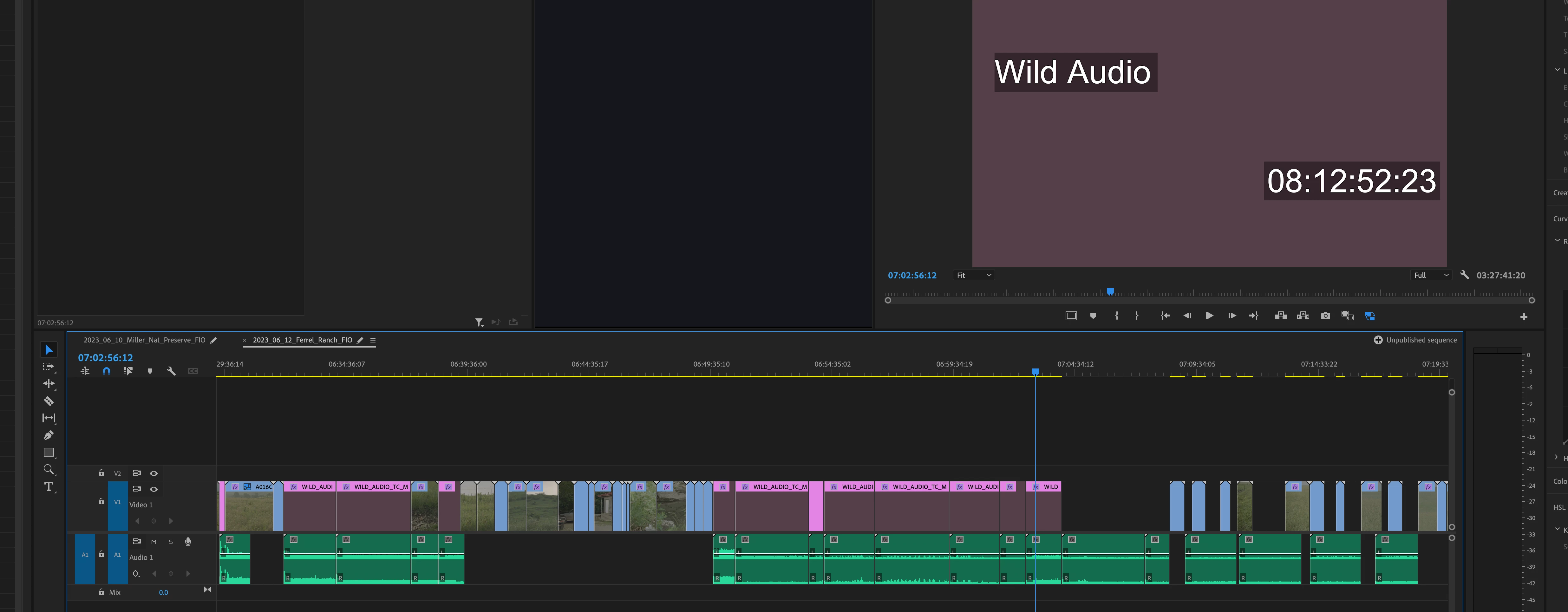
Seems like my only option is to make a slate for each and every audio clips, applying the timecode effect to the slate, select "generate time-code" as an option, and then MANUALLY entering the timecode numbers as needed.  


Which therefore means I pretty much have to slate and timecode every single instance the audio guy starts and stops his recording.  Also have to put in slates where video starts and stops over a long running audio clip.  All in all that = hundreds a times a day.


I've been tasked with doing this for over 40 days of footage.  Looking at manually making time code slates for audio around 5,000 total times here.  


Any help?  A quicker way to do what I wanna do?


Even if I'm out of luck and nobody knows of a way to accomplish my ask, it would be great if folks would chime in and say, "Sorry, can't be done."  Hopefully an answer might be, "Well, you might wanna try this..." 


Correct answer Remote Index

Hello Pathh88 Productions,


I think I understand what you are looking for and I understand the reasons behind it.


If I understand you fully, you have or will have "full" timelines for all the footage (likely day by day) which functon as you wish ("a macro timecode burn to the entire day since I'd just pull it from the sequence/timeline"). The issue is just the form of the output ("all clips need to butt each other, no gaps" - by which you mean (I think) all video clips, ignoring audio clip begins and ends).


My first thought is nested sequences - take a "full sequence" with burn-in sequence code and nest it in an output sequence. Then you can execute edits on this output sequence. To speed the editing process you can copy video (only) clips from the original "full sequence", paste them onto another video track and use them as guide to delete null video spaces. Then you delete these guide video clips (or make the track invisible) and export the sequence.


Have I understood you correctly? Does this acheive what you desire?


R.

4 replies

Remote Index
Remote IndexCorrect answer
Inspiring
June 26, 2023

Hello Pathh88 Productions,


I think I understand what you are looking for and I understand the reasons behind it.


If I understand you fully, you have or will have "full" timelines for all the footage (likely day by day) which functon as you wish ("a macro timecode burn to the entire day since I'd just pull it from the sequence/timeline"). The issue is just the form of the output ("all clips need to butt each other, no gaps" - by which you mean (I think) all video clips, ignoring audio clip begins and ends).


My first thought is nested sequences - take a "full sequence" with burn-in sequence code and nest it in an output sequence. Then you can execute edits on this output sequence. To speed the editing process you can copy video (only) clips from the original "full sequence", paste them onto another video track and use them as guide to delete null video spaces. Then you delete these guide video clips (or make the track invisible) and export the sequence.


Have I understood you correctly? Does this acheive what you desire?


R.

Path 88 Productions
Known Participant
June 26, 2023
quote

"all clips need to butt each other, no gaps" - by which you mean (I think) all video clips, ignoring audio clip begins and ends.


No.  I need all the audio too.  This is a documentary and the director is rolling audio ALL day, even when the video is not happening.  The intent is to try and capture little bits of interesting dialog here and there.


Both the video and the audio have sync'ed time-of-day time code. 


So, how to make a daily with time code of the video is easy...how to do it with an audio clip?  Not so easy.

Remote Index
Inspiring
June 26, 2023

Pathh 88 Productions,


"I need all the audio too."

Got it.


So the first question is - do you have "full sequences" functioning for each day as you desire? (displaying timecode regardless if there is visual clip)


If so then my suggestion stands - but use both video and audio clips as guide to cut the nested sequence.


R.

Warren Heaton
Community Expert
Community Expert
June 25, 2023

Monitor overlays allow us to view informatin like source timecode and sound timecode in the Source Panel and Program Panel.

Monitor overlays

https://helpx.adobe.com/premiere-pro/using/monitor-overlays.html#:~:text=You%20can%20turn%20overlays%20on,comments%20are%20displayed%20by%20default.


As far as burning timecode into audio goes, that's not possible as there is no picture to burn the timecode into.

Path 88 Productions
Known Participant
June 25, 2023
quote

burning timecode into audio goes, that's not possible as there is no picture


Interestingly, it looks like the new metadata overlay does allow this to happen!  Yea!  Something that solved the problem...


or so I thought.  


For some reason my .wav files are displaying time code numbers, just not the actual time code numbers.  The count is offset for some reason.  Why the source monitor of my audio clip would display the correct TC of the .wav, but the metadata overlay does not is beyond me.


Fixed one problem, created another one.  It's never easy, you know?

Participant
March 5, 2025

Did you ever sort out the metadata overlay issue? - I'm running into the same thing.


I'm using an Adjustment layer over the audio only parts for the TC burn. You need to have a layer of black under it for the burn in to show up.


Unfortunately the burn in being displayed is taking the metadata overlay TC, which is different from the ACTUAL timecode on the audio clip when you match frame. 

Path 88 Productions
Known Participant
June 24, 2023

I just found out about this week's (06/23) Premiere update which might offer a solution with the new timecode labeling feature.  

If anyone is stumbling upon this thread from the future and is looking for a similar solution I'll give it a go and report back.


Richard van den Boogaard
Community Expert
Community Expert
June 23, 2023

My main question to you is: why do you need timecode inside the audio?


I typically use the sychronize option to sync multiple camera angles based on the available audio channels. This process ensures that all cameras that have scratch-audio will sync neatly to the audio file that holds the properly recorded version. But I'm not a timecode guy, when it comes to acquisition.


I would advise you to use a structure of multiple sequences, so you can always refer back to the source if an edit has happened that requires you to do so further down the workflow. I typically have RAW sequences that contain the originals (with time gaps), then a rough cut in which all the cameras are synced and gaps are removed. I then render out the rough cuts with a visual timecode (at 360p) and let my clients decide which quotes they want for their final edit by letting them fill out an excel which acts as an Edit Decision List (EDL), as attached.


Hope this process helps you as well.

Path 88 Productions
Known Participant
June 23, 2023

Short answer: because the audio is super important.  The jammed time-of-day time code for audio and video is the workflow being used on this documentary film.  


There's numerous instances of off-camera audio and random MOS stuff, so that's the gig.  Much of the content that'll be in the edit is audio only.  There are hours upon of only talking (no video) happening, and all that needs to be sorted.


I really don't think there's a quick way to grab and display audio time code, but certainly wanted to ask in case someone figured out a work-around or knew something I don't.

Richard van den Boogaard
Community Expert
Community Expert
June 24, 2023

Using timecode is not my way of working. But I typically work in small crews and syncing by audio works for me.


Nevertheless, does this tutorial help you out? https://www.youtube.com/watch?v=lvqWS_lE7ac