
Inspiring
August 9, 2021
Answered

Timecode & timeline not showing in source window

  • August 9, 2021
  • 3 replies
  • 5989 views

I know this is probably somethng dumb I did that I can't fiugure out how to undue as it only effects this one project but my source window is, somehow, too big for the viewer. Thus, the timecode and source-video-timeline are below the bounds of the viewing window. which has me fast forwarding through hour long shows to get the shots I need. I know the timecodes and could type them in except the timecode is below the bottom of the viewing window (I can just barely see the top scanlines of the numbers. I tried the "view" pulldown > "Magnification" which made the viewing window smaller along with the video so the timecode stayed below the bottom of the viewing window :~(


I know there's probably a simple fix that will make me slap my forehead and declair myself an idiot but I'm at a loss for solutions here.


 I'm on Windows 10 Home, version 21H1 | OS Build 19043.1110

Premiere Pro Version 15.4.0 (Build 47)

See picture below for reference.
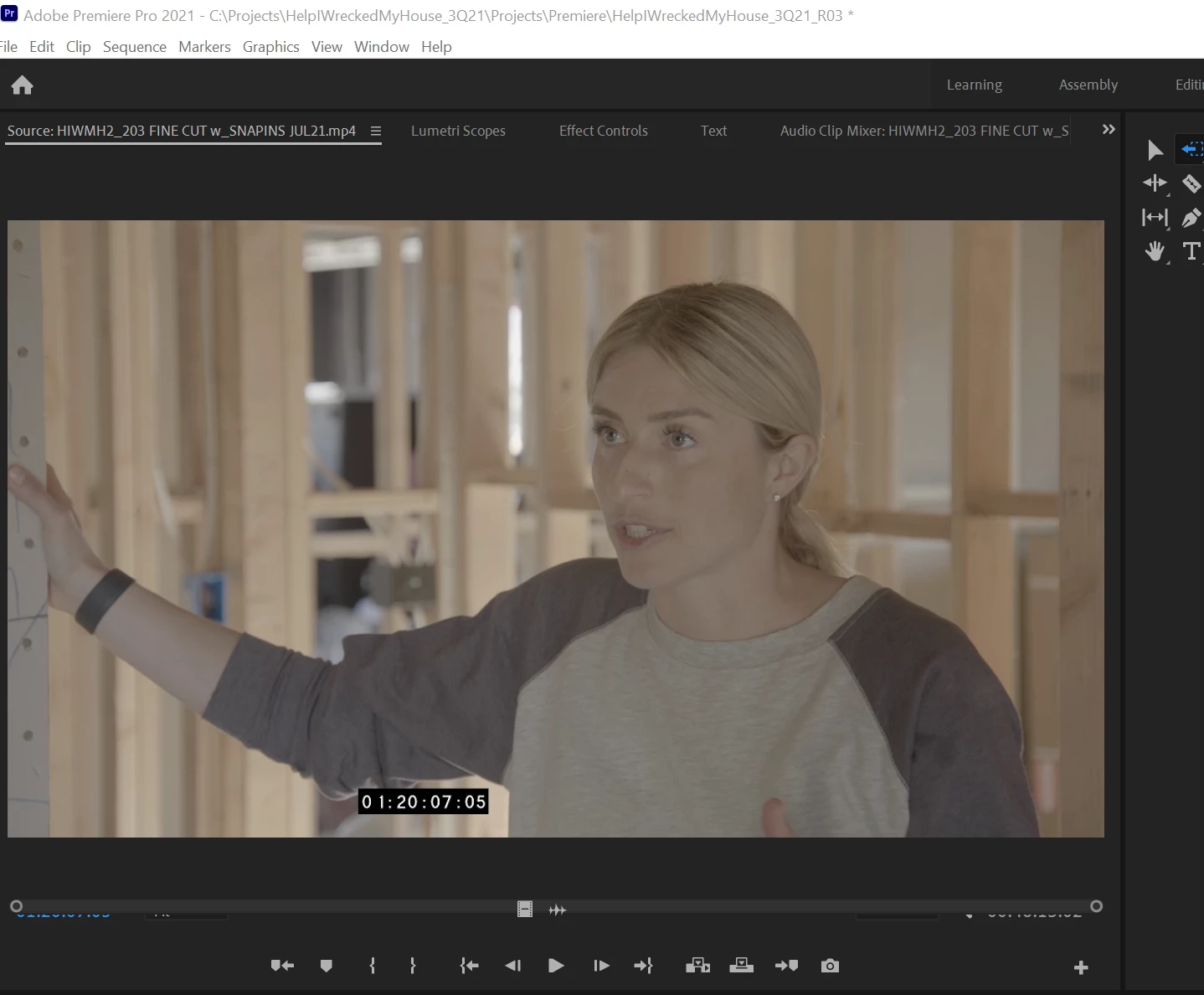
 

'Anybody know what I need to undo to get this right again?


Thanks!  


~ART~

This topic has been closed for replies.
Correct answer Ann Bens

Known issue: close panel and open by double-clicking on a clip in the timeline.

3 replies

gupta shivangi
Legend
August 18, 2021

Hey there,

We're sorry for the trouble. Did the suggestion shared by the expert above help you?

Let us know.

Regards,

Shivangi

Inspiring
August 19, 2021

Yes, Ann Bens' answer worked.


Though, Since I'm writing to an Adobe employee I feel duty-bound to say that if this is a "Known issue" it would be better if this didn't happen ;~)

Ann Bens
Community Expert
Community Expert
August 19, 2021

This issue has been around for quite a few versions now.

I once in a while see this, especially on audio clips.

Ann Bens
Community Expert
Ann BensCommunity ExpertCorrect answer
Community Expert
August 17, 2021

Known issue: close panel and open by double-clicking on a clip in the timeline.

Peru Bob
Community Expert
Community Expert
August 9, 2021

Try resetting the Workspaces:
Reset a workspace
Reset the current workspace to return to its original, saved layout of panels.
1. Do one of the following:
• Click the Workspace menu icon and select Reset to Saved Layout.
• Choose Window > Workspace > Reset to Saved Layout.
from here:
https://helpx.adobe.com/premiere-pro/using/workspaces.html

Inspiring
August 17, 2021

Thanks Bob. I treid that and it didn't work. I even tried pulling that panel out and resetting to see if popping it back into place wouuld help but that didn't work either. It's weird. it's only this one project and I'm now finished with it but a) I'm curious if this has happened to anyone else and b) would love to know a fix incase I do whatever I did to cause this again in a futire project.