
matenrig
Participant
October 1, 2024
Question

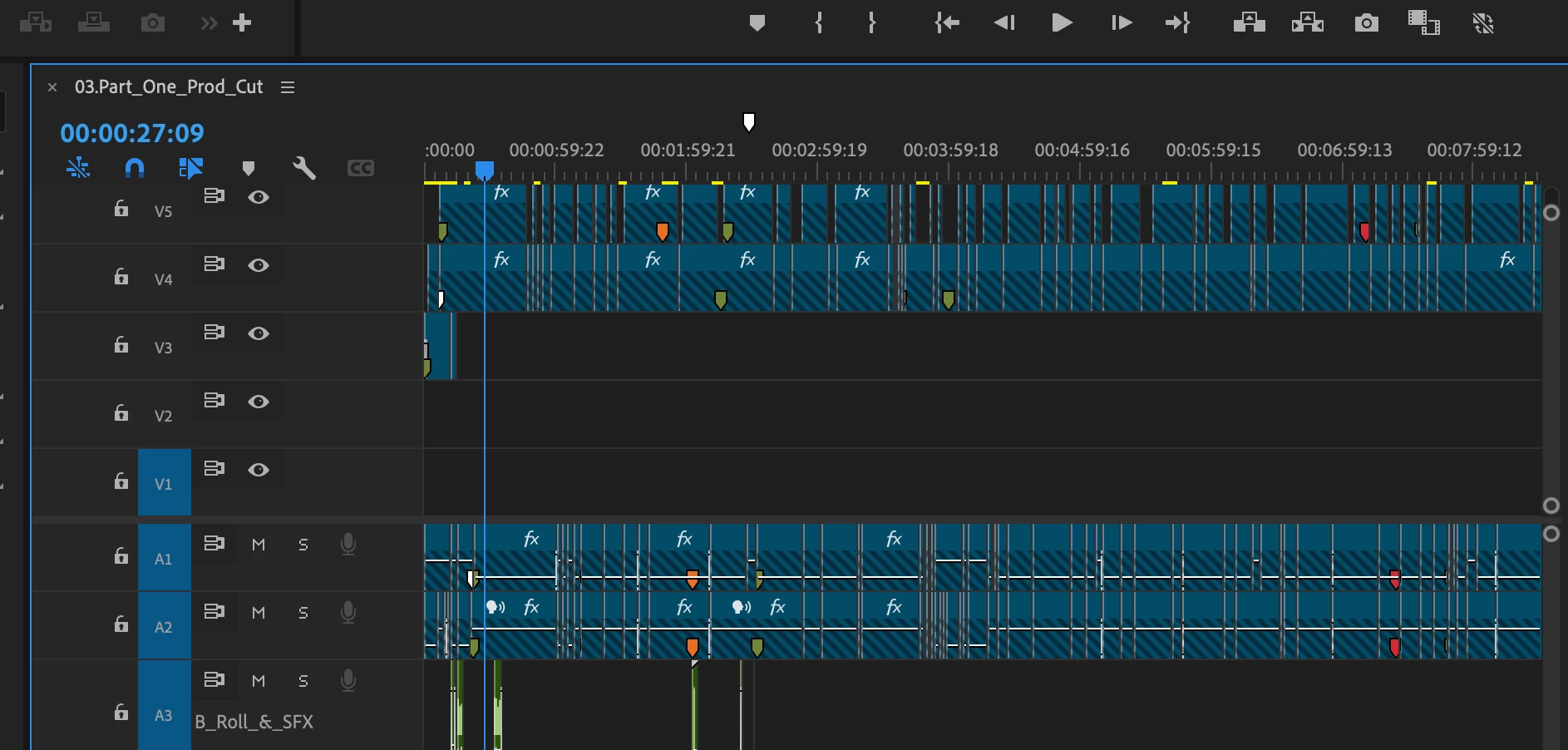
Timeline Corrupted (Multiple bars over it) - Oct 1st, 2024

  • October 1, 2024
  • 1 reply
  • 432 views

Hi there! 


I've never had this issue before (and of course this happens on delivery day). I was editing my project last night and all of a sudden bars have appeared over all the footage/audio. I'm editing on a MacBook Pro. 


I've tried: 

  • Replacing footage from source monitor, match frame 
  • Option/Shift and drag single clip from bin to replace clip on timeline (nothing changes) 
  • Importing into new project 
  • Reinstalling Adobe Premiere 


I've attached an image below for reference. Any assistance would be appreciated as it is due to client today.  Thanks in advance for any tips/suggestions. 
 

This topic has been closed for replies.

1 reply

Averdahl
Community Expert
Community Expert
October 1, 2024
matenrig
matenrigAuthor
Participant
October 1, 2024

Thanks - when I follow the guide and relink via offline I still get a "replace clip error", even though the clips match (all effects removed to match raw footage).


Averdahl
Community Expert
Community Expert
October 1, 2024

O.k, thats problematic.


This happens very seldom to me but when it does i usually make the whole project offline. For a project were all assets are in one folder and subfolders one can just close Premiere Pro and then rename the top folder. Next time one launch the project Premiere Pro will throw the Link Media dialog and then it is easy to locate the first asset and often it will find the rest in one go. If assets lives in several folder, maybe on multiple disks it becomes more painful.


Another way is to use Ctrl+A to select all media in a timeline and then right click and choose Make Offline and click OK. While all media still is selected, right click again and choose Link Media.


It is very easy to select wrong file/s, so one must be calm and methodic. For example, if the Link Media dialog want you to find the file 20241001-211242.mov and you by mistake select 20241001-211224.mov you wont get a question saying "Are you sure?". One mistake is enough...


Make sure that File Name is checked under Match File Properties in the Link Media dialog and that all external disks are connected, if you have any.