Answered
Timeline - Removing the "gang" on clips
Hi!
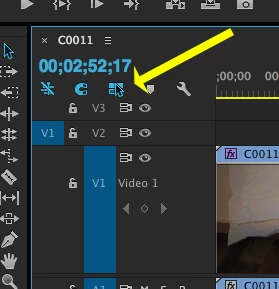
When you add a clip to the timeline the audio and video are automatically ganged together. When you click on the audio of a clip, it automatically selects the video of that clip. I know you can hit the lock button on the audio track to undo this, but Is there a way to easily remove this? In avid, you press one button and you can move the video without the audio, not having to "lock and unlock" each track so that it does not effect another.
Also is there a keyboard shortcut to solo or mute all tracks? Like if I hold down shift + S will that solo all audio tracks? There doesn't seem to be a way to se that up.
Thanks in advance!
 AdChoices