I've been given RAW Apple ProRes footage to edit. The colour looks awful. Any tips on how best to edit it?
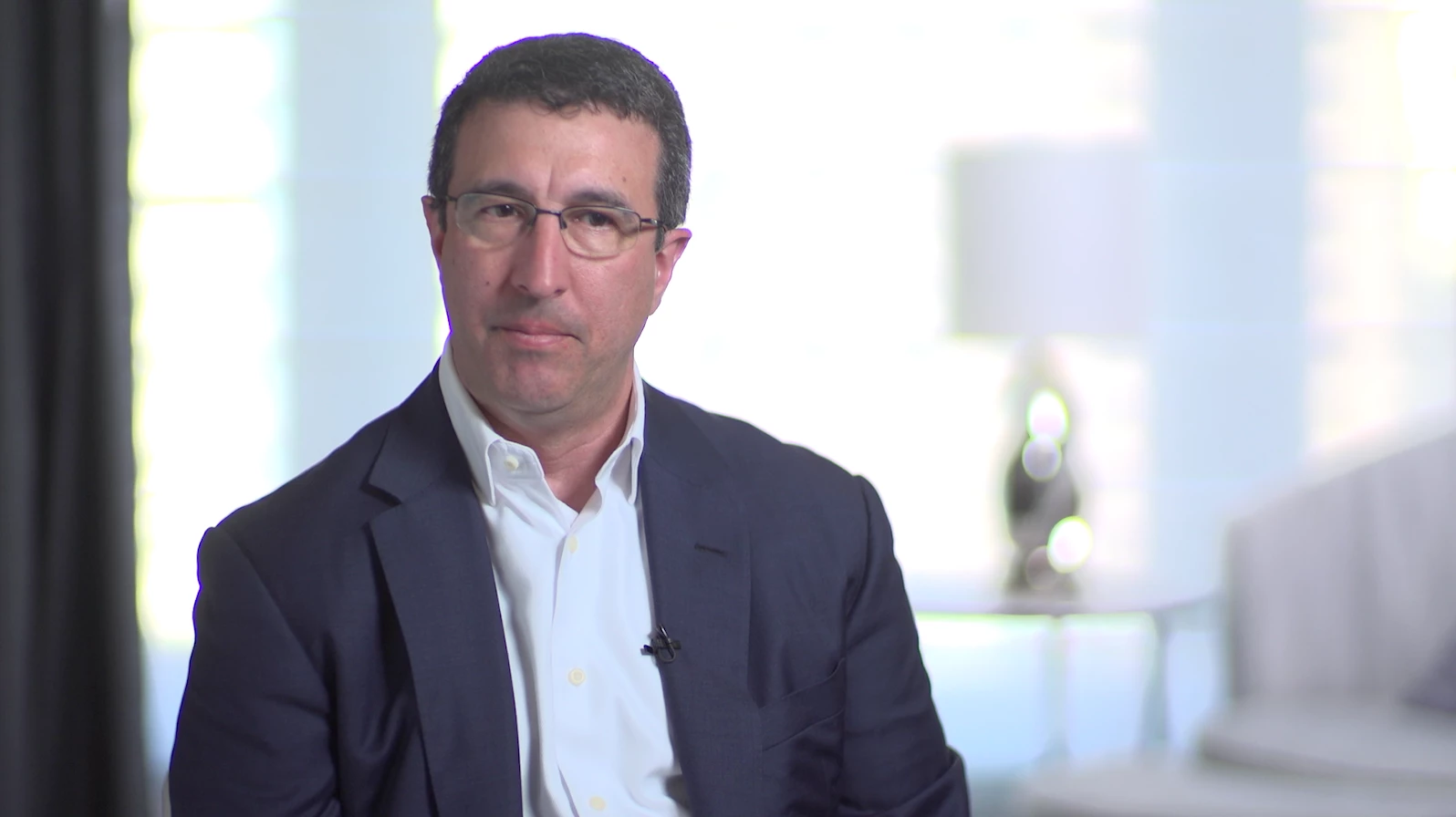
The background is really bright - it looks over-exposed. And there is a fluorescent purple outline around the subject, the interviewee. (see purple line around his hair and arm)
At first they gave me the original footage but they were no video files. I don’t know if it was them or my employee but somewhere along the way the video files disappeared from the folders and they were just giving me .xml and .jpgs. I think the files weren’t fully copied over.
After a bit of back and forth they gave me the Apple Pro Res (.mov) files because they were having trouble uploading the original files online to send to me.
Hi Rachel - Glad you got the correct video info from your client. Here are two things that might help remove the purple and brightness of the image.
(1) Try applying the "Change to Color" effect from Premiere pro to the clip and changing it to a neutral white or gray to blend with the background. Make sure to enable "Hue & Saturation". Here is a screenshot of the effect.
Thanks Waldorf! I don’t think I’ll have time to learn a new program but if I’m not getting good enough results in Premiere Pro or After Effects I’ll definitely try out one of them!
Do you agree that background is overexposed and the interviewee is fading into the background? Or is it just me? I don’t want to complain about the videographers if this footage is just not aesthetically pleasing to me but looks ok to others! The Chromatic Aberration definitely seems to be something the videographers should have avoided during the shoot though.
Seems to me that there is some confusing going on. Some people tend to call footage from the camera as raw even if the footage itself is not RAW. I have seen this before. There is a difference between RAW footage and footage called raw taken directly out of a camera that is not even capable of shooting true RAW.
They use the word raw frequently in the answer you got. My interpretation is that they call any footage from a any camera raw. It´s the same we saw 15 years ago, when people frequently called DV for uncompressed. DV and uncompressed are two complete different animals, the same goes for RAW and raw.
Point is, ask them for full specifications, whatspecific camera did they use to determine what the footage is, iow RAW or "raw".
Thanks for the tip. I’ll ask them to specify. I was afraid of accusing them of giving me ‘overexposed’ footage with an ‘unnecessary amount of colour correcting because of the Chromatic Aberrations’ in case my lack of editing knowledge is the problem and not their filming skills.
I agree with Averdahl ... get precise camera/media data from the videographers.
This is something that many 'shooters' seem to skip, and can be so helpful in post with folks that of course have no clue what the media is that plops onto their desk. As someone who's been a stills photographer for a living and added video work a number of years back, including some jobs for others, knowing the media for either stills or video can save you a ton of time.
It's something that I know a few colorists have listed in their send-out to anyone giving them jobs ... a listing of all media used in the project, cameras/formats/codec specifically used. Not a bad idea.
To the best of my knowledge, only FCP X can handle ProRes RAW at this point in time, so it's likely you've got vanilla ProRes, in which case those highlights are probably gone for good.
The purple fringing is also likely not something you'll be able to correct for in post. That's a lens issue that normally get's handled when shooting by using a better lens.
Do you think Final Cut would be easier for colour editing this footage than Premiere Pro and After Effects. The files I was given are .movs. I don't know what camera they're from. I was just told that it's RAW Apple ProRes footage.
As soon as I saw the footage I thought it looked iffy and emailed the videographers saying:
"All sounds good but the image looks off. Here’s stills from the three .mov files I received. Does the colour/lighting in these look right to you? There’s a purple outline around each interviewee. Just making sure I have all of the necessaryfiles. Thank you!"
And they replied:
"the footage looks good to us — it’s raw, of course, and we tend to employ color balancing and correcting frequently on raw footage. Please let us know if we can provide anything else."
From your responses, it sounds like they could have avoided this extra editing during the shoot by avoiding such a bright background and using a different lens. I wasn't sure if this was the way the footage should look before colour correcting (as I'm not an expert with RAW footage) but it seems like the videographers were in error. What do you think? Should we be avoiding them for future video shoots?
I'm not familiar with that media but if it's a RAW format, click on a clip in a project panel bin, go to the Effects panel, and see if there's a Master clip tab on it ... and that would be where you'd make the beginning adjustments. It is with say Red media, which I work with occasionally.
Thank you for the tip! Do you generally make the adjustments on the master clip and then copy and paste the attributes? I just have three .mov files (one for each of the three interviews).


 AdChoices