



Typhonart
Inspiring
October 23, 2026
Answered

Trim start of multiple clips by the same amount

I have around 200 clips that I need to batch edit, basically remove the first 7 second from each of the clip, but to have no gaps in between them. I tried doing it with Ripple Edit, but it requires me to manually do all clips.

I’ve been searching for some way to batch trim the start of each clip, but it seems… impossible to do in any easy manner? Is there a way to do it quickly?d:
    ScottSimmonsCorrect answer
    Community Expert
    October 26, 2026

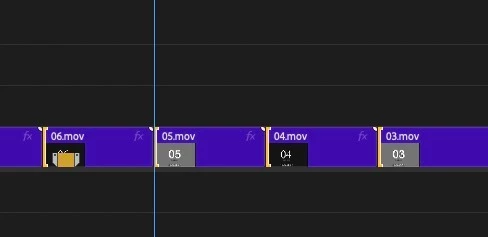
    You can do this. Hold down CMD or CTRL (Mac or PC) to drag select all of the edit points. It’ll first be red rolling trims. If your keyboard is default, then hit CTRL+T to toggle the trim type until you get the yellow ripple trim rollers setup to trim the top of all your clips (see attached). Then trim them by desired amount. If your case check the trim window and do a single +5 and two +1s, and you’re there. 


    9 replies

    ScottSimmonsCommunity ExpertCorrect answer
    Community Expert
    October 26, 2026

    You can do this. Hold down CMD or CTRL (Mac or PC) to drag select all of the edit points. It’ll first be red rolling trims. If your keyboard is default, then hit CTRL+T to toggle the trim type until you get the yellow ripple trim rollers setup to trim the top of all your clips (see attached). Then trim them by desired amount. If your case check the trim window and do a single +5 and two +1s, and you’re there. 


    Translate
    Typhonart
    TyphonartAuthor
    Inspiring
    October 26, 2026

    Ok got it to work in some capacity (couldn’t use +5 or +1, the moment I was not holding ctrl + shift it all deselected), could do the manual drag. Also dunno if it’s supposed to be that way, but it leaves the gaps between clips.

    I have to admit it’s the most counter-intuitive thing I have ever tried to do in any editing software, where it could just be a button with like “batch trim each clip by 5 seconds on the front/back” xd

    Translate
    CORCTON34033231
    Community Expert
    Community Expert
    October 25, 2026

    Thanks for testing that — you're right, and sorry for the misleading step in my previous reply: selecting the clips themselves doesn't do it; Premiere only applies the trim to the one clip you drag.


    The difference, as Ann Bens noted, is to select the edit points (the cuts), not the clips: with the Ripple Edit tool (B), Shift-click the Trim In side of each cut you want to change, so the points are selected together, then drag one of them by 7 seconds. Adobe's Trim mode help says that with Shift you can select multiple edit points and adjustments then apply to all selected clips: https://helpx.adobe.com/premiere/desktop/edit-projects/trim-clips/edit-in-trim-mode.html


    Try it on two or three clips first, before the full 200, and check that the heads move and no gaps appear. If the Trim In side won't select on a cut, let me know — a screenshot of the timeline at that cut would help.

    Translate
    Ann Bens
    Community Expert
    Community Expert
    October 25, 2026

    Selecting all cuts with the Ripple trim tool will let you trim the back end of all clips but not the front end as OP already found out


    Translate
    Ann Bens
    Community Expert
    Community Expert
    October 24, 2026

    This trick only works on trimming the back end not the front.

    It only works if you select the cut with the ripple trim tool one by one and holding the shift key.

    It better than trimming each clip.

    Unable to show screenshots (due to PHP leak)


    Translate
    Typhonart
    TyphonartAuthor
    Inspiring
    October 24, 2026

    Yeah I been doing it like this also from time to time, it’s faster than cutting front and removing a clip and removing the gap manually, but it can’t guarantee the exact 7 second removed from each clip at the start, since it’s more manual. And getting it precisely takes even more time xd

    Translate
    CORCTON34033231
    Community Expert
    Community Expert
    October 24, 2026

    Good news — you don't have to do them one by one:


    1. Select all the clips in the timeline (click the timeline, then Ctrl+A / Cmd+A, or drag a marquee around them).

    2. Press B to switch to the Ripple Edit tool.

    3. Drag the head (left edge) of any one of the selected clips to the right by 7 seconds — the same ripple trim is applied to every selected clip at once, and the gaps close automatically.


    More on the Ripple Edit tool in Adobe's official help: https://helpx.adobe.com/premiere/desktop/edit-projects/trim-clips/perform-ripple-edits.html

    Translate
    Typhonart
    TyphonartAuthor
    Inspiring
    October 24, 2026

    Yeeeeaaaah but it does not work. It edits only one clip, does not apply it to all the clips, even if I select all of them. Does not matter if I select them and switch to Ripple Tool, or if I select them with Ripple Tool.

    And selecting all of them with B and pressing -5 in the program window removes the end of the clip, not the front. Does not matter if I select the clips left to right or right to left.


    Translate