Legend
October 30, 2023
Question

Trouble with color changing method

  • October 30, 2023
  • 4 replies
  • 792 views

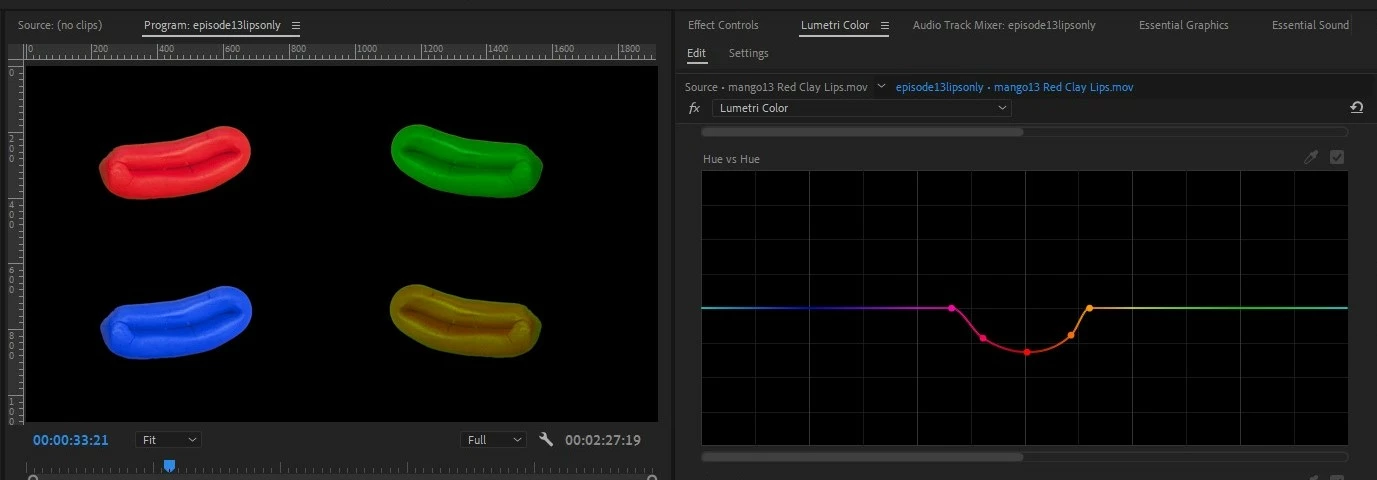
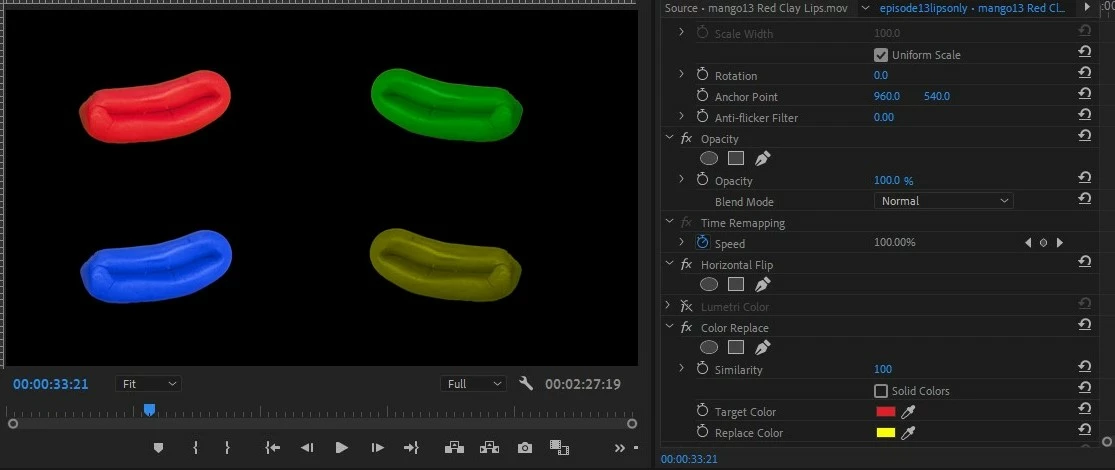
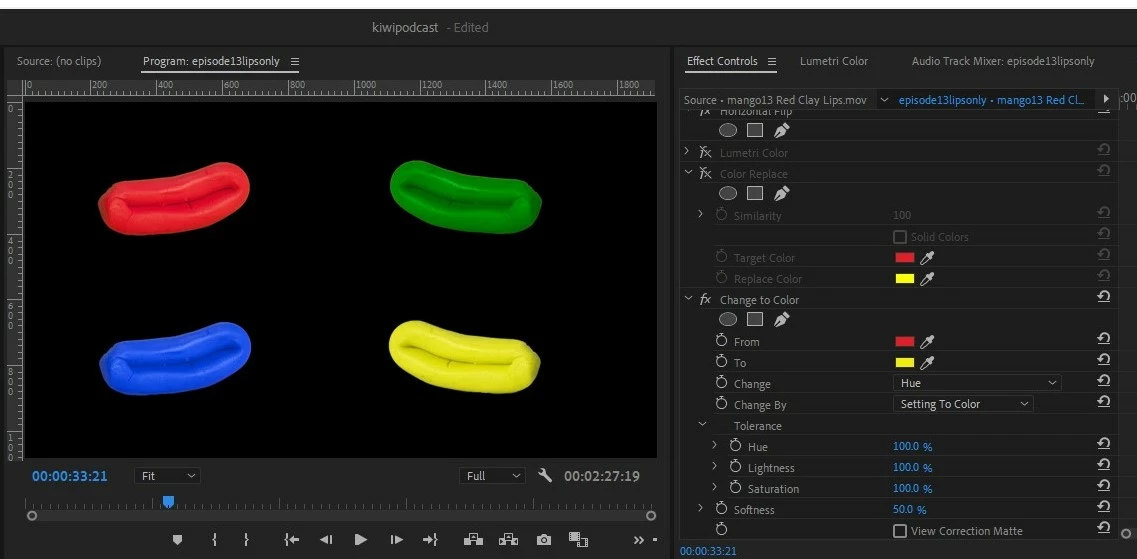
I'm using Pr 24.0. In my program monitor are four claymation lips (Character Animator puppet). (My timeline is four tracks, each set of lips on its own track.) Upper left (red) is the original color. The other three clips are recolored with Pr effects. The blue and green came out "okay", although I would like them to be a little more crisp and bright. The bottom right is the most frustrating/confusing. Hopefully I can get some guidance that will help me with all three recolored clips, however? Please and thanks in advance. First, three screenshots:


My attempt to recolor the bottom right lips yellow with Lumetri:
 

My attempt to recolor the bottom right lips yellow with the Color Replace effect:
 

My attempt to recolor the bottom right lips with the Change To Color effect:
 

My questions:


1. Obviously, the Change To Color effect got the best result by far. But, I'm reticent to use it because, of all three, it's the one labeled "Obsolete". Since I'm doing multiple episodes with the animated lips, I don't want to use something that will completely disappear soon. Can anyone at Adobe say how much longer I can expect to be able to use this effect?


2. Much bigger and more confusing is: WHY is it that the obsolete effect is the one that works the best? I realize that "obsolete" means old code and it cannot be kept around forever. It will eventually be incompatible with Pr. But why is it that the newer effects can't do the job as well or as easily as the old code did?


3. More confusing: the same "Change To Color" effect is available in After Effects, and I've used it there before several times with just as great results. In Ae, it is apparently NOT an "obsolete" effect. ??? Under the circumstances, am I correct in assuming that if I want to use this effect long term, I should import these clips into Ae first simply to use "Change To Color" because it works there but may not work much longer in Pr? I'm struggling with the logic on that. It seems like a very unnecessary extra step.  Is it truly the same effect in both apps? Why is it obsolete in one but not the other?


4. Am I perhaps just using the Lumetri or the Color Replace effects incorrectly? I have watched multiple tutorials and did as much tweaking as I could with each, but I just couldn't achieve a bright, clear yellow. (Change to Color was perfect and fast.) YouTube teachers seem to be able to get results that I can't for some reason.


5. Which leads to my final concern, which is: are my specs the problem?

 

Thank you to anyone who responds.

This topic has been closed for replies.

4 replies

Kevin J. Monahan Jr.
Legend
October 31, 2023

Hi @cre8vimp,

Another variation is that you could make a mogrt in AE with that effect and, once installed, it will work in Premiere Pro. It works fine.


Thanks,
Kevin

Kevin Monahan - Sr. Community and Engagement Strategist – Adobe Pro Video and Audio
R Neil Haugen
Legend
October 31, 2023

Slick idea, Kevin ... 

Everyone's mileage always varies ...
cre8vimpAuthor
Legend
October 31, 2023

Thank you both @Mike Dziennik and @R Neil Haugen for your replies! A lot of helpful information here. 🙂


I also heard back from Colin Smith at VideoRevealed, and he said some similar things (for instance, start with grayscale) along with another major lightbulb I would NEVER have though of. He said that Premiere Pro was actually not the best app to do that kind of color change in. He said Pr is designed to deal with real footage, shot with a camera, and to make color adjustments that resemble or suggest the real world (I'm paraphrasing). His method involved using Photoshop and After Effects. His insight is that Ae is a VFX app designed to deal with synthetic visuals, such as those cartoon lips. Duh! That makes so much sense now. He achieved a nice bright yellow that I was looking for as well. So yes, I guess there are many ways around the barn.

R Neil Haugen
Legend
October 31, 2023

MIke's got a fascinating way to do this ... I think my first step would be doing this with the HSL Secondary tab, which is the direct replacement for change to color.


But his method also works quite well!

Everyone's mileage always varies ...
Mike Dziennik
Community Expert
Community Expert
October 31, 2023

We should start a megathread and try to come up with as many ways of doing it as possible. The more convoluted the better. 😆

R Neil Haugen
Legend
October 31, 2023

You could do Jarle Leirpoll's track matte method ... alt/drag a clip up a track, drop. Repeat a second time, so the same clip is on V1, V2, V3.


Then go to the V3 clip, set the Lumetri HSL secondary key mask to black/white, set the key to the color you want to replace. With a good key, leave the mask on. 


Now go to V2, drag/drop the Track Matte effect onto it. Set pull from to V3, type to Luma, then go to the Color workspace. Anything you do in Lumetri is only applied to the area selected in the mask on V3, and is applied directly to the clip on V1, no matter what Lumetri you may have on that clip.


You can even use a mask on the Lumetri effect on V2 to further isolate an area to be affected.


I've done up to six (6!) levels of this, doing a new pair of tracks up, set the same way, for each level.

Everyone's mileage always varies ...
Mike Dziennik
Community Expert
Community Expert
October 31, 2023

I would suggest recolouring using Lumetri (as it is powerful  and GPU accelerated), though it might not be as intuitive as the other effects you're tried (because nothing about colour is straight-forward).


I've duplicated the red lips and moved them down to the bottom right corner.

There are multiple ways of doing it, but one way is to remove the colour using the Saturation slider in the 'Basic Correction' tab. Then add yellow back in using the colour wheels as I have done in this screenshot. You could also use the curves: pull the blue curve down and then play with the white/all channels curve to taste. This way you are adding yellow to grayscale rather than adding yellow to red (which is likely to give you orange and will be he harder to get a 'clean yellow').