Inspiring
December 18, 2023
Answered

Unable to break out nested layers when using nest as source

  • December 18, 2023
  • 44 replies
  • 5394 views

Today has been a day I'd rather forget in Premiere Pro 4.1.0. I'll just report this persistent bug here which is killing my normal workflow but t's not the only one to hit me today.


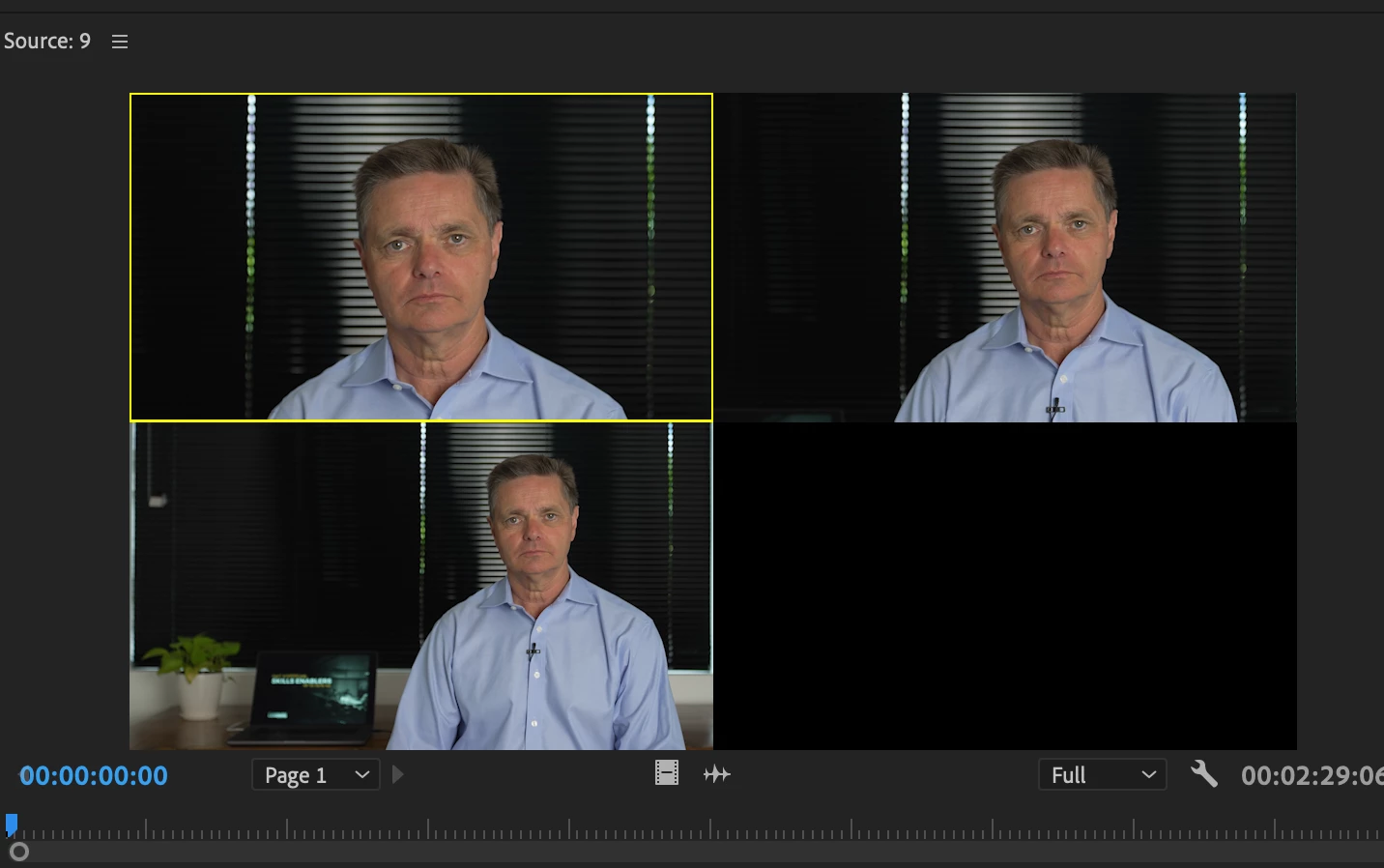
1. I often shoot in 4K and create a multicam source with the source reframed in 1080P as below
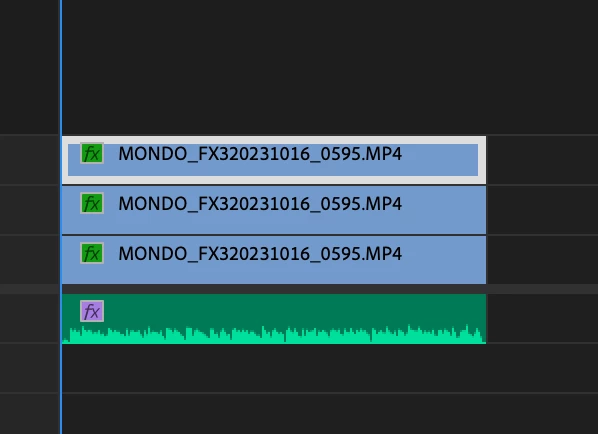
2. I then use that multicam as a source as seen above

3. I cut it into the sequence as nested video
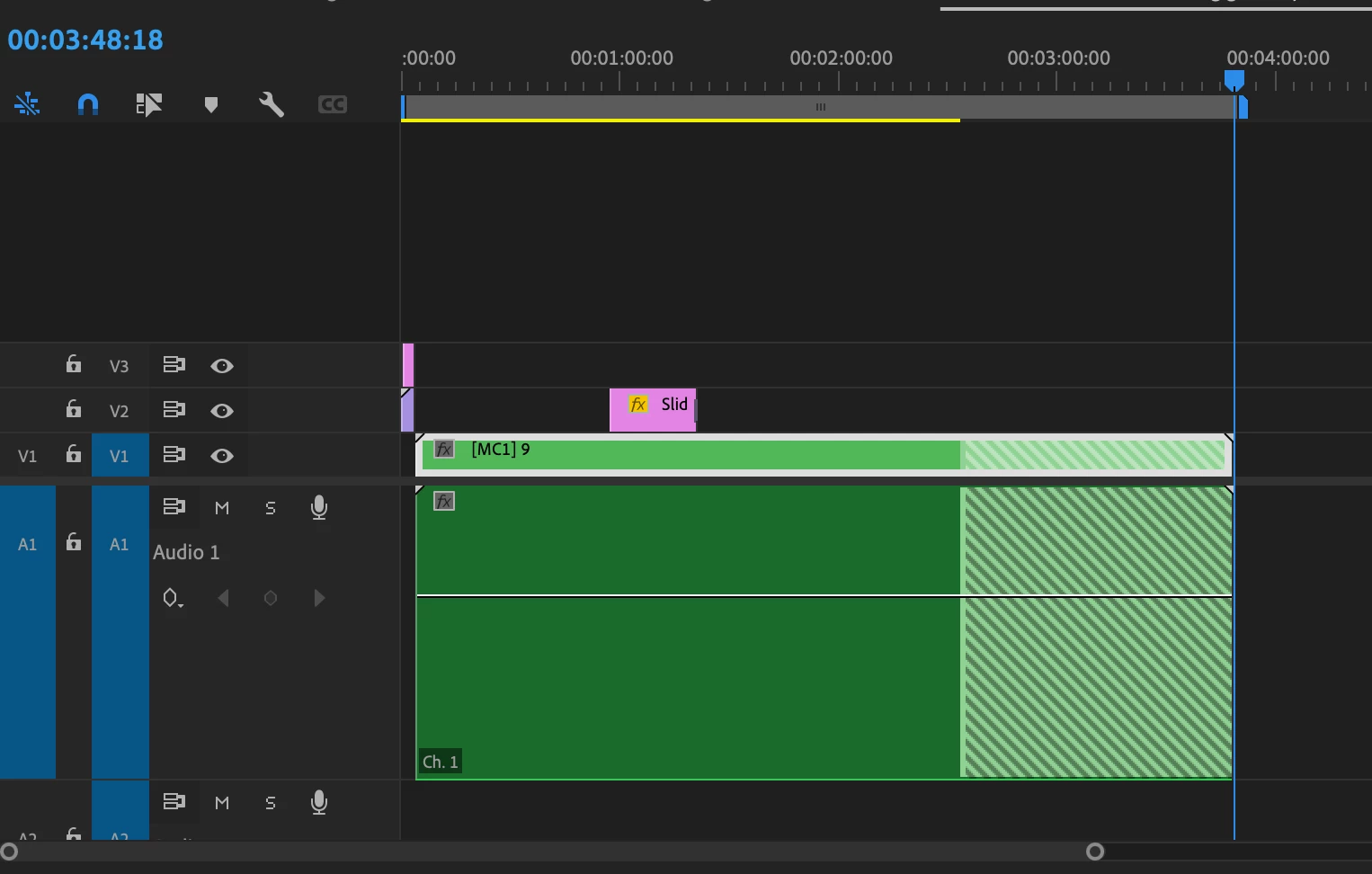
4. But I like to cut my raw audio in for two reasons - it may need to be adjusted in the essential audio panel and I like to see my waveforms when editing - something that doesn't work in multicam audio (why Adobe? A topic for another discussion)

5. This is a workflow that I've used a thousand times before - both on this kind of multicam and 4 camera multicams - any kind of multicam. Today it's broken... if you look at the image above and below, no matter which way I toggle the nested source button it does not un-nest (is that a word?). I cannot see my nested source tracks, it only appears as source nest.
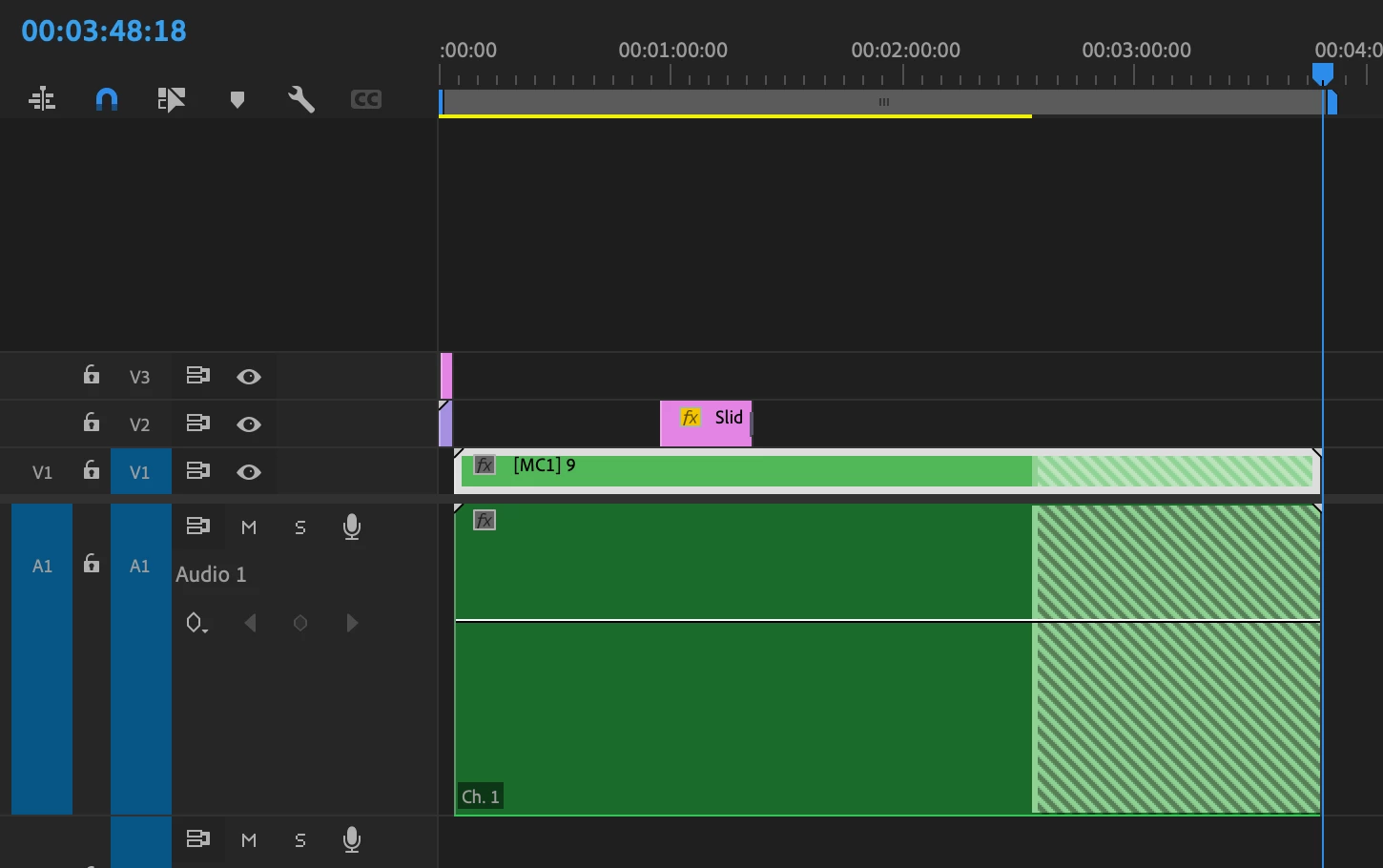
I should be able to see my individual video and audio tracks from the source. ie V1, V2, V3 and A1 - A5. this is breaking a significant workflow for me. 


I've tried making sure I have the source window selected (becaue I've noticed sometimes PP will ignore the source if you've previously dragged something straight form the project window), taking the sequence I'm editing into out of multicam mode (not that that has ever affected it before) but it's broken. At least for my setup. 


Yes, I can work around it by copy and pasting from the source but it involves a number of additional steps to keep the audio in sync that I wouldn't normally have to do.


System specs MacBook Pro


  •          Model Name:    MacBook Pro
  •          Model Identifier:        MacBookPro18,2
  •          Model Number:         MK1A3X/A
  •          Chip: Apple M1 Max
  •          Total Number of Cores:      10 (8 performance and 2 efficiency)
  •         Memory:  32 GB
  •          System Firmware Version: 10151.41.12
  • Operating System: Sonoma 14.1.1


This topic has been closed for replies.
Correct answer Ben Insler
could you at least put it to a vote?


Not to worry @JOHN MONDO, any opinions voiced are considered a vote cast, so the vote's been ongoing the momemt you started this tread 🙂   


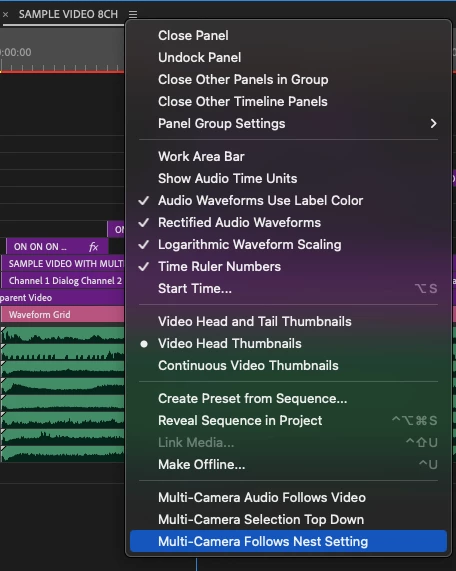
We have restored this functionality with a new preference in the timeline panel menu called Multi-Camera Follows Nest Setting.  When enabled, cutting Multi-Cams into a sequence will revert back to the old behavior where the ...Nests or individual clips toggle is respected.  This is available right now in Beta.  Keep an eye on future version release notes for non-Beta availability.


Thanks for all the feedback from everyone here!


44 replies

Inspiring
December 21, 2023
Make "selection follows playhead" off a sticky selection rather than defaulting to on every time a project restarts?

This is sticky.  However, your Lumetri Color panel requires it to be enabled and will turn it back on if you turn it off.  Try closing your Lumetri Color panel when you don't need it.


You're right - let's break this out into a separate thread as it is something that needs discussion. Because, like a lot of editors I have a dual screen setup where Essential Graphics, E Sound and the Lumetri Panel are always open.

Inspiring
December 21, 2023

No, this behavior has not changed.  The tendency here is to want to build a Multi-Cam and then crash everything down to just the necessary tracks that reflect the angles you need with stop and starts in those tracks.  But, as mentioned above, this is dangerous.  The correct way to approach this is to make a Multi-cam (A) from only the first recording from each angle regardless of how many stop/starts you had during the take.  This will build the Multi-Cam correctly without extraneous stop/start angle tracks.  Then, make a separate single Multi-Cam Source Sequence (B) of all stops and starts across all angles, and crash that down to just the angles/tracks you need to accommodate the correct number of angles with stops and starts.  Once that's done, copy all the crashed down clips from B and paste them into the first Multi-Cam A (overwritting the original three that are in there).  This now gives you all your stops and starts per angle, in a correctly configured Multi-Cam Source Sequence that you have not modified on a track level (and at this point you can delete B; A is your hero Multi-Cam).


Actually it does work - I tested it yesterday. I used the Camera Angle metadata tag to change all my shots to a single camera (BTW you can't do this all at once you have to do it individually clip by clip which seems odd). You can also use the camera label metadata.

This is determined by the Audio: Sequence Settings option in the Create Multi-Camera Source Sequence dialog.

Camera 1: Configures the Multi-cam to only use audio from Camera 1.  All other camera audio will be muted.

All Cameras: Configures the Multi-cam to use all audio from all cameras at once.  No camera will be muted.

Switch Audio: Configures the Multi-Cam to switch audio camera to camera, so your audio can follow video when camera angles are switched


Not really important but if you have not labelled your cameras how does PP "know" which is Camera 1. In this case it treated my Audio Recorder as camera 1 which gave the correct result.


I still want to go into the multicam and create extra video angles

Unfortunately this is one of those things that you don't want to be doing inside a Multi-Cam.  Adding and/or subtracting video and audio tracks from an existing Multi-Cam Source Sequence can result in very unpredictable flattening results that are hard to troubleshoot.


Well I've been doing it for years and the results seem pretty predictable to me. In what way do they become "unpredictable"? For example for a live event with Powerpoint slides I've actually gone into the multicam and added the full frame slides in time with the slides changing on the screen and then used them as a multicam source. Saves hours. I've also done the 4K trick where I duplicate the camera track and have a close up and a wide. The only thing unpredictable is the way PP displays those reframed angles on playback in the multicam window. Not a huge issue - you still know which is the close up and wide.


You really do not have to be jumping through all these hoops - Multi-Cam handles it all for you.  You're shooting in 4K but editing in 1080p, so you make your Multi-cams, open up each one in the timeline, change its dimensions to 1080p, and scale down each angle (for simplicity sake, let's just assume your 4K footage is scaled to exactly 50%).  This way all your Multi-Cams cut into your edit at full frame.  This is all spot on.


Now you seem to be saying I can change things in the multicam like dimensions and colour correction. 


From this point, if you want to push in on a shot (let's say 200%), you're right, you don't want to push in on the already reduced Multi-Cam.  So you can just flatten the Multi-Cam.  


This is indeed a more elegant way to achieve my desired result. Thanks for the tip. This is the way I will tackle this situation in the future.


Thanks for working with me Ben and the detailed responses- I now have a totally new and more efficient multicam workflow. However I will continue to use the reframing 4K trick inside multicams. I'm comfortable with how PP treats those clips. 


R Neil Haugen
Legend
December 21, 2023

Ben,


Thanks for the detailed reply. While I don't assume everything will make everyone happy, at least we know a lot more of how multicams work. As a practical matter, more knowledge is always more better.


@Jarle Leirpoll @Warren Heaton10841144 ... your participation would be appreciated.

Everyone's mileage always varies ...
Community Manager
December 21, 2023

@JOHN MONDO 

I still want to go into the multicam and create extra video angles

Unfortunately this is one of those things that you don't want to be doing inside a Multi-Cam.  Adding and/or subtracting video and audio tracks from an existing Multi-Cam Source Sequence can result in very unpredictable flattening results that are hard to troubleshoot.


Also if I have multiple button on and offs I don't want to end up with a multicam with a hundred different audio channels and a hundred different video tracks. Which is what happens because PP treats each clip as a new video and audio track. Has this behaviour changed? Can I now set everything from the same camera via angle metadata to end up on the same track?

No, this behavior has not changed.  The tendency here is to want to build a Multi-Cam and then crash everything down to just the necessary tracks that reflect the angles you need with stop and starts in those tracks.  But, as mentioned above, this is dangerous.  The correct way to approach this is to make a Multi-cam (A) from only the first recording from each angle regardless of how many stop/starts you had during the take.  This will build the Multi-Cam correctly without extraneous stop/start angle tracks.  Then, make a separate single Multi-Cam Source Sequence (B) of all stops and starts across all angles, and crash that down to just the angles/tracks you need to accommodate the correct number of angles with stops and starts.  Once that's done, copy all the crashed down clips from B and paste them into the first Multi-Cam A (overwritting the original three that are in there).  This now gives you all your stops and starts per angle, in a correctly configured Multi-Cam Source Sequence that you have not modified on a track level (and at this point you can delete B; A is your hero Multi-Cam).


In the project I'm working on the audio recorder had 4 discrete mono tracks (only one of which I needed) and the camera had a stereo audio track. Somehow the resultant multicam only had 4 channels of audio? And it was on automatic. PP seems to automatically assume the camera audio is not needed (it wasn't) because it mutes it in the multicam and does not provide access to it from the source. It's clever but inflexible.

This is determined by the Audio: Sequence Settings option in the Create Multi-Camera Source Sequence dialog.

Camera 1: Configures the Multi-cam to only use audio from Camera 1.  All other camera audio will be muted.

All Cameras: Configures the Multi-cam to use all audio from all cameras at once.  No camera will be muted.

Switch Audio: Configures the Multi-Cam to switch audio camera to camera, so your audio can follow video when camera angles are switched

I use 4K source media, so I might have two or three cameras at a live event all shooting 4K - I'll go into the multicam source and change it to 1080P and reframe my shots accordingly, duplicating tracks etc. But say none of them end up at 100% and there are two instances during the event where I need that full 4K resolution and need to reframe a shot differently. You lose resolution if you scale up something that has already been scaled down in a nest and of course your edges are cropped unless after re-framing the shot you reset your multicam source back to 4K. One way is to have access to the original source tracks. Simply matchframe the multicam switch to "un-nest" mode and cut the original clip in above the multicam. Hey presto - full 4K to work with as you please in your master, in sync - even track something if you have to.

You really do not have to be jumping through all these hoops - Multi-Cam handles it all for you.  You're shooting in 4K but editing in 1080p, so you make your Multi-cams, open up each one in the timeline, change its dimensions to 1080p, and scale down each angle (for simplicity sake, let's just assume your 4K footage is scaled to exactly 50%).  This way all your Multi-Cams cut into your edit at full frame.  This is all spot on.


From this point, if you want to push in on a shot (let's say 200%), you're right, you don't want to push in on the already reduced Multi-Cam.  So you can just flatten the Multi-Cam.  When Premiere Pro flattens, it not only replaces the used Multi-Cam with its source media, but it also automatically combines any math done inside and outside of the Multi-Cam so that your visible frame remains unchanged.  In this case, you can copy your Multi-Cam up to V2 (keeping the active Multi-Cam on V1), and when you flatten V2, even though the Multi-Cam is scaled to 100%, the clip inside the Multi-Cam is scaled to 50%, so the resulting flattened source clip will inherit the 50% scale (0.5 * 1).  You now have your full resolution source clip which you can continue to scale as necessary without any nested rescale degradation, starting from exactly how it was presented in the sequence when it was within the Multi-Cam.  Now, since you're working with a full resolution source clip instead of a scaled down Multi-Cam, you'll only need to punch in to 100% to equal the 200% you initially wanted.  And, of course, since you're now working with the original full resolution flattened media, the cropping you were concerned about by working through the Multi-Cam is no longer an issue.


We can actually take this farther.  You don't have to flatten the Multi-Cam first (although it's probably better practice to do so).  Again, you duplicate the Multi-Cam up to V2, and then on the V2 Multi-cam, you find your frame by scaling it up to 200%.  You can then flatten the V2 Multi-cam, and Premiere Pro will do the same math.  200% outside and 50% inside = 2 * 0.5 = 1 = 100%.  You'll notice if you do it this way that your degraded double scale on the Multi-Cam will snap into sharp focus when you flatten the Multi-cam, as the correct final scale is applied to the resulting source clip.


But for some reason one of your operators during the shoot left their white balance on auto and at random spots the camera changed. The only way to fix it is to go into the multicam, splice around the problem area and change the colour correction - or you could just cut the correct angle in above your sequence and change the colour correction there. Flexibility. That's what it's about.

Exactly.  Duplicate up to V2, flatten, color correct further.  Your color corrected source in the Multi-cam will maintain is color correction filter through the flatten process.  You can then tweak it after flattening, remove it and start over, or even stack another one as a secondary correction.  


For one reason or another it looks like you have built a workflow around using the Insert or overwrite sequences as nests or individual items setting to do what Multi-Cam flattening already takes care of for you.  I think you'll come to see that utilizing flatten is much more flexible, and you won't need to rely on Insert or overwrite... nearly as much.


"Insert or overwrite sequences as nests or individual clips is still set to individual clips, so the Multi-Cam does not cut in correctly. Instead, since it's being treated like a sequence, all the components of the Multi-Cam are cut into my edit sequence. This is the opposite of what we want, even though we've changed no settings whatsoever."


The question is why would this be a problem? If you don't want to work this way then you never have to set that switch the other way. Far from causing endless problems it's a one time thing.

Sadly, it's exactly the opposite.  99% of the time one wants a sequence cut in as individual items, and a Multi-Cam cut in as a nest (since a Multi-cam is a nest with Multi-cam Enabled).  There is no single state of the Insert or overwrite... setting that handles this.  Either both cut in as individual items, or both cut in as nests.


I'm still not understanding why Adobe changed the functionality? It wasn't breaking anything and as you said gives a great deal of flexibility

Hopefully it clearer now after the above details.  All of the flexibility you're looking for still exists without this setting applying to Multi-Cams, and refining this functionality removed an inconsistency that should not have existed with Multi-Cams behaving like sequences when they shouldn't.


BTW while I have your attention...

These should really be new posts so that other users looking for answers can find them as well.  You're always welcome to @ me in new posts if you want to ask me things directly.  That said...


Any movement on translating LTC to metadata timecode?

Nothing to report at the moment.


Make "selection follows playhead" off a sticky selection rather than defaulting to on every time a project restarts?

This is sticky.  However, your Lumetri Color panel requires it to be enabled and will turn it back on if you turn it off.  Try closing your Lumetri Color panel when you don't need it.

Inspiring
December 20, 2023

You too Neil - always super helpful and ready to share.

R Neil Haugen
Legend
December 20, 2023

John,


I love your posts on thus forum. Detailed views of specific workflows and needs. Including where something works well and where it doesn't, both in detail.


Which makes reading them both interesting and a learning experience. Thanks for participating as you do!

Everyone's mileage always varies ...
Inspiring
December 20, 2023

"Insert or overwrite sequences as nests or individual clips is still set to individual clips, so the Multi-Cam does not cut in correcly.  Instead, since it's being treated like a sequence, all the components of the Multi-Cam are cut into my edit sequence.  This is the opposite of what we want, even though we've changed no settings whatsoever."


The question is why would this be a problem? If you don't want to work this way then you never have to set that switch the other way. Far from causing endless problems it's a one time thing. I've actually found this discussion illuminating. Having how the multicam audio waveforms explained will definitely change my workflow. I'd still like to have access to my source video tracks because I hate having to go into a multicam, introduce a splice at an in point, go back out of the multicam and to the outpoint and back into the multicam, add another splice and then adjust that indivdual part of the multicam, turn off the video tracks I don't want to adjust (as there is no solo on video tracks) and make sure I select the correct track to adjust. However I can (mostly) work around this by ensuring the source multicam is still in 4K. It won't help with random colour corrects but for re-frames should be fine. 


BTW while I have your attention any movement on translating LTC to metadata timecode? Make "selection follows playhead" off a sticky selection rather than defaulting to on every time a project restarts?

Inspiring
December 20, 2023

Hi Ben - to answer your question I use 4K source media, so I might have two or three cameras at a live event all shooting 4K - I'll go into the multicam source and change it to 1080P and reframe my shots accordingly, duplicating tracks etc. But say none of them end up at 100% and there are two instances during the event where I need that full 4K resolution and need to reframe a shot differently. You lose resolution if you scale up something that has already been scaled down in a nest and of course your edges are cropped unless after re-framing the shot you reset your multicam source back to 4K. One way is to have access to the original source tracks. Simply matchframe the multicam switch to "un-nest" mode and cut the original clip in above the multicam. Hey presto - full 4K to work with as you please in your master, in sync - even track something if you have to. Another reason - colour correction. It's a lot faster to colour correct the cameras to match in the source multicam. You're not dealing with adding multiple colour corrects to the sequence timeline - instead it's all done for you in the multicam. But for some reason one of your operators during the shoot left their white balance on auto and at random spots the camera changed. The ony way to fix it is to go into the multicam, splice around the problem area and change the colour correction - or you could just cut the correct angle in above your sequence and change the colour correction there. Flexibility. That's what it's about.

Inspiring
December 20, 2023

I'm still not understanding why Adobe changed the functionality? It wasn't breaking anything and as you said gives a great deal of flexibility and is one of he main reasons I won't switch to Resolve because their multicam is inflexible.  I still want to go into the multicam and create extra video angles. The fact that I can no longer edit the untouched tracks individually into a master sequence is annoying. I can work around it, but I'm still not understanding the necessity to change something that wasn't broken.


Also if I have multiple button on and offs I don't want to end up with a multicam with a hundred different audio channels and a hundred different video tracks. Which is what happens because PP treats each clip as a new video and audio track. Has this behaviour changed? Can I now set everything from the same camera via angle metadata to end up on the same track? 


In the project I'm working on the audio recorder had 4 discrete mono tracks (only one of which I needed) and the camera had a stereo audio track. Somehow the resultant multicam only had 4 channels of audio? And it was on automatic. PP seems to automatically assume the camera audio is not needed (it wasn't) because it mutes it in the multicam and does not provide access to it from the source. It's clever but inflexible.

Community Manager
December 20, 2023
I strongly disagree with this change which gave me the flexibility to do a number of things, including cutting in source video tracks above the multicam line in case I need to specifically reframe a single shot and I didn't want to change the whole multicam (has happened plenty of times on live shoots)

@JOHN MONDO Can you explain a little more how this workflow is helpful?  You can always apply motion attribute changes, effects, etc. to an individual Multi-Cam instance used in a sequence without affecting other uses of that same Multi-Cam in the sequence, and without affecting the source Multi-Cam in its entirety.  You can also always switch angles and Remove Attributes to restore the multicam to its unaffected state so that any work done on one angle is not inherited when the angle is switched.


What's the purpose of using the sources above the Multi-Cam the way you described?  It's kind of obfuscating the benefits of using Multi-Cams in the first place.