


Unable to break out nested layers when using nest as source
Today has been a day I'd rather forget in Premiere Pro 4.1.0. I'll just report this persistent bug here which is killing my normal workflow but t's not the only one to hit me today.
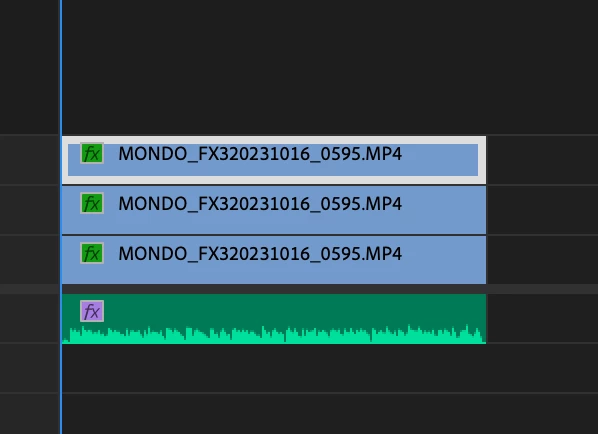
1. I often shoot in 4K and create a multicam source with the source reframed in 1080P as below
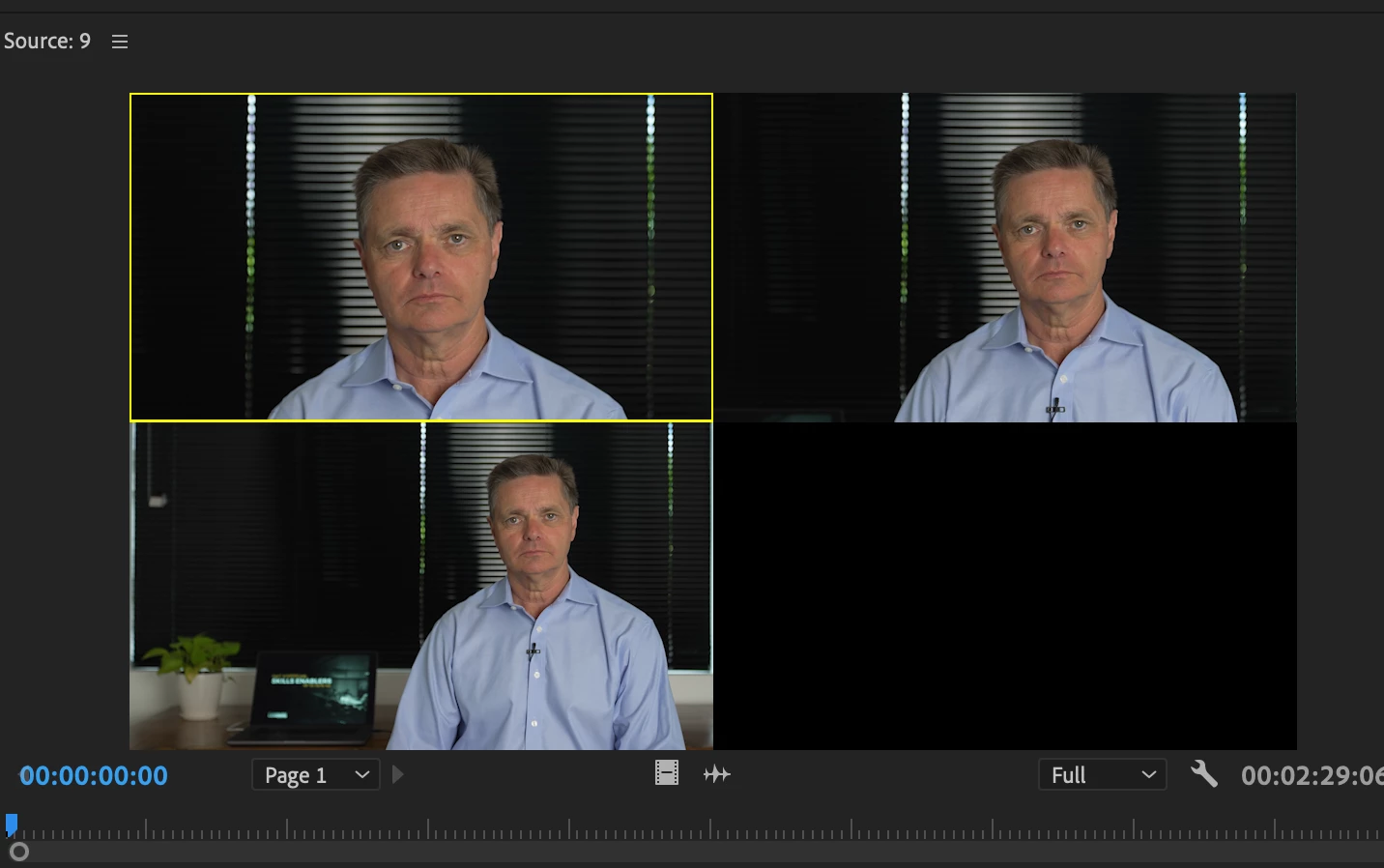
2. I then use that multicam as a source as seen above
3. I cut it into the sequence as nested video
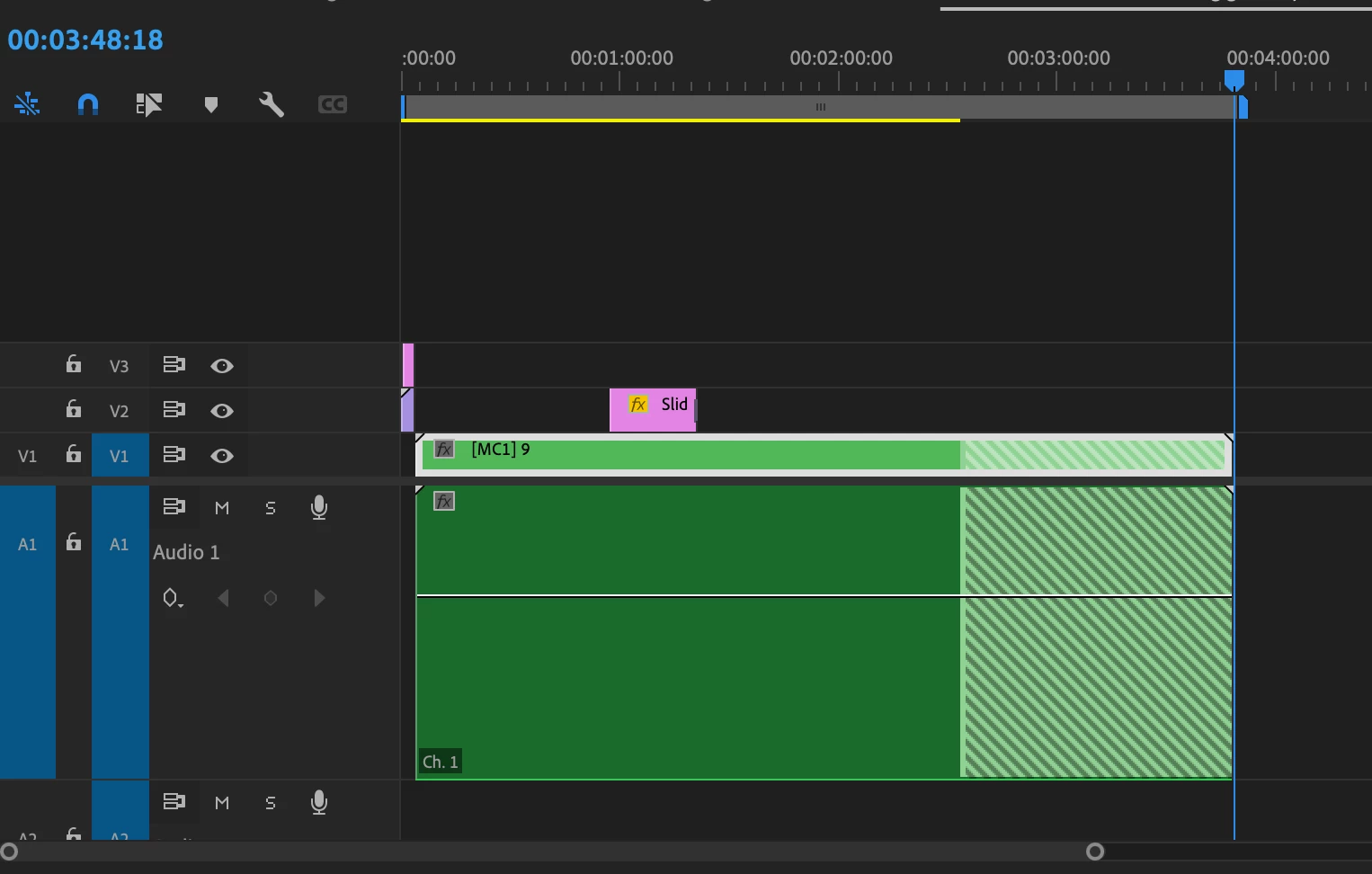
4. But I like to cut my raw audio in for two reasons - it may need to be adjusted in the essential audio panel and I like to see my waveforms when editing - something that doesn't work in multicam audio (why Adobe? A topic for another discussion)
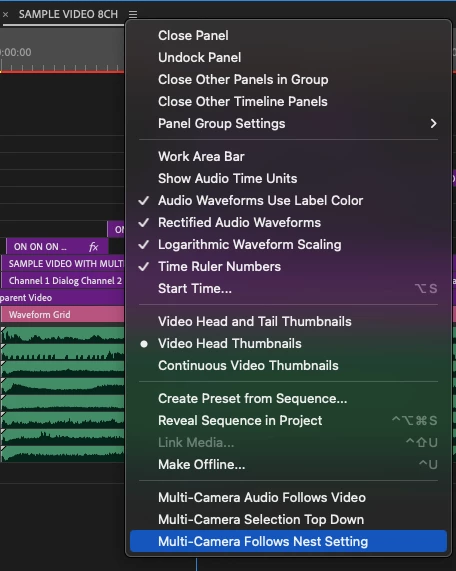
5. This is a workflow that I've used a thousand times before - both on this kind of multicam and 4 camera multicams - any kind of multicam. Today it's broken... if you look at the image above and below, no matter which way I toggle the nested source button it does not un-nest (is that a word?). I cannot see my nested source tracks, it only appears as source nest.
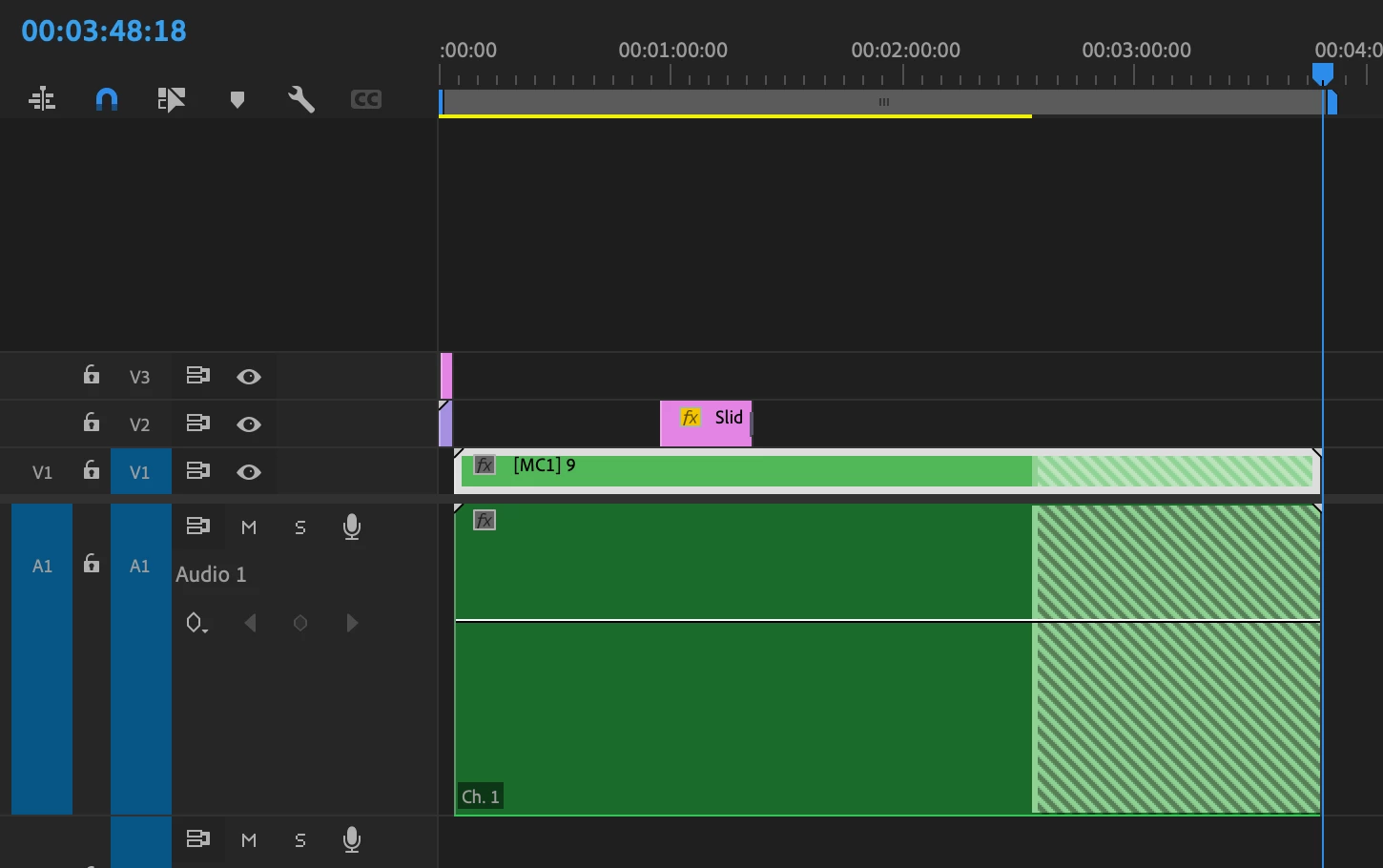
I should be able to see my individual video and audio tracks from the source. ie V1, V2, V3 and A1 - A5. this is breaking a significant workflow for me.
I've tried making sure I have the source window selected (becaue I've noticed sometimes PP will ignore the source if you've previously dragged something straight form the project window), taking the sequence I'm editing into out of multicam mode (not that that has ever affected it before) but it's broken. At least for my setup.
Yes, I can work around it by copy and pasting from the source but it involves a number of additional steps to keep the audio in sync that I wouldn't normally have to do.
System specs MacBook Pro
- Model Name: MacBook Pro
- Model Identifier: MacBookPro18,2
- Model Number: MK1A3X/A
- Chip: Apple M1 Max
- Total Number of Cores: 10 (8 performance and 2 efficiency)
- Memory: 32 GB
- System Firmware Version: 10151.41.12
- Operating System: Sonoma 14.1.1
 AdChoices