
Participant
November 7, 2016
Answered

Unable to edit open caption text (Premiere Pro 11.0)

  • November 7, 2016
  • 11 replies
  • 49272 views

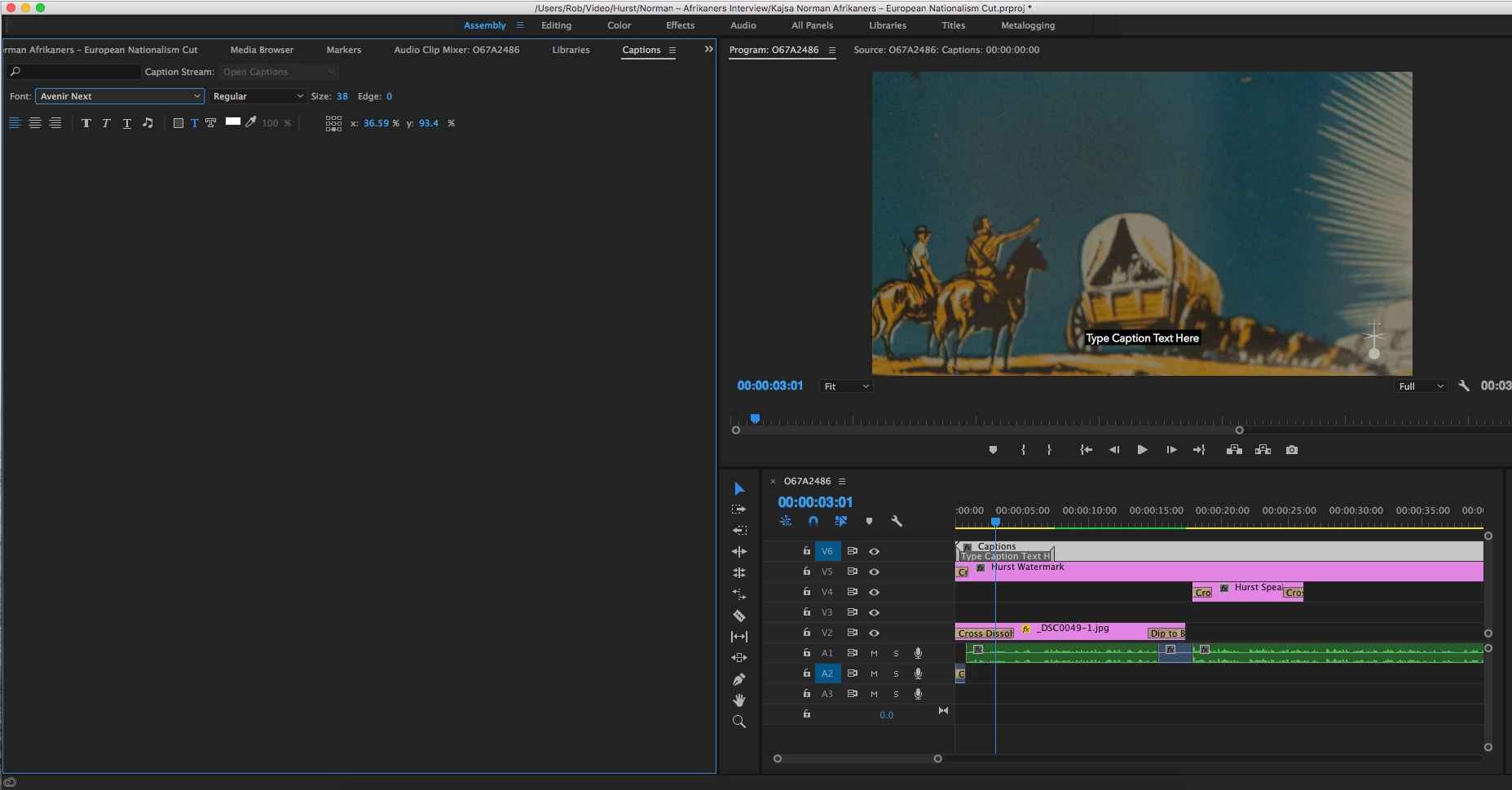
I'm trying to subtitle a video with open captions. When I click on the caption track the captions panel pops open, but the caption itself is not there and so I can't edit the text, font, styling, add further captions etc. I've managed to get it to work for one project, but for the one I'm on now I simply can't get the caption open to edit it. The screenshot attached shows the screen after double clicking the caption in the timeline – nothing there to edit, though it shows in the preview. Is this a bug in the new version of CC or am I missing something?


Premiere Pro CC 2017 11.0

Mac OSX 10.11.16


Thanks
 

!

This topic has been closed for replies.
Correct answer Ann Bens

There seems to be an issue with non default workspaces.

Reset to saved layout and try again.

11 replies

DJAH
Participant
May 10, 2019

Right click on the .srt file in the project browser and click> Modify > Captions. Here you can change the res.

After I changed the res, the subs weren’t aligned anymore. And looked like they froze…

What caused this problem is the fps going down from 1000fps to 23,97.

Now, right click again> Modify> Interpret footage.

This should fix ur problem

spent like an hour trying to find logic!! but it worked!!

Participant
July 13, 2020

This doesn't make since, but it worked.

I am using PP2020

Participant
February 6, 2018

These problems have not been solved. It is Feb 2018 and I still cannot choose the background color for closed captioning. Why have the option if it doesn't work. I have been on the phone with support for too many hours and they never solve it.

onefallswoop
Participant
June 9, 2017

I, too, am having this problem.  Attempted to perform "Window > Workspaces > Reset to Saved Layout" workaround, only to have an error pop up in the bottom-right of the screen saying "unknown workspace".

I am attempting to produce a fundraising video for my best friend, who is clinging to life next to his brand new wife in the hospital after a head on collision with a huge truck.

I've known Adobe to be cavalier with such bugs in the past, but in an age where LITERALLY OVER 70% social media video is watched using a mobile device set on "silent" while the viewer depends on open captions, THIS ISN'T EXACTLY A SMALL BUG.

I need this video WITH CAPTIONS .... NOW.

Anyone?

Participant
May 27, 2017

First bug:

I can add CEA-708 closed captions, but I can't change the background color. It was working fine for the first two captions, but now even those can't be changed. The text color can be changed reliably.

I have tried resetting my workspace to default and it does not fix the problem. Selecting a background color or one of the three opacity options (transparent, translucent, opaque) does nothing. The background stays set at Transparent.

Second bug:

Captions don't not move until I click on the grid a couple of times. By grid I mean the small 3 x 3 set of boxes next to the "Choose Color" box. I sometimes need to select a different box and then re-select my desired box. The x and y values have a very limited range (0-15?), but that may be a limitation of the CEA-708 standard.

Third bug:

Captions more than a certain number of characters wide causes the entire caption to be hidden. I must delete some text or break it into multiple lines for it to be shown.

Fourth bug:

While editing the text in a caption, pressing the up or down arrow highlights the previous or next caption instead of moving the cursor to the previous or next line. This behavior is unexpected and annoying.

Fifth bug:

The bottom-most caption is partially obscured below the bottom of the caption window. I cannot see all of the preview, nor the out timecode. See the attached screenshot.

I have submitted a bug report for the first bug using the link from the admins.

Premiere Pro 17.1.1

OS X 10.12.5

KeulerB
Inspiring
March 15, 2018

Good Morning. I just wanted to add here, since you supplied a screen shot, that you can no longer change the Font or any of its attributes like you could in 2017! I have an EBU 25fps stl file that I opened in Mac Caption and exported as an EBU Open Caption at 23.976 fps. I was STUNNED that I was not able to change the Font, Font Size, Font Edge Size and last but not least, the font face and Edge colors can no longer be customized!! All you get is a selection of basic colors and no Eye Dropper or Color Selection Tool!! This all worked great in 2017. Can we please have it back in 2018!?

Working with Caption files like this is critical to my work and will not have a place in 2018 until the 2017 functionalities are put in. When doing this type of work, I am literally stuck in 2017 as the Captions Tab in 2018 is useless to me.

As a side note: There was an ongoing issue where when editing the Captions in the Captions Window, the text would update on the left in the little preview windows, but not in the sequence. I would need to Close the Project and re-open it to see the changes. An inconvenience for sure, but one that was workable.

Now I'm headed over to the Bug Report area...

Bob K.

KeulerB
Inspiring
March 15, 2018

Hey,

Just wanted everyone to know that I sent the following update to the Adobe Bug Reporting site:

"While working with a colleague in 2017.1 on Mac OS 10.11, I realized that the Caption window has a different look (grayed out and items missing) when a Caption File is NOT selected. Once a Caption File is selected, the window becomes active and the Font Editing options appear along with other tools. In 2018, when the window becomes active, the other tools do not appear! It's as if the Caption File was still not selected. So, the window becomes active, but the editing tools do not.

This also occurs in 2017.1 on Windows 7 Pro."

So to me, it looks like a bug. Fingers crossed for a quick fix.

BK

Participant
May 13, 2017

Please,

I'm having problem with this.

If somebody find the solution, let me know!

Participant
April 12, 2017

Howdy,
Here's my workflow...
PPro 11.0.0.1 (6build)
Get SRT captions files, convert them to SCC (so I can embed into QuickTimes for iTunesU).
Import into Premiere Pro.

And... I can't access the captions with any of the recommended options from this and other posts.
I have saved many different workspace options. Have enable and disabled, using the wrench tool in the Program Monitor.

The captions go into the timeline and they will export, but I can't gain access to any editing options (I'd like to move the captions up, so I'm not covering the lower3rd).

I did find success with a project by just loading a video clip into the preview monitor, then clicking the captions....and then when using this successful project to R&D my glitchy project, I lost the ability to edit captions in the successful project. This happened I'm guessing b/c I did change the workspace to a default option, then when I changed it back to my "saved" workspace I lost caption editing capability.

Anyhow... as soon as you guys make a patch, or shoot out an update, lemme' know.....

Peace - EdTech_Video

Participant
February 27, 2017

Participant
November 10, 2016

I have the same problem, could you please explain with more details the solution?

Kevin-Monahan
Community Manager
Community Manager
November 12, 2016

Hi PaulineR,

Choose Window > Workspaces > Reset to Saved Layout

That should assist you.

Thanks,
Kevin

Kevin Monahan - Sr. Community and Engagement Strategist – Adobe Pro Video and Audio
hiflyn
Participant
November 25, 2016

Hi Kevin,

I am having the same issue ever since I updated to 2017.  I had no problem with the previous version.  Now I get no captions in the Caption window but the file is definitely there and it is displaying in the program window fine.  I need to edit a few words but can't get at this point.  I have tried doing exactly what you suggested (Choose Window > Workspaces > Reset to Saved Layout) but no luck.

Any other suggestions?  Thanks,

Kevin

Participant
November 8, 2016

I came here because I had the same problem and changing to a default UI fixed it.

Known Participant
November 7, 2016

Same problem here. Also, most fonts won't work.