


Cocobug123
New Participant
September 16, 2018
Answered

Unable to edit text in a text layer?!?

  • September 16, 2018
  • 10 replies
  • 57652 views

Any help will be enormous.  This issue is maddening.  I've used Premiere Pro to complete many projects, I'm doing the same thing I've always done: ctrl+T to place a new text layer, with the selection tool, double click the text in order to edit.  However, for whatever reason, the software is not allowing the text to edit.  No matter how many times I click the text, Im simply unable to access it. 

I've scoured the internet for any answer and no one seems to address it with any accuracy.  Please, any help is appreciated
    Correct answer Chetan27890168sb0m

    Unable to Edit Text in Premiere Pro – Fixed with Toggle Proxies

    Hi everyone,

    I recently ran into a problem in Premiere Pro where I could not edit text at all. I tried searching YouTube tutorials and Adobe community posts, but nothing seemed to solve it.

    After some brainstorming (and help from ChatGPT), I finally found the fix:

    Solution:

    - Go to your Program Monitor (preview window).

    - Click the “+” Button Editor at the bottom.

    - Add the Toggle Proxies button to your toolbar.

    - Simply switch proxies ON and then OFF.

    That instantly resolved my text editing issue. 🎉

    Hopefully this saves someone else hours of frustration!

    10 replies

    Chetan27890168sb0mCorrect answer
    New Participant
    August 20, 2025

    Unable to Edit Text in Premiere Pro – Fixed with Toggle Proxies

    Hi everyone,

    I recently ran into a problem in Premiere Pro where I could not edit text at all. I tried searching YouTube tutorials and Adobe community posts, but nothing seemed to solve it.

    After some brainstorming (and help from ChatGPT), I finally found the fix:

    Solution:

    - Go to your Program Monitor (preview window).

    - Click the “+” Button Editor at the bottom.

    - Add the Toggle Proxies button to your toolbar.

    - Simply switch proxies ON and then OFF.

    That instantly resolved my text editing issue. 🎉

    Hopefully this saves someone else hours of frustration!

    caroline_edits
    Community Manager
    Community Manager
    August 20, 2025

    Thanks for sharing what worked for you! That will help other users who come to this thread.


    Appreciate it,

    Caroline

    New Participant
    September 17, 2022

    Reseting the workspace worked for me on a Mac.

    duncand60488316
    New Participant
    October 12, 2021

    If you are in RGB, change it to CMYK. Then switch back to RGB.

    If you are in CMYK, change it to RGB. Then switch back to CMYK.

    It will now work.

    jane-e
    Community Expert
    October 12, 2021

    @duncand60488316 wrote:

    If you are in RGB, change it to CMYK. Then switch back to RGB.

    If you are in CMYK, change it to RGB. Then switch back to CMYK.

    It will now work.


    @duncand60488316 


    You posted the same bad advice in the Photoshop forum:

    https://community.adobe.com/t5/photoshop-ecosystem-discussions/type-layer-not-editable-and-type-tool-not-working/m-p/12445846#M589160


    Switching back and forth between RBG and CMYK is a big NO-NO as it permanently changes the color information. If the conversion needs to be made, it should be made once.


    https://helpx.adobe.com/photoshop/using/converting-color-modes.html

    "When you choose a different color mode for an image, you permanently change the color values in the image. For example, when you convert an RGB image to CMYK mode, RGB color values outside the CMYK gamut (defined by the CMYK working space setting in the Color Settings dialog box) are adjusted to fall within gamut. As a result, some image data may be lost and can’t be recovered if you convert the image from CMYK back to RGB."


    ~ Jane


    New Participant
    July 11, 2021

    Hello, so none of these solutions worked for me, so what helped is that if you select the desired graphic, and press "T",  you'll see the red boundaries and can now edit.

    New Participant
    August 23, 2021

    Thank you kind stranger. 

    Participating Frequently
    June 3, 2021

    This issue has just hit me too. So I create a line of text (doesn't matter if its lagacy or the newer essential graphics) then try to edit the colour, outline .. anything to do with style, and Premiere crashes. I have to resort to Task Manager to shut it down.  This has started to happen in the last day and, frankly, renders Premiere useless for anyone that needs to title content on the fly. The 'correct' answer in this thread, doesn't address the issue.


    Stefan_Krapf
    New Participant
    October 28, 2020

    Hi

    I think that it has nothing to do with graphics driver or reseting workspace or something like this.

    Because I had the same problem and then I was loading a standard workspace and then loading my workspace again - with no effect.

    Then I load a standard workspace again where text editing was working and recreated my own workspace from scratch again.

    But unfortunately when I was finished with my workspace the same problem was appearing again.

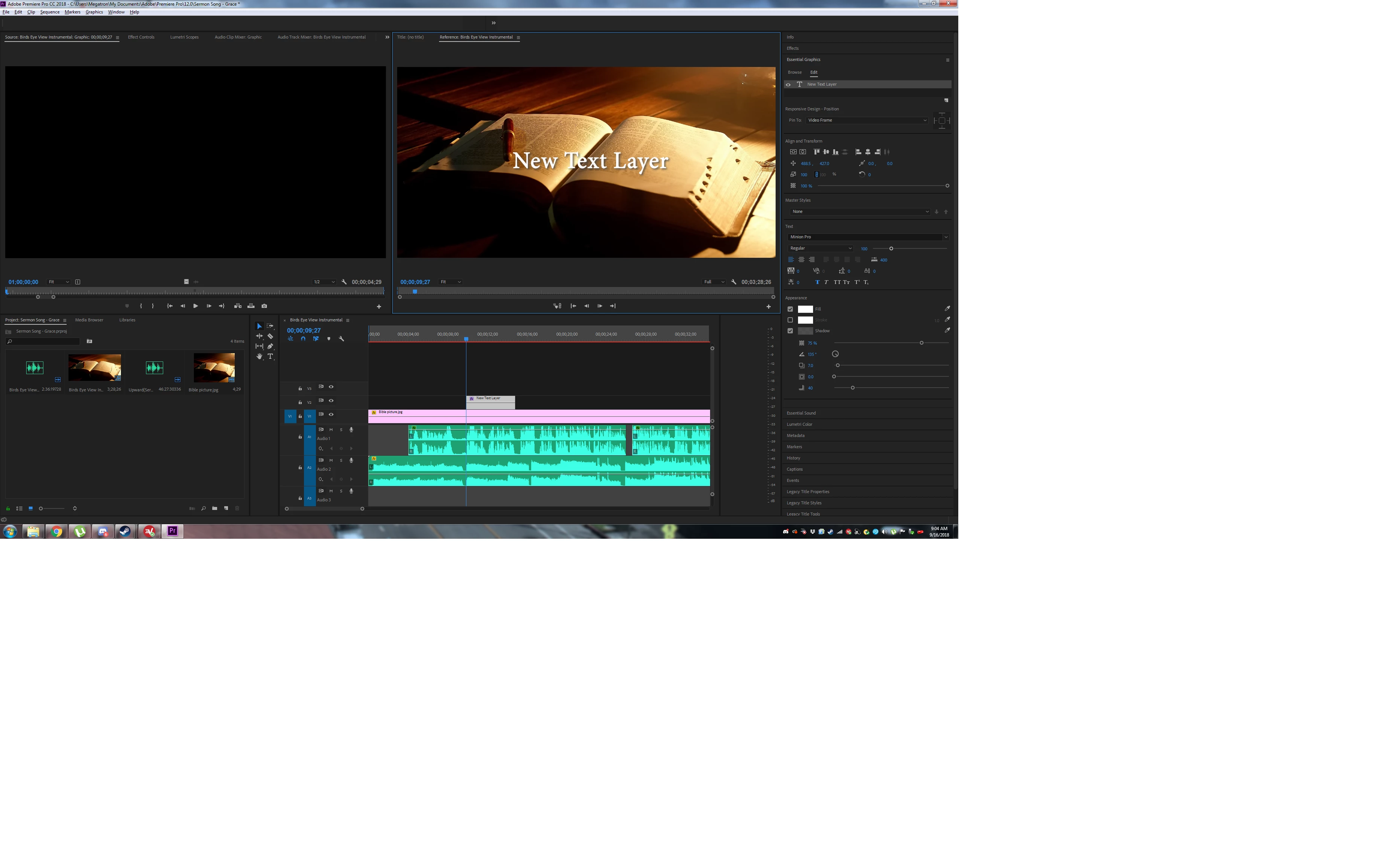
    Then I found out that after opening the "Reference Monitor" the problem was appearing!

    The problem was, that on this monitor unter the tool wrench icon, neither "Video" nor "Alpha" was selected in the menu!

    After selecting one of the two, everything was working correctly again!

    After selecting Video or Alpha it is not possible to deselect this selection again - in other words, as soon as you choose one of the two, it is not possible to choose neither of the two again.

    For me, this is clearly a bug, because it should be selected Video or Alpha as standard and it should not happen that nothing is selected.

    Stefan_Krapf
    New Participant
    October 28, 2020

    By the way, this was happening after upgrading from v14.4 to v14.5 today.

    The graphics driver I did update some days before, but this didn't produce this error.

    New Participant
    September 18, 2020

    I am also unable to edit text. I have scrupelously followed all the recommendations within the thread and am still unable to make changes. I'm currently working on the 1-week free trial. I will not move forward with this software if there isn't a solution to this bug. Please help. 

    New Participant
    September 18, 2020

    I found a fix for my problem. There is a 'Source Graphics' panel used to review video sources before you place them in the timeline. This window was missing on my screen. I added the 'Source Graphics' panel back > selected the 'Effects Controle" tab on the top of this window >selected the 'Test Footage * Graphics' tab just below that > manually selected the text in that window that I needed to edit > followed the typical advice to double click the text with the selection tool or to select with the text tool. Hurray! This worked for me. 

    MyerPj
    Community Expert
    February 4, 2020

    Hi Leannac, do you have scaling set to say 125% in Windows Display Properties? If so, that will be a problem. Try 100% and if you must scale use 150%. Let us know.

    New Participant
    February 4, 2020

    MyerPj, you're a genius, that worked - i set it to 150 and BOOM my red border and cursor are back!! Thank you tons. 

    Kevin-Monahan
    Community Manager
    Community Manager
    September 28, 2018

    Hi Cocobug123,

    It appears that you are trying to control Legacy Text with the Essential Graphics panel. That won't work. Please recreate the text with the "T" tool in the toolbar. Then you'll be able to edit the text. Follow Kristian Gabriel's instruction above.

    Thanks,
    Kevin

    Kevin Monahan - Sr. Community & Engagement Strategist – Pro Video and Audio
    pault2182399
    New Participant
    October 19, 2022

    The key word here is "appear" - but that's not the correct answer. I've just created my text in the way you describe and I'm having the exact same issue: once created, the text refuses to be edited. I can't access it in any of the ways recommended. 


    pault2182399
    New Participant
    October 19, 2022

    Think I've just discovered that the answer is that text can't be edited when viewed in the Reference Monitor window, to which Premiere Pro had switched for some reason after I inserted my text - it has to be edited in the Program window, when it can be edited using the Text tool etc. Hope this helps.

    Kristian Gabriel
    Participating Frequently
    September 16, 2018

    If your Premiere is working correctly, you should be able to edit text attributes in the following ways:

    • Select the Graphics/Text Clip in your Timeline and then Use your Graphics Essentials panel
    • Select the Graphics/Text Clip in your Timeline and then go to EFFECTS CONTROLS panel.

    VIP NOTE: To SELECT or jump into editing your text, use the TYPE TOOL from the TOOLBAR and click on your text in the PROGRAM MONITOR. The SELECTION TOOL can activate text editing by simply DOUBLE-CLICKING on your TEXT in the PROGRAM MONITOR but this can be a bit volatile or buggy. If you just select your GRAPHICS/TEXT clip in your timeline and you are on your SELECT TOOL, this does not activate all the text editing features. If you click on the TEXT LAYER at the top of your GRAPHICS ESSENTIALS panel, this will bring up your text editing features but you still need a way to target the specific TEXT ELEMENT within the clip. So, as stated above, do one of the following:

    • DOUBLE-CLICK on the TEXT you want to edit in your PROGRAM MONITOR with the SELECT TOOL
    • SELECT TYPE TOOL in your TOOLBAR and CLICK on the TEXT you want to edit in your PROGRAM MONITOR.
    New Participant
    February 4, 2020

    Hi, I used CS6 for years but just upgraded to cloud and am having a horrible time with text. Initially it worked fine (text tool, click, type, highight, adjust size etc - red border around text area - select tool to move... nice) BUT now there is no longer a red border, and after typing I amentirely unable to select the text, nor to resize it etc. MADDENING!!!! I've tried everything I know including close the program and restart. Still when I select text tool and type some text, there is NO RED BORDER AROUND THE TEXT and I am unable to select or edit it. PLEASE HELP. I've watched several videos to no avail. 

    New Participant
    February 4, 2020

    i finally figuredout that though no text cursor or red boundary line is visible, I can guess where the cursor is and edit it / move itwith arrows, and highlight (though no highlight shows either, I have to do it blind!) something is definitely wrong with my installation I think.