
Participant
August 13, 2020
Question

Unable to select Lumetri Look/LUT in Export Settings - how to fix?

  • August 13, 2020
  • 3 replies
  • 973 views

Hi there,


I am trying to resolve the "washed out" look that I'm getting when I export my video.  I found the Adobe Support article about enabling Display Color Management and applying a Gamma Compensation LUT that is applied during the export settings.  However, when I'm in export settings, there is nothing available to select from the drop-down menu.  I try clicking the arrow and all I get is None (see pic). 
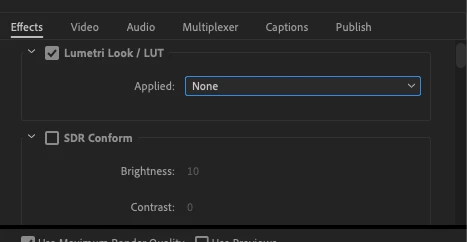


Does anyone have an idea on how to fix this?


Thanks in advance.

3 replies

the-visuals-team
Participant
December 17, 2021

I'm also having this problem. I've added my custom LUTs to the Creative and Technical directory as per Adobe guidance (/Library/Application Support/Adobe/Common/LUTs/Technical) and these do appear in Lumetri in Premiere. But when I come to export, the export effects tab does not show this same drop down.

R Neil Haugen
Legend
August 14, 2020

Be aware: that "washed out look" is due to color management mishaps between your OS and monitor and the players/browsers or whatnot.


If you're on a Mac, you should be using the 'Display Color Management' option in the Preferences/General tab. That will help Premiere to show a more accurate image on your monitor. However, the Mac ColorSync utility and the Retina monitors can have some intriguing applications of sort-of standards, and different generations of them do it differently.


Pro colorists work hard (and spend a ton of money) to make sure their reference monitor is dead-on accurate Rec.709/gamma 2.4/sRGB primaries/100 nits in a semi-darkened room. Those are the broadcast/streaming pro specs. But they all talk of how after the show is 'published' either via b-cast, streaming, or web ... they have no control whatever over what anyone sees.


And no one, on no screen anywhere, will see exactly what they did in their grading suite. This is Life in pro video post.


Neil

Everyone's mileage always varies ...
JessitaAuthor
Participant
August 14, 2020

Hi Neil,


Thanks for your response, I do have Display Color Management Enabled and I am not using any additional monitors to check my export besides my MacBook Pro 2019 computer screen.  I recently just got this computer (a week ago) so this whole "washed out export" situation is new for me.  I did not notice it on my old macbook pro. 


I am trying to do what's recommended here: "Why does my footage look darker in Premiere?" Color Q&A 


Any insight on the dropdown menu?


Thanks,

Jess

R Neil Haugen
Legend
August 14, 2020

As noted, Apple has changed their color management both in their OS and in their monitors for the last several generations of each. Yea, that's a tough thing to deal with, as a 2016 MacBook Pro will look one way, the full Retina for a Mac desktop of a year later a fair amount different.


You gotta work with it, test things, and if possible, get something out of your machine and onto someone with tight b-cast color management to see if it is proper there.


Neil

Everyone's mileage always varies ...
Ann Bens
Community Expert
Community Expert
August 13, 2020

If there is no dropdown menu:

FAQ: How to reset (trash) preferences.

JessitaAuthor
Participant
August 14, 2020

Thanks Ann I will try this once I reach the end of my project - I'm using color labels for example so I'm afraid to change my settings at the moment. 

JessitaAuthor
Participant
August 15, 2020

Unfortunately, this did not work.  


Any other ideas??