Participating Frequently
January 14, 2021
Answered

Using a photo the be the background color of a text

  • January 14, 2021
  • 2 replies
  • 1717 views

In adobe premiere pro 2020,  I discovered in file- new- "legacy title" I could go under texture after creating a title, and upload a photo to become the overall texture of the text. Ive done this twice in my current video, I made one of my titles look like lava using a background photo of lava. . But I cant seem to figure out how to do the same with just text layers since this is outside of legacy titile if its possible. you can usea tool  under "appearance" that looks like an eye dropper, but that only gets a singular color and not a texture of a photo.
This topic has been closed for replies.
Correct answer Ann Bens

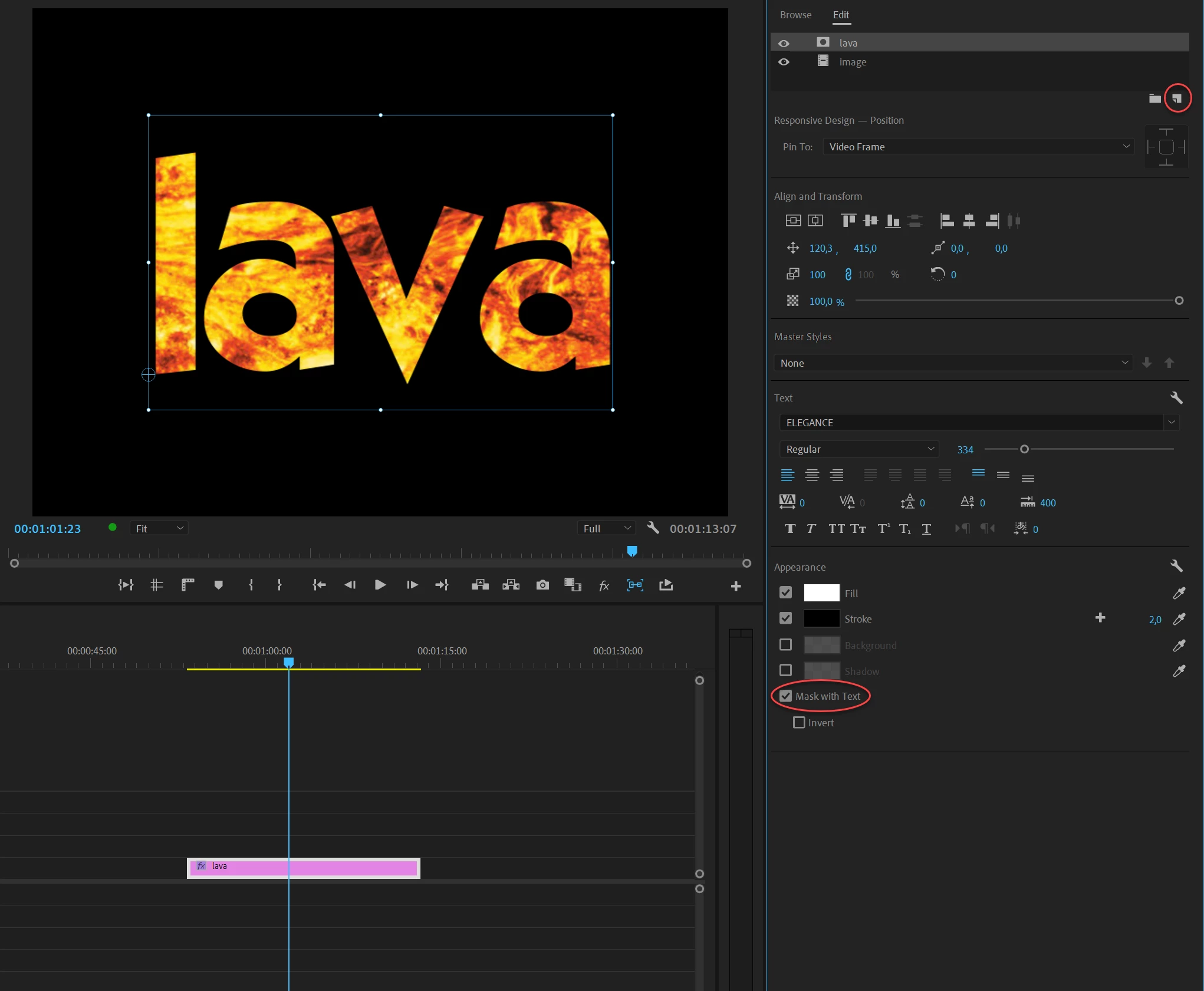
Use the Essential Graphics panel.

Make text

import image into the EGP

Select text > Mask with text.


Text and image can be animated independently.

2 replies

Community Expert
January 14, 2021

How I do this is:

Bring your picture into video track 1 in the timeline.

Bring your text into video track 2 in the timeline

Apply the track-matte effect to the picture.

In  the track matte effect in the effect controls panel point the track drop down to track 2 (or the text)

Ann Bens
Community Expert
Ann BensCommunity ExpertCorrect answer
Community Expert
January 14, 2021

Use the Essential Graphics panel.

Make text

import image into the EGP

Select text > Mask with text.


Text and image can be animated independently.

Brice5C7FAuthor
Participating Frequently
January 14, 2021

1. i went to the EGP

2. I made a text

3. I imported a photo into EGP which then added itslef to the video and took up the entire screen and hid the text layer i made prevously. (top right red circle in phtot you sent)

4. I clicked select "text and hit" "mask text"(bottom right red circle in photo) , but nothing happened. all i'm getting is a video of the picture I am using, not the picture masking with the text. the text is still there but still hidden behind the picture.

Brice5C7FAuthor
Participating Frequently
January 14, 2021

fixed it!