Got it. Often in Illustrator people will make art to be animated later and if you want to move different parts around you need each element as a separate layer. Since you're just panning and zooming around an image it's ok that everything is flat.
Since I don't know what the resolution of your artboard is I can't tell you exactly what settings to use.
Here's what I would recommend:
1) Go to File>Export>Export As
2) At the bottom of the Export window change the format to JPEG
3) Try the settings in the screenshot
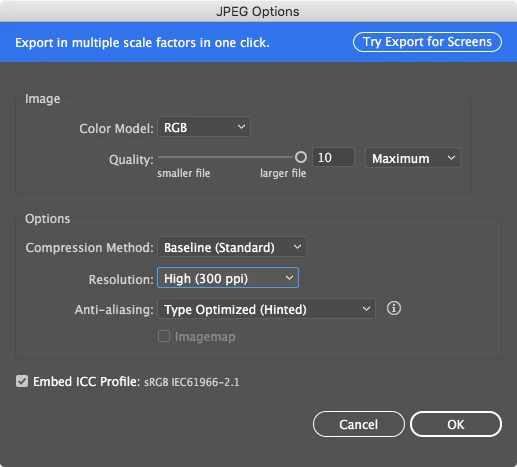
To keep things simple since you're not an illustrator user I won't suggest that you try to resize the art inside Illustrator to get the resolution you're looking for. If the resolution isn't high enough in Premiere you can overwrite the exported JPEG with the same name (so Premiere will automatically relink it) and change the resolution from "High (300 ppi)" to "Other" and try something like 600 or 1200. This is not the best way to do this, but it's possibly the simplest.
As for how to get rid of the black around the image, this is probably accomplished the easiest if you make a new track below your images in Premiere and apply a full screen Solid Color layer and make sure it's white. This way you can put your art on top of it and zoom in only on the art. If you zoom out too much or move the image around in the screen enough that you wish you had more white on the edge, the solid layer below will cover you. Just make sure you're only animating the art and that you leave the white alone.



 AdChoices