
Participant
December 5, 2023
Question

Venice 2 footage in PRP2024 - batch change of color space (removing input LUT)

  • December 5, 2023
  • 5 replies
  • 968 views

I'm working with 8k (8640x4556) Venice 2 footage .mxf files in Premiere 2024. When importing the files, an input LUT is applied. I'm trying to figure out a way to batch change the color space back to S-Gamut3/S-Log3. I can do it on an indivisual basis by clicking on the clip in the bin, selecting the Effects Control tab, then opening up the Sony RAW MXF Source Settings tab then selecting S-Gamut3/S-Log3 insead of Rec709.
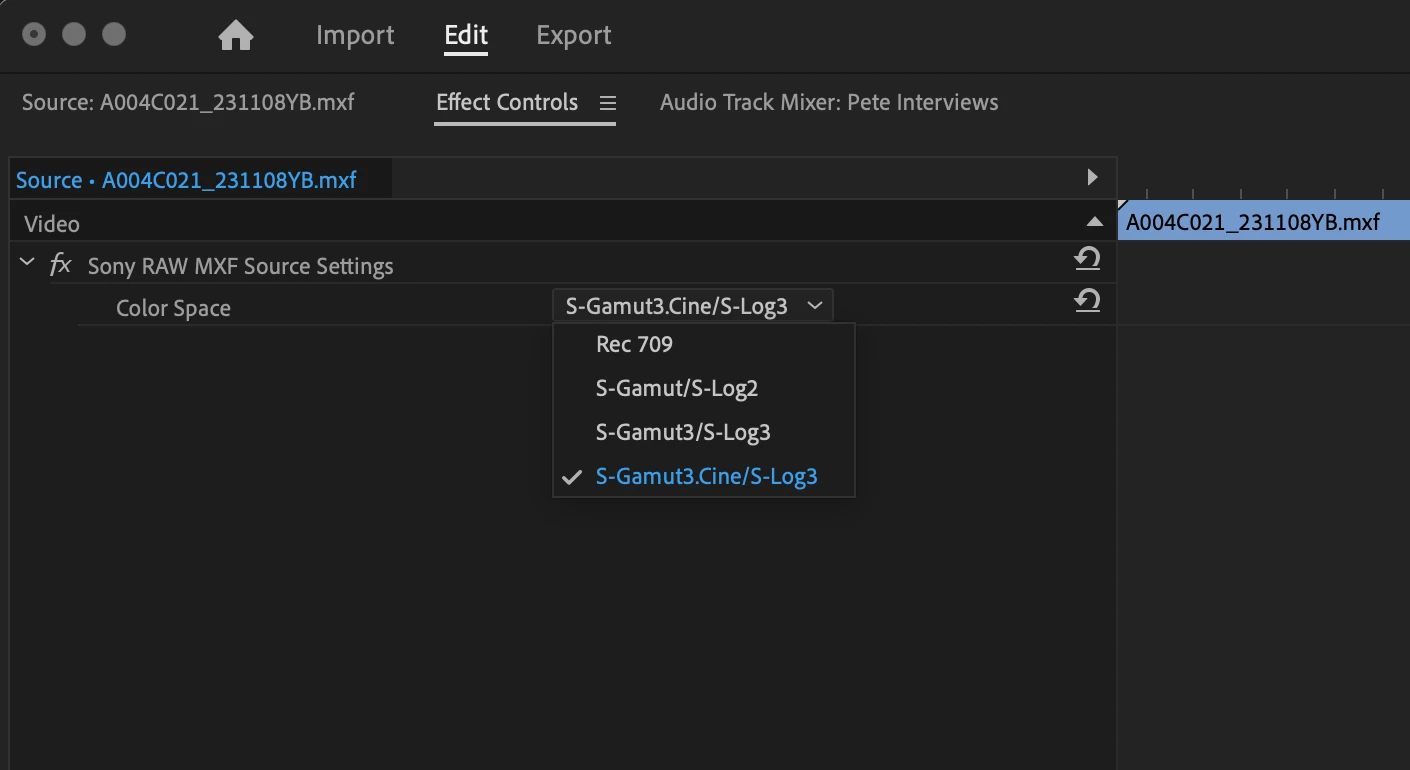
What I cannot do is Modify the Clip(s) with the Modify Clip > Color tool. It is greyed out and unavailabe.
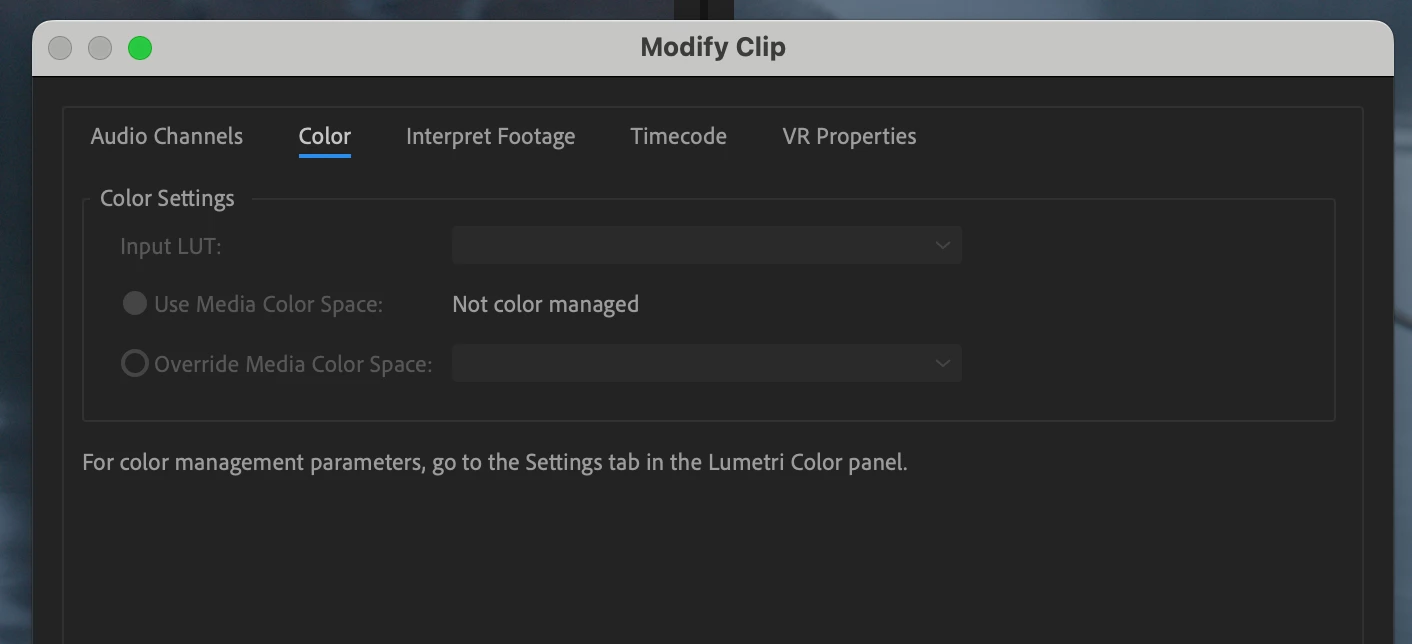
 

I can, of course, go clip by clip to make the shift, but it takes a really long time. What's the manuever like to do this conversion in a batch? @R Neil Haugen - thoughts? 

I'm on a Mac 2.3 GHz 18-Core Intel Xeon W w/ Radeon Pro Vega 64 16 GB graphic card and 64 GB 2666 MHz DDR4 RAM running Premiere Pro 24.0.3 (build 2). 


Here's a test clip.

Thanks in advance for your help and insights.


Matthew Clark

Seattle, WA

StraightEIGHT Films

This topic has been closed for replies.

5 replies

MyerPj
Community Expert
Community Expert
December 28, 2023

Wow! That 'test clip' barely plays on my machine.

Win11-22h2, PP 24.1

12th Gen, 12900k, 64gb ddr4, running on m.2 (Samsung 980pro), RTX 4070.


CPU@ 100%

R Neil Haugen
Legend
December 27, 2023

What is your need to have them in log form? Just curious.


And what sequence with what color management settings are you using them on?


Are you working with the color management settings at all?

Everyone's mileage always varies ...
Participant
December 27, 2023

I figured out a way, just change the color space in Sony RAW setting in one of a clip and copy the effect


Then select rest of the clips in your bin

Paste the effect like you normally do (use Command+V, Control+V, or Edit Menu >> Paste) and you'll see that the color space in all of the selected clips has been changed


In case you have multiple bins (which I did), then you can go into the list view and select all of the clips in one go (make sure to exclude the top bin, for some reason, the paste was not working)


I hope this helps you out


For some reason, the proxy conversion in the Media Encoder is still using the Rec. 709 color space which I'm trying to figure out, I believe I have to make a custom proxy ingest setting - will test it.

R Neil Haugen
Legend
December 26, 2023

Use the color management tools in the Lumetri panel Settings tab, as all color management settings are on that tab. One stop shop.


My first guess is you're not getting an input LUT at all, but a tonemapping ... which uses an algorithm specifically designed for each type media, and is much advanced over any LUT that Premiere can use.


So, what are your settings for auto detect log and auto tonemapping set to? As is those are "on", then yes, Premiere will tonemap that media into the sequence color space. Turn them off, it stays log, and you can apply manual changes.


Personally, in my testing, for the few Venice files I've worked with, I actually preferred the results of the Adobe tonemapping to Sony's LUT based normalization. It's different of course, but was very easy to use for a great grading start point.


Everyone's mileage always varies, of course! 

Everyone's mileage always varies ...
Participant
December 26, 2023

Bumping this to see if there are any thoughts?