paytonk9416
Participant
December 19, 2018
Answered

Video and audio not appearing or playing in source window or timeline.

  • December 19, 2018
  • 3 replies
  • 1054 views

I'm trying to do a quick fix to an .mp4 file, but I'm unable to get anything to play within the app.

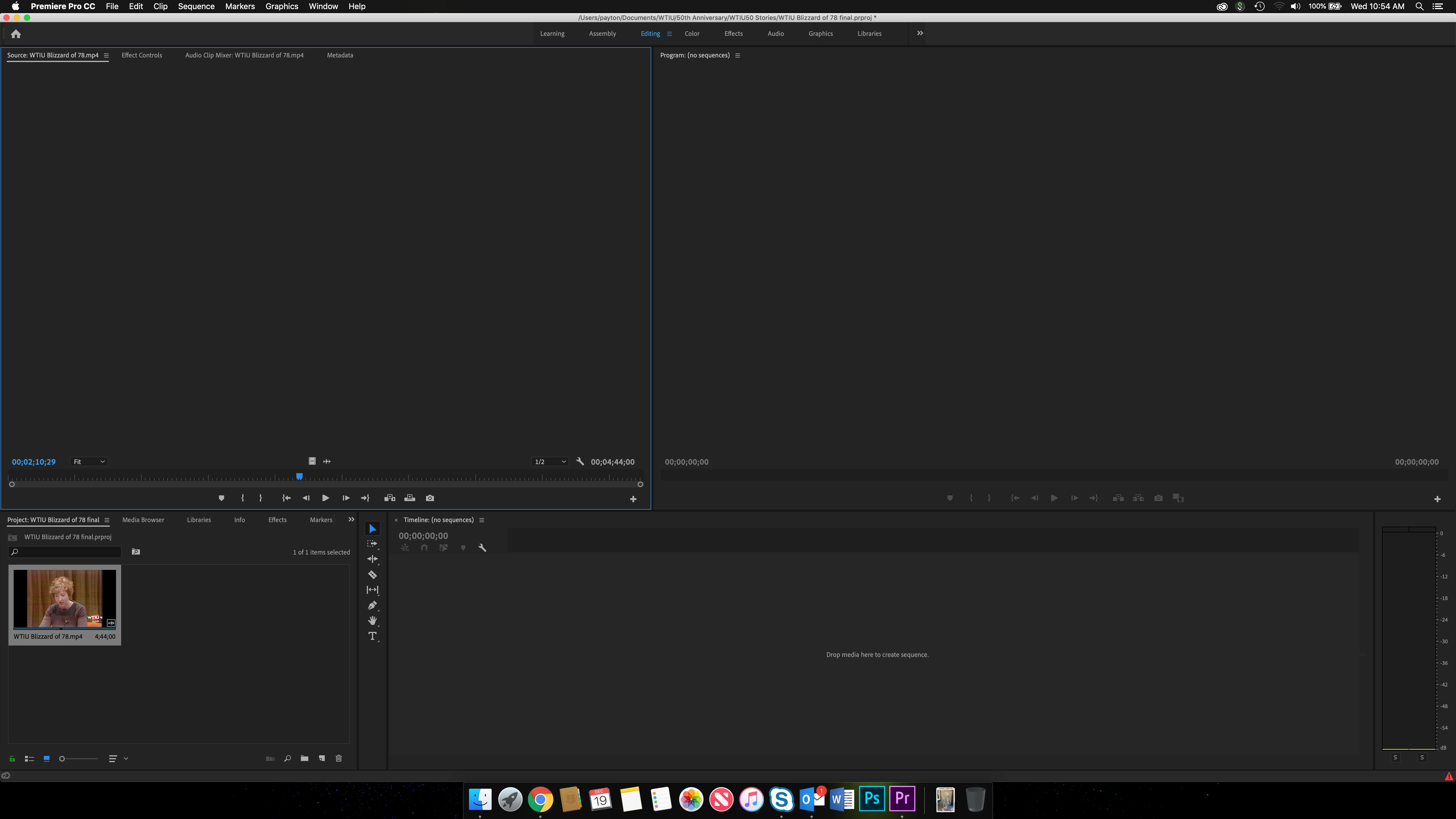
I imported my .mp4, but when I double-click or drag it to the source window, nothing appears. I can't play it, see video or hear audio, and the timecode doesn't change when I scrub through. The thumbnail of the video sometimes appears, but sometimes doesn't.
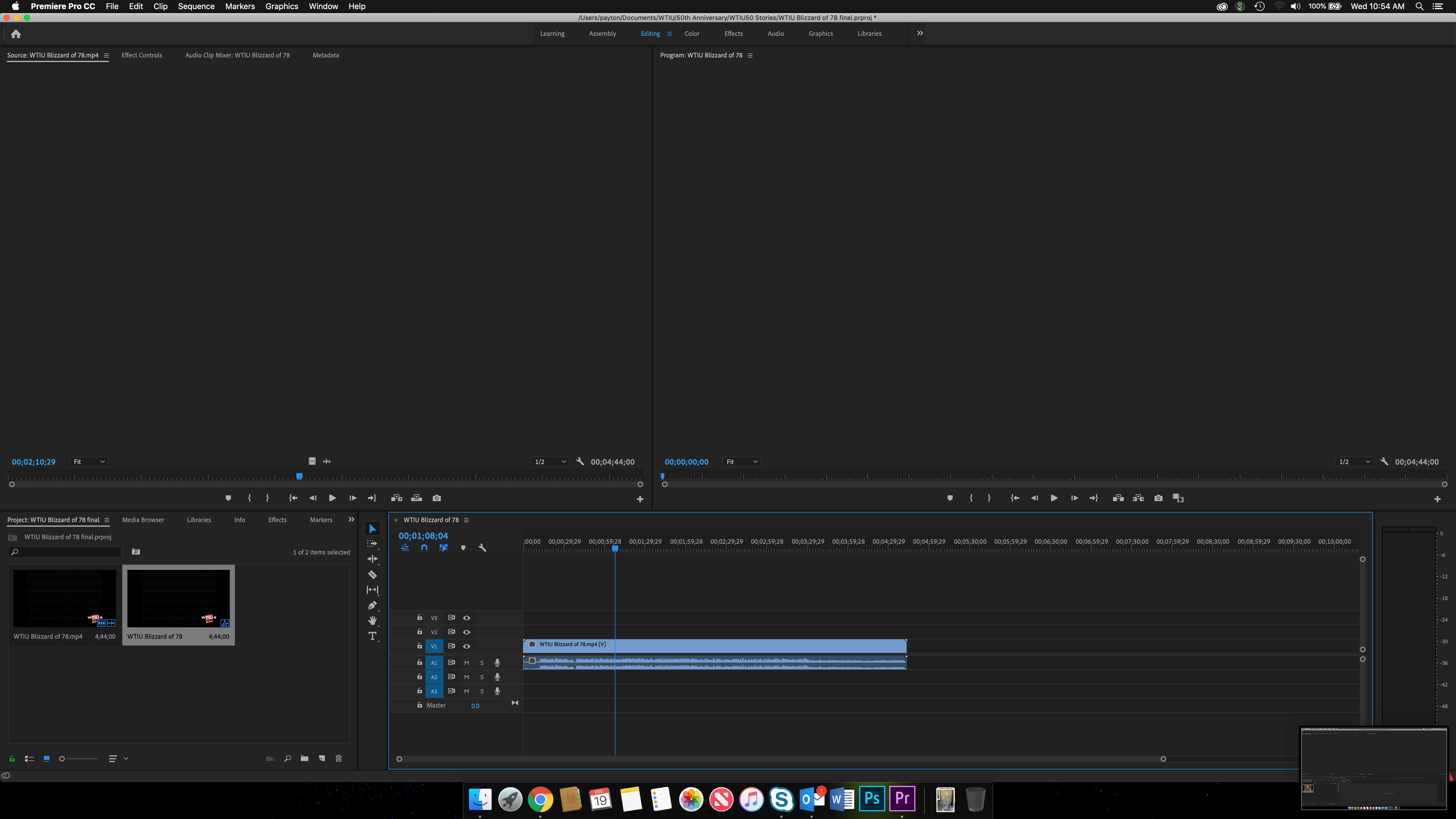
When I drag the video straight from the project folder to the sequence, the video and audio tracks appear, but again there's no video or audio showing up in the program window.
I thought the problem might just come from .mp4 files, but when I imported an .mp3, I got a similar result. This time, the graphic of the waveform shows up in the source window, but no playback occurs after pressing space or clicking the play button.
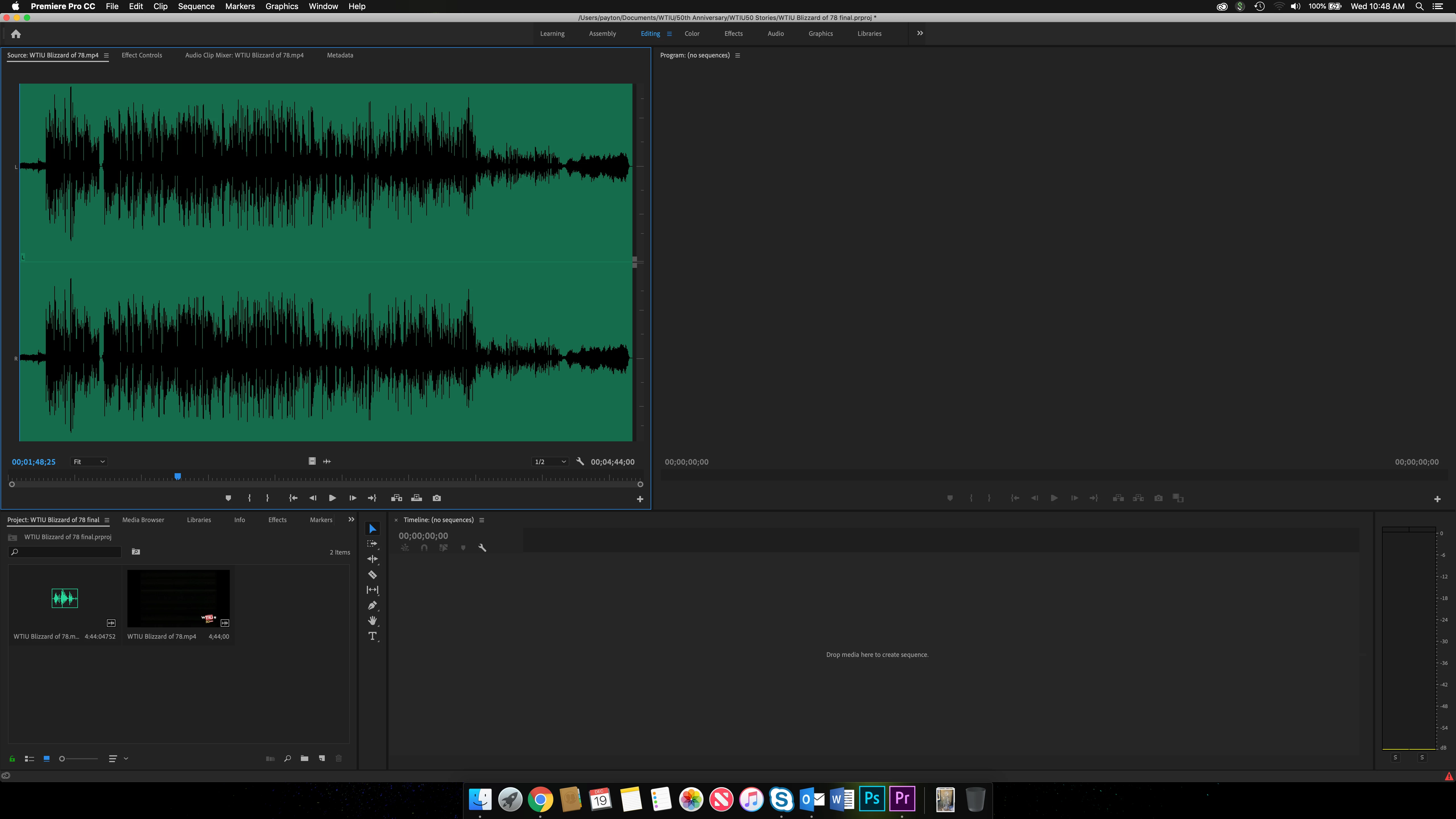
And like with the .mp4, I can drag the audio down to the timeline, but I can't play it.

I also tried this with a .mov file, but no luck either.

The past few times I've tried to quit the app, it goes unresponsive and I have to Force Quit. Maybe there's a larger issue?

Is there something that I'm missing, or a setting I need to find? Any help at all is appreciated. The app is unusable with this current problem.

This topic has been closed for replies.
Correct answer Peru Bob

Try resetting the preferences:

FAQ: How to reset preferences in Premiere Pro?

If that doesn't work, try resetting the Workspaces:

Reset a workspace

Reset the current workspace to return to its original, saved layout of panels.

  1. Do one of the following:
    • Click the Workspace menu icon and select Reset to Saved Layout.
    • Choose Window > Workspace > Reset to Saved Layout.

from here:

https://helpx.adobe.com/premiere-pro/using/workspaces.html

If that doesn’t work ,try updating or rolling back your graphics driver directly from the video card manufacturer’s site.

3 replies

Peru Bob
Community Expert
Peru BobCommunity ExpertCorrect answer
Community Expert
December 19, 2018

Try resetting the preferences:

FAQ: How to reset preferences in Premiere Pro?

If that doesn't work, try resetting the Workspaces:

Reset a workspace

Reset the current workspace to return to its original, saved layout of panels.

  1. Do one of the following:
    • Click the Workspace menu icon and select Reset to Saved Layout.
    • Choose Window > Workspace > Reset to Saved Layout.

from here:

https://helpx.adobe.com/premiere-pro/using/workspaces.html

If that doesn’t work ,try updating or rolling back your graphics driver directly from the video card manufacturer’s site.

Community Expert
December 19, 2018

Also have a look at your Audio Hardware setup in Premiere.

Mo Moolla
Legend
December 19, 2018

Hi

Try this. Change your Project settings to OpenCL or Software Only. This should sort out the problem

Let me know

Mo

paytonk9416
Participant
December 19, 2018

Edit: Sorry, I replied to the wrong person.

I had seen before that having it as Metal causes some issues, so I made sure it wasn't on that setting. But neither OpenCL nor Software Only seems to help.

John T Smith
Community Expert
Community Expert
December 19, 2018

More information needed for someone to help... please click below and provide the requested information

-Troubleshooting https://forums.adobe.com/thread/2261475

-Premiere Pro Video Editing Information FAQ http://forums.adobe.com/message/4200840