
Participating Frequently
March 3, 2020
Answered

video changes position without keyframe

  • March 3, 2020
  • 7 replies
  • 6272 views

When I create a start and end keyframe for position to a video, the frame after the end keyframe is severely off-camera. Curiosly, however, the position reads the same.

Any help would be greatly appreciated.
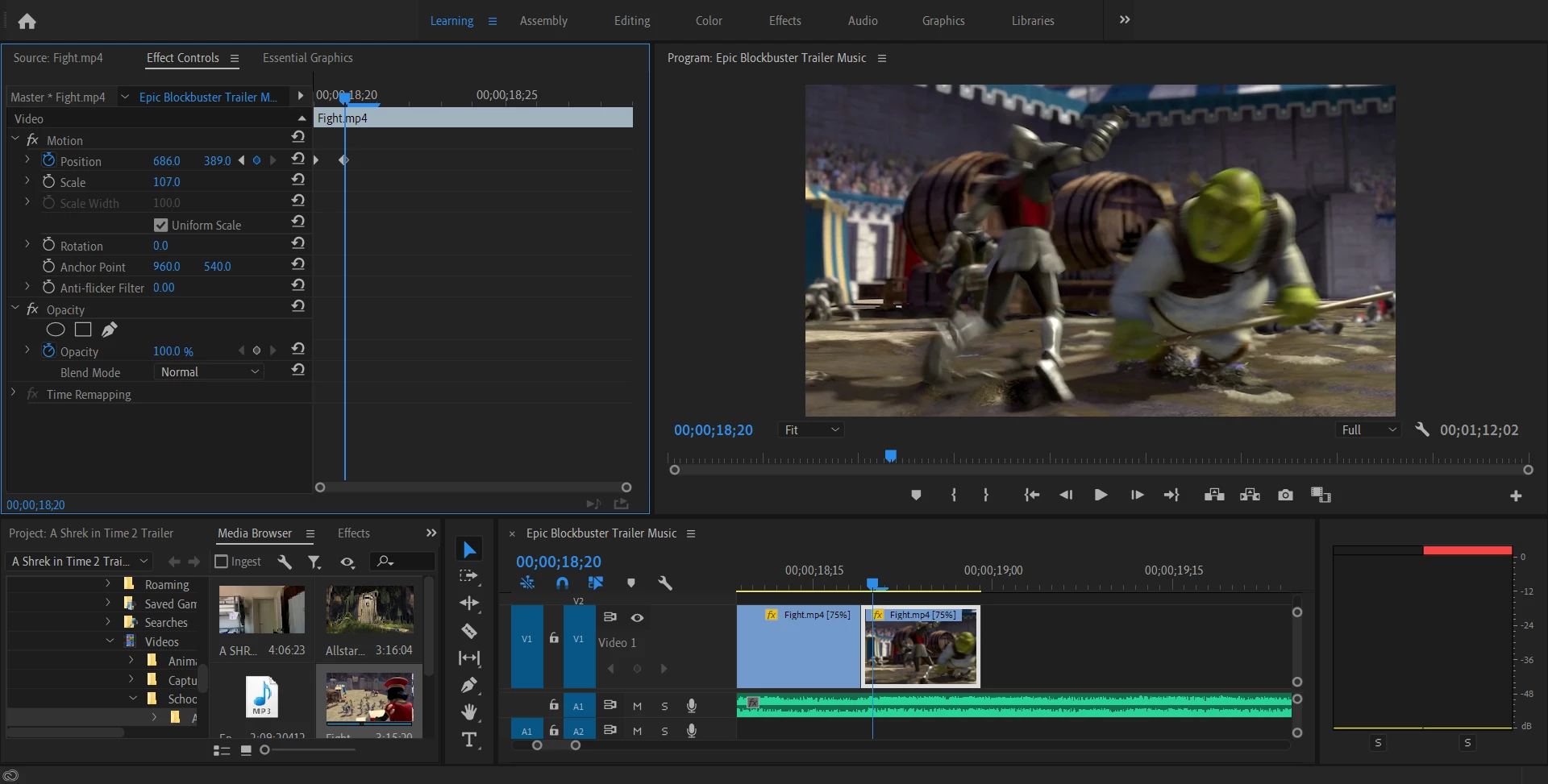
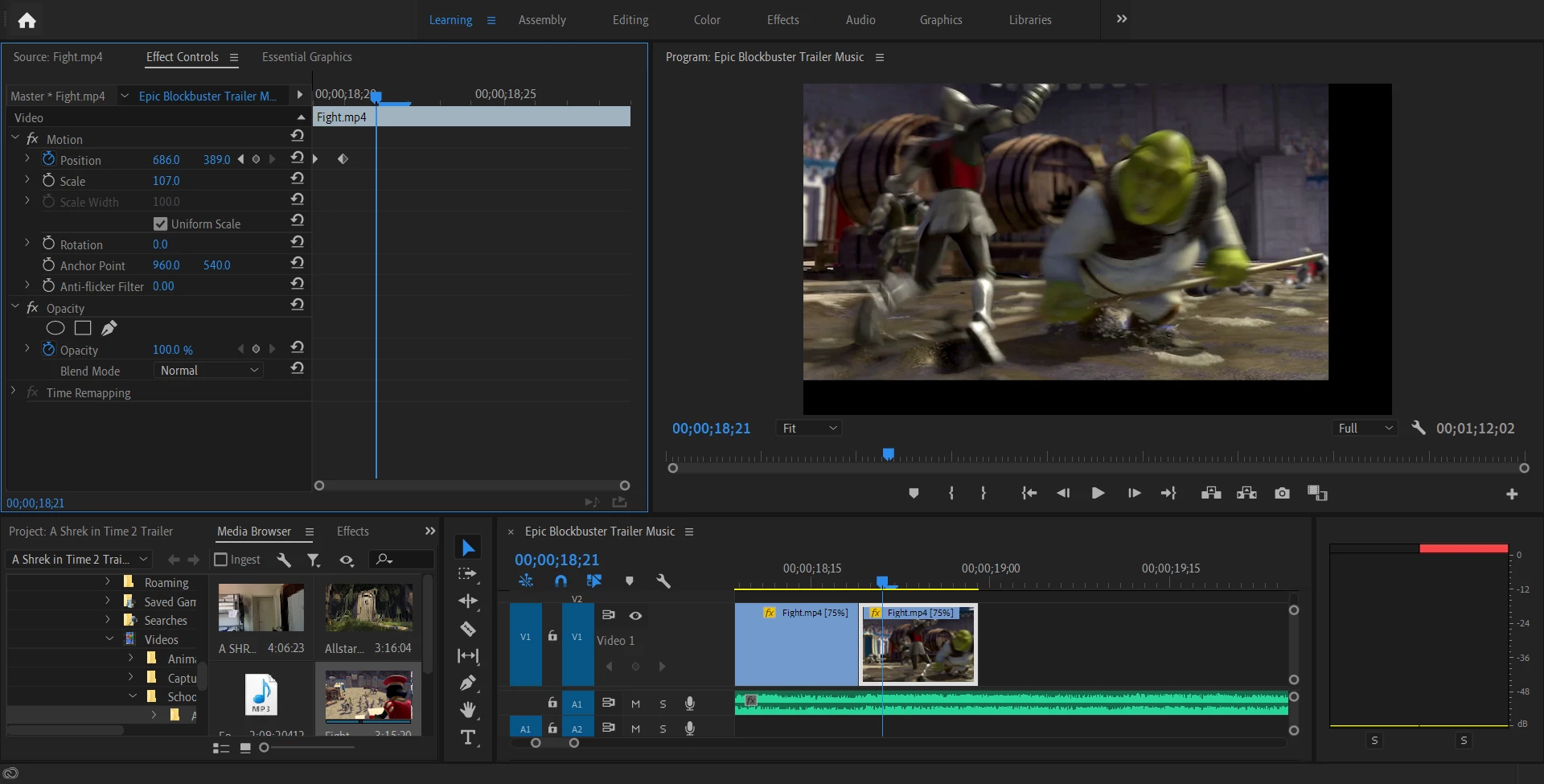
This topic has been closed for replies.
Correct answer sno_oopz

Hi, I do often have this same issue with premiere Pro. Especially with the plugIn GoPro FX Reframe. 
There are movements between keyframes without showing any keyframes in between in Premiere Pro Effect Control Panel

Is there still no official solution for that?

7 replies

sno_oopzCorrect answer
Participant
August 15, 2023

Hi, I do often have this same issue with premiere Pro. Especially with the plugIn GoPro FX Reframe. 
There are movements between keyframes without showing any keyframes in between in Premiere Pro Effect Control Panel

Is there still no official solution for that?

Legend
August 15, 2023

It's unrealistic to expect Premiere to troubleshoot a 3rd party plug-in, but couldn't hurt to reach out to gopro support.  

Participant
August 15, 2023

This happens not only whith the 3rd party app. It frequently happens (and I can not reproduce the situation when) in normal situations e.g. when keyframing a simple zoom-in effect. 
But with the gopro reframe plugin - it happens always when I am using it and thats so annoying.

Participant
December 16, 2022

I found a way that "fixes it". Basically I make a cut to the video whenever I want to add a new keyframe with a different position. I hope it helps you!

Participating Frequently
March 15, 2020

Alright lads, so problem eventually resolved itself. I tried deleting the video clip and putting back on the timeline. This actually failed the first three times I tried it, however on the fourth try, it worked as intended. However the problem persisted on other video clips as well.


It seemed random as to which clips encountered the bug. So while I don't really have any problems right now, I'm not aware of what the problem is or how to fix it in the future.

Ann Bens
Community Expert
Community Expert
March 16, 2020

If Premiere is acting funny:


FAQ: How to reset (trash) preferences.

chusbaker
Participating Frequently
March 4, 2020

Hi Confused User,

try this: in the effects control panel, go to the end of the timeline and create a new keyframe. Copy / paste the values of the last keyframe to this newly created. See if the animation goes away.

Best of luck

Inspiring
March 4, 2020

I've had issues where a clip is repositioned like is happening to you, though only when using Warp Stabliser. In this case rendering the clip in the sequence resulted in it returning to it's correct position - worth a try.

Participating Frequently
March 4, 2020

I haven't used the warp stabliser on the video. Plus, rendering it doesn't help either 😞

Legend
March 4, 2020

are you sure there isn't a move built into the original clip?  But try this, select the clip in the timeline, control click and choose remove attributes and make sure motion is checked and the rest of the items are not.

Legend
March 3, 2020

are you sure there are no keyframes after the end of the clip?  If you've trimmed the out of the edit this can happen (this is the voice of experience).   try deleting all your keyframes and reapplying them.  If you click on the stopwatch in the effects controls to the left of the appropriate parameters, it will ask you if you want to delete all keyframes...

Participating Frequently
March 4, 2020

I deleted all the keyframes but the problem continues to occur. Plus, it still displays the same position.