Participating Frequently
October 26, 2021
Answered

Video distorted and pixellated in preview and rendering from Premiere pro

  • October 26, 2021
  • 4 replies
  • 6240 views

Video distorted and pixellated in preview and rendering from Premiere pro:

I recorded a video on a web camera (Nexigo N60) which is a 1080p camera and records 30fps

I edited the video in premiere pro with the addition of photos but I have seen distortion and pixellation in both the  preview mode and rendering.

I have seen other answers to similar problems on this website but the suggestions have not worked for me. What have I done wrong, someone please help, I ve attached some pictures which show my rendering settings and the pictures of distortion, I look  forward to your help anyone, cheers in advance! 

Correct answer Averdahl
quote

...but I have seen distortion and pixellation in both the  preview mode and rendering.


By @default8r091wrtpor5


You don´t mention what other suggestions you have tried, but those distortions are typical for footage that the Premiere Pro importer has trouble decoding. 


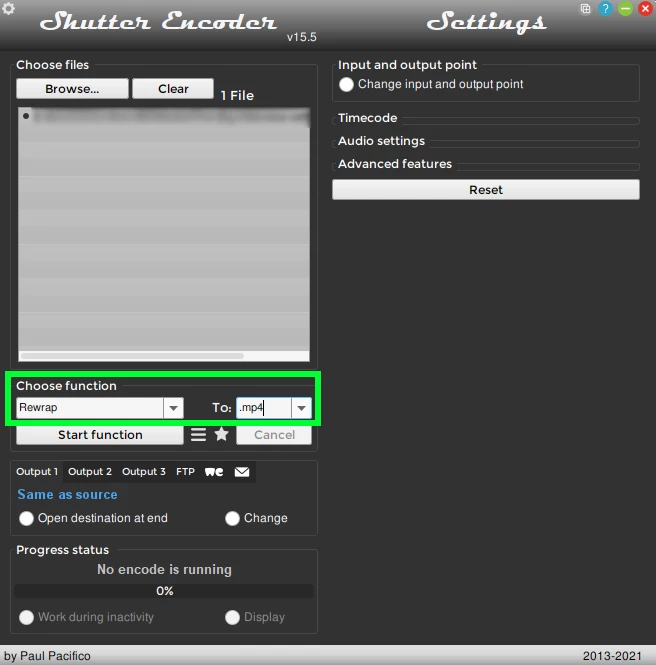
In 9.9 out of 10 times the solution is to simple rewrap the source footage and use the new files as source files. Rewrapping is fast and you can do it with the free app Shutter Encoder encoding|converting video FREE PC|Mac


If the source footage has a variable bitrate now is the the time to conform it to a constant framerate as well.


Try it on one of the files you have trouble with today and do it for the rest of the files if it works. Use the Replace Footage command in Premiere Pro to replace the original files with the rewrapped files.


4 replies

Participant
August 29, 2023

If its an .MP4 file use an online converter to convert the original footage from .MP4 to .MOV and it should work fine 🙂 Use that .MOV clip for editing in AE/Premiere. 

{do not use Adobe media encoder to convert the .MP4 to .MOV cause it will still have the distort and pixellation.}

Averdahl
Community Expert
AverdahlCommunity ExpertCorrect answer
Community Expert
October 26, 2021
quote

...but I have seen distortion and pixellation in both the  preview mode and rendering.


By @default8r091wrtpor5


You don´t mention what other suggestions you have tried, but those distortions are typical for footage that the Premiere Pro importer has trouble decoding. 


In 9.9 out of 10 times the solution is to simple rewrap the source footage and use the new files as source files. Rewrapping is fast and you can do it with the free app Shutter Encoder encoding|converting video FREE PC|Mac


If the source footage has a variable bitrate now is the the time to conform it to a constant framerate as well.


Try it on one of the files you have trouble with today and do it for the rest of the files if it works. Use the Replace Footage command in Premiere Pro to replace the original files with the rewrapped files.


Participating Frequently
November 18, 2021

This advice did work, thanks for that but I cant get past the fact that I needed an extra encoder to make my videos good, so it makes me wonder why adobe media encoder couldnt do that.

Averdahl
Community Expert
Community Expert
November 19, 2021
quote

...but I cant get past the fact that I needed an extra encoder to make my videos good, so it makes me wonder why adobe media encoder couldnt do that.


By @default8r091wrtpor5


It makes me wonder as well to be honest. This has been an issue for many years but Adobe never fixes the failing MPEG Importer. Editing applications from competitors don´t suffer from this and i think it´s time for Adobe to fix this.

Participant
October 26, 2021

I have the same problem,
I try render without max renderer & max depth etc.
it's still not rendered corectly. 

Ann Bens
Community Expert
Community Expert
October 26, 2021

Turn off max render and max depth and hardware encoding.

See how that goes.

Participating Frequently
October 28, 2021

Thanks for answering but I tried this and it still pixellated