
Participating Frequently
January 3, 2018
Answered

Video not showing up but I can hear it

  • January 3, 2018
  • 7 replies
  • 86226 views

Hi!

I'm relatively new to Premiere Pro, but I've edited a few videos without encountering this issue.

I dragged and dropped my video into the application like I usually do, but this time when I press play I can't see anything.

I hear the audio and it looks as though it should be playing, but it's just black. I've tried deleting/clearing the media cache and updating the GPU, but still nothing. I figure I'm doing something wrong, just can't put my finger on it. I've looked at countless YouTube videos with no luck. Any recommendations? I've attached a photo for reference.
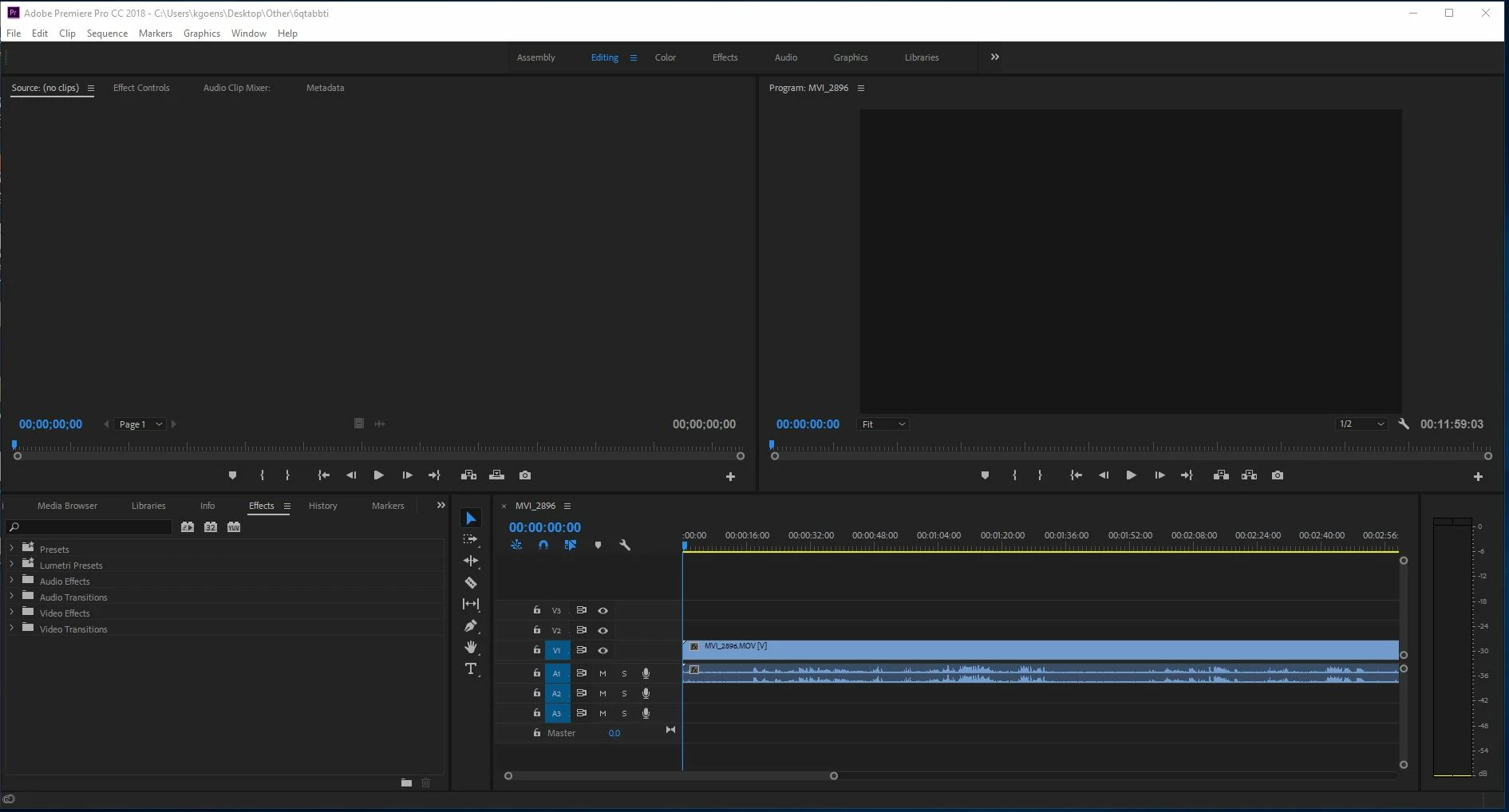
Thanks in advance!

Katherine

    Correct answer Kevin J. Monahan Jr.

    Hello All,

    A "black screen" is often due to lack of system resources. Try rebooting the computer as an initial troubleshooting step. Make sure that you are also meeting system requirements. Please also check the Help menu for the System Compatibility Report for clues as to the lack of resources for your computer to playback your footage reliably. Project Settings > General > Video Rendering and Playback > Renderer set to Mercury Playback Engine Software Only can also work around this issue: lack of system resources.


    Thanks,
    Kevin

    7 replies

    Participant
    March 7, 2022

    Hi I've encountered a similar thing, so I put a clip on my timeline and that clip looks great then I drag a second clip on my timeline and it's black. I see the clip on my timeline but after the first clip stops showing and when the second clip should start theres nothing could someone let me know if I'm doing anything wrong please?

    Participant
    March 11, 2022

    I'm expeiencing the same problem.  I thought it was because the clip had a frame rate of 23.976 on a 59.94 sequence.  I changed the video to 59.94 and it still didn't work.  Can someone please help?

    Kevin J. Monahan Jr.
    Community Manager
    Kevin J. Monahan Jr.Community ManagerCorrect answer
    Community Manager
    August 9, 2021

    Hello All,

    A "black screen" is often due to lack of system resources. Try rebooting the computer as an initial troubleshooting step. Make sure that you are also meeting system requirements. Please also check the Help menu for the System Compatibility Report for clues as to the lack of resources for your computer to playback your footage reliably. Project Settings > General > Video Rendering and Playback > Renderer set to Mercury Playback Engine Software Only can also work around this issue: lack of system resources.


    Thanks,
    Kevin

    Kevin Monahan - Sr. Community and Engagement Strategist – Adobe Pro Video and Audio
    paulocoelho4
    Participant
    July 17, 2024

    Thanks, Kevin! It worked for me 🙂

    Participant
    June 11, 2021

    Hi, I just encountered the exact same problem. All I tried was close the app and open it back again and it worked properly then! Don't save your changes, click no and close the application. Open it again and import the same files and it works! I know this was posted 3 years ago, but hope this helps users encountering this problem now!


    Kevin J. Monahan Jr.
    Community Manager
    Community Manager
    June 11, 2021

    Hey Prakriti,

    Thanks for your input. Appreciated!


    Kevin

    Kevin Monahan - Sr. Community and Engagement Strategist – Adobe Pro Video and Audio
    Legend
    January 4, 2018

    Follow Step 2C below,  then bring the clip to the Source Monitor.  Does it play?

    Unofficial Premiere Pro Troubleshooting Guide

    Participating Frequently
    January 4, 2018

    No, it still only plays sound and shows blackness.

    Legend
    January 4, 2018

    OK.

    Perform Step 2H and then 2C.

    If that doesn't work, go with Step 2I and then 2C.

    Dave Franklyn
    Participant
    January 4, 2018

    Same thing happened to me today. Odd thing is that it just started happening on two pcs (same model) and NOT on two others (same other model) with the exact same footage. All run the latest version of all CC apps. I'm thinking of looking into video drivers first but this is the first time I've hit this issue and I bounce to a lot of machines here at work.

    Participating Frequently
    January 4, 2018

    What model PC were you using when you had this problem? I'm using a Latitude 3570.

    Kevin J. Monahan Jr.
    Community Manager
    Community Manager
    January 3, 2018

    Hi Katherine,

    Check Project Settings > General. Under Video Rendering and Playback. Choose Renderer > Mercury Playback Engine Software Only.

    Does it work now?

    Thanks,
    Kevin

    Kevin Monahan - Sr. Community and Engagement Strategist – Adobe Pro Video and Audio
    Participating Frequently
    January 4, 2018

    Still no luck!

    Neox99
    Legend
    January 3, 2018

    What part of the workspace do you 'drop' your asset into?

    Could we see a screen shot of the Media Browser Tab listing?

    Participating Frequently
    January 4, 2018

    I'm dropping the asset directly into the timeline. I've attached the photo of what I think you asked for.

    Neox99
    Legend
    January 4, 2018

    Twirl open that line C: (Windows) so you can see the asset

    Delete the Audio and Video tracks from the Timeline

    Drag the asset from the Project Pane up into the Source Monitor

    From there drag both tracks to the Timeline.

    Video should show in Program pane.