Participant
October 15, 2020
Resuelto

Video Quality is Poor After Exporting w/ Grain Effect

  • October 15, 2020
  • 7 respuestas
  • 12627 visualizaciones

Hi everyone,


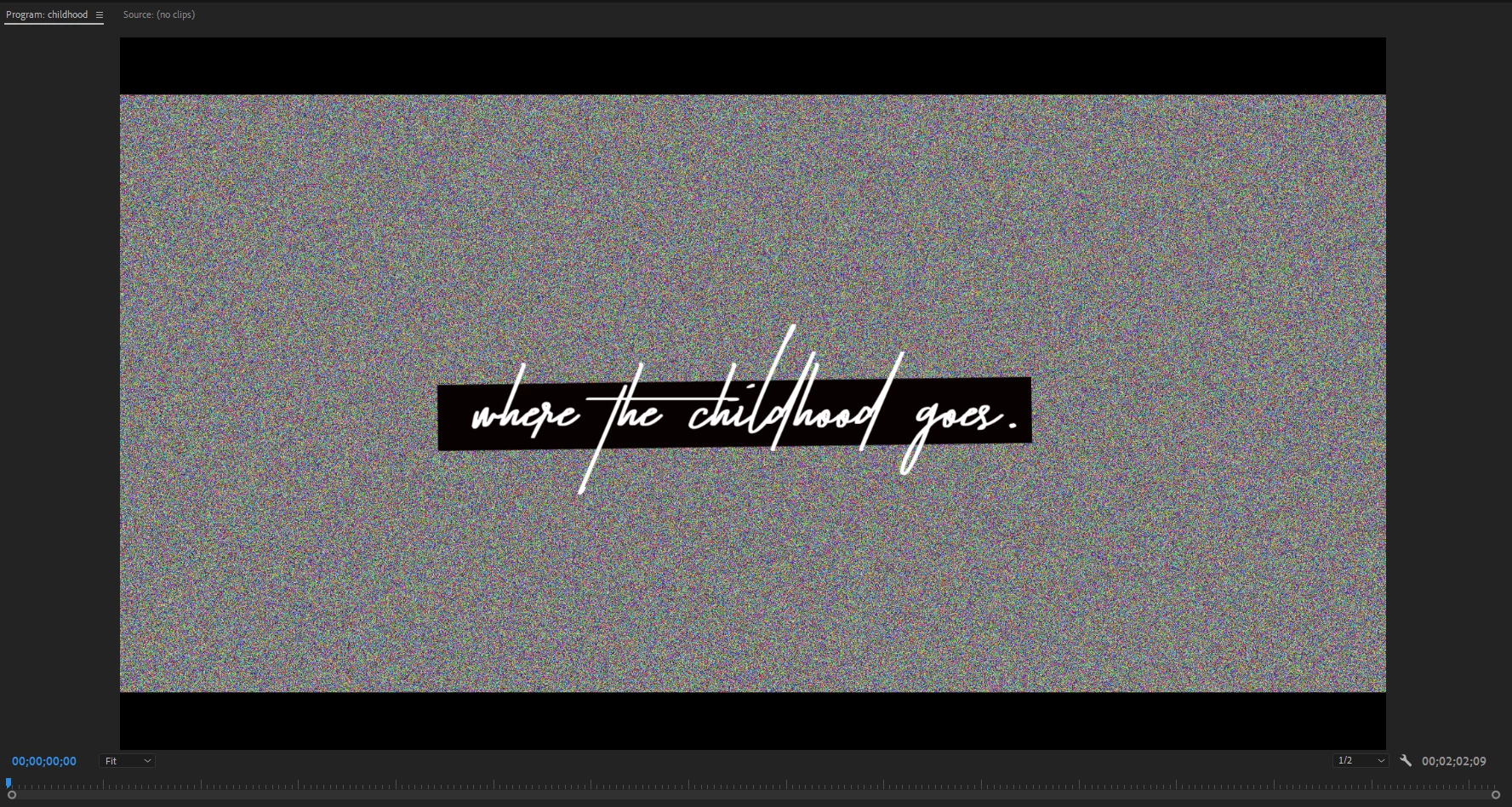
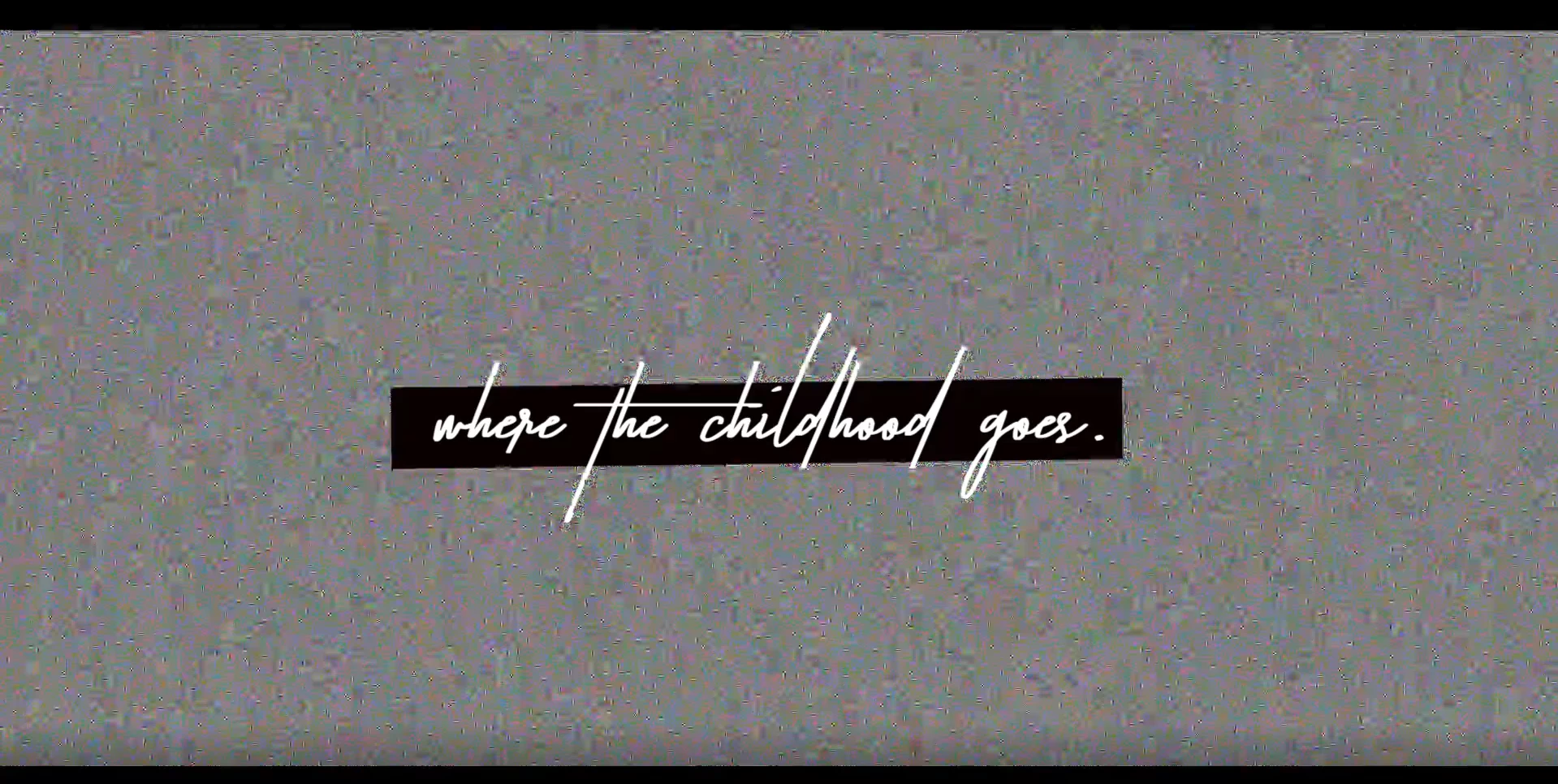
I'm working on a short film currently, and I'm trying to add a really cool grain effect, where I automate the effect so that color grain is either added in from 0-100% or removed from 100-0% over the title and credits. When I make this effect in the Premiere Pro, the preview looks just fine, with high quality captions over a high quality screen of grain. Yet, once I export, both the captions and grain become heavily pixelated.


Here are shots of the Title Screen and Credits in the Premiere Pro preview:


And here are shots of the same screens once they are exported:


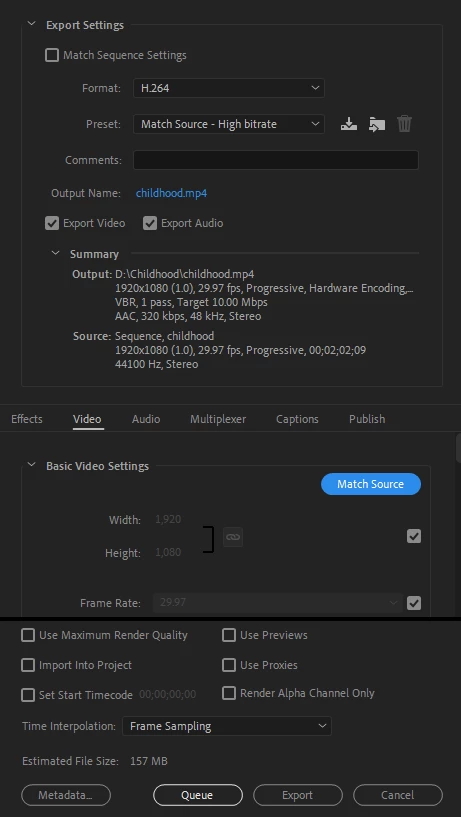
I've tried exporting with a variety of settings, including smaller bitrates and larger bitrates, but here's the most recent attempt:


Am I doing something wrong? Is there a way to get this effect without it lowering the quality once exported? Any and all help is appreciated. Thank you.

Este tema ha sido cerrado para respuestas.
Mejor respuesta de Steve Griffiths

Pretty much any compressed codec is going to struggle with keeping this looking good. Codecs like H.264 break a video image down into macroblocks and average out the contents of that macroblock to reduce the data rate. That's why you can see 'squares' in the compressed noise in your exported video.

In your case - using animated noise - EVERY pixel over the entire image changes from one frame to another.

Full frame noise is a compression algorithms worst nightmare.

Effectively if any compression is applied to your video you will start to see the problem you are experiencing. The more compression the worse it looks.

Even with a high data rate (I tested 50Mbps) using H.264 the results are still not great. H.265 encoding looked slightly better (at lower data rates).

My Prores (standard) test look OK. Using Prores HQ even better. And Prores 444 should be almost indistinguishable from the original, though I did not test this.


However, even if you manage to get a good quality export using a better codec (Prores, DnX etc) if you plan to upload to Youtube/Vimeo or send through any additional compression - the result will be back to looking like crap.


Sorry to not bring better news 🙂

7 respuestas

Participating Frequently
August 18, 2022

I can't imagine that anyone solving this problem by avoiding compression. So this is not solved.

R Neil Haugen
Legend
August 18, 2022

Did you actually read the thread? Your comment doesn't sound like you did. There's a couple approaches listed to get around (mostly) the  compression-caused problem offered in this thread.


Because the compression process, in this case, is the problem. The particular mode that H.264 compresses will turn fine even grain like that in the OP screen to macroblocking by design. It's the nature of how H.264 compression works.


Colorist Walter Volpatto, in one of his multi-hour FMC training presentations, talked about 'grain' added to mimic film grain. As compression ... any type of compression ... can have a major effect on 'grain'. He used several different grain methods, including expensive plugins for Resolve. Adding film-stock overlay patterns. Or simply adding an amount of 'grain' effect in Resolve.


And then created standard deliverable files for the streaming, network, or projection that are typical for the high-end movies he works on.


Then hosted viewing sessions with other 'major Hollywood' video post people, directors, DPs.


In the final result, whether projected in a theater with a full theater projection setup, or delivered via streaming or b-cast type service, viewed on a LARGE TV, you couldn't actually see a difference. Because the compression and devlivery/viewing processes pretty much obliterated the 'fine details' of the grain, no matter what grain process he used.


What you could see in his reference monitor prior to export, what you could see on the 'delivered' screen, weren't the same. He couldn't get the fancy grain patterns through the delivery system.


So now, all one of the most major colorists doing high-end expensive work, known for his "filmic" movies does ... is add a bit of the standard 'grain' effect from Resolve. Nothing more than that realistically makes it into the final product.


I think Walter's capabilities are a bit above mine.


Neil

Everyone's mileage always varies ...
Participating Frequently
August 18, 2022

Oh i see, you think that i underestimate the problem. Or a whole industry.


Nope, i read all the comments because i made a fancy effect w/grain that i wished to keep in a music video. As you see, there isn't a discussion about what couses the problem, how compression works or who did succesfully solved it before, or how deep is the question for that matter. It's about solving it.


I see that you are a skilled editor, if only you take the time to share what you learned from this colorist in detail, or give a link to his lecture, or at least identify the terms needed, instead of praising his skills or giving a private lecture about compression; which is already given perfectly above.


I'm sure that some of the people who discuss about framerates, bitrates, different formats above also works for global brands, as i do. And i don't even consider myself as an editor. So it's not about your "skilled people club". It's about getting the job done, to find how.

quote

He used several different grain methods, including expensive plugins for Resolve. Adding film-stock overlay patterns. Or simply adding an amount of 'grain' effect in Resolve.


By @R Neil Haugen


This is the only part people can benefit, because it may lead more questions to reach an answer, and young people in this industry are usually fast learners. And i think this is why this community exists; for that little quote in your unnecessarily long comment.

Participant
November 12, 2021

Here's what's worked for me - it's a long workaround but if you want grain and small file sizes it works. 

First off though you're going to start with a massive file size - export your vid as a Quicktime Apple Prores 422 HQ (or really any Prores but I usually shoot in 422 HQ so that works for me)

Download Handbrake https://handbrake.fr/

Import your giant Prores file into Handbrake

Go to the Video tab

Change encoder to H265

Then under Encoder Options change the Tune dropdown to "Grain" > Leave profile as Main > and Level to 4.0 (this usually works well for me) 

Hit start and leave for a bit cause depending on the length of your project this could take a while - H265 is really slow but gives you a high pixel content for a low file size. 

Once you're happy with your export you can delete the prores one unless you want a super HQ version for your records. 

Hope this helps you out a year later 

Ann Bens
Community Expert
Community Expert
November 12, 2021

Best is to set framerate to constant.

Community Expert
October 16, 2020

Might spoil the effect but you could try adding some blur to it.

Inspiring
October 16, 2020

Pretty much any compressed codec is going to struggle with keeping this looking good. Codecs like H.264 break a video image down into macroblocks and average out the contents of that macroblock to reduce the data rate. That's why you can see 'squares' in the compressed noise in your exported video.

In your case - using animated noise - EVERY pixel over the entire image changes from one frame to another.

Full frame noise is a compression algorithms worst nightmare.

Effectively if any compression is applied to your video you will start to see the problem you are experiencing. The more compression the worse it looks.

Even with a high data rate (I tested 50Mbps) using H.264 the results are still not great. H.265 encoding looked slightly better (at lower data rates).

My Prores (standard) test look OK. Using Prores HQ even better. And Prores 444 should be almost indistinguishable from the original, though I did not test this.


However, even if you manage to get a good quality export using a better codec (Prores, DnX etc) if you plan to upload to Youtube/Vimeo or send through any additional compression - the result will be back to looking like crap.


Sorry to not bring better news 🙂

Participant
October 16, 2020

That's okay, thanks for your response! I sort-of assumed something like this would be the case, just needed to confirm to make sure I wasn't doing something stupid. I'll test it with those other formats and see the results. Do you know if there is a similar effect I could use that isn't so heavy, or a way that I could alter the effect? If not, it's alright, I'll probably just end up scrapping the noise.

Inspiring
October 16, 2020

Never tried this but - see if you can make the noise pixels bigger. I'm guessing they are currently pixel sized. See if you have the option to increase the noise size to say 4 pixels (or bigger?). Going from 1 to 4 pixels might significantly reduce data load. Also see if taking out the colour in the noise has any benefit to the compressed result.

You could also reduce the effective frame rate of the 'noise' so it's only changes every 2nd frame?

No idea if any of this will help or if it just ends up ruining the look you are after. Though if you do find a solution that improves what you are trying to achieve, would love to hear about it.

R Neil Haugen
Legend
October 16, 2020

Have you tried exporting to a Final file in a full intraframe codec like ProRes, with Premiere's export option to re-import checked. Then from that file, make your H.264 deliverable?


Neil

Everyone's mileage always varies ...
R Neil Haugen
Legend
October 15, 2020

How high have you pushed the bitrate? You might need significantly more than 10 to get that looking decent.


Neil

Everyone's mileage always varies ...
Participant
October 16, 2020

I pushed the bitrate incrementally. Starting from "Match Source - Medium Bitrate" and then manually raising both the target bitrate and max bitrate as high as they can go, but the issue still persists.

Ann Bens
Community Expert
Community Expert
October 15, 2020

Turn off hardware endoding and try again.

Participant
October 15, 2020

Thank you for the quick response and suggestion, but unfortunately it's still really poor quality once it's exported.