
Participant
April 13, 2022
Answered

Video Transitions not working - Low level Error

  • April 13, 2022
  • 5 replies
  • 11118 views

Hi everyone, 


very straightforward problem: 


I have an image (PNG) which I want to transition into (e.g. with the Barn door effect). No matter which effect I pick, it simply is not possible to add any video transition effect due to these low level errors.


Here's an image:
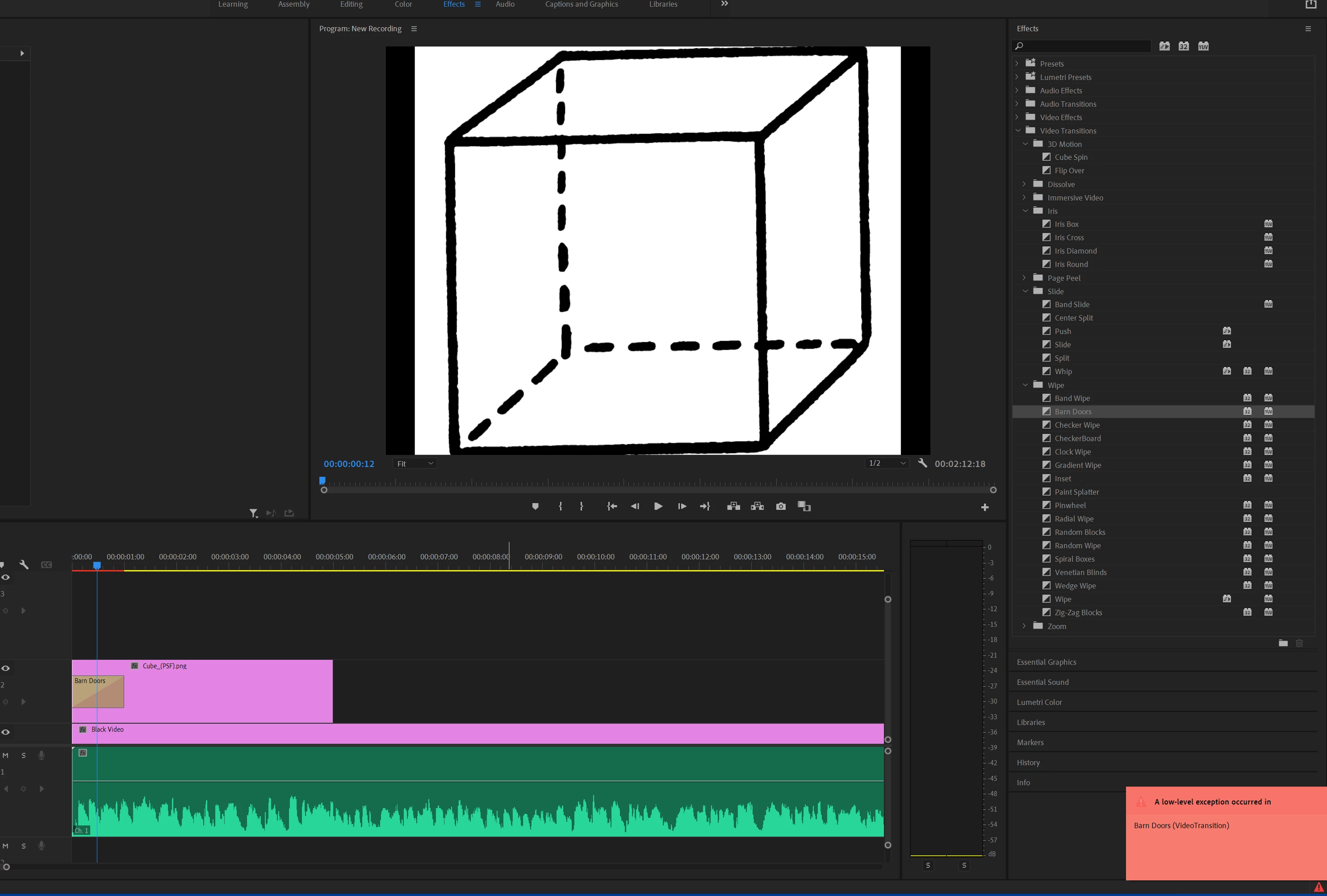
 

I'm on a Windows 11 machine with an AMD 5700G CPU and 16 GB RAM. Setting the project settings to "software render only" didn't change anything. I'm new to video editing and Adobe PP, but honestly, I didn't expect such a difficulty adding a simple video transition. 


Thanks. 

This topic has been closed for replies.
Correct answer Carlos Ziade

try to delete the render files from sequence

5 replies

Inspiring
April 22, 2023

Hi Artur.... sorry for being off topic but i saw no other way to ping you in private. How is the 5700G otherwise apart form this occasional glitch. Your using with only the iGPU i assume. Is the timeline scrubbing smooth with 4K footage on small 2-3 minute projects, say 30-40 clips on the timeline.

Participant
April 14, 2022

After deleting the image, and re-inserting it, the error went away. Can't explain why and how, but I'm glad that I can use transitions again. Thanks!

Carlos ZiadeCommunity ExpertCorrect answer
Community Expert
April 14, 2022

try to delete the render files from sequence

Peru Bob
Community Expert
Community Expert
April 13, 2022

Try nesting the clip and then apply the transition to the nested clip in the main sequence.

Peru Bob
Community Expert
Community Expert
April 13, 2022

Delete the Media Cache and Media Cache files:
https://community.adobe.com/t5/premiere-pro/faq-how-to-clear-your-media-cache-in-30-seconds-in-premiere-pro-2020/m-p/11017257/thread-id/260446?page=1

If that doesn't work, try resetting the preferences:
https://community.adobe.com/t5/premiere-pro/faq-how-to-reset-trash-preferences-in-premiere-pro/td-p/8236158?page=1

If that doesn't work, try resetting the Workspaces:
Reset a workspace
Reset the current workspace to return to its original, saved layout of panels.
1. Do one of the following:
• Click the Workspace menu icon and select Reset to Saved Layout.
• Choose Window > Workspace > Reset to Saved Layout.
from here:
https://helpx.adobe.com/premiere-pro/using/workspaces.html

If that doesn't work, try Preferences > Audio Hardware and set Input to None.

If that doesn’t work, try updating or rolling back your graphics driver directly from the video card manufacturer’s site. If NVIDIA, do a clean installation of the latest Studio Driver (NOT the Game Driver)

If that doesn't work, try creating a new project and import the old one into it.