Participating Frequently
September 20, 2025
Question

Voice-over Slider Stuck

  • September 20, 2025
  • 2 replies
  • 214 views

Hello,


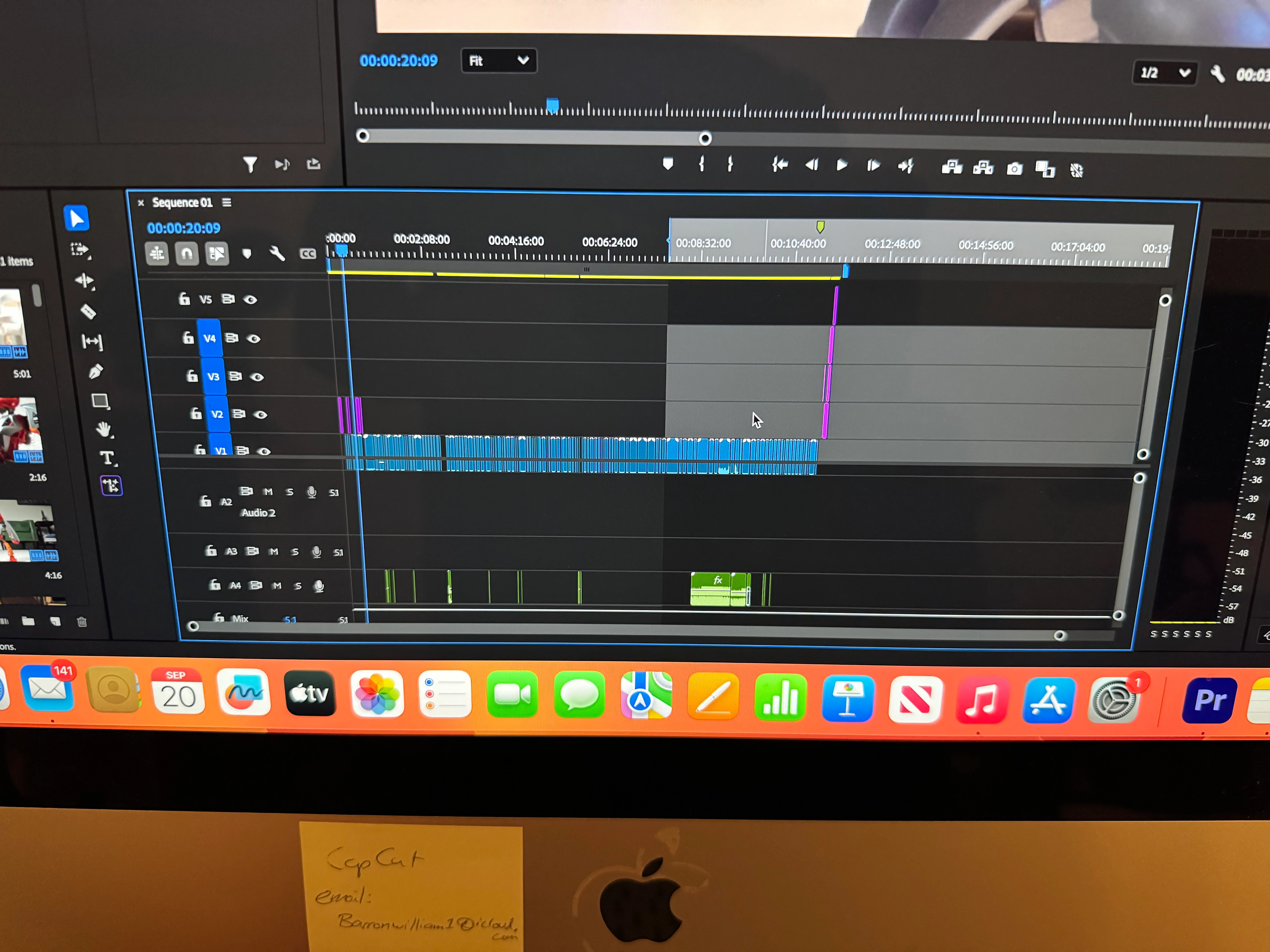
The right side of my voice over slider is stuck out of screen and I cannot capture it to pull back to the left. Anyone have a fix for this? Thanks!
2 replies

Participating Frequently
September 24, 2025

Solutions


1. Reset the Audio Track Mixer / Window Layout


Go to the top menu → Window > Workspaces > Reset to Saved Layout.


This usually snaps all panels (including the voice-over slider) back into view.


2. Undock & Redock


If you can still see part of the Audio Track Mixer panel, right-click its tab and choose Undock Panel, then drag it back onto screen and dock it again.


3. Change Workspace


Switch to a different workspace (e.g., Audio, Editing, or All Panels).


Often this forces panels back inside the visible window.


4. Increase Screen Resolution Temporarily


On Windows: right-click desktop → Display Settings → increase resolution.


On macOS: System Settings > Displays > More Space.


This can reveal the stuck slider, then you can move it back before restoring resolution.


5. Delete Layout Cache


Close Premiere Pro.


Go to the layout preferences folder and delete the “Workspace” cache:


Windows: Documents\Adobe\Premiere Pro\[version]\Profile-[username]\Layouts


Mac: ~/Documents/Adobe/Premiere Pro/[version]/Profile-[username]/Layouts


Relaunch Premiere — it will rebuild the layout fresh.


---


👉 Quickest fix in most cases: Reset to Saved Layout.

Participating Frequently
September 27, 2025

Thanks! The right-click suggestion worked. But, will be saving your insight for future issues. 

Thanks again!

Community Expert
September 21, 2025

Window -> Workspaces -> Reset To Saved Layout

Participating Frequently
September 21, 2025

Thanks! Tried, but unfortunately didn't work. Problem is the icon that captures the end of the voice over track doesn't appear when scrolling over the right side. The two pics below illustrate. In the first pic, you can see the icon on the left of the timeline. That's what is failing to appear on the right side. In the second pic, I just drew in red what we are looking for. As it stands, we can't adjust the right side. 

Thanks again for any help!!

Community Manager
September 24, 2025

Hi amazing_contributors4203,


Have you tried right-clicking on the Time Ruler and selecting 'Clear In and Out'? This should clear the current selection, allowing you to redefine the In and Out points as needed. Alternatively, you can place the Current Time Indicator (CTI) where you want to mark the Out point and press the 'O' key to set the end of the selection to that point. I hope this helps.


Thanks,

Sumeet
