Mar 24, 2020 3:17 AM UTC
Question

Warped/distorted videos after exporting

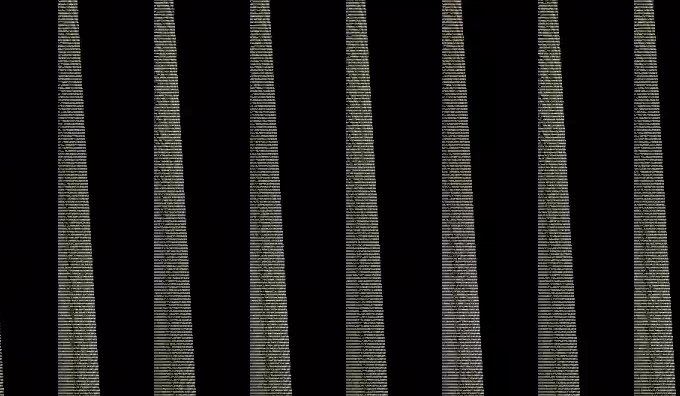
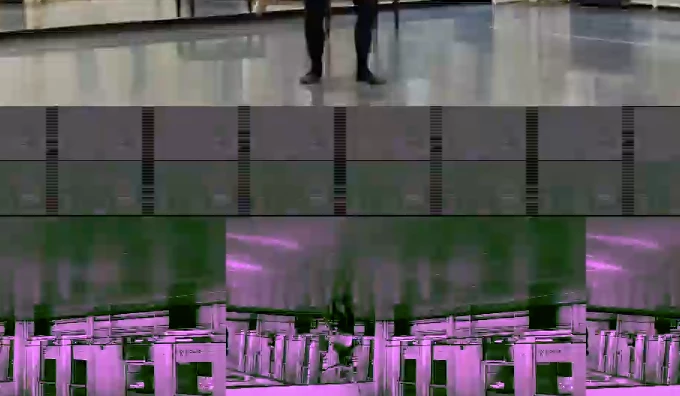
I'm a beginner at Premiere Pro. After I've exported some of my videos, (using the settings that Adobe recommends using in their tutorial (H.264 and "Match Source-Medium bitrate"), my videos keep coming out distorted/warped. I've included screenshots of what some of my videos look like. My videos still play but the picture quality is completely destroyed. Does anyone know why this is happening or how I can fix it?


Thank you!
 

18 replies

Participant
Aug 3, 2024 9:30 AM UTC

I'll put you out of your misery! In the export settings, do you have options for 'VR video'? If so, untick it.

I used premier Pro and it played fine it its preview and through Quickplayer, yet no matter what I did it was distorted in YouTube.

Here's the settings I used in Premier's export settings:

Preset: YouTube 1080p

Format: H.264

Frame size: Full HD (1920x1080)

Aspect: Square pixels (1.0)

Under the section 'VR Video'. Untick the box that says 'Video is VR'

That's it!

Translate
lisab62134857
Participant
Feb 4, 2025 4:20 PM UTC

THANK YOU!

Translate
Ann Bens
Community Expert
Community Expert
Apr 1, 2020 7:24 PM UTC

This image shows a gpu issue.

Update videodriver.

Translate
Apr 1, 2020 8:59 PM UTC

Thank you. Is there a way you recommend updating the video driver?

Translate
Ann Bens
Community Expert
Community Expert
Apr 1, 2020 6:33 PM UTC

As this is getting complicated I would start over in a new project with the converted files.

Translate
Participant
Apr 1, 2020 6:23 PM UTC

Omg, this is the same problem I have. Is there anything I can do too?

Translate
Legend
Mar 24, 2020 4:47 PM UTC

the variable frame rate is probably the cause of the problem.

read this:  

https://community.adobe.com/t5/premiere-pro/faq-issues-with-screen-recorded-footage-in-premiere-pro/td-p/10874355?page=1


Use handbrake to convert to a constant frame rate and replace the footage and see if that fixes things.

https://handbrake.fr


post back with any questions.  

Translate
Apr 1, 2020 5:51 PM UTC

Thank you. 

When I used handbrake for the original footage it fixed my issues when I then reassembled my project and I exported it and had no problems. Then I went back to my project to make some changes and exported with the same settings and it has the same issues as the ones I have posted above.

Included in this project are several effects, like crossfades. I'm not sure if those could cause issues like these?


Translate
Community Expert
Apr 1, 2020 6:12 PM UTC

did you make sure when going back to your project 

you still had the footage you encoded using handbrake?

if yes, try to update your GPU from the vendor's site

or try to export to QuickTime GoPro Cineform YUV 10 bit.

do you have GPU acceleration in project settings? or software only?

Translate
Legend
Mar 24, 2020 4:20 AM UTC

tell us your source properties (select each clip and control click and choose "properties" and your sequence settings.

Translate
Mar 24, 2020 4:12 PM UTC

Hi mgrenadier,


The properties are:


Type: MPEG Movie

File Size: 3.69 GB

Image Size: 1920 x 1080

Frame Rate: 29.98

Source Audio Format: 44100 Hz - Compressed - Stereo Project

Audio Format: 44100 Hz - 32 bit floating point - Stereo

Total Duration: 01;06;57;15

Pixel Aspect Ratio: 1.0

Alpha: None

Video Codec Type: HEVC 4:2:0

Variable Frame Rate Detected:

Translate