
andrewmead
Participant
April 12, 2018
Question

Washed Out Export

  • April 12, 2018
  • 5 replies
  • 1446 views

I'm running version 12.1.0 of Premiere Pro CC. I'm on a 2016 13" MacBook Pro with integrated graphics.

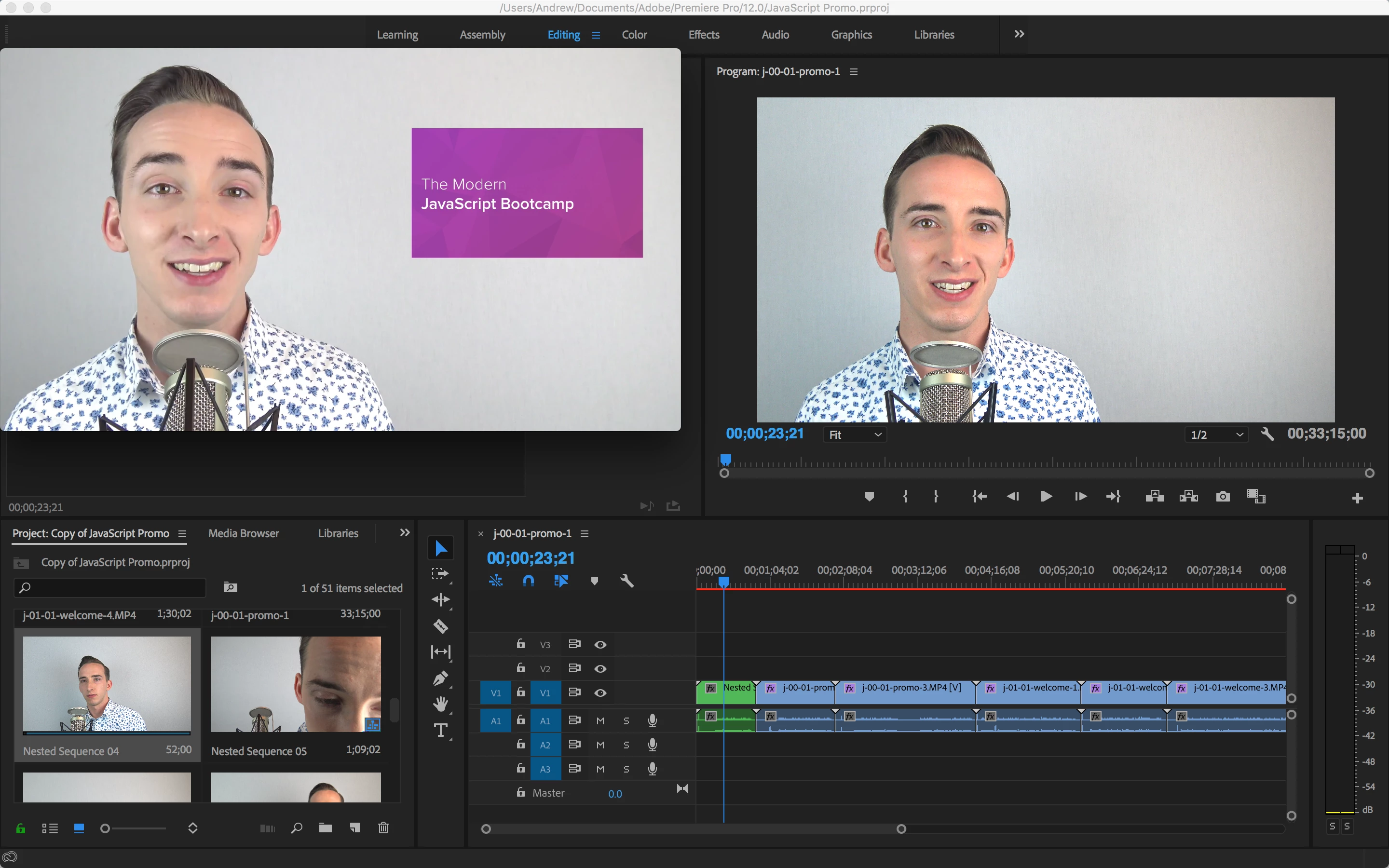
The screenshot below shows the preview (right) and export (left). I'm getting completely washed out colors using H.264, ProRes, and and a number of others. Any idea what's causing this?
    This topic has been closed for replies.

    5 replies

    francis-crossman10980533
    Adobe Employee
    Adobe Employee
    May 19, 2018

    I am almost certain that the problem you are running into is related to the Quicktime Gamma problem that so many have battled with over the years.  The issue is that QuickTime player interprets the video file using the wrong gamma setting leading to what looks like a washed out image.  I recommend using VLC player to check your files - http://www.videolan.org/. Also reimport your file back into Premiere.  If what you see in Premiere while you are editing matches what you see in VLC player and that also matches what you see when you reimport the file you can rest assured that your file is correct. 

    josephbastien
    Inspiring
    May 18, 2018

    Also sometimes codec yields slightly different looking results. That's again why I keep a general rule of thumb to use ProRes 422 HQ so that it's going to be the closest thing to what the final deliverable will be. For example, I've had it in the past where some H264s (MPEG-based not Quicktime based) have a little more contrast in them than the original. It doesn't happen often and the difference is usually negligable but still, if you're seeing one thing in your edit and the result is different, either you're Program Window is wrong, your monitor is wrong as Jim said, or your codec is wrong.

    Legend
    May 18, 2018

    I think Jamie LeJeune has it right in the following thread from the Blackmagic forums.  He's specifically talking about Resolve, but the idea holds true for all NLEs.  The upshot is, "The only image you can trust is to run SDI out to an accurately calibrated reference monitor."

    http://forum.blackmagicdesign.com/viewtopic.php?f=21&t=68410

    josephbastien
    Inspiring
    May 18, 2018

    Hey Kevin,

    I've had some weird results happen to me when I added custom luts to Premiere's Lumetri Color Panel but don't add it to Media Encoder. I've gotten some odd results in the past, could it be something like that?

    Also, I'm seeing from your screenshot that you have a Red line over your timeline. What effects have been added to create that? If there are no effects added, it's possible your Sequence Settings are off. I'd go in and check it.

    A general rule of thumb for most common codecs is to make sure you Preview Files are set to Quicktime ProRes 422 HQ, check Maximum Render Quality, Maximum Bit Depth.

    While you're there it couldn't hurt to check if the check for "Composite in Linear Color" is on. Depending on your settings that can sometimes mess with things. 

    Kevin J. Monahan Jr.
    Community Manager
    Community Manager
    May 17, 2018

    Hi andrewmead,

    • Have you ever added any LUTs to Premiere Pro?
      • If so, how did you add them?
    • Are you exporting directly from Premiere Pro or Media Encoder?
      • Whichever it is, try the other option and see if you get the same results.

    Thanks,
    Kevin

    Kevin Monahan - Sr. Community and Engagement Strategist – Adobe Pro Video and Audio