patrickf18664270
Participant
January 24, 2018
Answered

Wave forms for nested sequences disappearing

  • January 24, 2018
  • 11 replies
  • 27727 views

Hi,

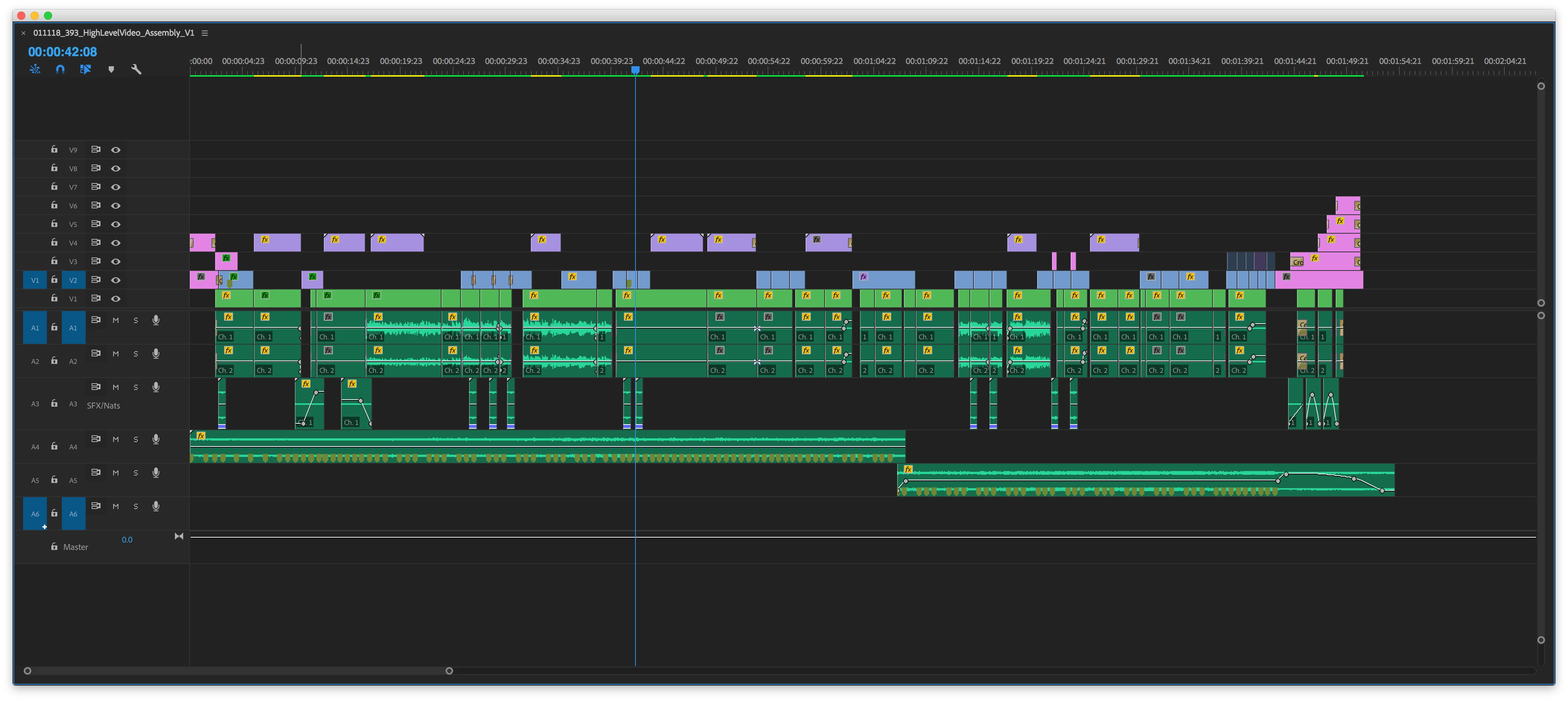
I've searched the forum, and while there are many threads related to this issue, none of the answers have worked for me. I'm working with nested sequences in Premiere, and I'm having an issue where every time I open the project, the waveforms for those nested sequences have disappeared. I've checked my cache folder and all the .pek files are still in there. What's more confusing is that some of the wave forms are there for some of the nested sequences. I'm attaching a screen shot:

If anyone has encountered this problem and solved it, please let me know. It's so frustrating, since the audio has to be re-rendered every time and it takes forever. Render and replace is not an option because it puts limits on the in and out points of the clip.

    Correct answer Daniel Hoover

    We've had this issue before, there are several potential causes:

    1) Media cache is corrupt - Close Premiere and manually delete all files in Media Cache locations (can see location via Preferences -> Media Cache).  Relaunch project and wait for it to re-conform all audio.  If that doesn't work, it could be that Premiere is "remembering" the link to the old media file's waveform (or lack of).  Try changing the name of the file on your hard drive and re-importing it to Premiere (or relinking/replacing footage).  This will trick Premiere into thinking it's a brand new file and it will kick off the conforming process again.

    2) You're mixing and matching stereo and mono files on a single audio track inside the nest.  Instead, keep things on tracks grouped by stereo, mono, etc.  Even better, in the Project panel, Modify Audio Channels of all your audio files and keep things all consistent (i.e. all mono) so you have more control for solo/mute and can see the waveforms more clearly per track.

    3) Make sure no audio gain or effects are applied on the clips inside the nest.  Only apply gain and effects at the top level (i.e. put the effects on the outside of nests, not on the contents inside).

    4) Nested audio can get weird - is this a simple nested sequence or a multicam enabled sequence?  If multicam, then in the top level sequence where the nest is being used in the timeline, you have two choices.  For example, if you have a 2-track audio .WAV inside a nest, you can "point" to those two tracks from the master sequence by:

            a) Modify Audio Channels (Project panel) the .WAV file as stereo and place on Audio Track 1 inside the nest.  Then Modify Audio Channels (Project panel) the nested sequence to use Channels 1&2 to select the needed audio track in the master sequence

    -or-

            b) Modify Audio Channels (Project panel) the .WAV file as two mono tracks and place one on Audio Track 1 and the other on Audio Track 2 inside the nest.  Then Modify Audio Channels (Project panel) the nested sequence to use Channel 1 for *both* audio tracks, and then use the Multicamera selector in the master sequence to choose which Camera Angle (aka which audio track from the nest) to point to. To do this, in the top level sequence, unlink video and audio of the nested clip that is not showing waveforms, right click on each audio track and choose Multicamera -> Camera X (pointing to whichever track your audio corresponds to on the inside nest).

    5) If all else fails, try rendering the audio.  I know, huge pain, but sometimes it's worth it.  If it's a monster audio file or it'll take forever, then maybe consider using markers inside the nest where you can see waveforms to mark several key points, then those markers will be visible in the level above.

    Hopefully that makes sense!  We deal with nested multicam workflows all the time here, and lack of waveforms usually boils down to one of these things.

    11 replies

    Participant
    August 7, 2024

    My solution:
    1) Nest only the video clips.
    2) Select both the nested clips and audio and 'link' them together

    Good Luck!!

    Participant
    January 4, 2024

    What bothers me about this is that this is normal behaviour for Premiere.  It shouldn't be, but it is.  It's not logcical behavior from a workflow and common sense perspective.


    I'm writing this comment while waiting for my sequence's audio to re-render.


    As OP points out, there are .pek files and etc. in my cache from yesterday when I had this project open and rendered the audio for the sequence.  Why is this constantly pegged as a "user issue", whereas it should be fixed (or improved, in case this is a "feature" and not a bug") by the vendor?  It's been this way for so many years, with so many posts, so many questions, so many frustrated users... heck, I'm commenting on a post from 2018 about the same issue in 2024.


    I end up leaving PP open for days at a time to avoid a long re-render on a project.  (The problem with leaving PP open for any length of time is that eventually it becomes unstable, of course.)


    Oh, there we go.  The render just finished.  12 minutes.  Granted, it's a 2 hour sequence with more source footage than that.  The fact that PP doesn't render multithreaded in 2024 is crazy.  I'm a software developer most of the time.  There's no real reason various audio segments can't be simultaneously rendered by different threads.  (Except for the archaic core codebase being originally written for single-core CPUs, of course.)  I know that's tangential, but I wouldn't mind rendering my sequence(s)' audio every time I open the project if only it was fast.


    I just upgraded my computer last week to a Threadripper Pro 64-core 4.5Ghz (max) CPU / 512GB RAM and PP still struggles with audio.  Am I the only one that finds that insane after the product has been in public release for over 20 years?


    What really grinds my gears is that it's such sloppy software.  Since (IIRC) PP 2021 my audio rendering dialog (pictured above) has shown no progress bar, no "time elapsed", no "free disk space", nothing until suddenly at about 80-90% it'll update the GUI.  This has been across 3 different computers, so I can't imagine it's a "me" issue.


    For the last couple of years I've been drinking the Koolaid of posts like this, which insist it's a user problem.  Yeah, my previous PC was old and had been through tons of version and cache churn.  I was easily able to believe I had some weird out-of-date DLL or registry entry that was just causing rando issues.  But now: New computer, fresh Win 11 install, same Adobe crud.


    Oh, the reason I'm re-rendering right now?  For no apparent reason PP decided to freeze for about 10 seconds, then when it un-froze the program monitor just showed black. All I did was move the playhead about 2 seconds forward on the same clip.   Sure, that may have been a hardware issue, a driver issue, cosmic rays, or a voodoo curse on my machine.  But the fact the PP doesn't actually show an error message when an error occurs shows just how poorly this software is coded.  I mean, think about it?


    Now that I'm on PP 2024 with a brand new computer and the same old hassles, my new years resolution is going to be quit this abusive relationship with my software vendor that charges me the most.


    Sorry for the rant, but I feel like if you're experiencing this problem and found this thread on Google, you might need to hear "it's not you, you're OK".  You can let the other side of this relationship convince you that the problem is you: They're perfect, but you need to improve. You need to clean your cache, you need to change your workflow, you need to update your drivers, you need to reload your OS, you need to get six pack abs.


    All the while, they'll never actually tell you what they think you did wrong.  Just like a dysfuctional relationship, they'll simply stop communicating and pout.  They'll passive agressively stop doing what they said they'd do, without a word as to what the problem is.  So all you can do is go to your friends and say, "I don't know what I did, but they're mad at me.. tell me how to fix this!!"  (This is in regards to the lack of error messages and the userbase relying on user-supported forums in case my analogy is going off the rails.)


    There are other fish in the sea. 


    And they're not just into you for the recurring revenue, either.

    Participant
    March 31, 2023

    Patrick and everyone- I was just experiencing this issue in Premiere 23.2.0 (Ver 69. Nice.) I coupled video with externally recorded audio for many interviews in the project timeline, then selected, and saved subsequences of each match, all nice and paired up. Dragging back to my active time in the form of subsequences, I found each one presented a flat line of no audio waveforms, which won't work! The solution that worked for me? I drew In point/Out point around just one timeline clip to see what rendering audio would do. Premiere said Nah fam Im gonna render all these clips, and booyah, all the waveforms appeared, ready for tinkering. I thank the old gods and the new for a blessedly, surprisingly non-infuriating quick fix. Typically if Premiere isn't functioning in accordance with what a savvy user wishes it could do, a fat headache is nearby, along with the application of some bandaid fix in the meantime, with our many useless cries being directed at our only option of having communion with the Adobe Lords from whom a real fix may emerge: these cursed forums. 


    No matter what model-year updates may promise, our beloved Premiere always feels about 5 years behind. 

    georgep21368903
    Participating Frequently
    August 11, 2023

    Quick, but temporary fix. It doesn't fix the core problem which is missing waveforms upon reopening the project. The explanation above reasoning that Premiere always wants to rerender waveforms in nest (in my case, multicam clips) makes no sense to me. Somebody explain. Just for nested audio waveforms? I don't get it. And it seems inconsistant. So, yeah on my current project I have to "Render Audio" every single time I open the project . . . Sometimes, I actually miss Media Composer. 

    Inspiring
    September 9, 2022

    I know this is an old post, but wanted to share a fast fix. Sequence > Render Audio.

    Didn't take but a minute and now I'm back to editing! You will have to re-render if you make changes to the original nested audio, but if you make all your changes at once and are happy with the way it sounds, this will get you back to editing FAST. Nothing to do with media cache or relinking audio, Premiere just needs to re-render based on the changes you made in the nested sequence. 

    Happy editing!

    Kevin-Monahan
    Community Manager
    Community Manager
    September 9, 2022

    Hi Rachilli,

    Thanks for the reminder on the workaround. To fix the issue, ensure the audio sample rates match the source footage in both the source and the nested sequences. That's the basic workflow to follow in the future.


    Thanks,
    Kevin

    Kevin Monahan - Sr. Community and Engagement Strategist – Adobe Pro Video and Audio
    Inspiring
    September 9, 2022

    What does that mean- sample rates? I just wanted to share what I found that works as I run into this issue every time I edit the original audio inside of a nested sequence and go back to the main sequence and see no audio forms.

    EALS
    Inspiring
    July 22, 2021

    I have the same issue. The first part of the subsequence shows the audio curve, but almost at the end, it just disappear (although I can listen to it). Deletting the cache or relinking do not work.


    Kevin-Monahan
    Community Manager
    Community Manager
    July 22, 2021

    Try rendering audio. The sample rates probably do not match betweeen settings and media, EALS.


    Cheers,
    Kevin

    Kevin Monahan - Sr. Community and Engagement Strategist – Adobe Pro Video and Audio
    EALS
    Inspiring
    July 23, 2021

    Hello Kevin, thanks. It worked for me.

    Participant
    April 2, 2021

    Not sure who needs to hear this, but figured I'd post it since there were responses with in the last year or so.  Also, if this was already said I apologize.  But this worked like a charm for me, no issues when reopening the file either.  Press alt+click and drag to select all the nested audio only.  Then right click on one of the selected audio clips - select render and replace, let it do its thing.  Then boom, waveform should be visible. 


    Hope it helps! 

    Participant
    October 21, 2022

    This worked for me! Thank you!

    Participant
    April 20, 2020

    Fastest work around is use adobe's media encoder and export the audio and then import the audio into the nest. I had done this and it works for me. If you do not have media encoder, then use PPro export media, uncheck export video to get to export audio only. It should work too.


    The only issue maybe you cannot easily adjust the position of audio from different tracks, you need to cut and put them into different tracks in the new nest if you need to.

    Legend
    April 2, 2019

    Problem solved with awesome free call in help.  Using a telephone?  Who knew?

    tommcphee
    Participant
    April 8, 2019

    And what was the solution for you...?

    Legend
    April 8, 2019

    The solution is, and this will kill you.....

    Nested sequences do not retain rendered audio.  Sure you can render it, and get the cool "wave forms" etc.... but later when you reopen the program, the nested sequences will be raw again.

    Reason:  PPRo doesn't retain the rendered audio, because it's want you to do a clean new render every time, especially before you export it.  PPro wants you to work on the sequences, but the nested sequences are just a temp file used prior to export, so the old rendered audio doesn't stick.  It  wants fresh new rendering prior to export.  PPRo assumes you are not working in the nested sequence files.... only in the individual sequences, prior to nesting.  i hope I explained that right.

    You will notice this, when you go to your 'raw' timeline, the audio, even though NOT rendered, will play just fine.  Right? So you can work away...  but when you want to export the timeline, then you render it clean and proceed.   (just make sure your prior seq was rendered before nesting it)

    Insane right?  I've written a couple of these questions and everybody gave me nonsense hardware reasons and "fixes."   Turns out, it's simply supposed to be like that.

    Aggravating isn't it.

    Quid Pro Quo.....      When I open my file from the "home page" it crashes. When I open the exact same file from the upper left hand corner, directly, it opens fine.  How's that for a brain teaser.  I'm going to have to call that one in and spend 90 mins talking to a guy that speaks English as a fourth language to figure out something that will take 20 seconds to fix.

    Legend
    March 24, 2019

    Reading this HUGE laundry list of repairs above for "nesting" sequences is insane.  I used PrPro 2.0 about 10 years ago, and just started using PrPro CC latest version.


    All I have to say (comment removed - profanity is not allowed)


    Nesting sequences is a huge waste of time and a step that is not needed.  The old PrPro you just made a sequence, and dropped that sequence into any new sequence and it would work.  SIMPLE.


    But now you have to Nest, which makes another useless sequence and clutters your folders.  AND NOW... These nested sequences have conforming problems to no end.


    Every time I nest something, and re open the program, the audio needs to be re conformed.  Yet another huge waste of time.


    THIS IS BRAND NEW SOFTWARE???  UNREAL.


    My point is this, after 10 years, PrPro CAN'T PULL THE BUGS OUT OF THEIR SOFTWARE?  It's insane. I spend more time researching bugs and fixes then actual editing.


    I WANT TO EDIT, NOT RESEARCH PROBLEMS BY 100'S OF OTHER USERS THAT ARE LEFT HOLDING THE BAG FOR SOFTWARE THAT DOESN'T WORK BY A COMPANY THAT EXPECTS ALL OF US TO RESEARCH AND FIX THEIR LAME SOFTWARE.


    I wish I never bought this 10 years ago, and now I wish I never re bought it now.  What can I do now?


    I'll try their call in support, but I already know, it's gonna be some guy walking me thru all the steps I've already done, for hour after hour of more meaningless trouble shooting and for what?


    The guy that created the nested sequence should have his head examined. WHY CAN'T PRPRO MAKE A PROGRAM THAT WORKS??????????????


    Mod note: Please avoid profanity on our forums, we have minors reading here and it's against community guidelines.

    Participating Frequently
    March 13, 2021

    Holy truth! I repeat it constantly! 

    Daniel Hoover
    Daniel HooverCorrect answer
    Inspiring
    January 24, 2018

    We've had this issue before, there are several potential causes:

    1) Media cache is corrupt - Close Premiere and manually delete all files in Media Cache locations (can see location via Preferences -> Media Cache).  Relaunch project and wait for it to re-conform all audio.  If that doesn't work, it could be that Premiere is "remembering" the link to the old media file's waveform (or lack of).  Try changing the name of the file on your hard drive and re-importing it to Premiere (or relinking/replacing footage).  This will trick Premiere into thinking it's a brand new file and it will kick off the conforming process again.

    2) You're mixing and matching stereo and mono files on a single audio track inside the nest.  Instead, keep things on tracks grouped by stereo, mono, etc.  Even better, in the Project panel, Modify Audio Channels of all your audio files and keep things all consistent (i.e. all mono) so you have more control for solo/mute and can see the waveforms more clearly per track.

    3) Make sure no audio gain or effects are applied on the clips inside the nest.  Only apply gain and effects at the top level (i.e. put the effects on the outside of nests, not on the contents inside).

    4) Nested audio can get weird - is this a simple nested sequence or a multicam enabled sequence?  If multicam, then in the top level sequence where the nest is being used in the timeline, you have two choices.  For example, if you have a 2-track audio .WAV inside a nest, you can "point" to those two tracks from the master sequence by:

            a) Modify Audio Channels (Project panel) the .WAV file as stereo and place on Audio Track 1 inside the nest.  Then Modify Audio Channels (Project panel) the nested sequence to use Channels 1&2 to select the needed audio track in the master sequence

    -or-

            b) Modify Audio Channels (Project panel) the .WAV file as two mono tracks and place one on Audio Track 1 and the other on Audio Track 2 inside the nest.  Then Modify Audio Channels (Project panel) the nested sequence to use Channel 1 for *both* audio tracks, and then use the Multicamera selector in the master sequence to choose which Camera Angle (aka which audio track from the nest) to point to. To do this, in the top level sequence, unlink video and audio of the nested clip that is not showing waveforms, right click on each audio track and choose Multicamera -> Camera X (pointing to whichever track your audio corresponds to on the inside nest).

    5) If all else fails, try rendering the audio.  I know, huge pain, but sometimes it's worth it.  If it's a monster audio file or it'll take forever, then maybe consider using markers inside the nest where you can see waveforms to mark several key points, then those markers will be visible in the level above.

    Hopefully that makes sense!  We deal with nested multicam workflows all the time here, and lack of waveforms usually boils down to one of these things.
    Participant
    October 20, 2023

    I just ran into this issue and saw that your answer was the recommended solution. I decided to try #5, render the audio, before I tried the rest as my nested sequence is not incredibly complex. It worked immediately! Quickly, too. This happened in Adobe Premiere Pro 2024