
Participant
August 23, 2018
Answered

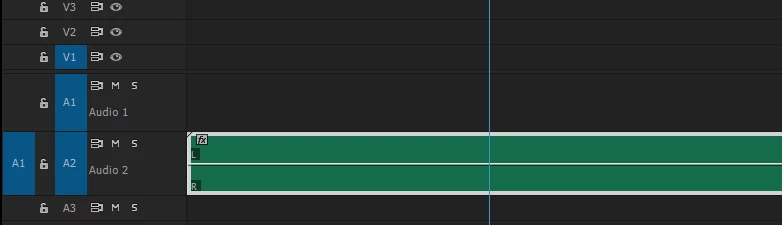
WAVEFORMS NOT SHOWING! help

  • August 23, 2018
  • 10 replies
  • 56503 views

HELLO!

I recently installed Premiere Pro, and I happen to have stumbled upon a big problem: the waveforms are not showing. They are only a solid color (green). I am relatively new to editing with this program, so I need your help. Thanks!
This topic has been closed for replies.
Correct answer Ann Bens

Trash media cache manually.

FAQ: How to clean media cache files |Adobe Community

Open Pr and let it finish building the pek files before doing anything.

10 replies

rodrigodxb
Known Participant
December 16, 2020

I had the same issue and researched forever that's why I made this video - straight to the point no bla bla 🙂 
https://www.youtube.com/watch?v=LyM6LtXVKZU

Participant
September 11, 2020

This is a simple fix:


Please go to Premiere Preferences and select the Media Cache tab. 

There you will find the Media Cache Files Location. /Volumes/xx/xx/xx....

**Side note: I dedicate a separate drive to all cache files and recommend you do the same**

Open a Finder window and navigate to that cache folder. You will find a subfoler called Peak Files.

In Peak Files locate the exact problem-file names and delete them. 

Quite Premiere and restart. Let the program sit while it regenerates the Peak Files.


Finished.


Hope that helps.

JJ


S D Mol
Participating Frequently
March 7, 2020

It's green -- like mine -- so I assume it's a nested sequence.


Click on the green audio track and click "Render Audio" on the Sequence menu.

LuMags
Inspiring
January 12, 2021

OH YOU BEAUTY! This worked for me @S D Mol . Cleared cache, didn't do anything. I was able to see Waveform at only certain zoom levels. Did your idea and now its all levels. Buying you a virtual lunch mate, cheers!! 

Detail: FWIW it was a nested sequence

christinaz2682652
Participant
May 17, 2019

Premiere Pro > Sequence > Audio render

That helped me to solve the problem.

Participant
July 8, 2019

Only thing that worked for me. Thanks for posting this.

mattmattmayer
Inspiring
May 10, 2019

I have a solution to this. tl;dr below.

I believe this is caused by there being confusion over whether there is an associated .pek file, or maybe an association with a corrupt or incomplete .pek file. So I have found that you can trick Premiere into make a new one.

  1. Make sure this checkbox is checked: "Premiere Pro > Preferences > Audio > Automatic audio waveform generation"
  2. In the Premiere timeline, on the clip in question, right-click > Reveal In Finder
  3. In Finder, move the audio clip up in the Finder folder hierarchy
  4. Return to Premiere
  5. The clip should have lost its link to the file and the Link Media dialog box should automatically appear (if it doesn't, right-click > Link Media)
  6. Relink the clip to where it is in its new location

That should be it. Look at the bottom right of your Premiere windows to see if it's automatically generating new waveforms (generally a blue status bar). Wait till that bar is complete and tada: waveforms. They should show up immediately and automatically. I think what's happening is that this process disrupts Premiere's link between that file and any previously generated waveform information. So the incomplete or corrupt waveforms are ignored, and new ones are generated for the file in its new location. Moving the files up (as opposed to down or into a new folder in the same place) seems essential to confusing Premiere's automatic relinking process. If you've moved it sideways or down, when you click back over to Premiere from Finder, Premiere seems to be able to find it, and so nothing really happens. A couple notes from experimentation:

  1. Seems okay to make a new folder, just has to be higher up
  2. This can be done in batches (batch move in Finder, batch relink in Premiere)
  3. Seems also to solve the problem of not being able to see Waveform information up through Multicams

tl;dr

Move the associated audio files in Finder to a higher folder in the hierarchy, then relink in Premiere.

rodrigodxb
Known Participant
December 16, 2020

in 99 percent of the cases, it's just the media cache that got corrupted.

just follow this and you are gold: https://www.youtube.com/watch?v=LyM6LtXVKZU

andrewv40234695
Participant
May 1, 2019

Yo, this happened to me, and I realized that I cleared the Media Cache while the peak files were generating. In order to prevent this from happening give yourself time to edit and don't rush especially with large project files. Good luck soldier, see you on the battlefield.

Participant
April 9, 2019

Restart Premiere Pro or reboot the whole system

Participant
April 19, 2019

this worked for me - just restarted Premiere - but will try cleaning media cache files

emmanuelw62984602
Participant
December 29, 2018

Hi I know this was a while ago but I had the same problem and came up with a solution. So i figured I would share. I had an audio track that was about an hour long and the waveform only showed for about 5 minutes of it.

My solution ended up being to right click on the audio source in my project folder, click modify > audio channels. Preset is set to "use file" and chip channel format to "stereo". Messing with those settings made this waveform appear. I hope this is helpful.

kulpreet singh
Inspiring
August 24, 2018

Hi russelr89173141,

Do you have the Show Audio Waveform option enabled?

Thanks,

Kulpreet Singh

Participant
August 25, 2018

Yes, it is turned on.

Ann Bens
Community Expert
Ann BensCommunity ExpertCorrect answer
Community Expert
August 25, 2018

Trash media cache manually.

FAQ: How to clean media cache files |Adobe Community

Open Pr and let it finish building the pek files before doing anything.

Legend
August 23, 2018