
brendano16310974
Inspiring
August 1, 2024
Question

Weird 1x1 Crop When applying any kind of mask

  • August 1, 2024
  • 11 replies
  • 1051 views

What the heck is happening?


Trying to add a blur mask for some reason also crops the video file to a 1x1 square??


Here's what the footage looks like with the mask disabled.
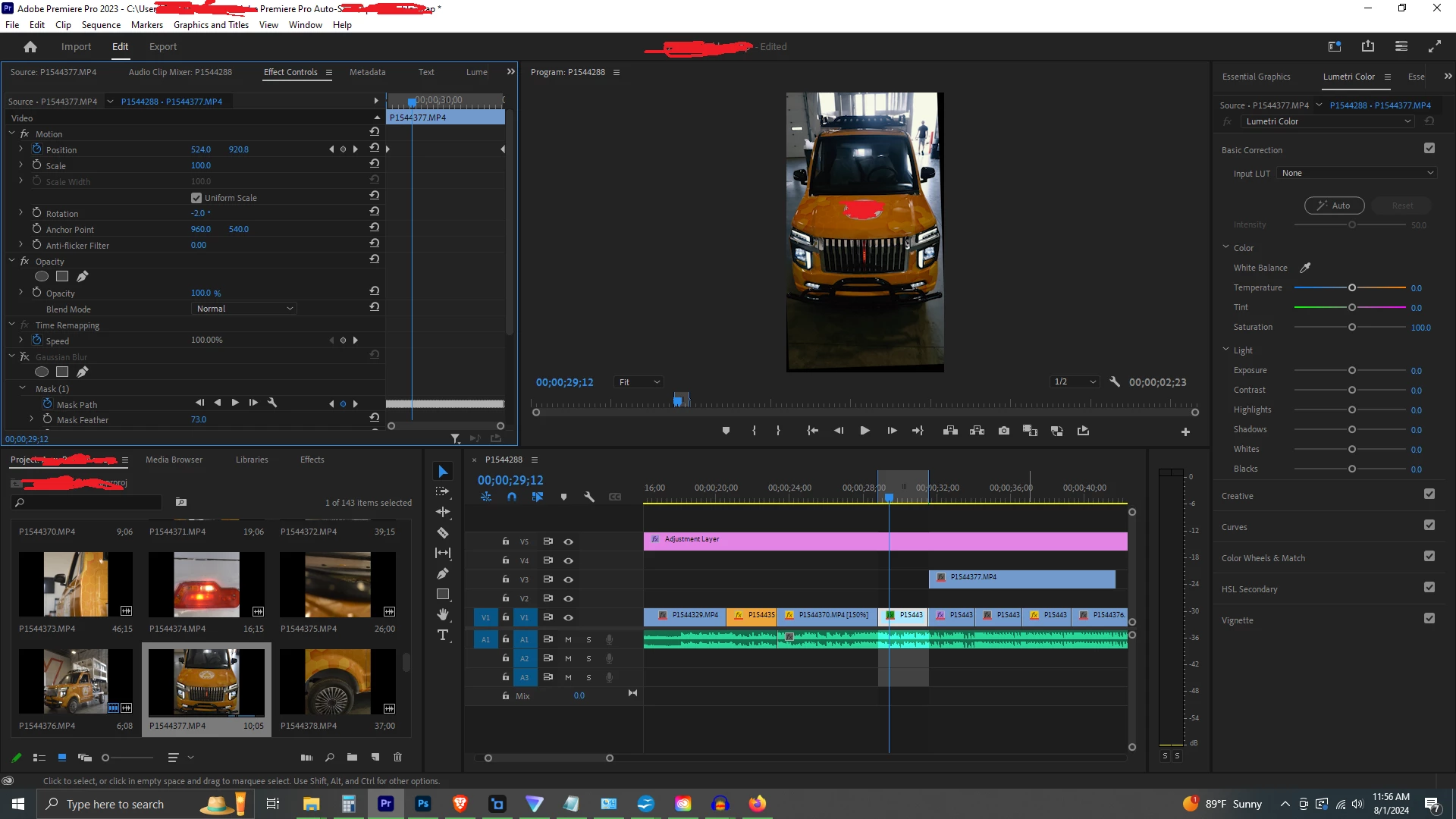


And here's what it looks like enabled:
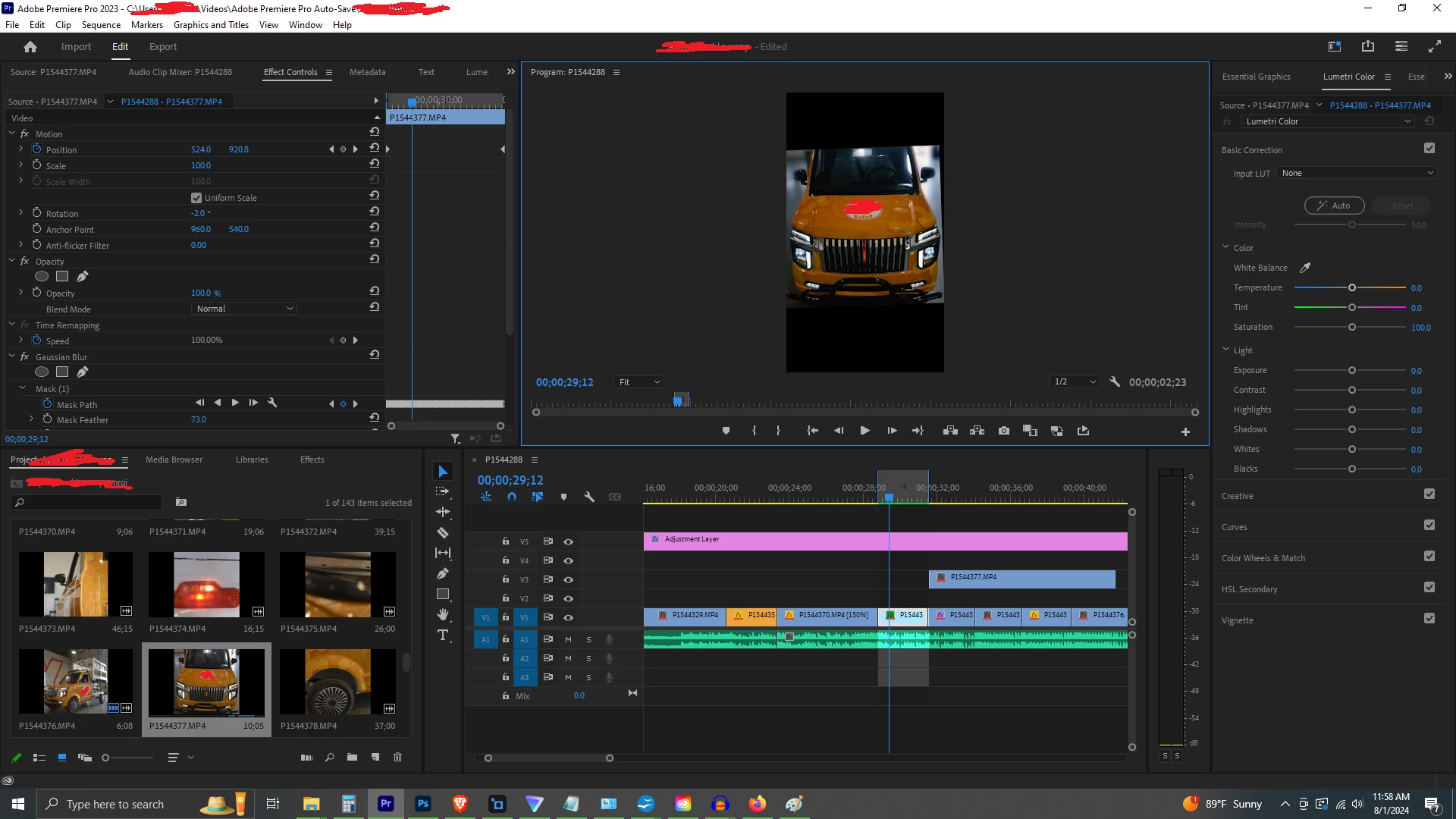


I tried to duplicate the clip so I could attempt a work-around using a opacity mask instead, but turns out the opacity mask creates the same annoying problem.


Any help would be greatly appreciated.

11 replies

maryns96773610
Participant
March 2, 2025

I'm having the exact same problem - weird 1x1 crop when I try to use a mask in a vertical clip (which I also have used 'transform' to get into the right orientation so that it's paste-able onto all clips). As you've mentioned it's not practical to do the other way but I just tried it (using motion panel rather than transform) and it did work, using the motion panel to rotate it rather than transform (only necessary on the masking layer). Silly but it's a workaround

MyerPj
Community Expert
Community Expert
March 2, 2025

If it's so many clips (and OP wanted to copy the transform effect to all the clips in the project panel.) You can drop them all into a sequence, select all and rotate in the properties panel. Then pick your selects from that sequence, AKA pancake editing.

MyerPj
Community Expert
Community Expert
August 2, 2024

Well you're way is not working, and so we're trying to give you some options to try. Give them a try, do the rotation in the native Motion properties and remove the transform in the source panel.

MyerPj
Community Expert
Community Expert
August 2, 2024

BTW: That picture you labeled "This is what the clip looks like with no rotation", so that looks like a landscape / normal video with some problem with it, if it is showing landscape there?

brendano16310974
Inspiring
August 2, 2024

There's no inherent problem with the footage. After I rotate the clips, change the sequence settings to vertical (1080x1920), it's all good.


There just appears to be some kind of problem happening with masks if I apply the rotate effect to the clips while they're still in the bin, as opposed to the timeline. 


MyerPj
Community Expert
Community Expert
August 2, 2024

It does work with the native effects. Ctrl+Alt+V (paste attributes). Rotation is included along with the other "Motion" attributes.

MyerPj
Community Expert
Community Expert
August 1, 2024

I don't get the transform to rotate 90*. Is the car clip horizontal? Why do you need the transform effect to simply rotate?

So the new project test is not to copy and paste anything. Drop the clip into the new project, create a timeline, etc...then apply similar things.

brendano16310974
Inspiring
August 1, 2024

If I apply a transform effect (instead of just using the rotate feature already found by default under effect controls) I can apply that effect to every clip thereafter in the bin via copy/paste. Otherwise, I would have to manually rotate each clip 90 degrees after dropping it into the timeline. They all have to be rotated because the destination platform is Instagram Reels, and the footage was shot accordingly (camera held vertically.)


This is what the clip looks like with no rotation

MyerPj
Community Expert
Community Expert
August 1, 2024

I can't duplicate it:


Ann Bens
Community Expert
Community Expert
August 1, 2024

Which source clip effect is applied and which effect on the adjustment layer?

brendano16310974
Inspiring
August 1, 2024

Just lumetri on the adjustment layer. And it's just gaussian blur on the clip

MyerPj
Community Expert
Community Expert
August 1, 2024

Your mask looks like very many nodes around the mirrors. Can you try a new project, drop that clip in and try the mask again very simplified. As an aside: (So, it looks like it's a standard video you are editing vertical. )

brendano16310974
Inspiring
August 1, 2024

Yes, it's a clip that's had a transform effect to rotate 90 degrees to make it suitable for insta reels.


Copying the clip into a new project yeilds the same results. Literally any mask shape (rectangle, circle, etc) seems to cause the problem.

MyerPj
Community Expert
Community Expert
August 1, 2024

The mask goes around the car, right? So you can blur the background. Click on Mask(1) so we can see the mask.

MyerPj
Community Expert
Community Expert
August 1, 2024

hmm... OK, so I see what you are talking about. Do you need to Invert the mask? We don't see all the controls for the mask in the screenshot.

brendano16310974
Inspiring
August 1, 2024

Here's the mask controls. I need to invert the mask so the rest of the garage is blurred out (the glitch/bug seems to happen regardless is the mask is inverted, or if repeating edge pixels is selected)


MyerPj
Community Expert
Community Expert
August 1, 2024

Maybe get your scratch-out tool and post a screenshot of the sequence settings?

brendano16310974
Inspiring
August 1, 2024

Here you go