
Known Participant
March 6, 2021
Question

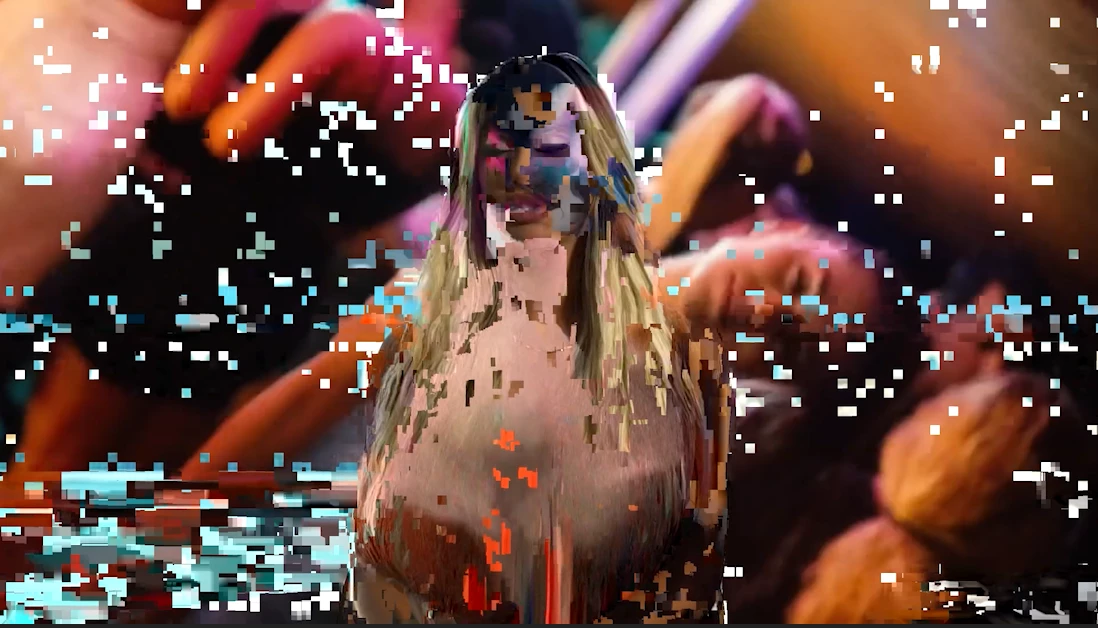
Weird Glitch Effect keep appearing

  • March 6, 2021
  • 4 replies
  • 2036 views

I already posted here but one community worker stopped replying. I'm feeling very frustrated because this weird Glitch error won't go away, please help.


Specs: 

OS Name Microsoft Windows 10 Pro
Version 10.0.18363 Build 18363
Other OS Description Not Available
OS Manufacturer Microsoft Corporation
System Name DESKTOP-08I9BC2
System Manufacturer Micro-Star International Co., Ltd
System Model MS-7B86
System Type x64-based PC
System SKU To be filled by O.E.M.
Processor AMD Ryzen 7 3700X 8-Core Processor, 4200 Mhz, 8 Core(s), 16 Logical Processor(s)
BIOS Version/Date American Megatrends Inc. H.50, 11/7/2019
SMBIOS Version 2.8
Embedded Controller Version 255.255
BIOS Mode UEFI
BaseBoard Manufacturer Micro-Star International Co., Ltd
BaseBoard Product B450 GAMING PLUS MAX (MS-7B86)
BaseBoard Version 3.0
Platform Role Desktop
Secure Boot State Off
PCR7 Configuration Binding Not Possible
Windows Directory C:\Windows
System Directory C:\Windows\system32
Boot Device \Device\HarddiskVolume2
Hardware Abstraction Layer Version = "10.0.18362.1350"
Time Zone W. Europe Standard Time
Installed Physical Memory (RAM) 32.0 GB
Total Physical Memory 32.0 GB
Available Physical Memory 23.9 GB
Total Virtual Memory 38.5 GB
Available Virtual Memory 26.0 GB
Page File Space 6.54 GB
Page File C:\pagefile.sys
Kernel DMA Protection Off
Virtualization-based security Not enabled
Device Encryption Support Reasons for failed automatic device encryption: TPM is not usable, PCR7 binding is not supported, Hardware Security Test Interface failed and device is not Modern Standby, Un-allowed DMA capable bus/device(s) detected, TPM is not usable
Hyper-V - VM Monitor Mode Extensions Yes
Hyper-V - Second Level Address Translation Extensions Yes
Hyper-V - Virtualization Enabled in Firmware No
Hyper-V - Data Execution Protection Yes


Media: It happens with every type of video that I use, no matter what sequence preset I use.
I'm using the newest Premiere Pro Version 14.9

This topic has been closed for replies.

4 replies

MyerPj
Community Expert
Community Expert
March 18, 2021

If you have a not too big mp4 file that you can upload somewhere like googledrive, etc, I can download it and see if it works here.

Legend
March 18, 2021

one question we haven't asked is how you're downloading the clips from youtube.  I generally use something called wondershare allmytube 2 which generally does a pretty good job. 

https://www.wondershare.com/

My experience has been that youtube keeps changing how the clips are formatted to make it difficult to download them but wondershare keeps updating the software to get around these problems.   You might investigate this as an alternative.  Never had any issues importing these files into premiere.

RanerinoAuthor
Known Participant
March 18, 2021

I typically use 4k Video Downloader. Maybe this program is the problem but as i said, there was never an error when viewing the video on Windows Media Player/VLC etc. I wouldn't get why the YouTube Downloader specifically triggers the glitch effect in Premiere. But I will keep your suggestion in mind, thanks!

Legend
March 18, 2021

you said "It happens with every type of video that I use, no matter what sequence preset I use." but in a later post you talk about using videos you download from youtube.  Are all your source files from youtube?  When you play the video in the source panel, do you see the problem?  

Please download mediainfo 

https://mediaarea.net/en/MediaInfo/Download

and drop one of the problem files in the window and look at it in text or tree view and tell us the reported format, the frame rate mode (either constant or variable), and the frame rate.
Does this happen with any videos from other sources?  


Try transcoding one of your problem clips using adobe media encoder to an all iframe format like prores422 (with match settings selected) and bring that file into premiere.  


RanerinoAuthor
Known Participant
March 18, 2021

Sorry for my unclear texts, English is not my mother tongue. Yes, the glitch errors also happen when I view them in the source panel. But it mostly happens randomly. Example: I've inserted a mp4 video from YouTube into the timeline, everything is fine but after a few minutes random glitch effects start appearing at certain frames.

And no, it only happens to videos that I download from YouTube. The downloaded videos work perfectly when viewing them with a VLC player or any other video player but when editing in Premiere, they start bugging out. I've also worked with videos that I've recorded myself (via webcam) (mp4) but they didn never bug out. Only Videos from YouTube so far.

Thank you for your reply!!!

I've downloaded the program. In this screenshot you can see the info of one glitching out video.


Legend
March 18, 2021

you're doing pretty well if English is not your mother tongue.   We need more info from mediainfo.  Once you've dropped the clip into the media info window go to the view menu and choose tree and that's not available, choose text.    this attached screen shot should show what we're looking for.  take a screen shot of your results and post it back.  I'll do a new post with the transcoding process

Legend
March 8, 2021

Any chance you're working with screen recordings (like of gameplay)?  If so, the issue is probably because your sources have a variable frame rate.

https://community.adobe.com/t5/premiere-pro/faq-issues-with-screen-recorded-footage-in-premiere-pro/td-p/10874355?page=1


and here's how to confirm the problem and fix it


use mediainfo to determine whether your source is variable or constant frame rate

https://mediaarea.net/en/MediaInfo/Download

if it's variable use handbrake to convert to constant frame rate

https://handbrake.fr
and here's a tutorial on how to use handbrake

https://www.youtube.com/watch?time_continue=34&v=xlvxgVREX-Y

RanerinoAuthor
Known Participant
March 17, 2021

thank you for your reply. No, I don't use recorded screen things, just downloaded videos from YouTube

MyerPj
Community Expert
Community Expert
March 6, 2021

You're posting a lot of stuff that is not needed. We need to know your basic hardware, and not dump of a bunch of settings. In this case especially we need to know your video card and graphics driver. Those are usually errors with the card driver. If you are using an nVidea card, be sure to download the latest STUDIO driver (as opposed to an even later game driver). Give it a try, and we can go from there.


In the meantime, post something you type, OS, Memory, disk drives/ssd's, graphics card and driver #, PP version #, like 14.9, stuff like this.


RanerinoAuthor
Known Participant
March 7, 2021

Thanks for the reply. I'm not that much of a tech-person but I will try to give you the info.

Here are pictures and info:

Thanks for your constructive criticism!


Kevin J. Monahan Jr.
Legend
March 7, 2021

Ranerino,

Very odd error considering that your computer seems to meet system requirements. The error, visually, indicates some kind of issue with your GPU. I would try a clean reinstallation of the NVIDIA Studio Drivers first.

If that is not fixing your issue, take a look at your media. Is it 4K footage? If so, create a proxy for the file or transcode it to ProRes. See if the clip still exhibits these anomalies. Let us know if you need help with these tasks. Best of luck.


Thanks,
Kevin

Kevin Monahan - Sr. Community and Engagement Strategist – Adobe Pro Video and Audio