cristianmk
Participant
April 6, 2019
Answered

WEIRD problem with zebra in Fuji XT3 video files. Help!

  • April 6, 2019
  • 16 replies
  • 6777 views

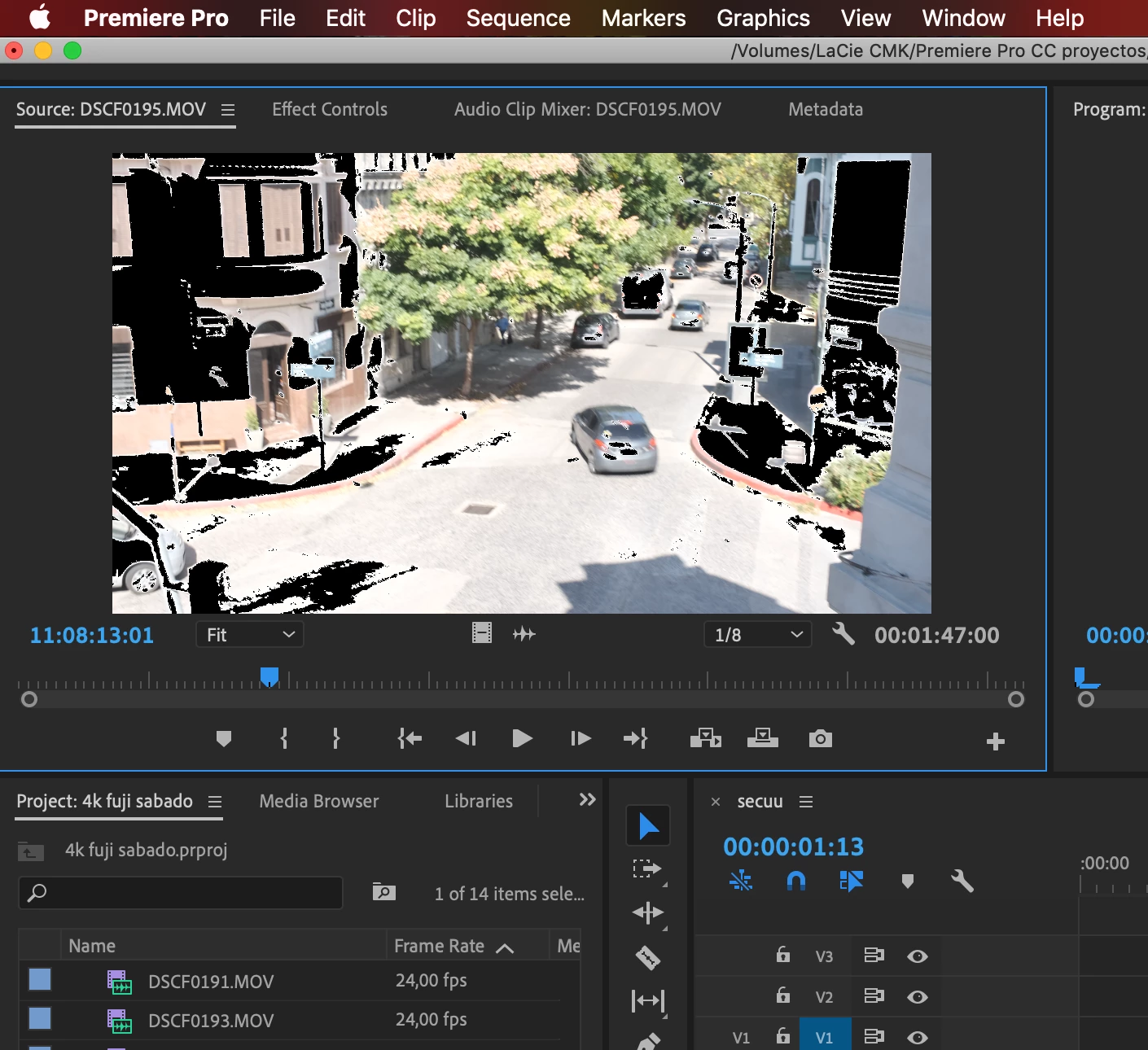
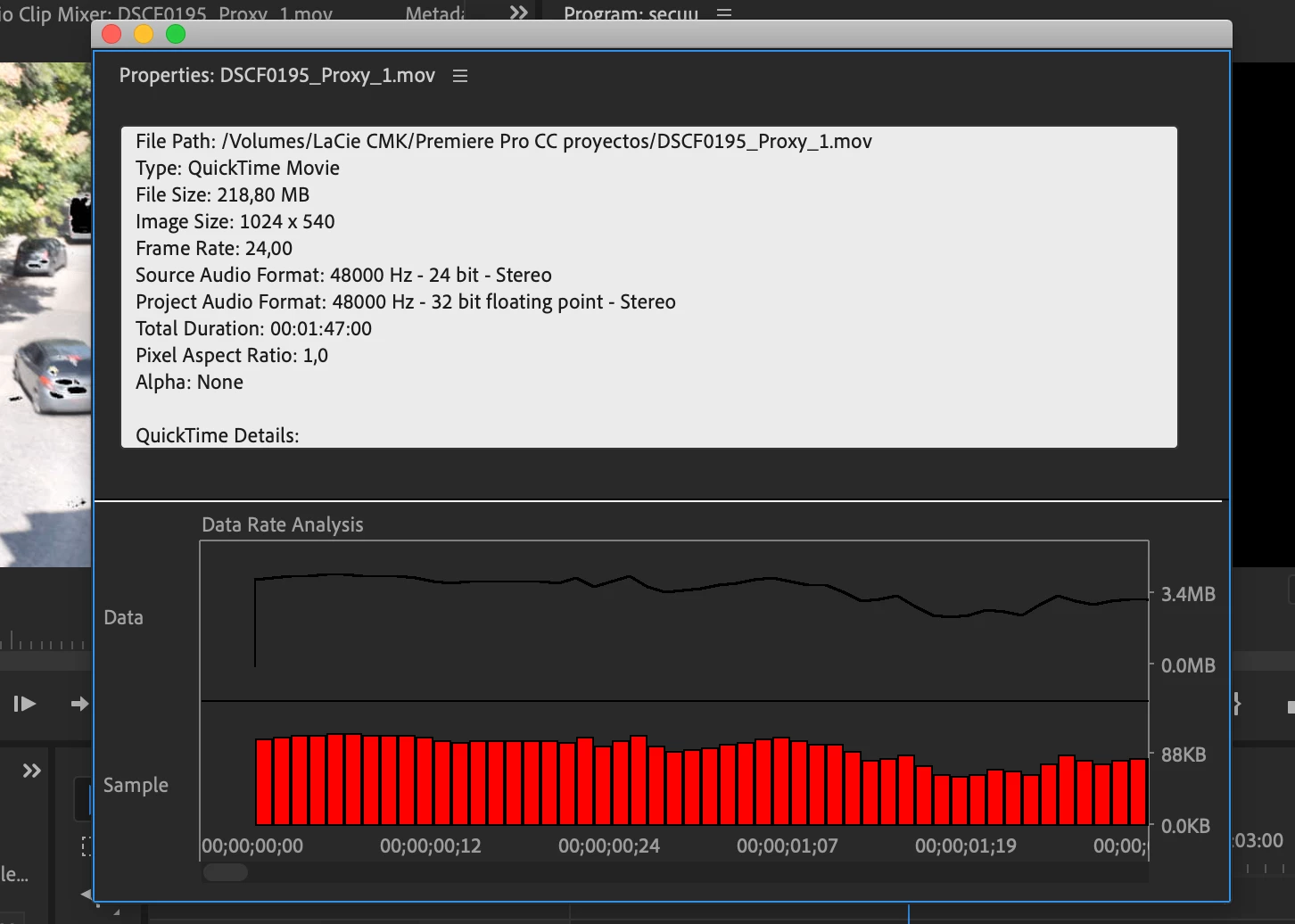
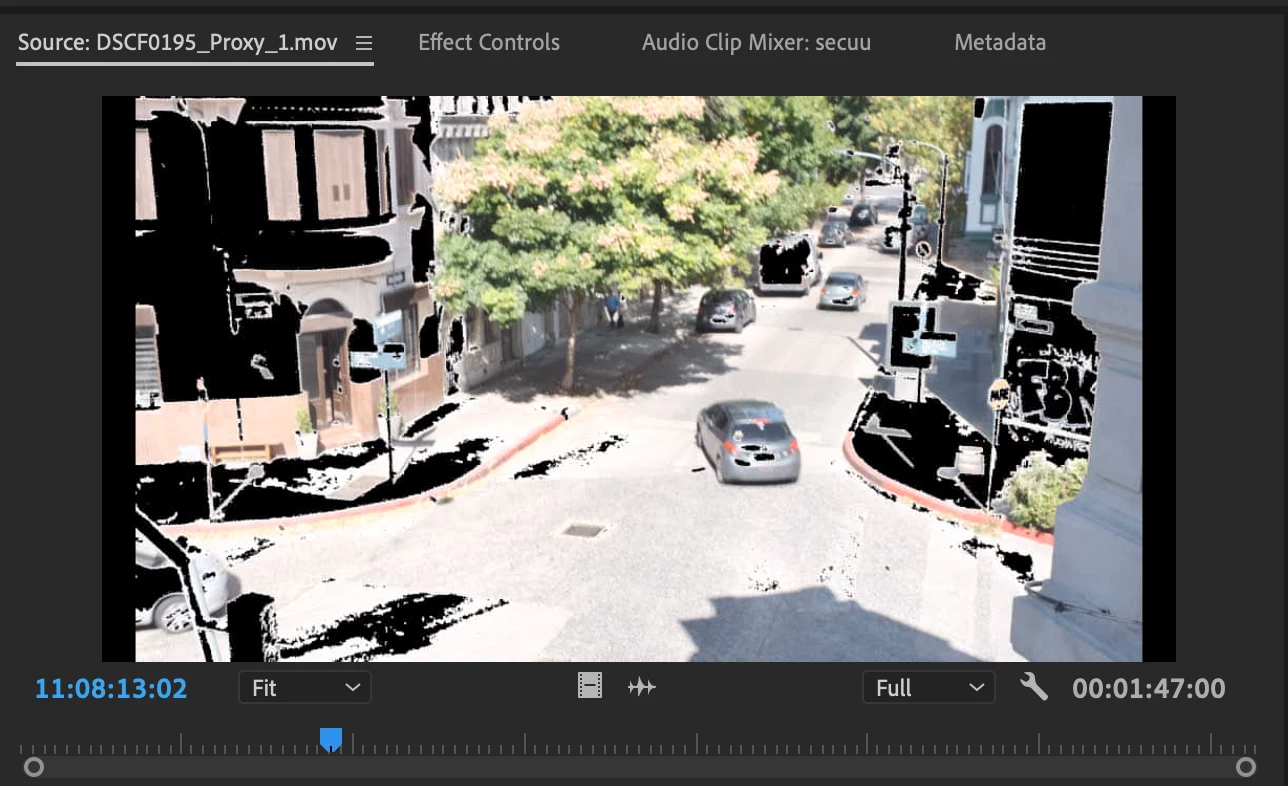
My Fujifilm XT3 video files are not properly displayed in Premiere Pro. What the camera shows as overexposed highlights with zebra set at 70%, appears in Premiere as black dots, circles and shadows in source monitor, and in the sequence. Interestedly, when exporting the video files the black images stay and render in the file! Also, I tried transcoding the original media during ingestion with ME, and the proxy files also embed the black dots for highlights in the video (I've checked them in the finder folder...)

It's quite a weird bug, considering that FCPX reads the files without this highlight markers, both at importing them and reproducing them. Also original media in finder reproduces them ok. It only happens inside PP and ME.

My mac is an mbp 2012, running the latest version of MacOS Mojave 10.14.4, and using Premiere Pro CC 13.1

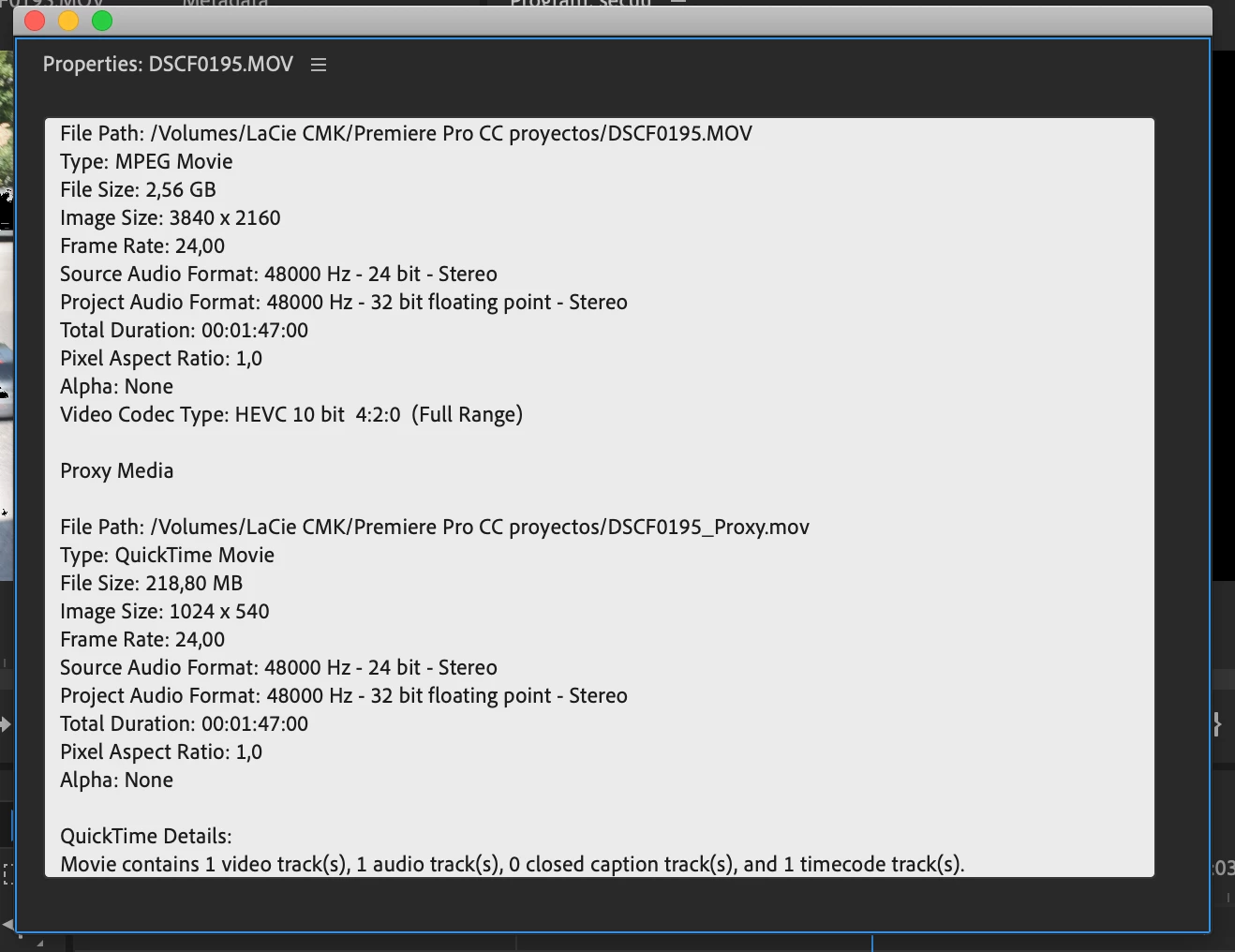
Video settings in camera 4K 24p 200mbps, H265 (HEVC) 4:2:0 10bit, Long GOP, film simulation Eterna.

I'm attaching screen captures with more information.

It's an annoying bug, guys please help me! thanks!!!
This topic has been closed for replies.
Correct answer brettr3018450

The new update seems to have solved this issue. Also my h.265 files playback so much smoother now. Thumbs up Adobe!

16 replies

DallasFilmmaker409
Participant
May 5, 2019

I have the exact same issue! Just bought the XT3 3weeks ago, shot F-Log for the 1st time yesterday, bring it into Premiere & Encoder & the black shows up on both places. But is not in the original's footage or does it come up when I bring it into resolve, seems to just be an Adobe thing. I got rid of it easily when I at LUT or color grade, but it shows back up if I add a transition like a cross dissolve or something. Its the weirdest thing & its making me question if I should keep it or not.

Participating Frequently
April 16, 2019

I have the same problem. Mine popped up when I was almost done with my edit. I watched it back a final time before exporting, and suddenly all over-exposed areas were blacked out. The problem does bake into the exported file; it's not just a display issue. Also used Fuji X-T3 camera, 4k 24fps, 400 mbps, 4:2:0 10 bit, H.265 files. Used Apple ProRes proxies at 720p. Editing with latest Premiere Pro version on a 2015 MacBook Pro, HighSierra 10.13.6.

I've used these same file types and settings half a dozen times before and never seen this issue, especially not one that pops up all of a sudden.

cristianmk
Participant
April 17, 2019

It's weird indeed, same video configuration as mine, and same results.

Those overexposed areas, in my case when transcoding the original media inside Media Encoder, the proxy files it produces have these shadows... so I guess is some bug inside adobe's code... FCPX runs it without issue... Hope some developers are reading this thread... it's an annoying bug.

Ann Bens
Community Expert
Community Expert
April 17, 2019
khomthepreditor
Inspiring
April 12, 2019

What video card do you have? Are your drivers all up to date?

cristianmk
Participant
April 17, 2019

Hi. Video card is Intel HD Graphics 4000 1536 MB

It seems to be a very specific bug...

Participant
April 9, 2019

I have almost the same problem, but in After Effects, no problem in Premiere (with a fuji x-t3 too). I found a "solution" that work but not perfect at all : rename the extension of the file from .MOV to .mp4

I will try to find another way because this bug is really annoying...

Participant
April 12, 2019

I'm having this same problem. Camera files play fine in Quicktime/preview. I tried transcoding in Media Encoder, but the new file has the issue baked in now.

Legend
April 12, 2019

downloaded first mov file and stuck in resolve on junky laptop. timeline is 1080p set up to take BMPCC cinema DNG (1080p source)..and this is what I see with ZERO adjustments...

what zebra ??

Make your bed and get better reading light or you'll go blind !!!!!

khomthepreditor
Inspiring
April 8, 2019

Hey Christian, I just want to first confirm that these clips display properly when viewed in Preview/Quicktime directly from Finder? Also, in your other comment you mentioned importing clips directly from the SD card, so I wanted to make sure you've copied your footage onto another working drive and are working off those copied files and not the files on the SD card?

Ann Bens
Community Expert
Community Expert
April 8, 2019

Can you upload a short clip for testing?

Participating Frequently
April 8, 2019

How did you manage to import these into Premiere in the first place? I just purchased the Fujifilm X-T3 myself and shot some footage on it in 4K 60FPS 10 Bit 4.2.2 in the HEVC 265 and it wont let me import the files. It only imports as audio...

cristianmk
Participant
April 8, 2019

Hi, I created a new project, and then double click in media browser, went up to the sd card folder, selected video files and that's it, video files were quickly imported, and was able to see them immediately... with the black shadows displayed as the images above.

Later I've tried by making another project from scratch, this time selecting ingest options: copy and create proxies (1024x540 apple pro res). Files were imported to media browser as before, media encoder opened and immediately began transcoding (in the preview window you could also see the images with the black shadow over the highlights).

That's all I've been trying so far, coupled with sequence tweaks here and there, proxy settings and so.

As you could see in the original post, I've tried shooting with 4K 24fps 200&400mbps, and in my case, video was also imported, no issues with audio. Have you tried changing the frame rate to see if your issue continues?

So I believe there has to be a relation between fujifilm cameras files, HEVC codec, and Premiere pro... :/