



Welcome to Premiere Pro 22.3.1!
Welcome to Premiere Pro 22.3.1!

Hello and welcome to the April release of Premiere Pro! Premiere Pro 22.3.1 is now available for download from the Creative Cloud desktop app. The new features include:
- New Review workspace with Frame.io integration
- Camera to Cloud
- Redesigned import & export
- New Header bar
- Export Preset Manager
- Auto Color – powered by Sensei
- Speech to text for Cantonese
- Show or hide markers by color
- Trim mode playback looping option
- Remix progress indicator
- Support for Sony VENICE 2 camera.
- Change text size in the Text panel
- Customized clip names in EDL exports
This update is recommended for all users.
If you are experiencing any issues, please create a new post explaining your problem rather than placing it here so that we can help. If you have a bug to report or any complaint, please do that on User Voice.
Complete List of New Features in Premiere Pro 22.3.1
Editing and Workflow
The April release of Premiere Pro (version 22.3.1) introduces Frame.io for Creative Cloud with built-in review and approval, redesigned Import and Export in Premiere Pro, a new header bar for easier navigation within the application, Auto Color, which uses the power of Adobe Sensei to accelerate color correction, workflow enhancements and Speech to Text support for Cantonese.
Check out this video by Adobe's Jon Barrie and Chris Hanson.
New Review workspace with Frame.io integration
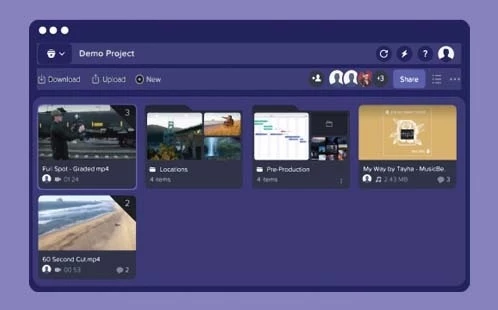 Share work-in-progress with colleagues and clients and collect their feedback, using Frame.io, now built into Premiere Pro and included with your Creative Cloud membership. Open the new Review workspace and log into Frame.io, using your Adobe ID. Use Frame.io to upload projects and assets, share for review, and receive comments in real-time. Reviewers can view and comment securely using the Frame.io app or in their browser.
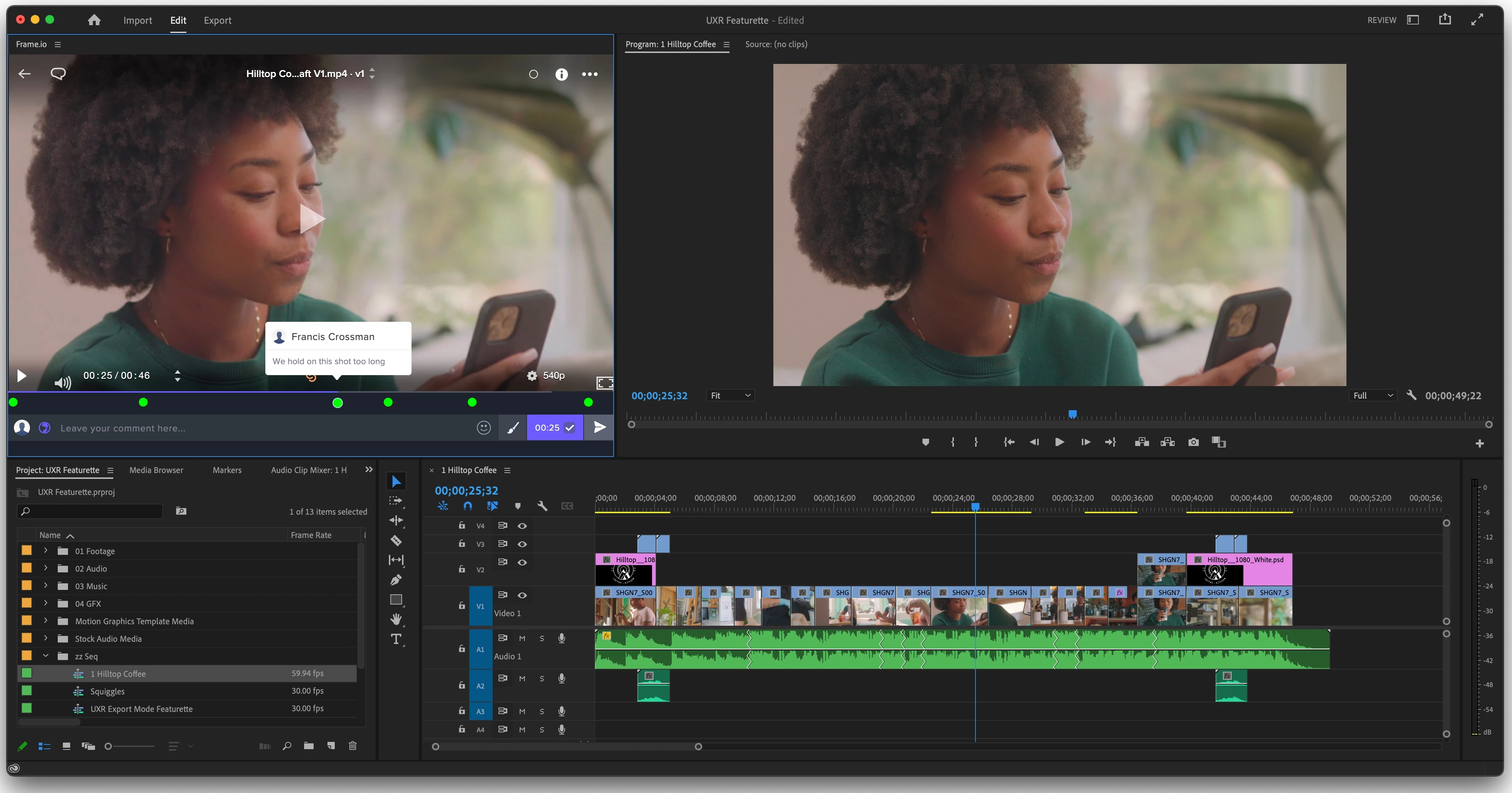 All feedback is collected in one place, providing a simple, streamlined solution for review and approval.
For more information, see:
- Install and activate Frame.io
- Use Frame.io with Premiere Pro and After Effects
- Frame.io for Adobe Creative Cloud | Frequently asked questions
Camera to Cloud
 Instantly connect production with post-production. Included with Frame.io for Creative Cloud, the new Camera to Cloud workflow lets you send camera files directly to Premiere Pro so that editing work can begin while production is happening.
Camera to Cloud works with the professional cameras, audio recorders, and production gear you already use. Images are sent from your RED, ARRI, Panavision, or Sony cameras to a Teradek CUBE, while sound recorders upload directly to Frame.io. Camera to Cloud supercharges the on-set media workflow and can also connect with software such as Pomfort Livegrade and ShotHub, ZoeLog, Magic ViewFinder, and Colorfront.
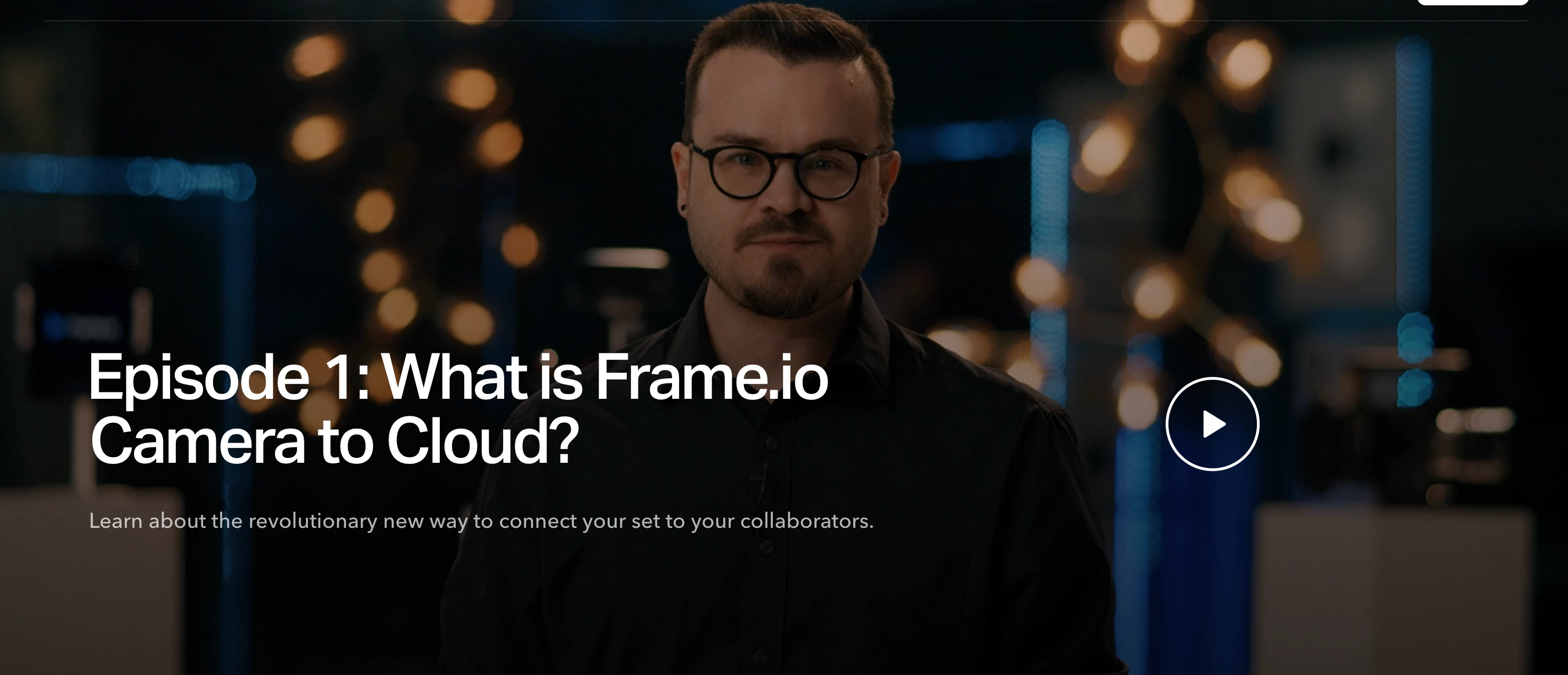 For more information, check out the Camera to Cloud Training Series.
Redesigned import
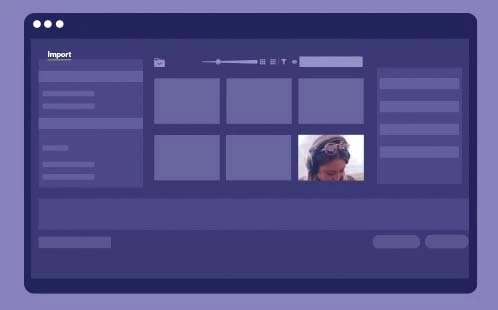
The redesigned Import experience opens the door to editing in Premiere Pro with a rich, visual, and intuitive way of starting video projects and collecting media. Instead of project settings, you are presented with your media. As you select files and folders, these are added to the tray, providing the first glimpse of your storyline. Click Create and Premiere Pro brings your media onto the timeline as a new sequence, ready for editing.
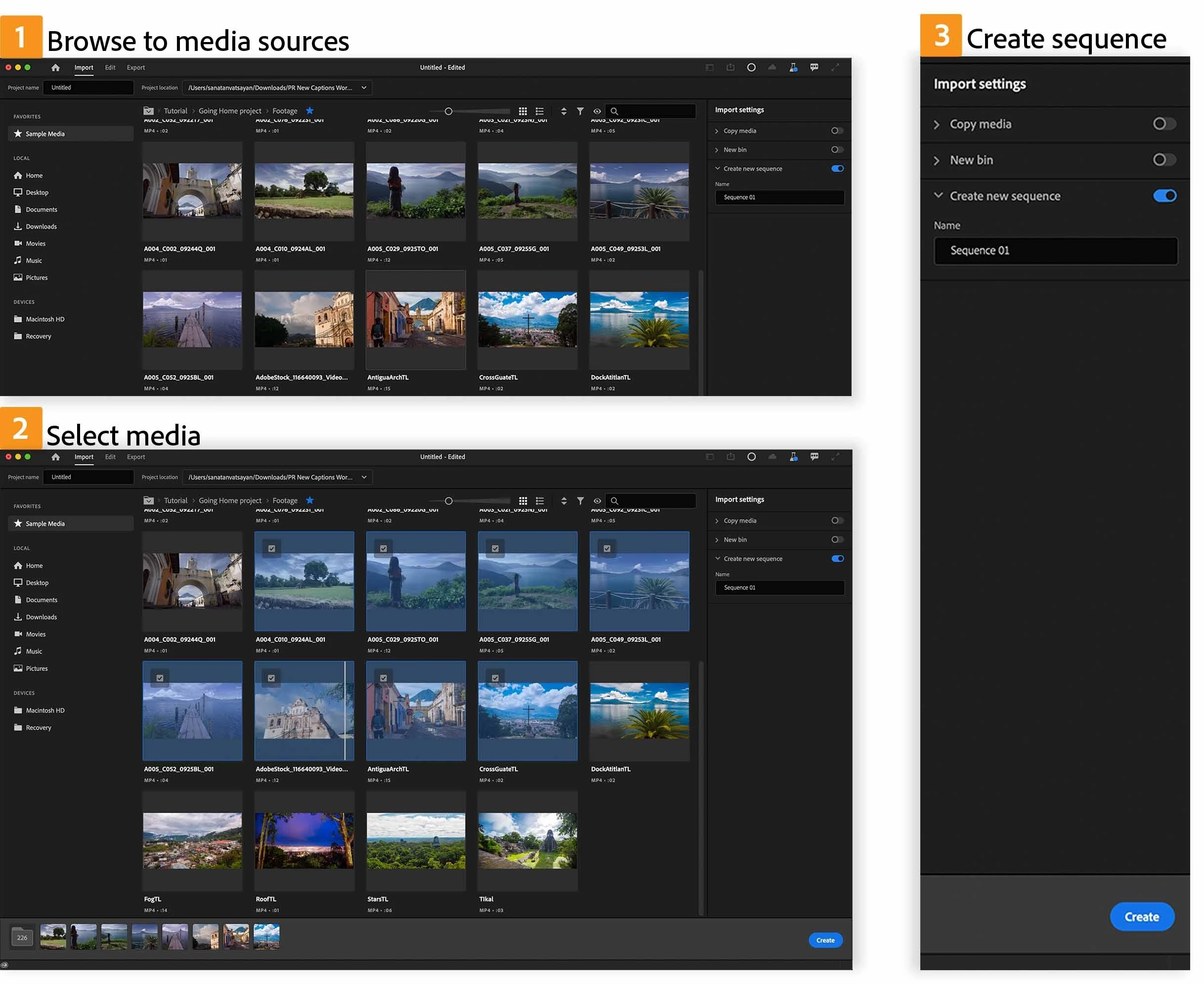 Collect media from multiple locations and favorite regularly used sources for faster access. Create Bins for your imports and copy media in the background while you begin editing. The new workflow is great for reviewing and copying camera media and for workflows such as assembling dailies stringouts. When needed, create an empty project and use existing import workflows, such as File >Import or via the Project panel.
For more information, see Import media.
Redesigned export
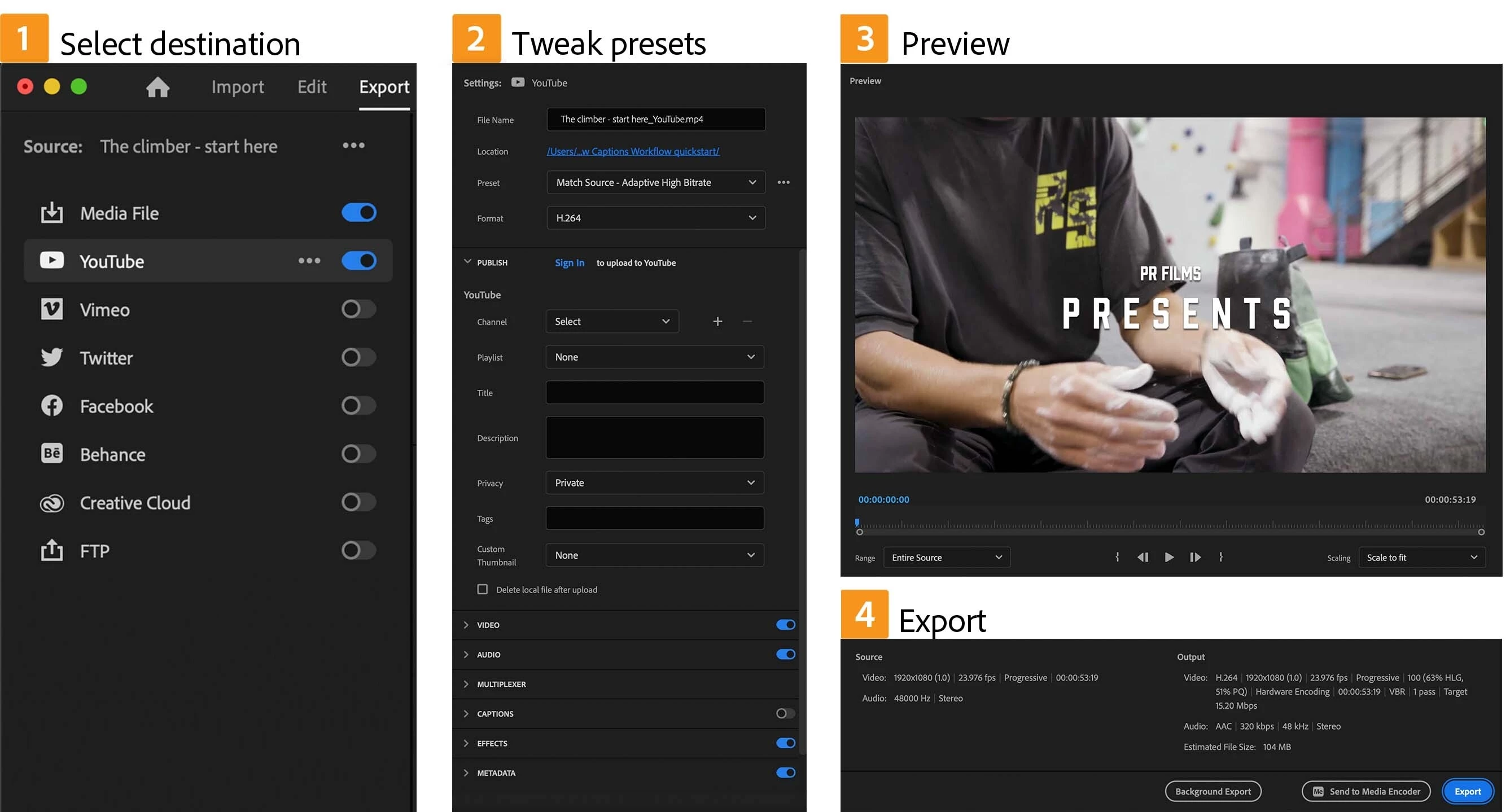
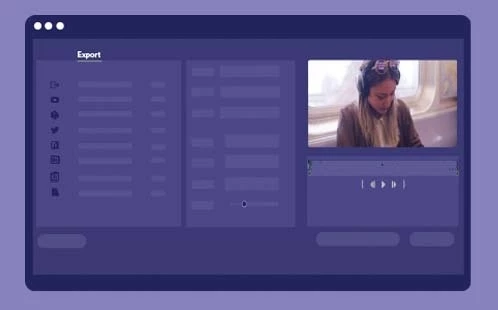 The new Export experience gives you all the power of Premiere Pro in a more organized and streamlined design.
Orchestrate all of your exports with an efficient one-to-many layout, and deliver them to their destinations in one process.
Toggle on each destination, including exporting to a local drive, social media platforms, and FTP sites, and Premiere Pro presents recommended settings for each.
Click Export and Premiere Pro renders all of your output files, with the option to post them automatically.
The whole export workflow is customizable. You can choose other presets from the Preset dropdown menu – and open the Preset Manager for more options and save custom presets.
Use smart rendering for faster exports. Customize the sequence preview file format to use the format you wish to export, ProRes, for example. Then render as you work, and when it’s time to export, choose Sequence Preview Settings to get lightning-fast exports – no need to rerender.
For more information, see Export Video.
Header bar
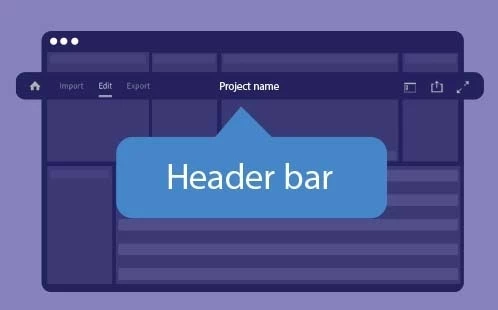 The new header bar makes navigating in Premiere Pro faster and easier. With a logical, left-to-right flow, the main stages of the process are accessible via the Import, Edit, and Export tab so it’s easy to find the things you need and move within the application.
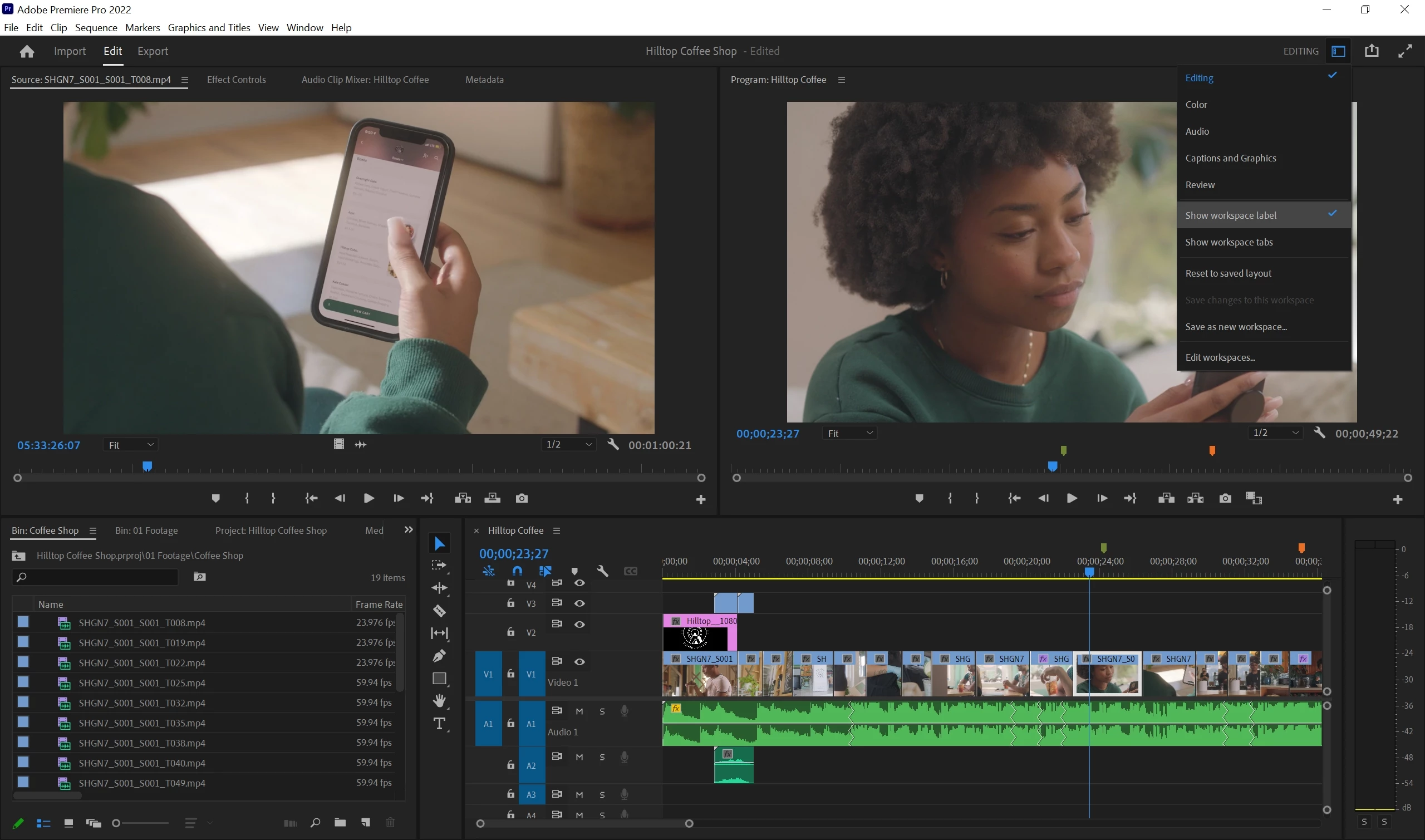 The project name and save status are shown in the center of the header bar. Access Workspaces via the new dropdown menu, where you can also customize your workspaces and how they are displayed in the header bar.
Quick Export now includes the new Preset Manager, so you can export in any available format without leaving the current editing workspace.
For more information, see Header bar to navigate within Premiere Pro.
Export Preset Manager
 Use the new Preset Manager to access your preferred export settings from Quick Export or in the new Export mode.
 This means you can now easily customize output settings for Quick Export, for example to output ProRes or any other export format. When you open the Preset Manager you are presented with a list of existing Premiere Pro export settings. Click the star to favorite any of these or modify any of the parameters to customize and save your own presets.
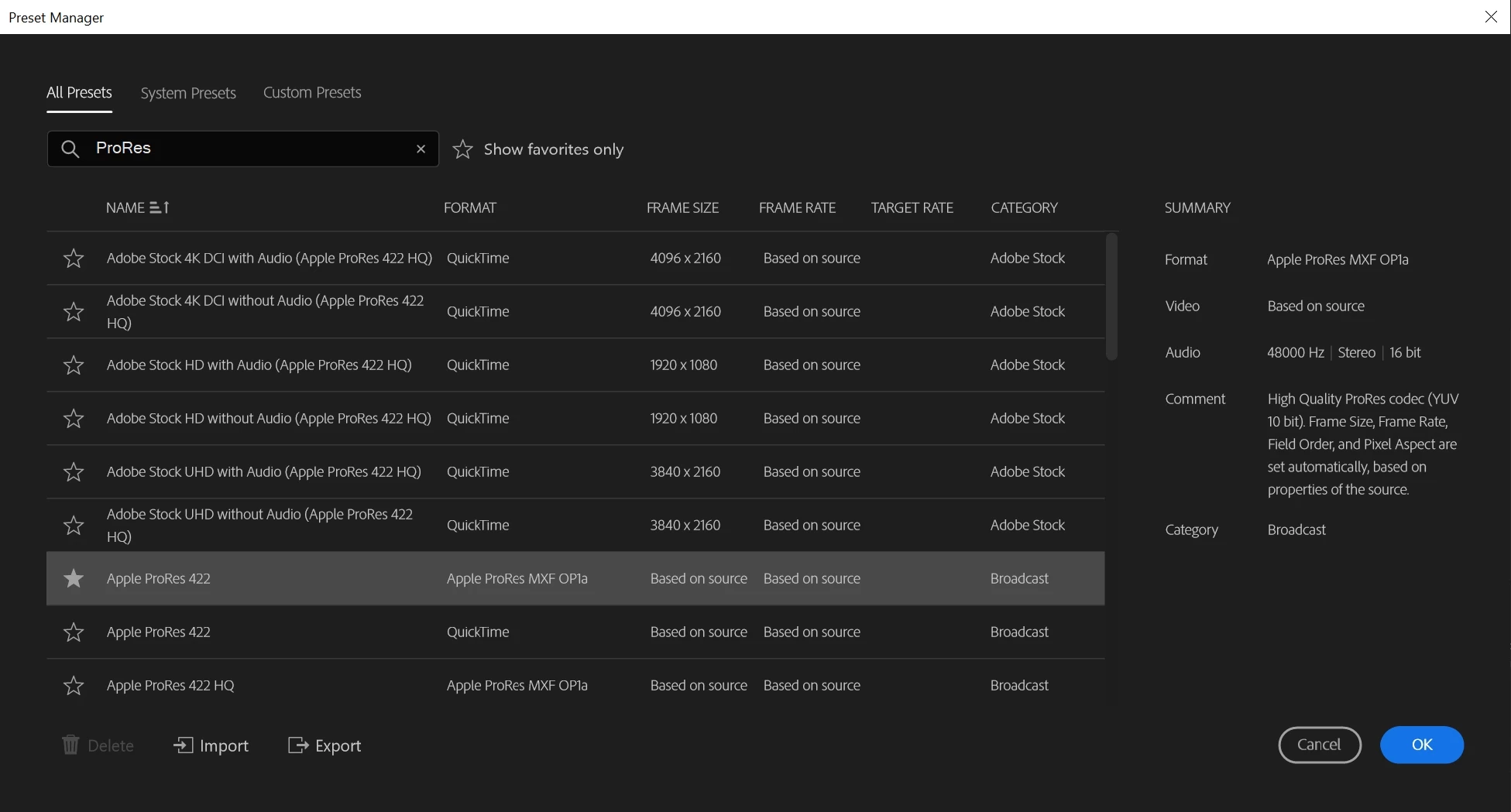 You can also use the Preset Manager to import presets from other machines or colleagues. Export presets to share with others.
For more information, see Export Preset Manager.
Auto Color
 Color correction is now faster and easier in Premiere Pro. Auto Color uses Adobe Sensei ML technology to apply intelligent adjustments and accelerate your color correction workflow. Position the playhead somewhere in the clip your want to color correct. Auto Color uses frame sampling to optimize color across the whole clip. Adjustments are reflected in Basic Correction sliders at the top of the Lumetri panel. Adjust the overall impact using the new Intensity slider or use individual sliders to fine-tune the color and light values.
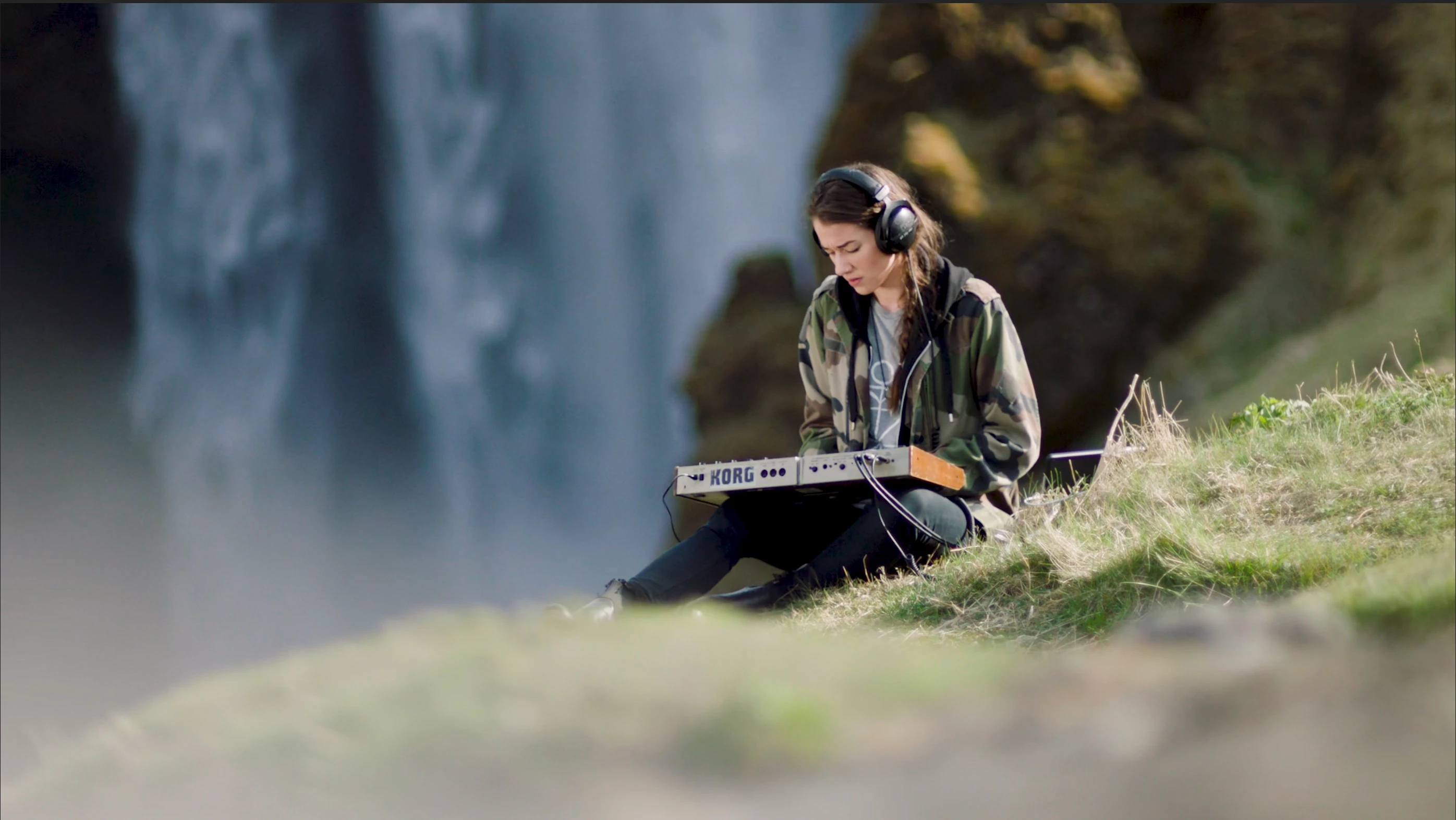 Auto Color works on the source footage, including LOG footage and footage with LUTs applied. Use Auto Color as a jumping-off point to fast track your color correction before moving on to secondary color tasks, like skin tones or sky adjustments.
New content creator? Use Auto Color as a guide as you become familiar with the color tools in Premiere Pro.
For more information, see Auto Color.
Speech to Text for Cantonese
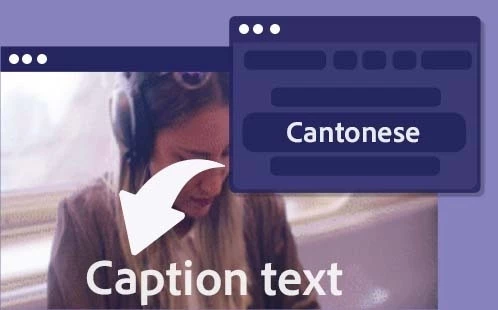 Speech to Text now includes language support for Cantonese. Speech to Text language packs are now available for 14 languages. English is included with your Premiere Pro installation and additional language packs can be installed as required. Running Speech to Text in your local system is up to 3x faster than the original cloud-based transcription.
For more information, see Speech to Text.
Show or hide markers by color
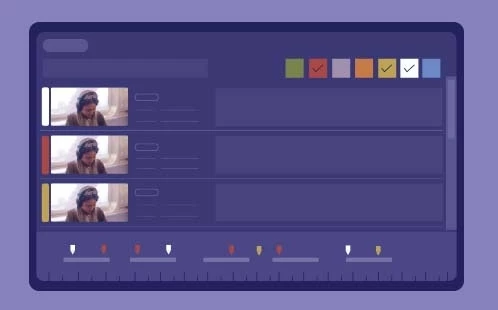 You can now show or hide markers by color across the entire application. Clicking the color boxes now hides unchecked marker colors in the timeline, Program Monitor, Source Monitor, Reference Monitor, and Effects Control panel.
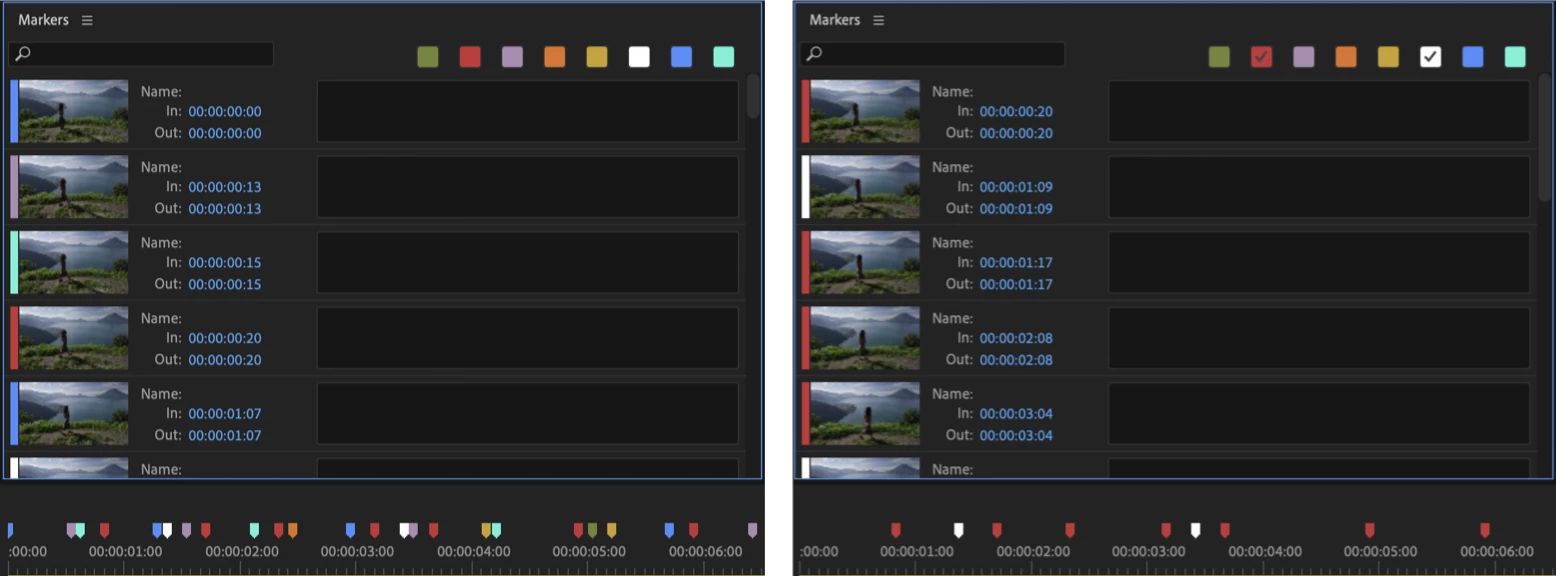 Premiere Pro does not remove any markers. It only hides the unchecked markers. You can always display hidden marker colors by selecting the desired color or unchecking all boxes.
For more information, see Show and hide markers according to color.
Trim mode playback looping option
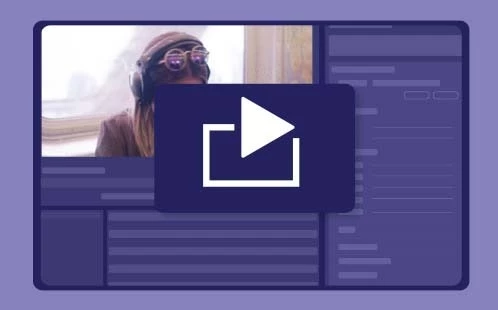 You can now start looping playback at the playhead rather than the closest edit point. This option is much more intuitive and immediate since the nearest edit point may be unrelated to what you are currently looking at.
Remix progress indicator
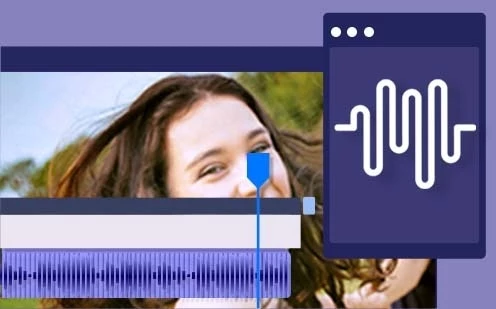 When you apply Remix to an audio clip, a new indicator shows Remix analysis progress. This provides visual confirmation that Remix is at work.
For more information on Remix, see Remix in Premiere Pro.
Support for Sony VENICE 2 camera
 Premiere Pro now offers support for the Sony VENICE 2 cameras.
Change text size in the Text panel
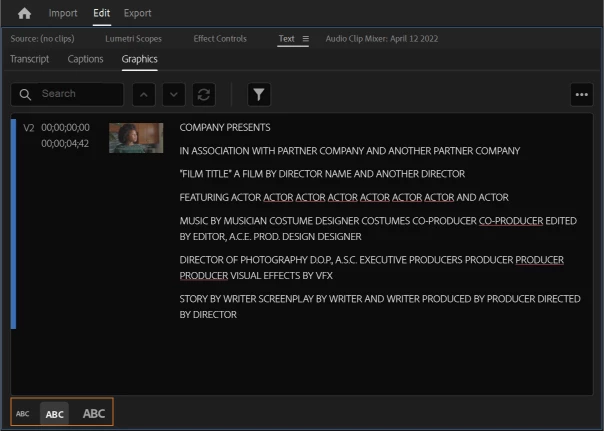 You can now increase or decrease the size of the text in the Text panel in Premiere Pro according to your reading comfort level.
Customized clip names in EDL exports
While exporting an Edit Decision List (EDL) file, you can now choose whether to show the source clip name (as shown in the Project panel) or the timeline clip name by clicking on the wrench menu and toggling Show Source Clip Name and Label.
This allows you to modify a clip name in an EDL export without changing the source file names.
For more information, see Exporting a project as an EDL file.
Premiere Pro Beta
There are currently no new features in Beta. Premiere Pro's import, export, header bar, and Auto Color (called Auto Tone while in Beta) features are now available in the latest main release of Premiere Pro. Download it from Creative Cloud Desktop and get started editing.
Complete documentation for Premiere Pro 22.3.1 features
New Known Issues
- Playback or rendering may stop around 00:34:46:00 in the timeline. Product manager Francis Crossman wrote about it in this article. This issue is fixed in 22.3.1
 AdChoices