



Welcome to Premiere Pro 24.4.1
Welcome to Premiere Pro 24.4.1!

Hello, and welcome to the May release of Adobe Premiere Pro! Premiere Pro 24.4.1 is now available from the Creative Cloud desktop app. The new features include the following:
- Interactive fade handles
- AI-powered audio tagging and badges
- Redesigned FX clip badges
- New clip colors and waveform design
- Text-Based Editing updates
- Faster plugin loading time
- More hardware acceleration for popular formats
This update is recommended for all users.
If you are experiencing any issues, please create a new post explaining your problem so we can help. If you have a bug to report or any complaint, please do that on the Bugs forum.
Complete List of New Features in Adobe Premiere Pro 24.4.1
Editing and Workflow
In Premiere Pro 24.4.1, experience AI-powered audio workflow improvements, including automatic tagging, interactive fade handles, and new badges. Plus with improvements to Text-Based Editing, new clip colors, and improved hardware acceleration, it's the perfect time to update..
Learn about best practices for updating Premiere Pro.
Major audio workflow updates
New audio workflow updates make editing and mixing directly in Premiere Pro faster and easier. Whether you’re an experienced pro, a newcomer to editing, or working on your audio skills, our new audio workflow will put the right tools for the job at your fingertips so you can focus on storytelling.
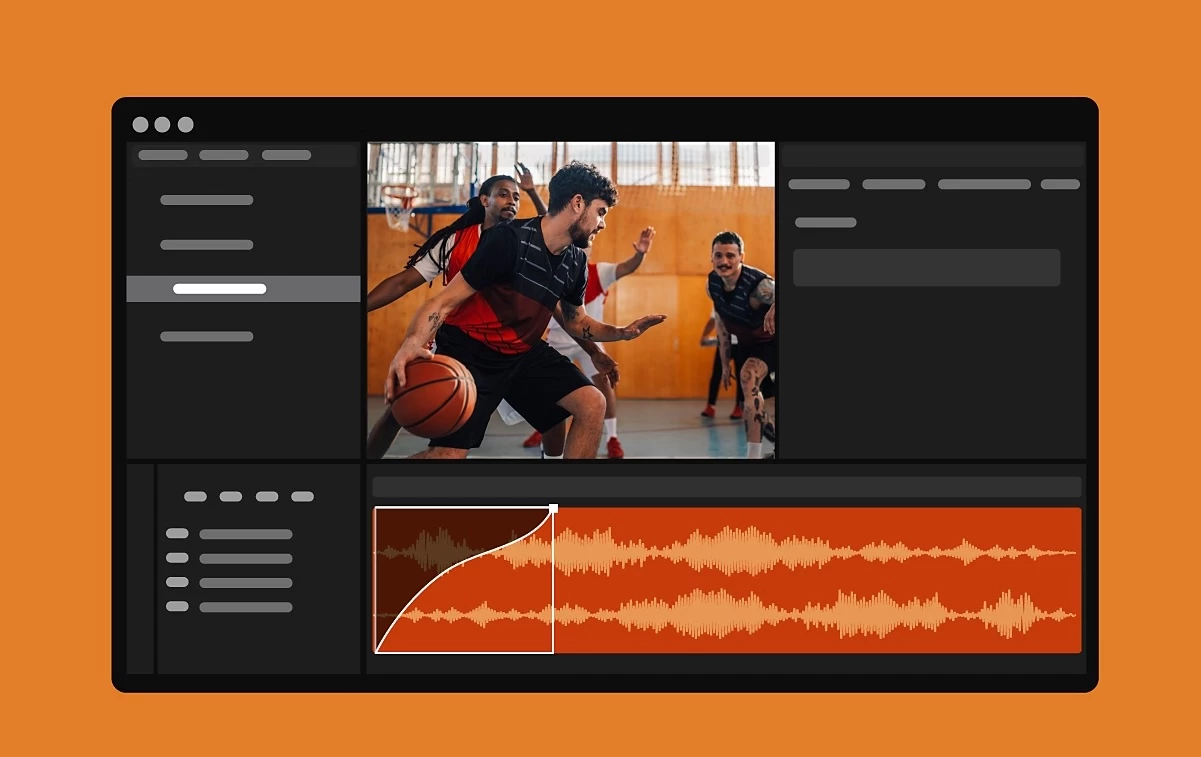
With visual fade handles on audio clips, click and drag to create a variety of custom fades.
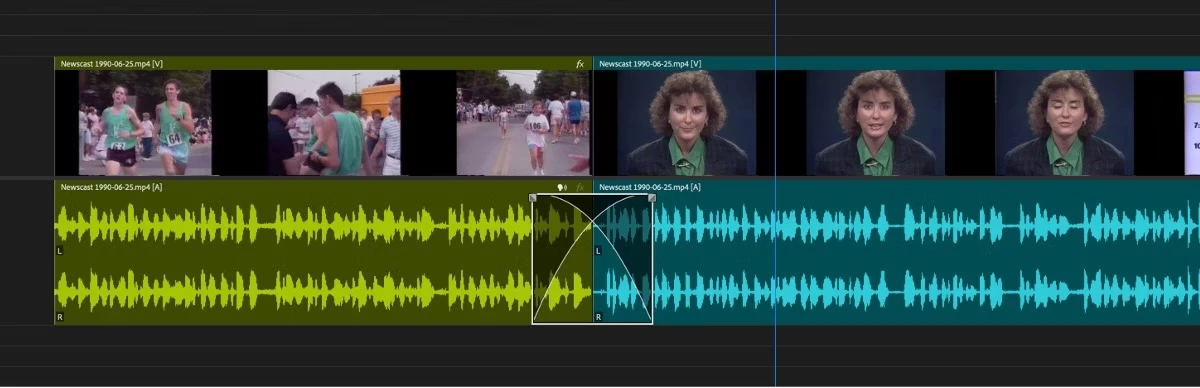
Now, add fades and transitions faster. When hovering over an audio clip in the timeline, click on the small squares that appear in the corners of the clip. Drag these squares to quickly create a fade-in, fade-out, or crossfade. While dragging, move up and down to adjust the slope of the fade.
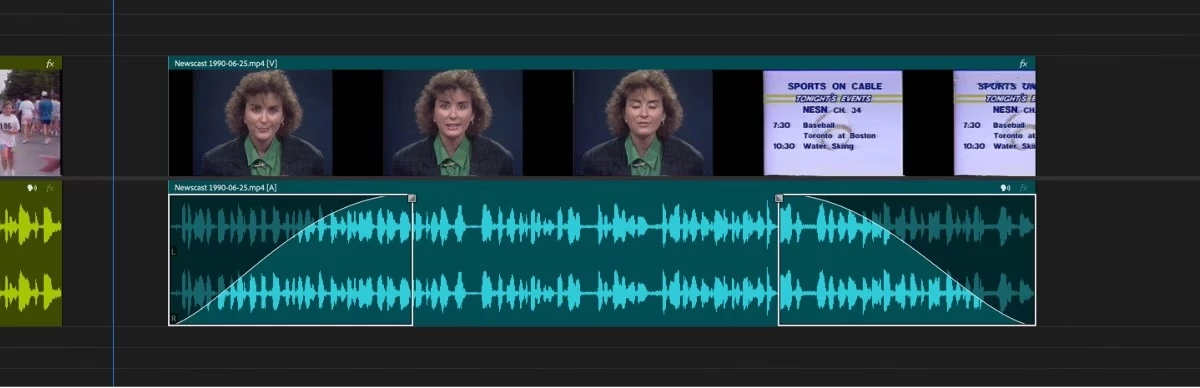
Press the alt/option key while dragging to constrain the adjustment to only one axis — up-down for slope or left-right for the duration.
Press the shift key to change one side for the crossfade effect. Press the alt/option key and drag left or right to change the curve or the duration.
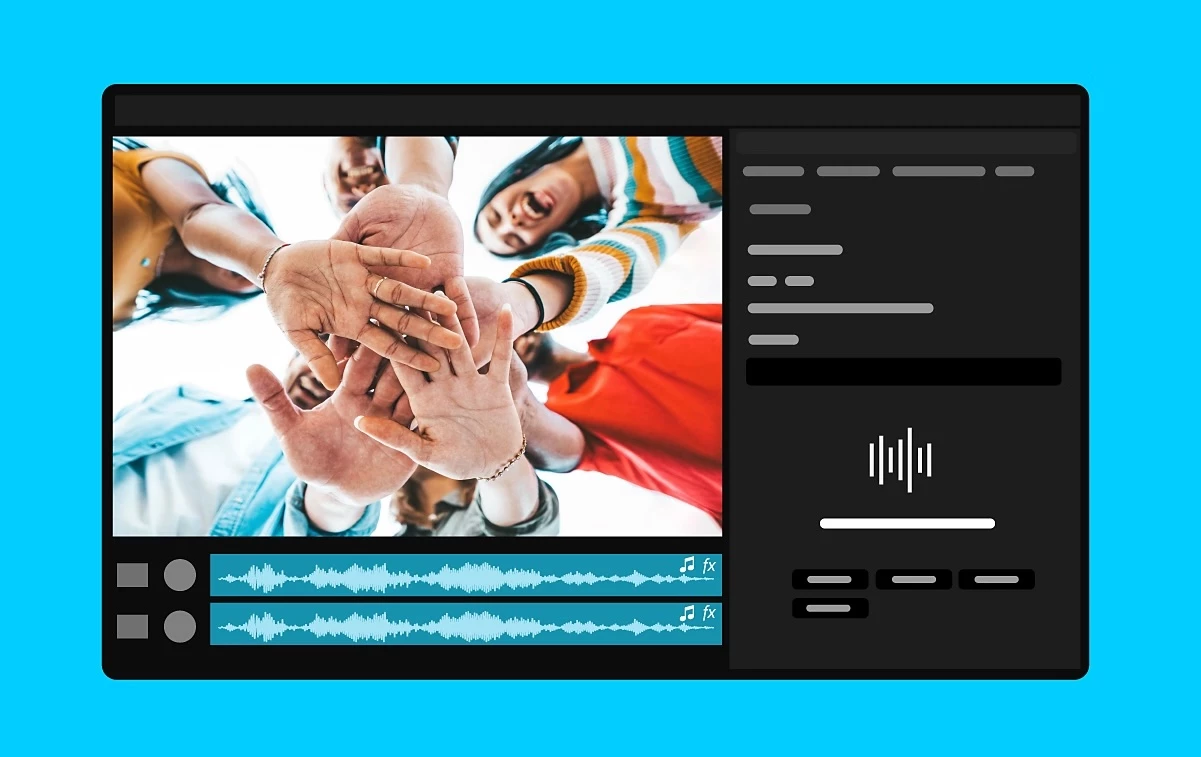
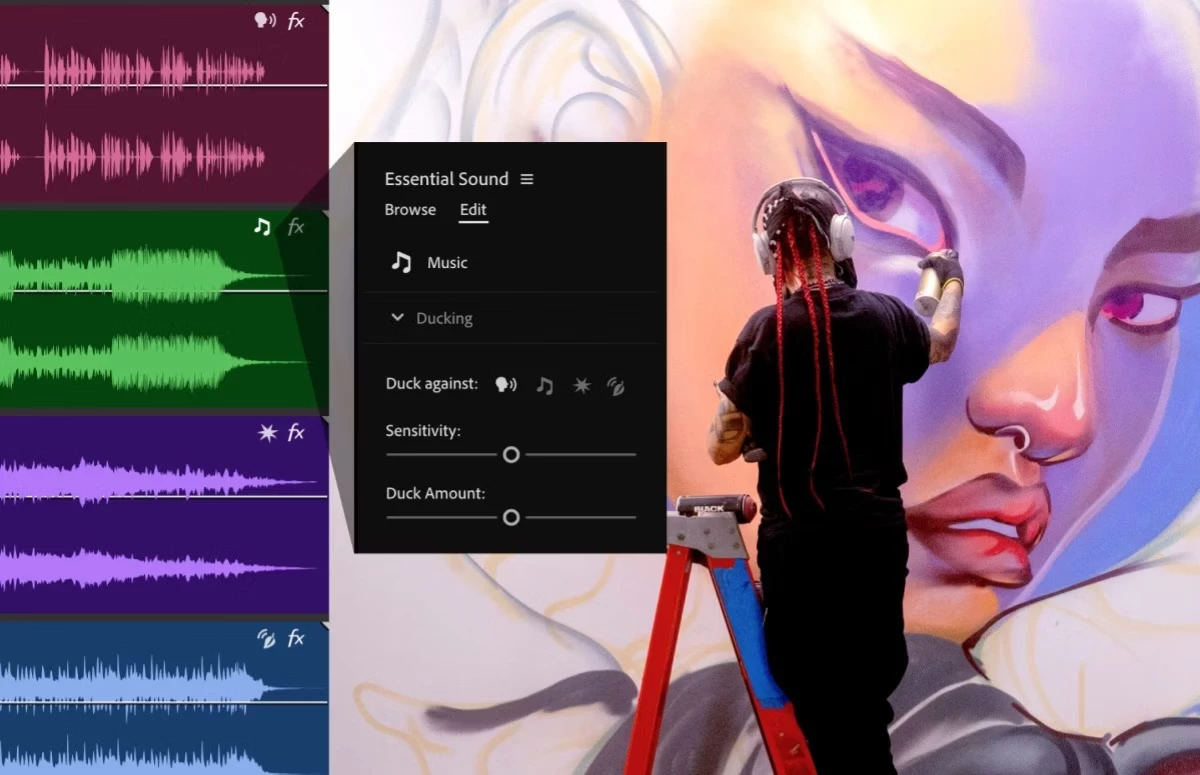
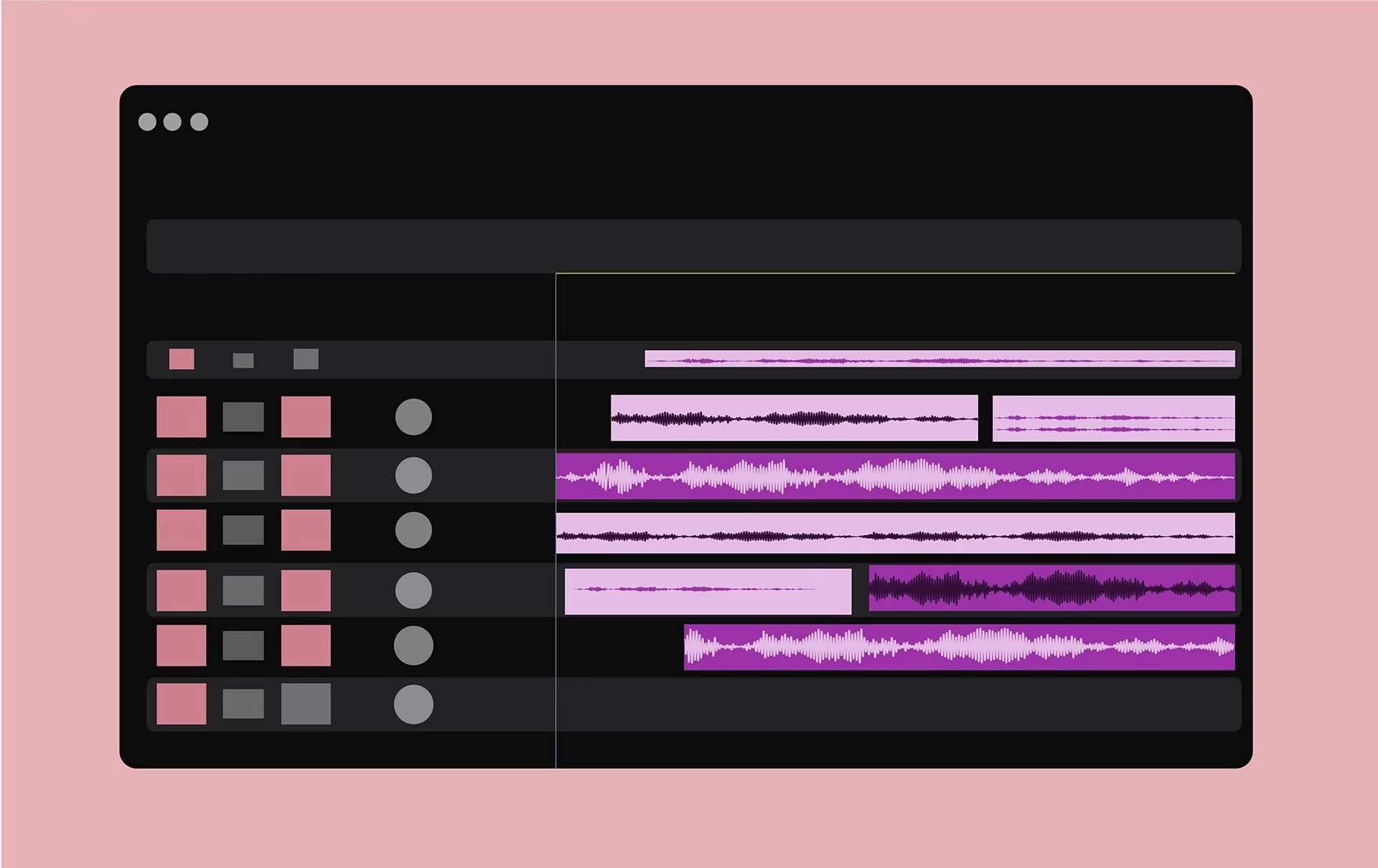
The power of AI automatically recognizes if clips are music, dialogue, sound effects, or ambiance and adds a new interactive badge. Just click for instant access to the most relevant tools for that audio type in the Essential Sound panel.
Adobe Sensei AI automatically recognizes if clips are Dialogue, Music, SFX, or Ambiance and adds a new interactive badge. Just click for instant access to the most relevant tools for that audio type in the Essential Sound panel.
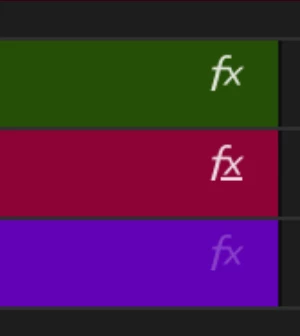
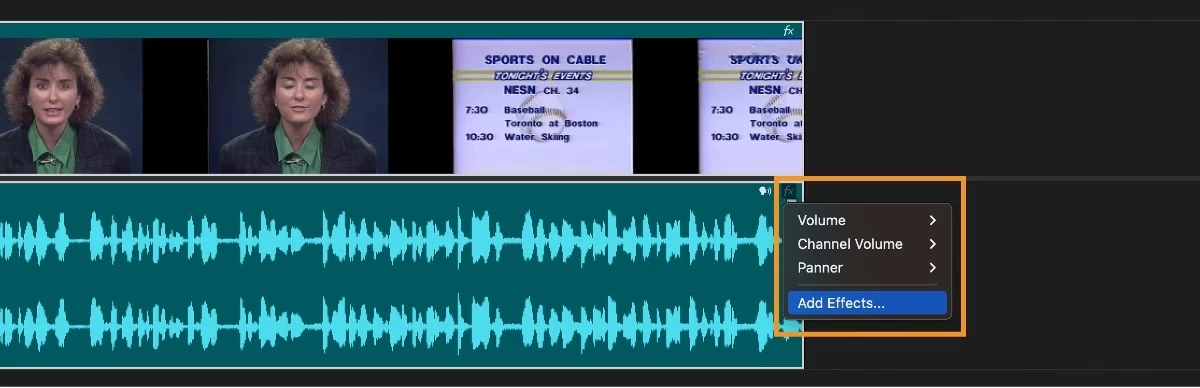
- If an effect is added or you change parameters in intrinsic effects (Position, Scale, Anchor Point, or Opacity) the fx badge shows as bold.
- If an effect is added to the source clip in Effect Controls, the fx badge is bold and underlined.
- If no effect is added, the fx badge appears as disabled.
 New clip colors and waveform design
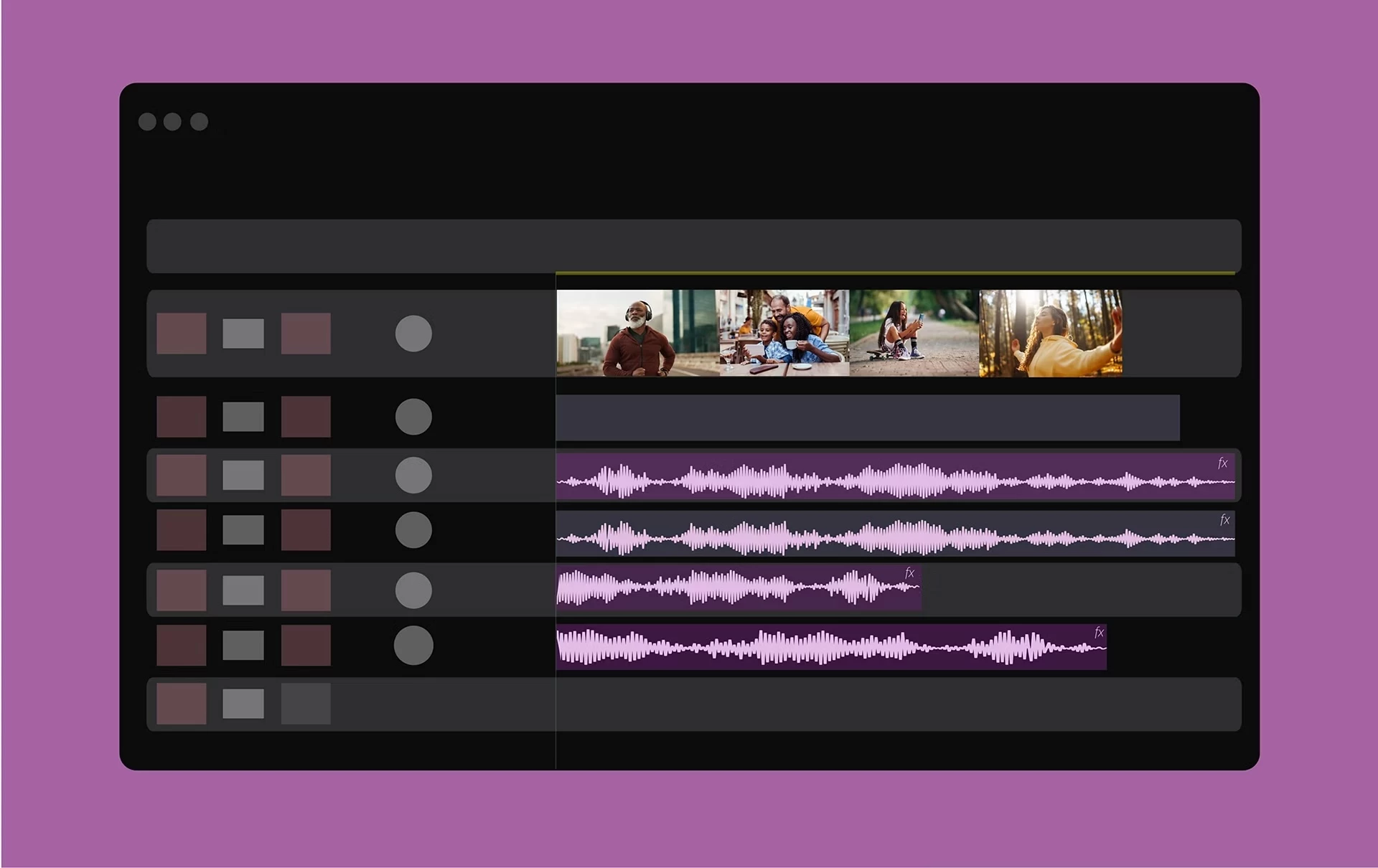
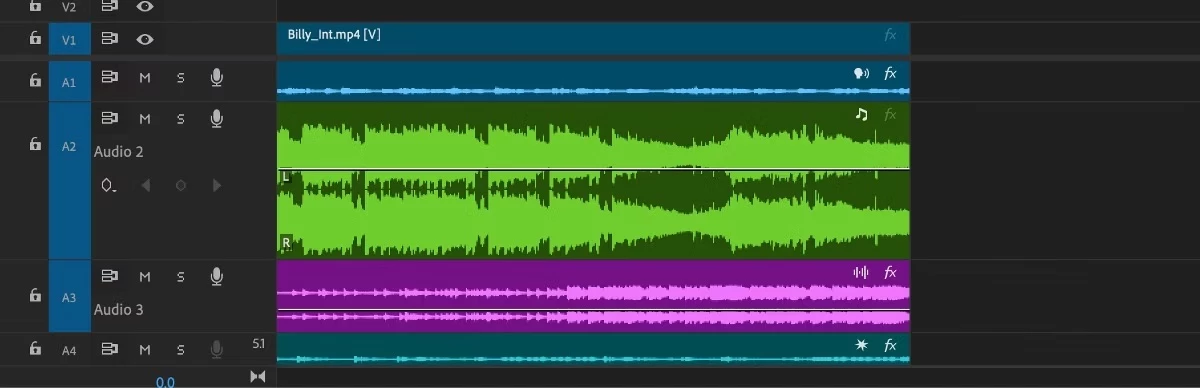
Waveforms now dynamically resize when you change the track height, and improved clip colors make it easier for you to see and work with audio on the timeline.
Text-Based Editing updates
 Text-Based Editing updates
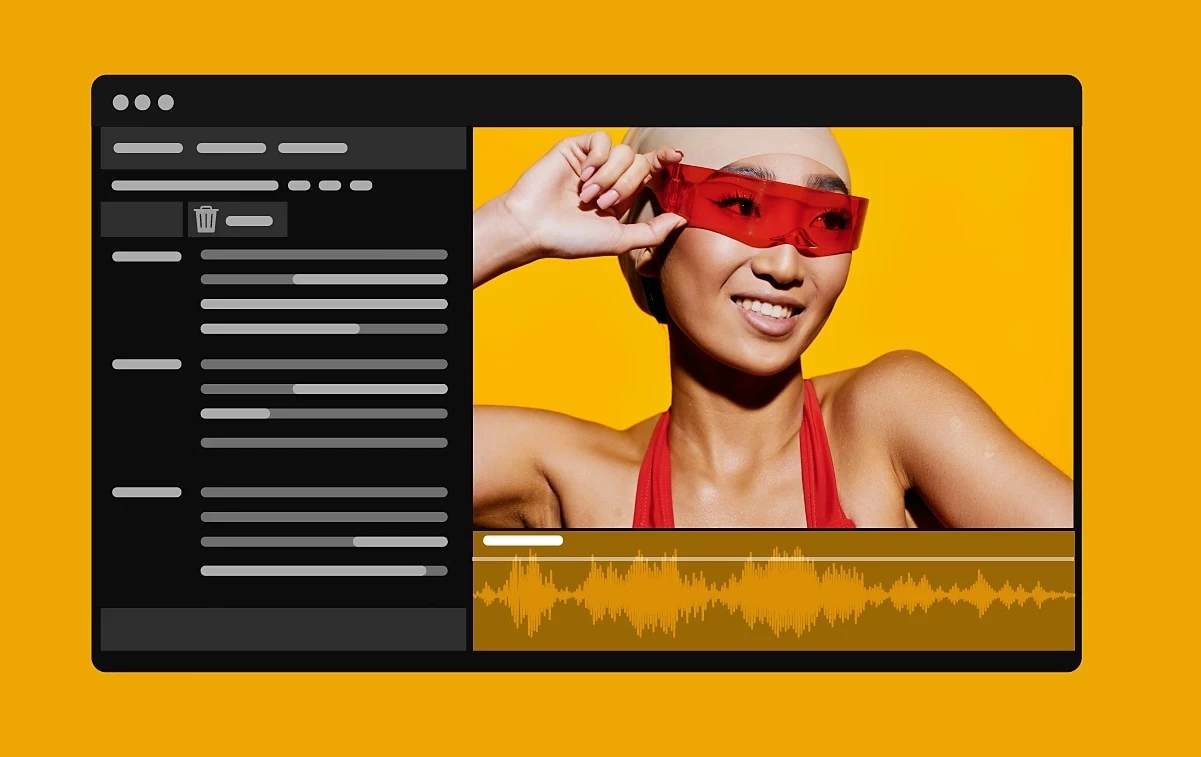
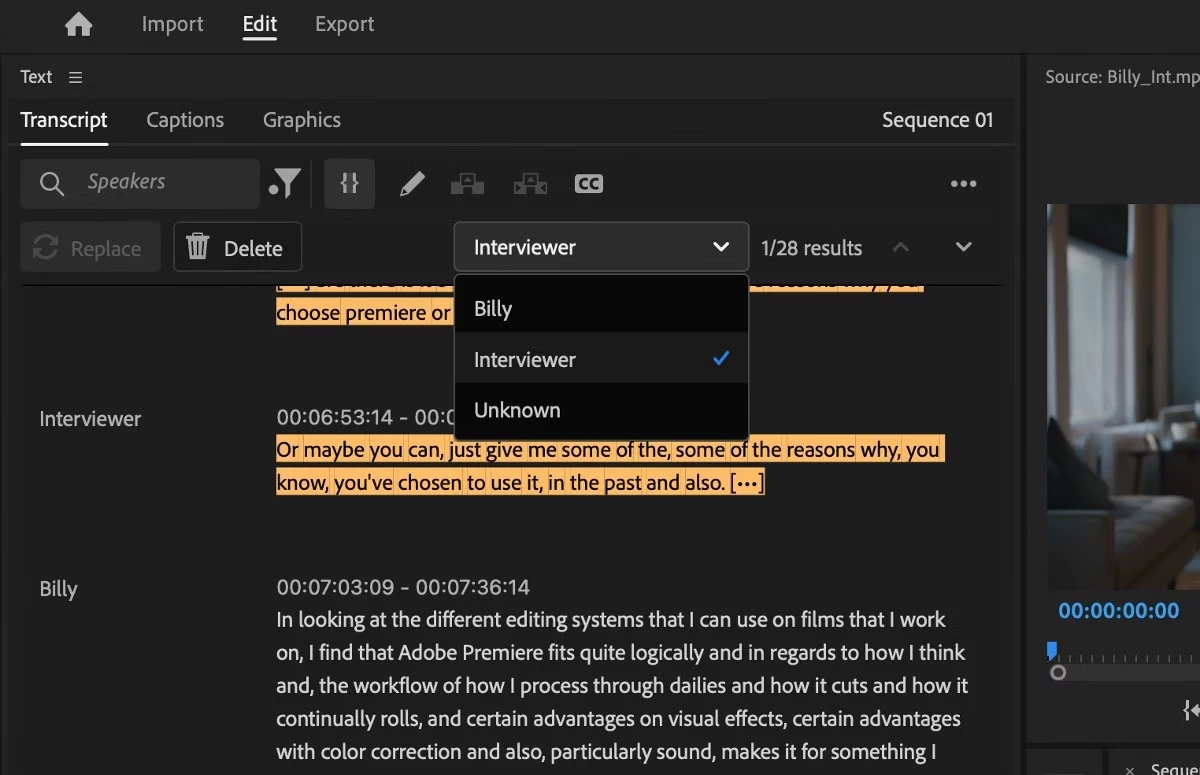
You can now select all dialogue by a particular speaker in the transcript and choose to quickly bulk delete it from the video. It facilitates the removal of any irrelevant dialogue from your timeline, such as interviewers or other off-camera conversations in unscripted content.
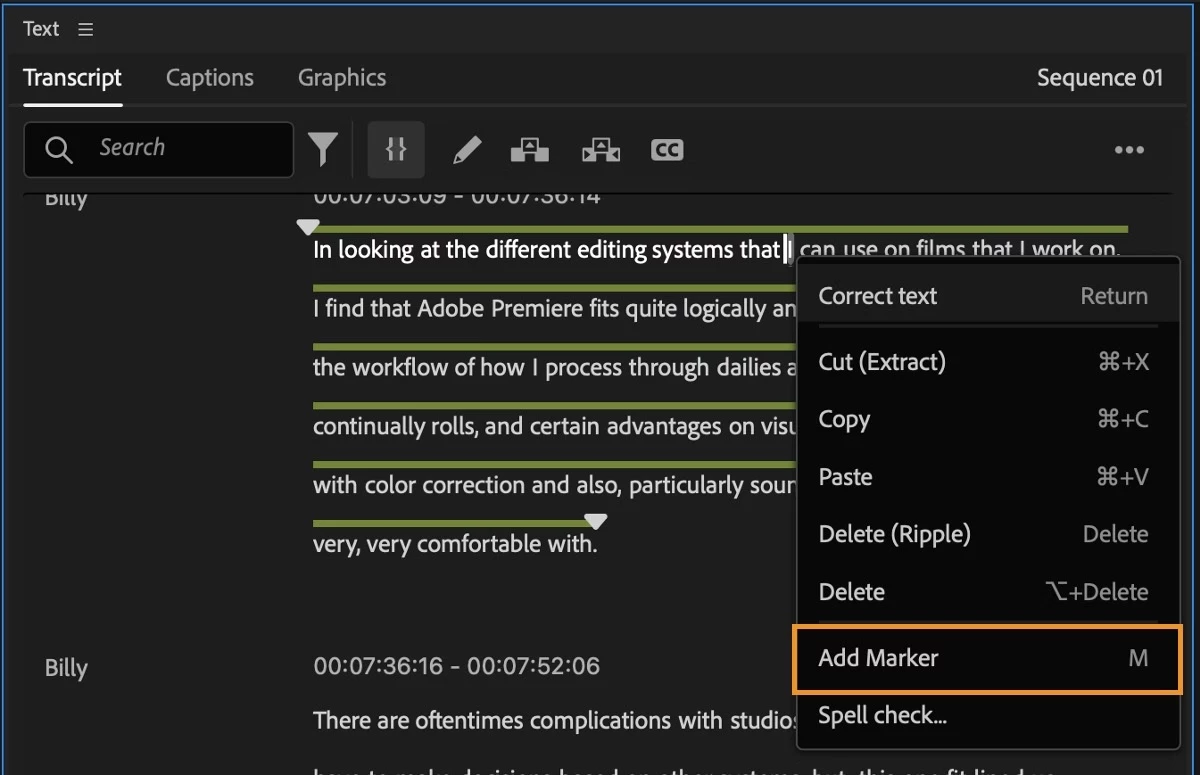
Add markers in the Text panel
You can use markers in the Text panel to leave notes and place markers in your transcript. Add notes, change colors, or add spanned markers to highlight text sections. Your markers will also be visible in the sequence.
 Faster plugin loading time
 Added support for the new Apple log encoding
Apple iPhone 15 Pro and Pro Max include a new ProRes log video recording option, enabling you to record in a high-quality, 10-bit format that retains the maximum latitude and detail. Premiere Pro supports it via the existing LUT-based workflow and offers a dynamic, LUT-free automated solution using our color management system.
Enable Auto Detect Log Video Color Space and drop an iPhone ProRes log original camera media clip into a Rec 709 timeline. Lumetri Settings will show that the clip’s Media Color Space is set to Apple Log/ Rec 2020, and an automatic tone map will be applied.
 More hardware acceleration for popular formats
Common formats for Sony, Canon, and Panasonic cameras, including AVC and HEVC LongGOP in MXF and HEVC Intra in MXF, are now GPU-accelerated for the best possible playback performance of specific video formats, including:
- AVC LongGOP in MXF
- HEVC LongGOP in MXF
- HEVC Intra in MXF
The following versions of AVC Long GOP, HEVC-Intra, and HEVC-L benefit from this:
- Sony (XAVC-L, XAVC H-I, XAVC H-L)
- Canon (XF-AVC L, XF-HEVC L)
- Panasonic (AVC LongG)
Additional updates
- You can now set Text and Shape layer preferences in the Graphics section of the Preferences panel.
- Color Management is now supported for the import of MXF files utilizing HEVC Intra and Long GOP codecs.
- You can now override the default media color space for all formats (except for RAW formats).
- Project templates are now available in localized languages.
- You can now smoothly zoom into the Monitor using your mouse's scroll wheel and quickly pan around the Monitor by holding the middle mouse button and dragging.
- Embedded captions are now supported while using proxies.
- Select View > Display Mode and view each color channel separately in the Program Monitor.
Premiere Pro Beta
Check out the latest features and discussions about Premiere Pro Beta in the forums here.
Resources
 AdChoices