
Known Participant
June 25, 2022
Question

What are the proper steps to color correct BRAW footage?

  • June 25, 2022
  • 4 replies
  • 6821 views

I've never worked with BRAW footage before, but I've recently received a bunch of such raw videos from my customer, which need to be color corrected as they look plain.

My goal is to create some kind of a color correction template that can be used for all future projects from this customer. What are the steps I should take to properly color correct Blackmagic Pocket Cinema Camera 4K footage? These videos will be used on YouTube. 


This topic has been closed for replies.

4 replies

Christian.Z
Community Expert
Community Expert
June 26, 2022

BM Braw plugin and Autokroma Braw plugin are both good options.

Autokroma will not work if BM is installed.


Presets are good, but conditions will change from one shot to another.

Inspiring
June 26, 2022

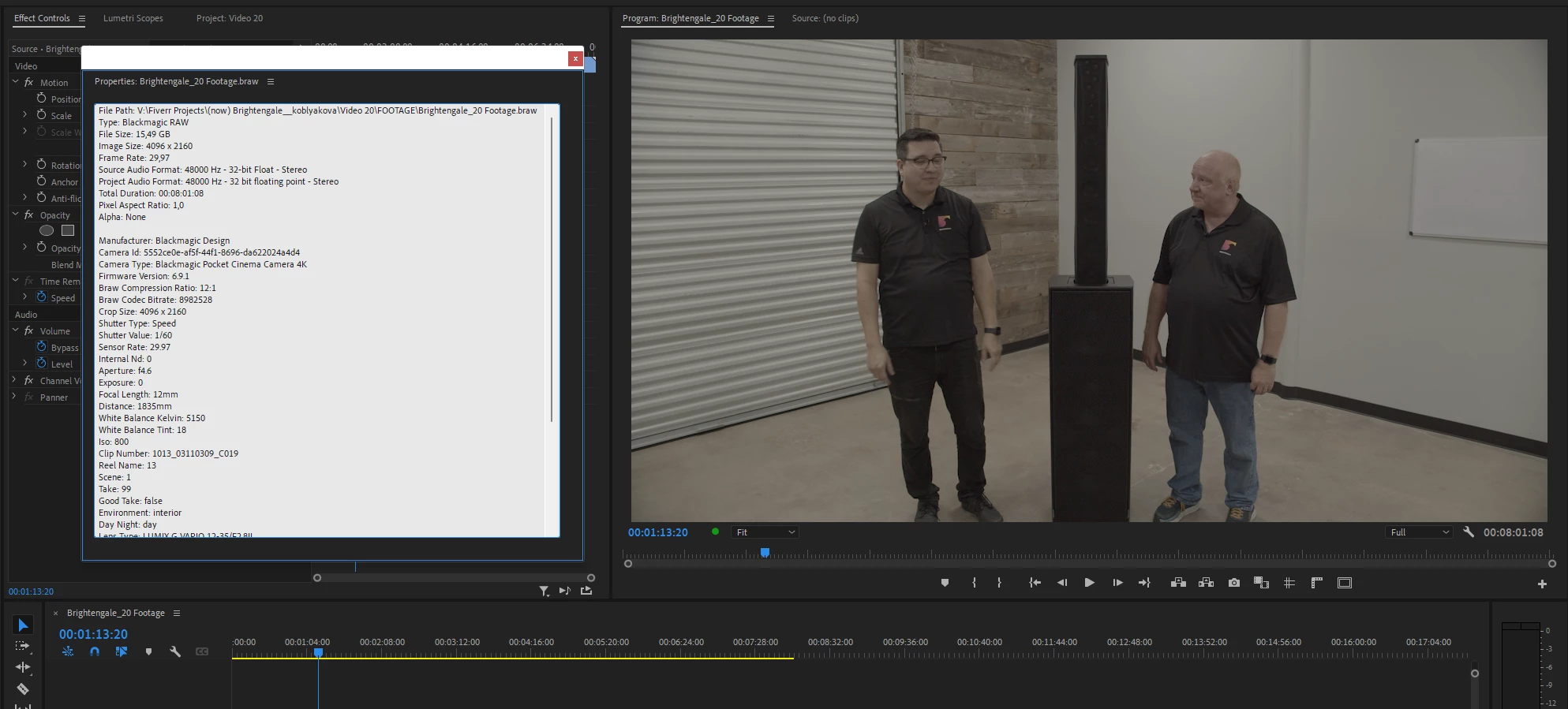
The image below shows the options for the Blackmagic Design BRAW plugin. Not sure if the Autokroma BRAW plugin is better or not. As Richard stated the adjustments are master clip adjustments and will affect all instances of the clip that are added to the sequences. 

R Neil Haugen
Legend
June 26, 2022

The Autokroma includes all those plus preset options. Which I use all the time. It's easy to check it out from their site.


Neil

Everyone's mileage always varies ...
Richard van den Boogaard
Community Expert
Community Expert
June 26, 2022

For some reason, I could not get the Autokroma plugin to work. Had to roll back as I had a tight project with a deadline. Afterwards, I never tried again. Working with the master clip adjustments with the ocassional additional Lumetri tweaks works for me.

R Neil Haugen
Legend
June 25, 2022

Richard has a good response.


I use the Autokroma BRAW plugin which allows creating quite a number of presets. I've created a few basic ones that I use depending on the project. I'll use a preset on all files of a project.


The work on RAW or log files for normalization is simply to "normalize" to a standard, neutral color/tonality with no crushed or clipped values and to get color balance and saturation to "normal".


"Normal" of course would be to get things similar to the other media your project uses. Then do your color grading process as normal.


Neil

Everyone's mileage always varies ...
Richard van den Boogaard
Community Expert
Community Expert
June 25, 2022

Thanks, Neil...

Richard van den Boogaard
Community Expert
Community Expert
June 25, 2022

Step one is to go to the Source tab in the Effects control panel, where you can adjust the raw codec settings. Most notably, you can apply the built-in LUT tailored for BMD cinema cameras. You may need to do basic adjustments such as color temperature, exposure and contrast.


Usually, this brings the color correction upto 95-100% of where I like it to be. However, if you still wish to do further correction or grading, apply the Lumetri color effect to the clip, or start by tweaking some adjustments in the color workspace.


Bear in mind that making adjustments to the source level, will color correct the entire source clip, irrespective of how many times they appear in an edit in your sequence. This type of color correction is usually done to take an entire clip to the right base level. Lumetri color is a clip specific effect, although you may also apply that to a super-imposed adjustment layer (which effects all visible clips underneath in a timeline).


Hope this helps.