Participant
February 13, 2021
Answered

When I Export Out Of Premiere Pro, Video Quality Becomes Horrible

  • February 13, 2021
  • 3 replies
  • 1359 views

Hey Everyone,


So I looked around and haven't seen anyone with this type of problem. I edit on a 2017 iMac, which I think has something to do with this problem.


Basically, the quality of my edit is fine, until I export, after which on QuickTime, the colors look mushy and faded compared to premiere pro. I'll link what I'm exporting it at, and the before and after of the quality. 


I think the problem may be being caused by QuickTime settings so, I'm going to try and export it to a different video app instead of QuickTime. 


This is what it looks like after I export it. (view from youtube, not quicktime)



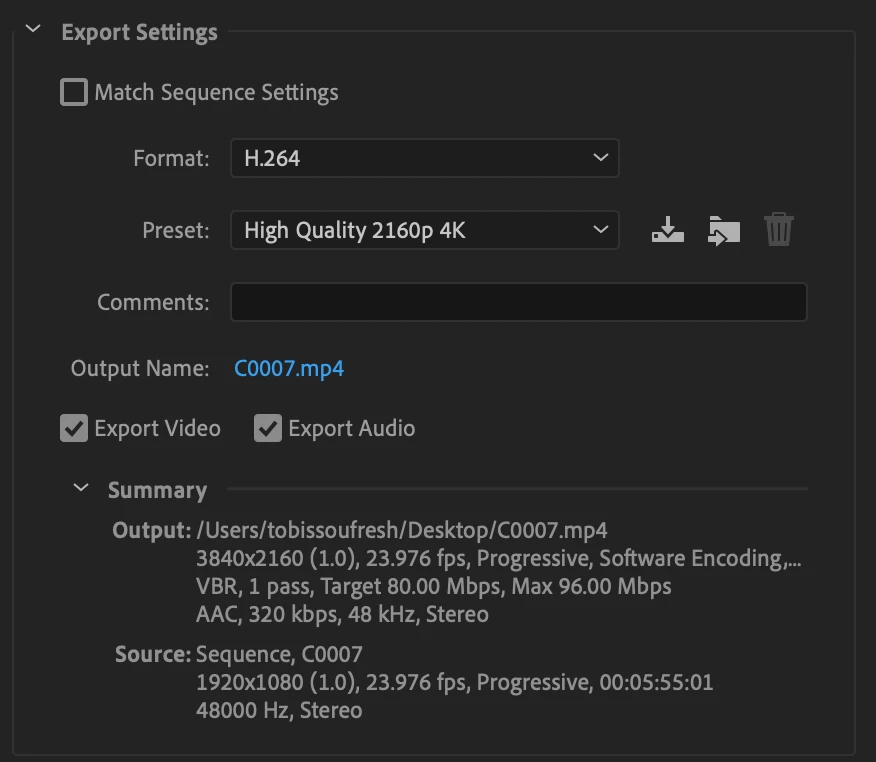
This is the export settings


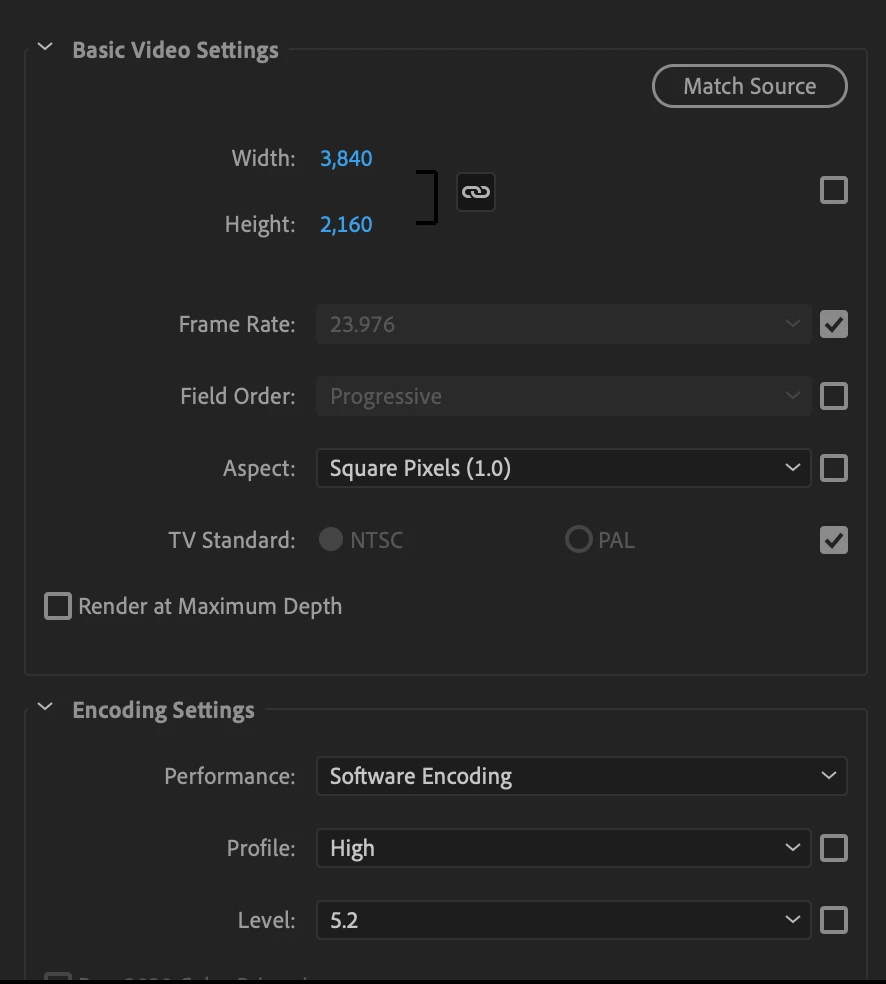
This is the basic video settings


This is the before in premiere pro



This topic has been closed for replies.
Correct answer TobieYoung

So I just figured out the problem and how to solve it. iMacs have better colors than any other type of monitors, even apple laptops which is why this problem happens mostly to iMac users. Because when you export, your video system, such as QuickTime or VSL (I think that's what it's called) doesn't have the color range that iMacs screens have so they're forced to fade down the colors. 


The way to solve this is to go to User & Group Preference, to Displays, to the color tab, and click on "show profiles for this display only" so that it's off, (no blue checkmark). After which, it should show you a bunch of different settings. You want to click on "Acer H236HL" and turn on the "Show profiles for this display only" button again so that it's turned back on. 


What this does is changes the color system for the iMac so that it's on a lower color range, the one's other computers and monitors use. But make sure to change it back on when you're done editing as this will lower the color range for everything on the computer. 


Summary: Basically iMacs are way better computers than normal computers so the colors you see on an iMac can't be seen or put on other computers: PC, Monitors, etc

3 replies

MyerPj
Community Expert
Community Expert
February 13, 2021

I'm pretty sure that's not the complete answer. 🙂


You also have another problem regards the video quality. You are using the 1080p sequence and exporting it to 4K, that will lower the quality also. Export it to 1080p for the best results.


BTW: your "Summary:" is classic! 🙂

TobieYoungAuthorCorrect answer
Participant
February 13, 2021

So I just figured out the problem and how to solve it. iMacs have better colors than any other type of monitors, even apple laptops which is why this problem happens mostly to iMac users. Because when you export, your video system, such as QuickTime or VSL (I think that's what it's called) doesn't have the color range that iMacs screens have so they're forced to fade down the colors. 


The way to solve this is to go to User & Group Preference, to Displays, to the color tab, and click on "show profiles for this display only" so that it's off, (no blue checkmark). After which, it should show you a bunch of different settings. You want to click on "Acer H236HL" and turn on the "Show profiles for this display only" button again so that it's turned back on. 


What this does is changes the color system for the iMac so that it's on a lower color range, the one's other computers and monitors use. But make sure to change it back on when you're done editing as this will lower the color range for everything on the computer. 


Summary: Basically iMacs are way better computers than normal computers so the colors you see on an iMac can't be seen or put on other computers: PC, Monitors, etc

Ann Bens
Community Expert
Community Expert
February 13, 2021

I dont see any difference between the two screenshots look the same to me.

But you are trying to make 4K out of HD footage. That is an increase of 50% in framesize and inversely proportional decrease in image quality.

Try exporting to 1080p instead.


Participant
February 13, 2021

Firstly, thanks for the answer. 


Quick question, how do you know it's HD footage, as the camera I use is a 4k camera? (Sony A600, something like that, the new one)


And for the quality, I found a yt video that explains it for anyone interested: https://www.youtube.com/watch?v=t61b6Nk-YPw


Ann Bens
Community Expert
Community Expert
February 13, 2021

Quick question, how do you know it's HD footage, as the camera I use is a 4k camera? (Sony A600, something like that, the new one)


By @TobieYoung


How I know. Your sequence setting is HD and not 4K.