White pixels on video panel
Hi all, I am facing a very weird situation with my adobe Premiere here.
First of all here is the specs of my pc:
Motherboard: msi b150 pc mate
Processor: Intel Core i7-6700 CPU @3.40 3.41 GHz
Ram: 16GB (2x8GB)
Graphics Card: NVIDIA GeForce GTX 1070
The problem:
I am getting the following white pixels (they move when I playback) on my shots. This along with a weird trembling on my timeline cursor only appeared a few days after I started working on my project which means something went wrong on the way and not from the beginning.
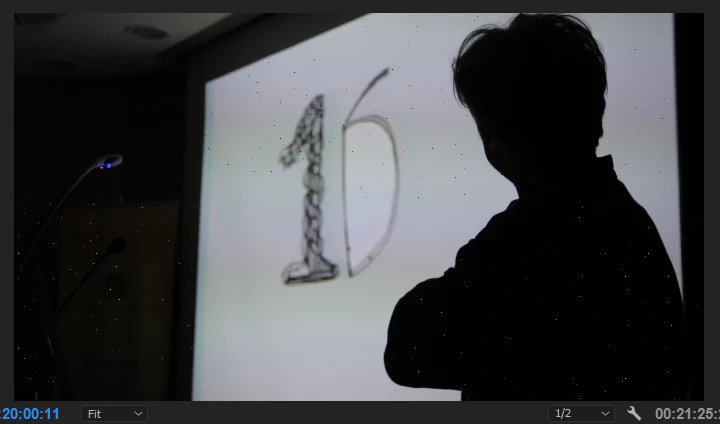
My first thought was that it's a Graphics card issue but I am testing some shots in After Effects and everything looks alright. I even play all the original videos with VLC and they all work fine. So I am guessing it might not be a graphics card issue (i have the latest drivers).
I've tried a bunch of things including re-installing but nothing worked. The only visual change actually comes when I change the renderer from the project settings. When I set it to "Cuda" it seems be getting much worse (Check image below)
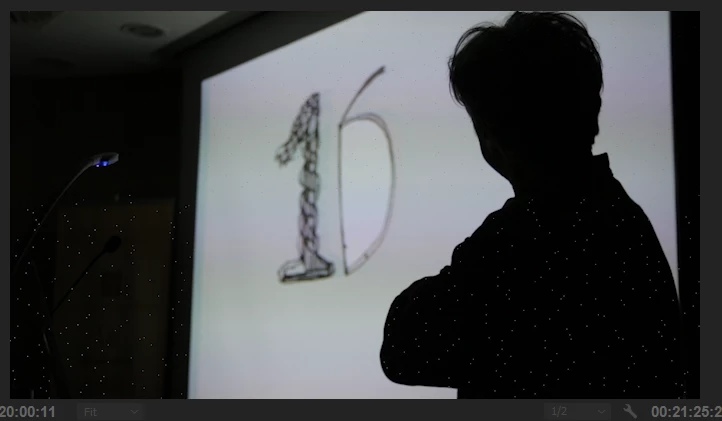
One last thing but VERY important is that the pixels appear after the export on the video file as well.
Regarding the shaking timeline I honestly have no idea what changed.
Any help or advice will be greatly appreciated !!!!
Here is a couple of suggestions I was given:
Check the FPS to match between sequence and shots - They do match
Change the quality of preview when stopped/play - Tried changing, makes no difference
Not using any proxies so that's not it either
 AdChoices