


Participant
May 22, 2024
Answered

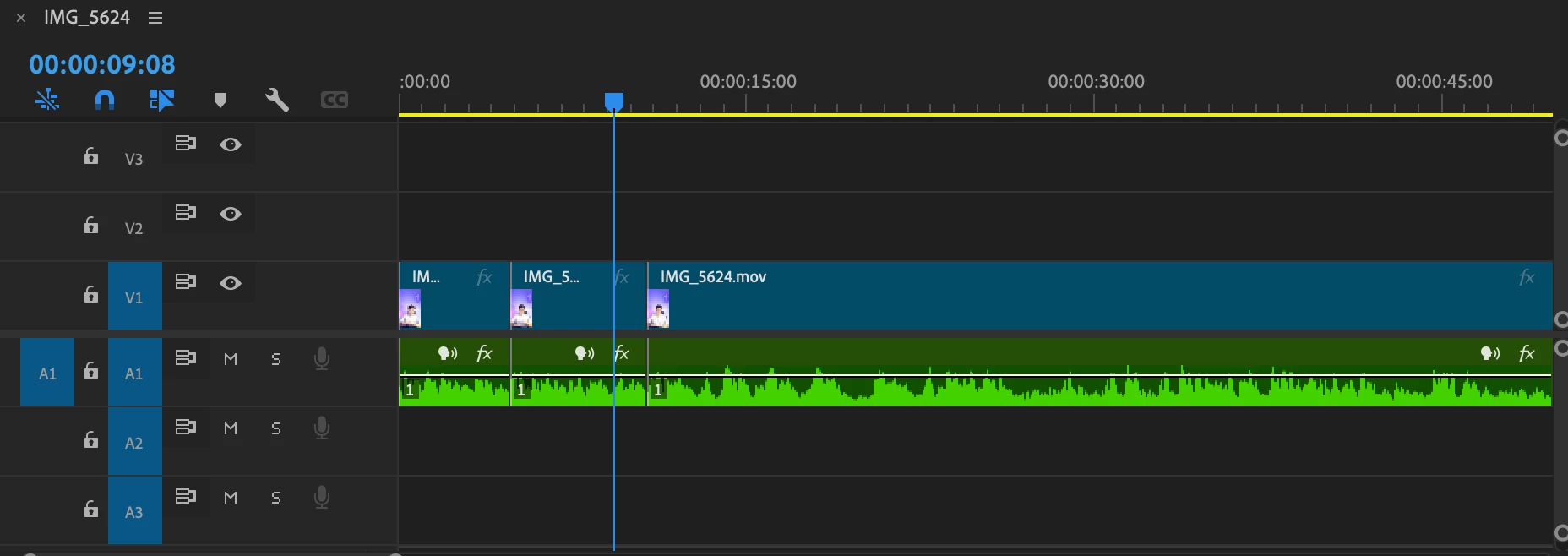
Why is the track so huge? How do I resize?

  • May 22, 2024
  • 3 replies
  • 1332 views

The editing track (I'm not sure if this is what it's called) so huge now? Is there a way to revert back to the original thinner version? I know how to adjust them but how do I standardise the size across all tracks?


Correct answer ScottSimmons

If you place your mouse cursor between the V1 and V2 targets, near the track locks,  it'll change to an arrow cursor so you can then drag to change the track height.

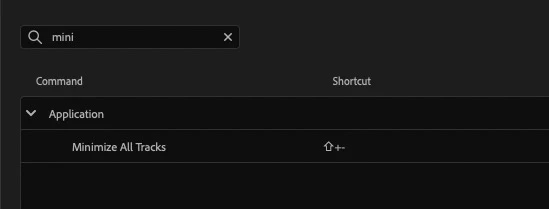
Or try the keyboard shortcut, Minimize All Tracks. 

3 replies

Participant
March 21, 2025

Hey did you ever figure this out how to autmate it to be the sixe it used to be before the update? It's so annoying having to readjust these every time you add something new to your timeline mid-edit. 


ScottSimmonsCommunity ExpertCorrect answer
Community Expert
May 23, 2024

If you place your mouse cursor between the V1 and V2 targets, near the track locks,  it'll change to an arrow cursor so you can then drag to change the track height.

Or try the keyboard shortcut, Minimize All Tracks. 

Averdahl
Community Expert
Community Expert
May 22, 2024
quote

Is there a way to revert back to the original thinner version? 


By @Denis Lee 01


Yes, hold down the Shift-key and double click on the track headers.

Participant
May 23, 2024

thanks for this but it's still big though? I would ideally want it to be like the photo attached below, it's one of my older projects. How do i make it as thin as before? 

Averdahl
Community Expert
Community Expert
May 23, 2024
quote

thanks for this but it's still big though? I would ideally want it to be like the photo attached below, it's one of my older projects. How do i make it as thin as before? 


By @Denis Lee 01


Hmm, double clicking works here on Windows 11/Premiere Pro 24.3 to either make them bigger or smaller. One thing that may help if Premiere Pro acts odd is to reset the Preferences. Launch Premiere Pro while you are holding down the Shift-key to bring up the Reset options dialog and check Reset app preferences and click Continue.


When done, try to Shift+double click on the track header again. Click in the space were the green dots are. (See image below)