Inspiring
January 26, 2018
Answered

Why my image of my menu is in such a bad quality ? (DVD - Adobe ENCORE)

  • January 26, 2018
  • 2 replies
  • 2024 views

Hi,

I'm trying to make a DVD with Adobe Encore. I've created a menu with photoshop in 4410x2480 (300 dpi).

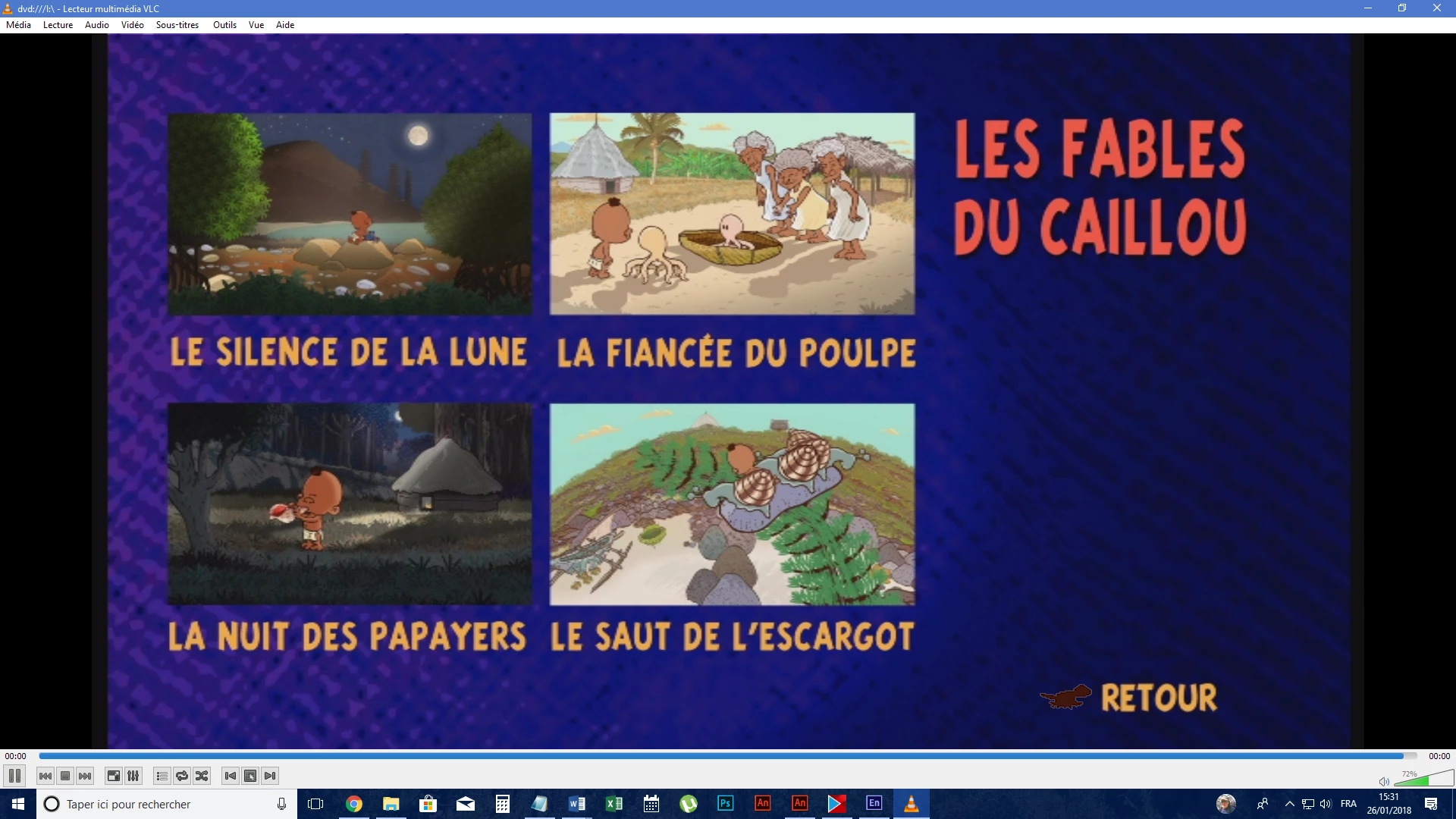
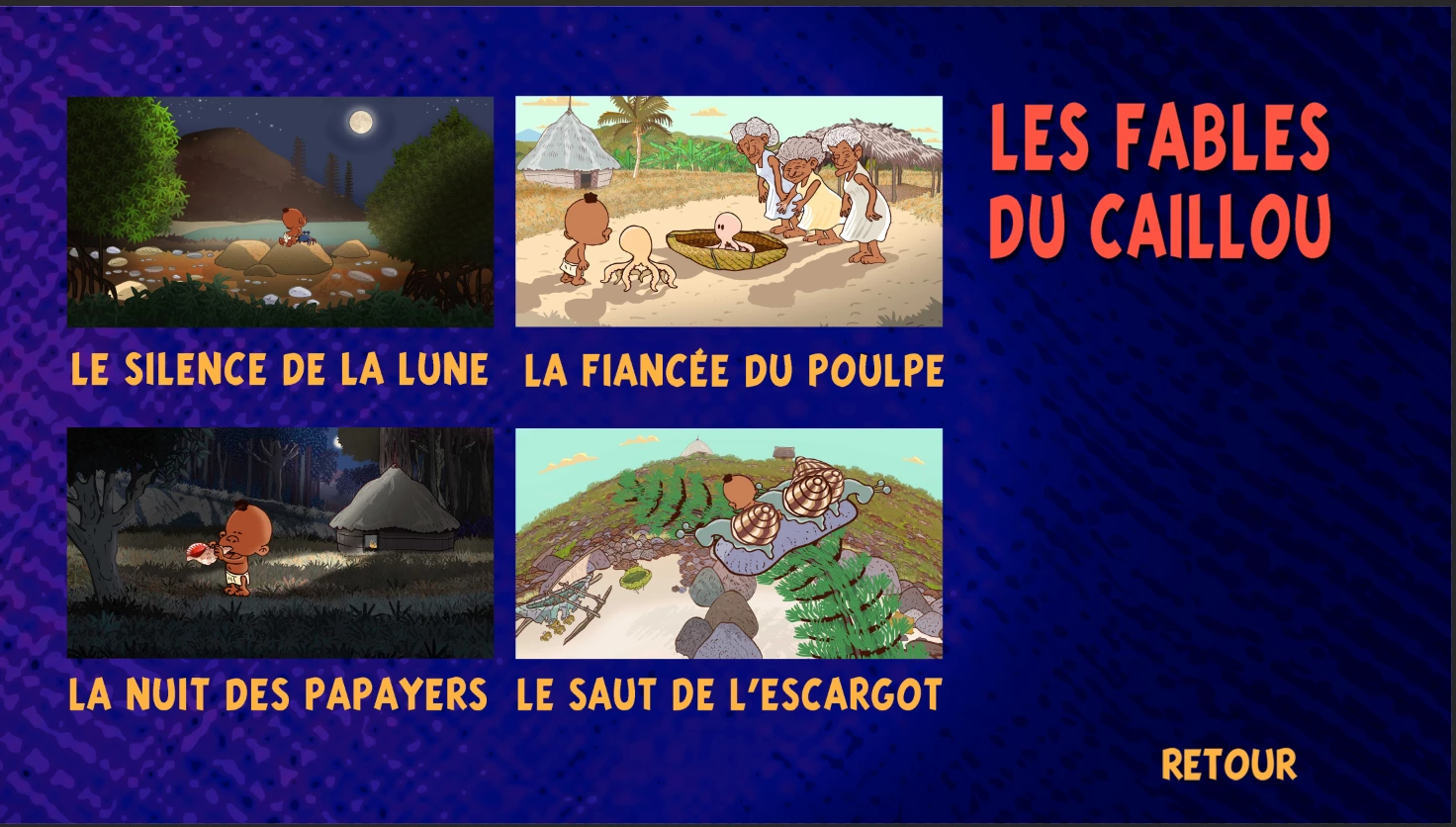
But when I export my dvd (iso) and watch it with VLC, the quality of the menu is bad...(see attach file).

Any idea why ?

on DVD :
original :
This topic has been closed for replies.
Correct answer Ann Bens

Best is to make you menu the same as the dvd specs: 720x480/576 72 dpi

DVD is what it is Standard Definition.

If you want better quality make your movie into a BD or mp4 in HD quality.

2 replies

Stan Jones
Community Expert
Community Expert
January 26, 2018

To add to Ann's comments, giving Encore a menu that is the wrong size requires Encore to transcode it. It will use the "default transcode settings" that you select in the project settings. But it can't add anymore pixels than the DVD spec. Or the BD specs.

The par can also become a problem. I prefer starting with an Encore library menu and modifying that.

Ann Bens
Community Expert
Ann BensCommunity ExpertCorrect answer
Community Expert
January 26, 2018

Best is to make you menu the same as the dvd specs: 720x480/576 72 dpi

DVD is what it is Standard Definition.

If you want better quality make your movie into a BD or mp4 in HD quality.

neil wilkes
Legend
January 27, 2018

Ann is 100% spot-on here, Steph.

I will also wager that you used square pixels as well - which is an even bigger problem for DVD, which is anamorphic - meaning it's pixels are not square - NTSC has a ratio of 1.2121:1, and PAL is even worse at 1.4:1 so starting out in images the size of a table cloth is great but you must be careful making the menus.

You need to get the shape right as well as the resolution.

Take your Square Pixel Tablecloth, and drop the DPI to 72.

Now create a new DVD Menu in Photoshop. Take your reduced tablecloth, and add it to the menu.

Now hit CTRL-T to resize (I think that is the command for making a Smart Object), find the corner and whilst holding down the SHIFT key, drag the corner to reduce the size - you should be able to make the large image sit in the menu sooner or later using this method and of all it seems to work the best.