
Participating Frequently
March 14, 2023
Question

Why the Text start UP HERE?

  • March 14, 2023
  • 2 replies
  • 930 views

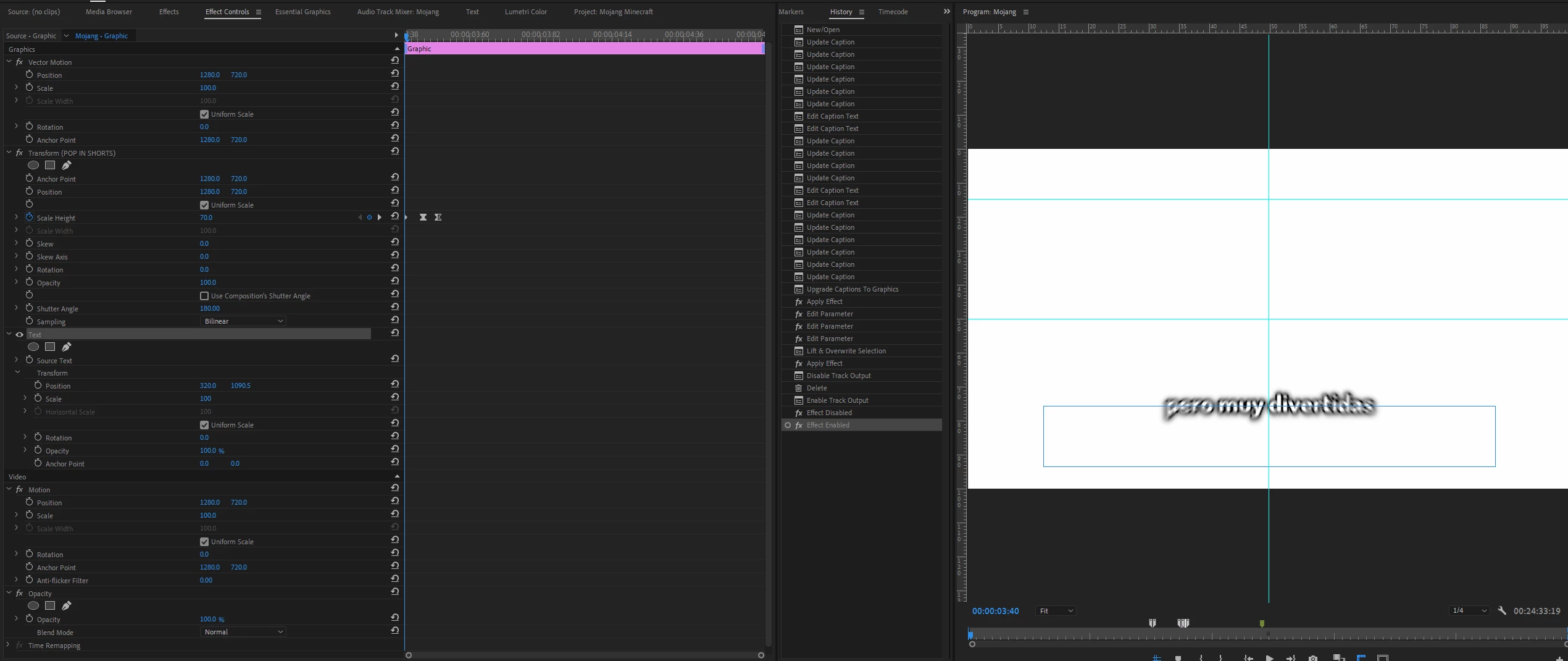
This is the beginning of the effect, the text starts very high in the square that you see in the first photo:
And as you can see in the second photo when the text has already finished its input effect, it is set in the center of the square:
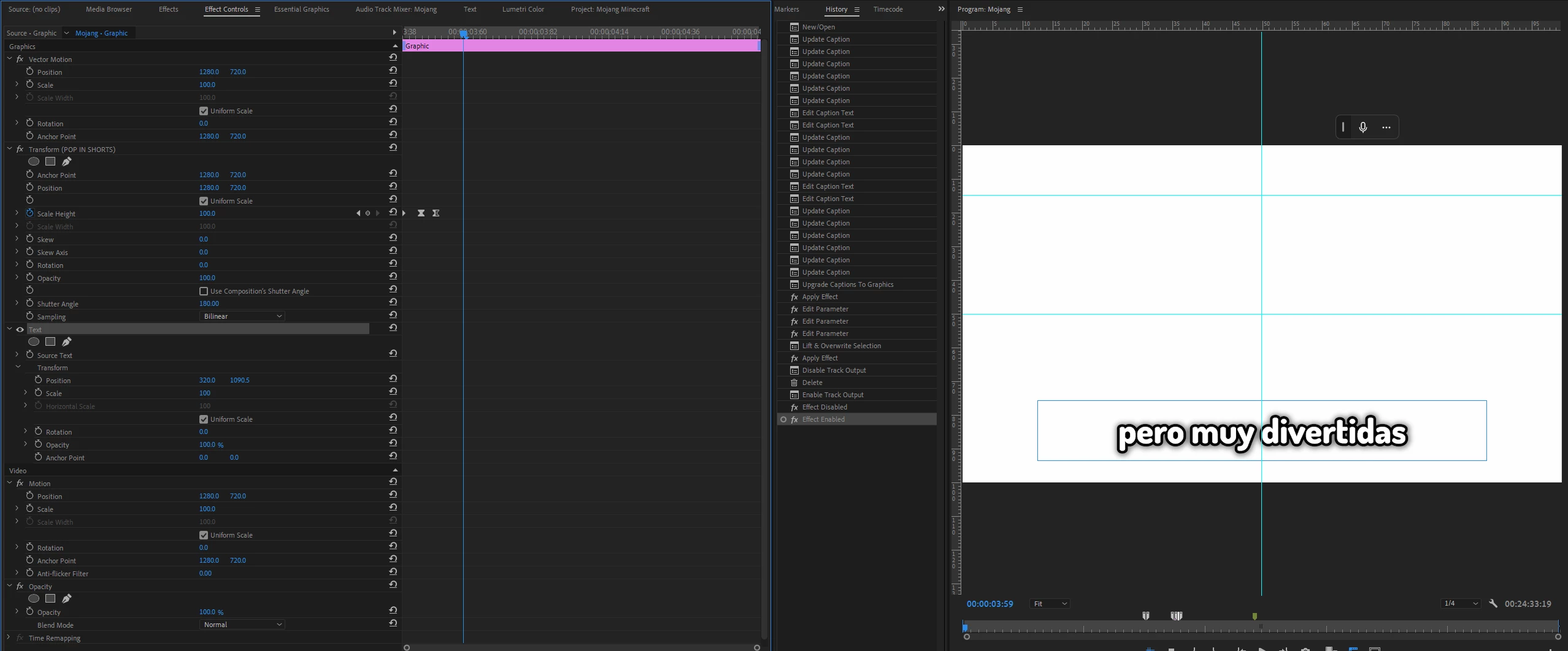
How can I get the entrance effect to come from the center of the square and not from the upper area? I don't understand what I'm doing wrong.

This topic has been closed for replies.

2 replies

Richard van den Boogaard
Community Expert
Community Expert
March 24, 2023

If you enlarge the text box substantially, you can see the cross hairs of where the animation is anchoring on. Move the cross hairs in position until the effect behaves the way you intend to. Next, scale back the text box to the desired size.


Hope this helps.

Kevin J. Monahan Jr.
Legend
March 15, 2023

Hi Guillermo, 

Thanks for the note. It appears that you have the Transform effect applied to your text. Can you try changing the order of the Transform effect in the Effect Controls Panel? You can also try nesting the text, and then adding the Transform effect? Let us know if either of these things work for you. Hope it helps.


Thanks,
Kevin

Kevin Monahan - Sr. Community and Engagement Strategist – Adobe Pro Video and Audio
Participating Frequently
March 15, 2023

Hi Kevin, I have tried your ideas and it has not been solved, I think it has to do with the "Anchor Point" for some reason when the subtitles are converted to graphics with the "Upgrade Caption To Graphic" function it puts (invisible) anchor point in the middle of the video

I don't know if the problem is a bug or what it is. It is that when you lower the Anchor Point to put it in the middle of the text box, the text goes up! (what is going on?!), so you need to manually put the text again down on the screen and then its all good

Does it have something to do with the fact that the project is in 2k?


I did a video with my problem and solving it:

Here i put the Differences between the setting of the text with the problem SOLVED IT:
1. 

and the Text with the problem still having it:

Kevin J. Monahan Jr.
Legend
March 15, 2023

Thanks for the movie, Guillermo. I think I see what the issue is. There are three anchor points (Vector Motion, Text, and Transform) to consider, one for the text layer, one for Transform, and one for the entire video frame (Vector Motion). I think you have the workaround right, and thank you for that, but I need to play around with it a bit more to see if there's a better workflow. 


Just briefly playing with it, without the Transform Effect, constructing the effect is more straight forward. With your animation preset relying on Transform, it adds another layer of complexity. You need that motion blur, I take it! I totally understand. I'd love to help you solve this riddle.


I think you may have either hit a bug or limitation for the workflow. I need a little more time to explore this, but I feel your pain. You want a preset to do the work for you, I agree. I hope we can make that happen for you. Shall we move this post into the bug reports forum? Let me know.


Thanks,
Kevin


Kevin Monahan - Sr. Community and Engagement Strategist – Adobe Pro Video and Audio