




DISCUSS: Preset manager adds more codecs to quick export
Do you want to add ProRes to Quick Export? Now you can . . . and any other preset too! Introducing the preset manager!
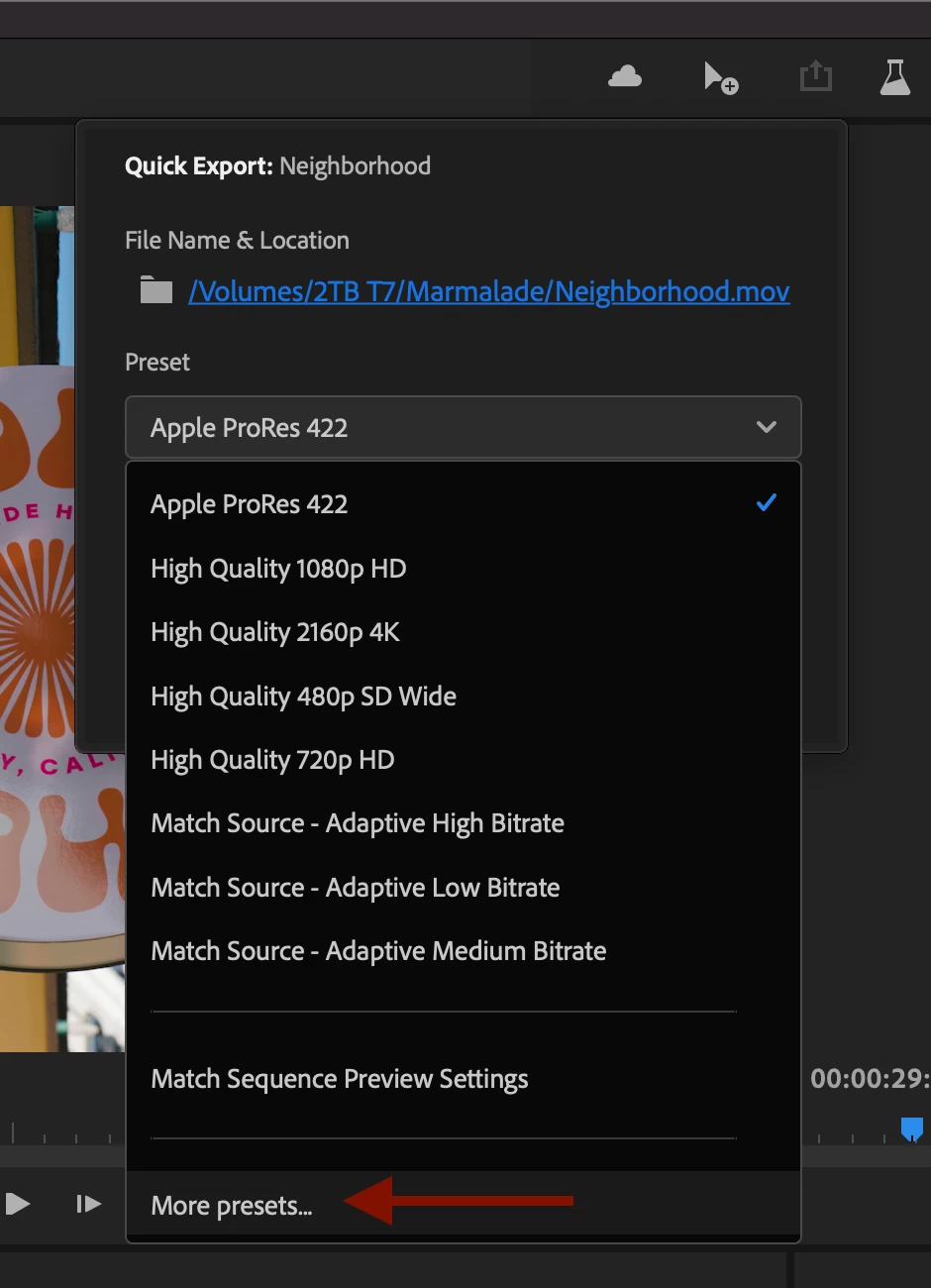
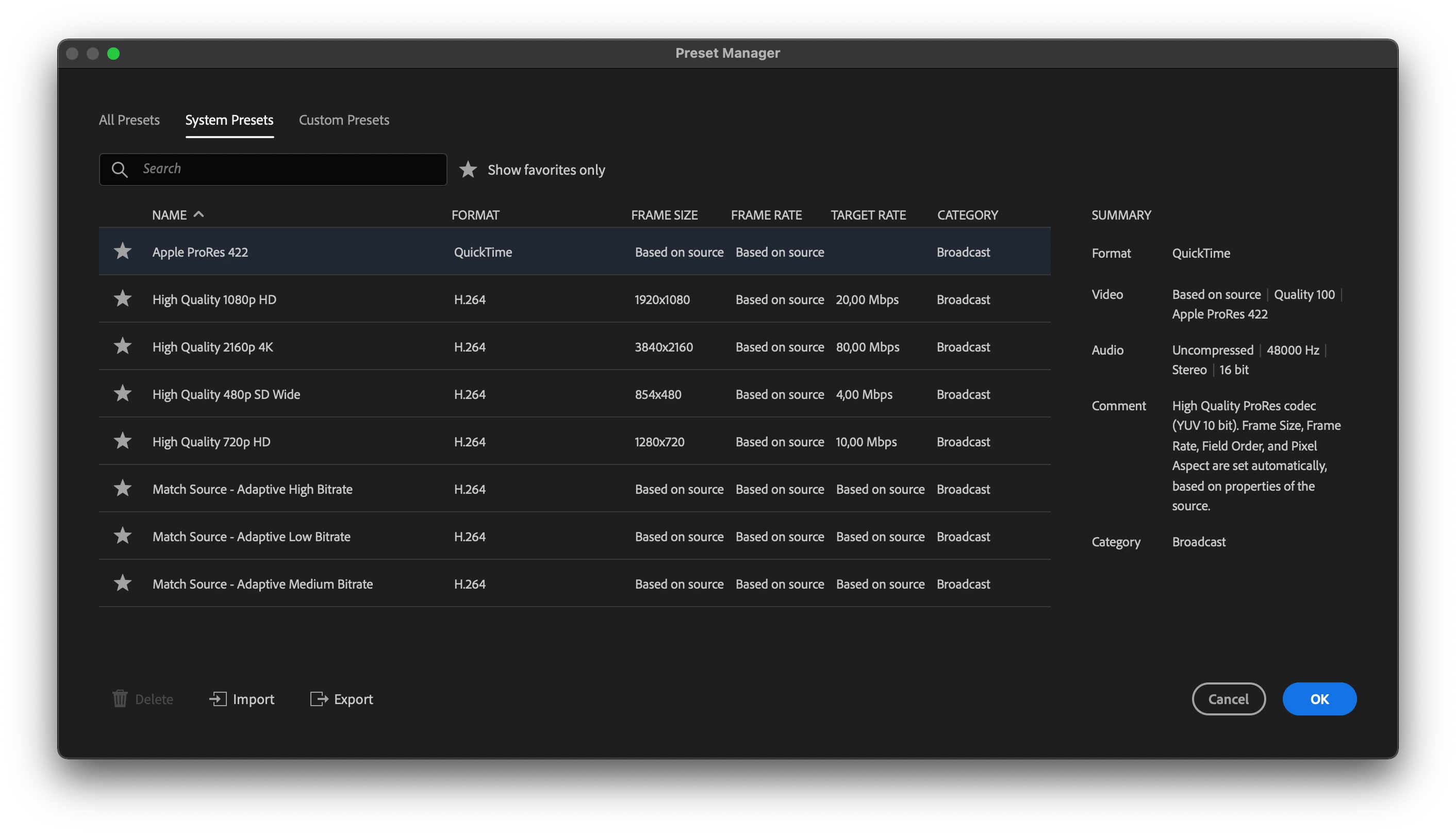
Quick export is a quick and simple way to get media out of Premiere Pro without much fuss and if H264 is what you need, it’s great for that. It’s been in the product for a little over a year, and the most common thing we hear is “yeah, Quick Export is cool . . . but where’s ProRes . . . or DNxHD or HEVC or those custom presets I’ve made”. The Preset Manager allows you to search for all the system and custom presets on your machine and favorite them, so they show up in quick export. Let’s face it, you probably use about 3 presets on a regular basis. Just put those 3 favorites in Quick Export and save time searching each time you export.
Testing the Preset Manager without the rest of export mode
The Preset Manager is part of the redesign for the new Export Mode and you can test it as part of that feature set, but we are also considering to release it before the full Export Mode. So, if you want to test this exactly how it is likely to ship at first you need to disable the new modes for Import and Export. Follow the discussion on Export mode here: https://community.adobe.com/t5/premiere-pro-beta-discussions/discuss-new-export-workflow/td-p/12130692
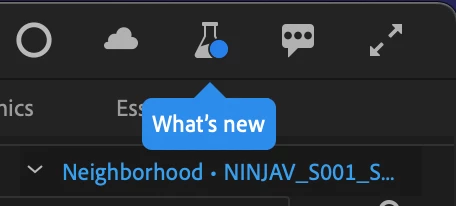
- To disable the new Import and Export modes, hold shift + click the beta beaker icon in the upper right
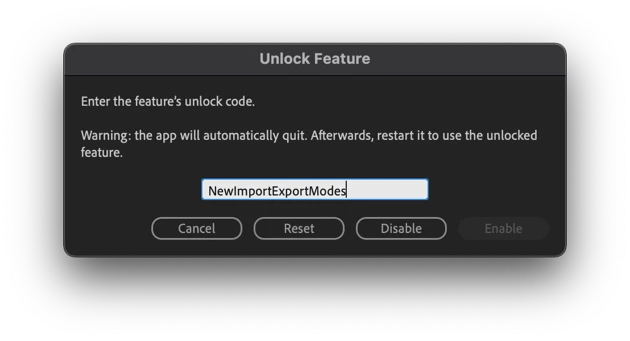
- A window will pop up. Enter this code NewImportExportModes. Click disable. Premiere Pro will need to shut down
- Re-launch Premiere Pro
- Your workspaces will almost certainly be messed up (missing the header bar / workspace bar). Reset each workspace you use.
Window > Workspaces > Reset to saved layout - Quick Export is the icon in the upper right of the workspace bar

- In the Preset dropdown, choose “More presets…”
What does the Preset Manager offer?
- Search and inspect all the encoding presets installed on your system. These can be presets you created in Premiere Pro or Media Encoder
- Only show System or Custom presets
- Favorite presets with the star icon. Favorited presets show up in Quick Export
- Show favorites only
- Sort presets by column
- Inspect the summary of the encoding parameters
- Import and export .epr encoding preset files
- Delete custom presets (you cannot delete system presets)
Match Sequence preview settings
With this option you can simply match the sequence preview codec. This has the same functionality as the “Match sequence” checkbox in the export settings. This is a powerful time saving workflow. If you intend to export ProRes 422, for example, adjust the sequence settings to use ProRes 422 as the preview render codec and render effects as you work. Then when you are ready to export choose the “match sequence preview settings” and Premiere Pro will not need to re-render anything. The output file will be generated very quickly.
We want to know what you think. Please join the conversation below.
 AdChoices