




Keyboard Shortcut for Adding Range Markers
Up until today, adding a range marker meant that you needed to both add a frame marker and option-drag a range marker to the desired position with your mouse. Today, in an effort to reduce your mouse mileage, we have added the ability to use a keyboard shortcut for range markers and either add those range markers based on the in/out points or the current timeline indicator (CTI).
|
Keyboard Shortcuts |
Functionality |
|
Mac: M Win: M |
Add a frame marker |
|
Mac: CTRL+M Win: ALT+Shift+N
|
If you have in/out point in project: Add a range marker over in/out point |
|
Mac: CTRL+Shift+M Win: CTRL+ALT+Shift+N |
Add a 5 sec range marker at CTI |
This keyboard shortcut and context menu (right-click) can now be used in:
- Source Monitor
- Program Monitor
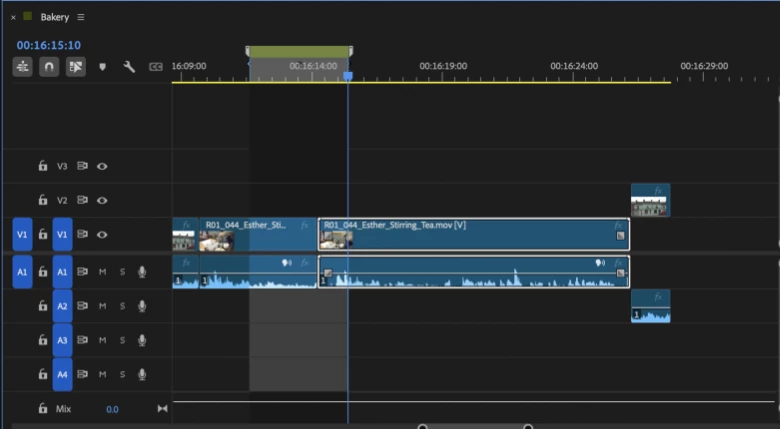
- Timeline panel
- Search Panel (Add ranges to multiple in/out points)
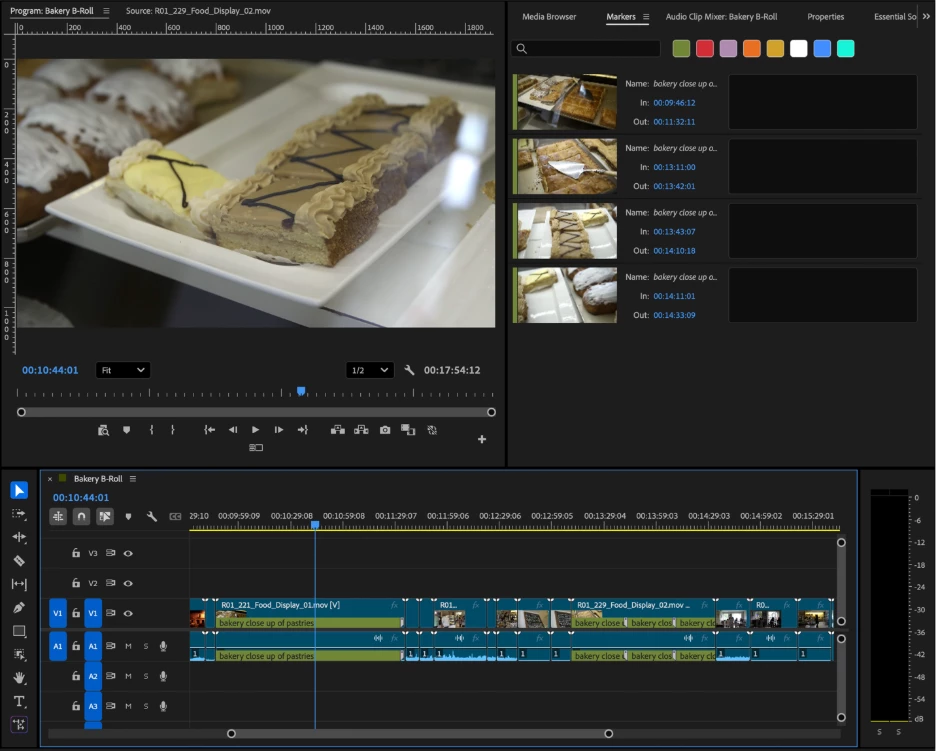
With the Search Panel, you will be able to multi-select thumbnails and add multiple range markers at once. Many of you have told us that you would like to be able to document or tag the search results for bookmarking key story moments, labeling recurring themes or shot types, or tagging sections when collaborating with others. Now, you can multi-select search results and add Range Markers to your Source or Sequence.
Search Panel
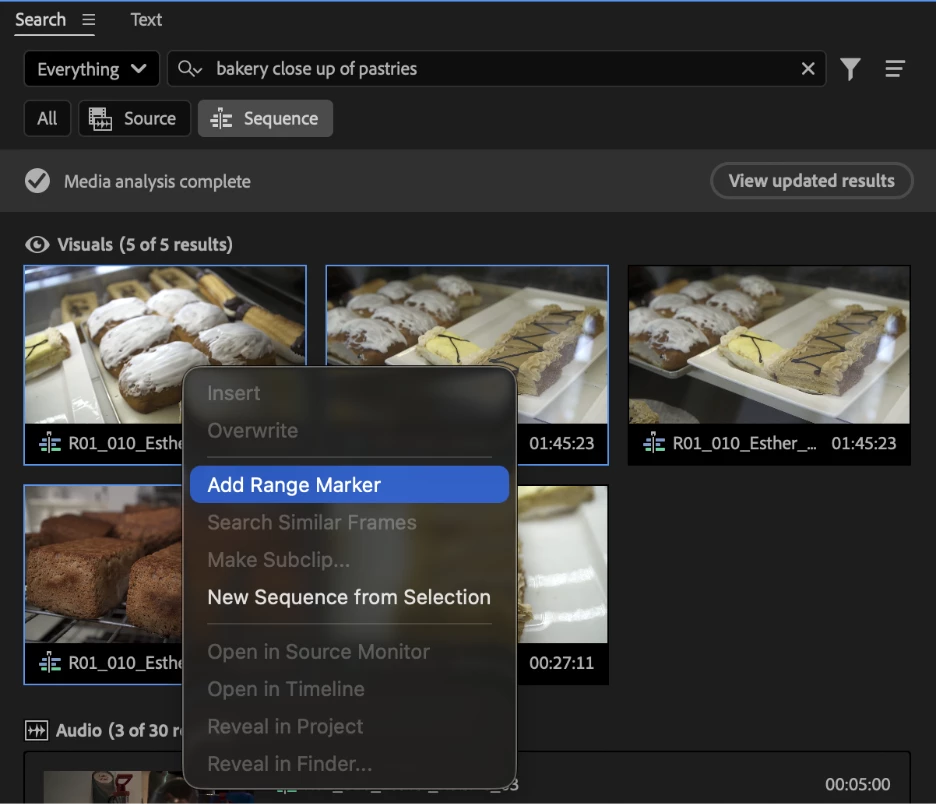
- Use the Search Panel to find footage with a descriptive term – example shown below “bakery close up of pastries”
- Select one or more thumbnails in the results. Each thumbnail represents a region of a Source clip or Sequence.
- Right-click on the selected thumbnails and select “Add Range Markers.”
- The Range Markers will be named with your search query
- You can also use the Range Marker keyboard shortcuts
Source Monitor
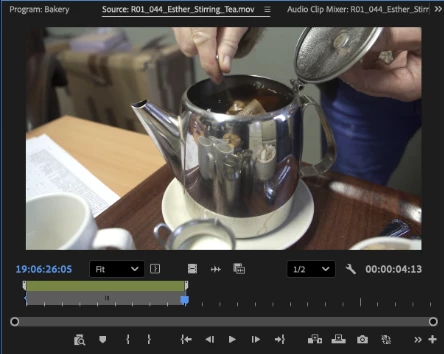
- Select in/out and use context menu or keyboard shortcut
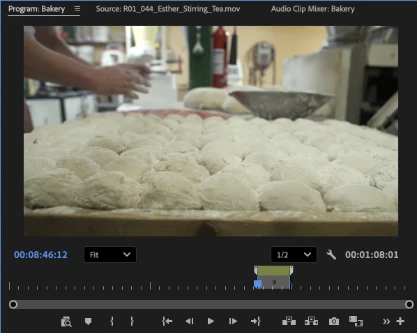
Program Monitor
Timeline
Let us know what you think!
 AdChoices