DaciaSaenz
Community Manager
Community Manager
November 5, 2021
Question

New Feature Alert: Graphics Tab for Easy Text Editing, Spell Check and Search & Replace!

  • November 5, 2021
  • 9 replies
  • 7347 views

The Motion Graphics team is thrilled to announce a new feature that will allow you to have an all-knowing vision of the text in your sequences, and with that, the power of Spell Check and Search & Replace for easy editing and polishing.


We've added a new Graphics Tab to the Text Panel that gives you an overview of all of the text in your sequence from both PR Graphics and AE Mogrts. This high-level view is great for making centralized edits to graphics without having to dig through the sequence to find specific track items. This view can be filtered by tracks and includes timecodes and composited thumbnails of the graphics on the sequence for quick way-finding. Legacy Title users let us know that having the ability to quickly find titles in large sequences is crucial for them to move over to an Essential Graphics workflow. With the Graphics Tab, we are closing that gap.


Once you have your desired sequence active, simply open the Text Panel and click on the Graphics Tab.
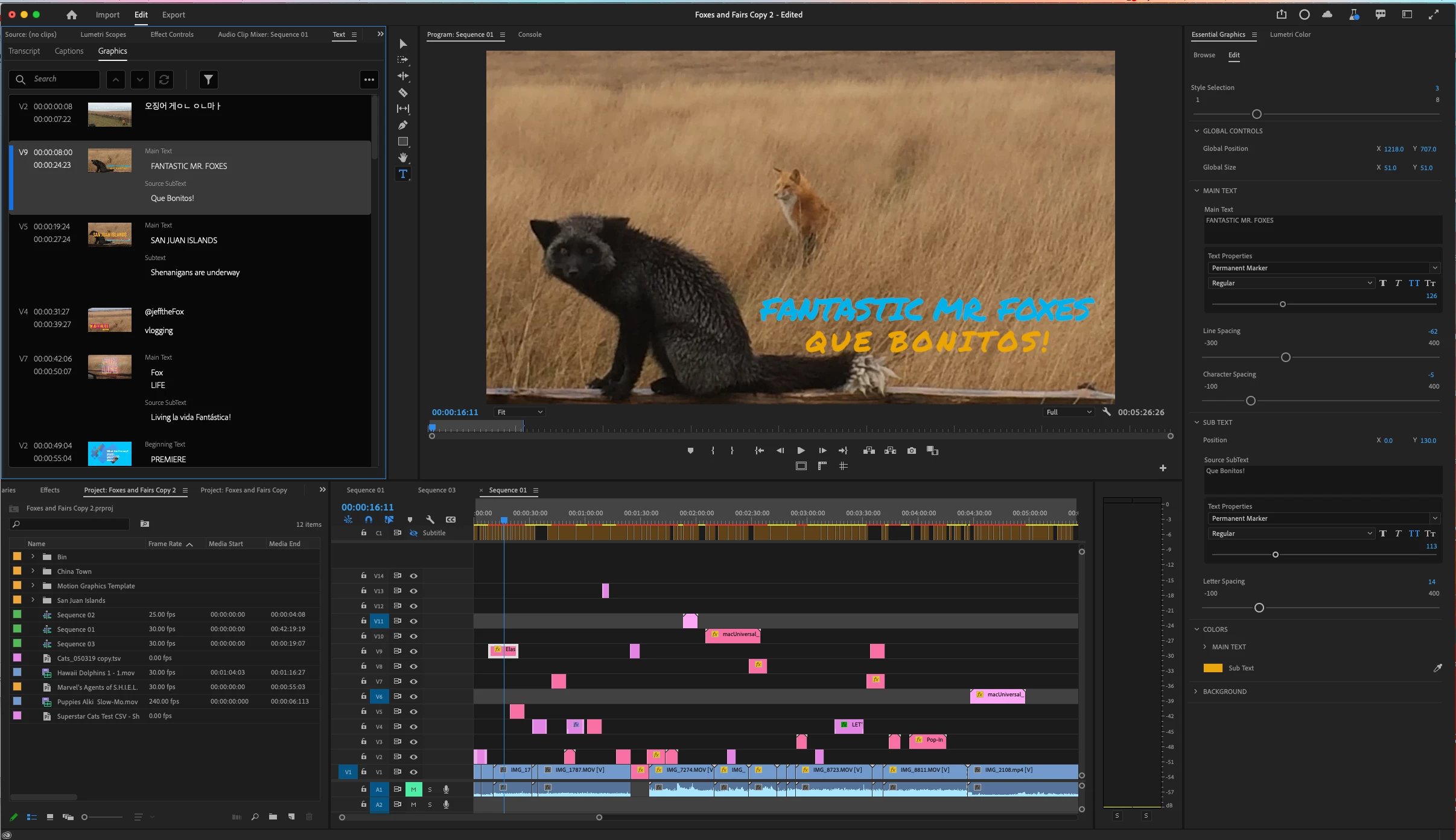
Note: You can find the Text panel under the top Windows menu along with your other known panels


Graphics Tab Layout:

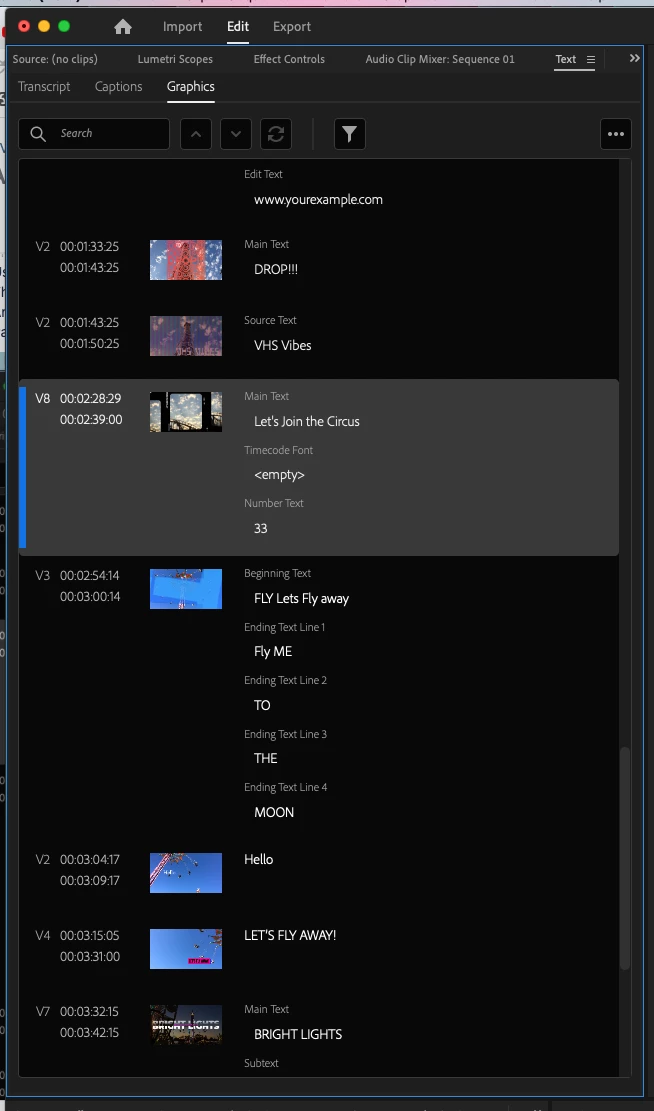
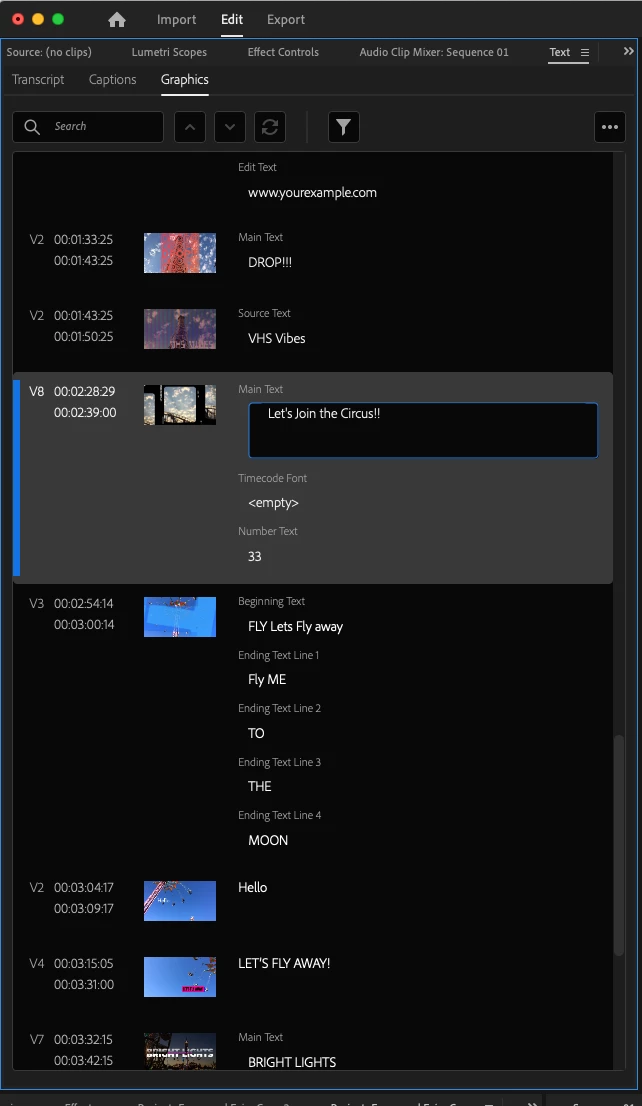
The Graphics Tab will show you all of the PR Graphics and AE Mogrts in your sequence in a scrollable list. This view will display a thumbnail, the timecode range for each track item as well as the video track number for each graphic. The blue highlight to the left of the graphic represents the graphic the CTI is currently over.


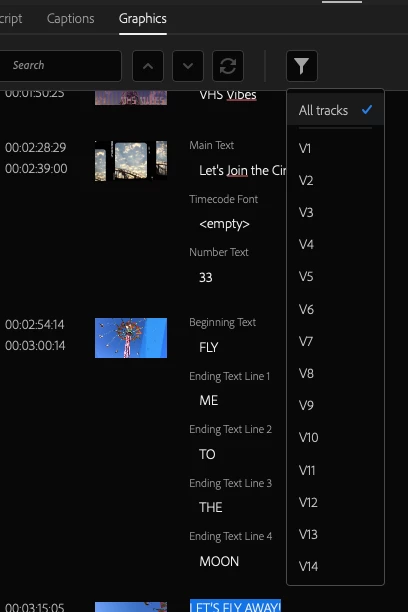
You can also focus your view of the graphics in your sequence by using the Filter icon in the panel.

(Multi-select of video tracks is currently not supported).
 

Editing text from this view is as simple as double-clicking on any of the editable text fields in the Panel.
 

Spell Check:
Perhaps most exciting, Spell Check is finally here! And we've enabled Spell Check for Captions and Transcripts as well.
No need to ever render a video with Wednesday or separate misspelled ever again!


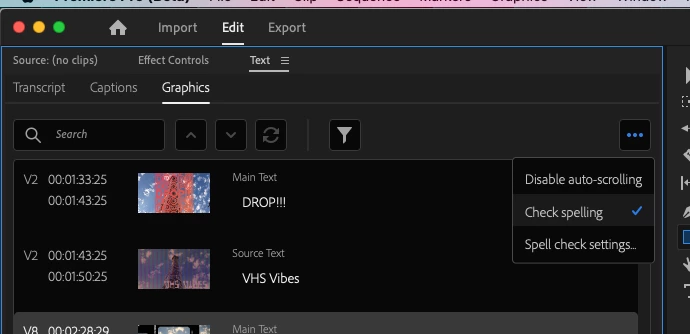
Spell Check can be enabled via the Overflow "..." Menu in the Text Panel
 

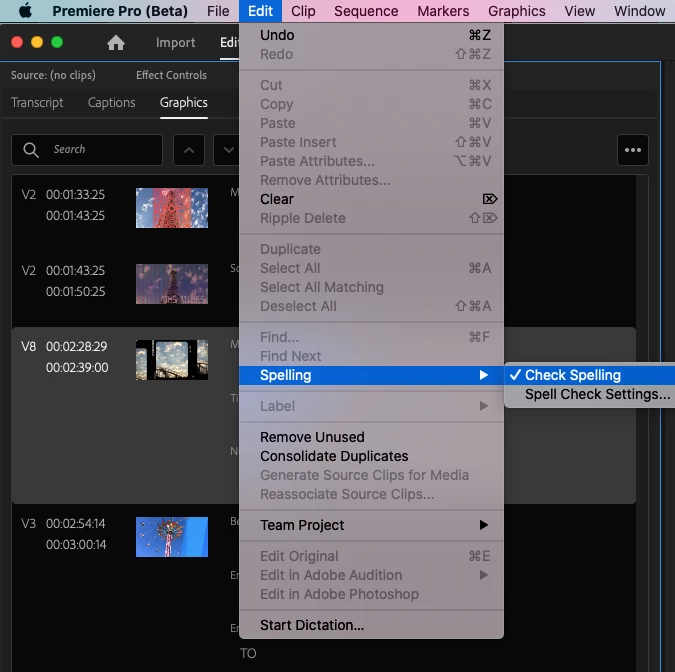
...or the top bar Edit > Spelling menu
 

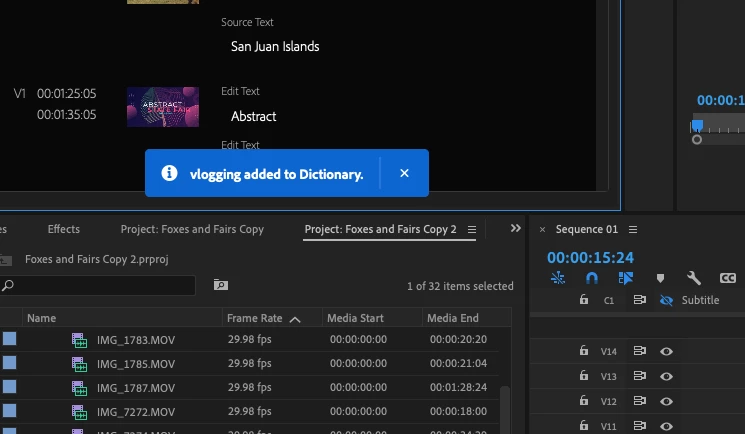
Open the Spell Check Settings Menu to change the desired language that you want to run Spell Check on through the Language dropdown menu. The Spell Check language will be set to match the installed App Language by default. You can also use the Spell Check Settings dialog to "Learn" and "Forget" specific words. These words are applied to that specific language setting and are OS-wide.
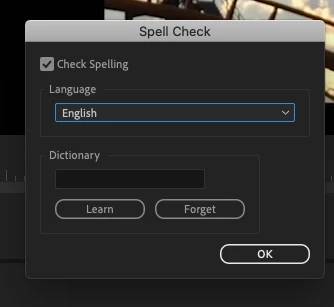
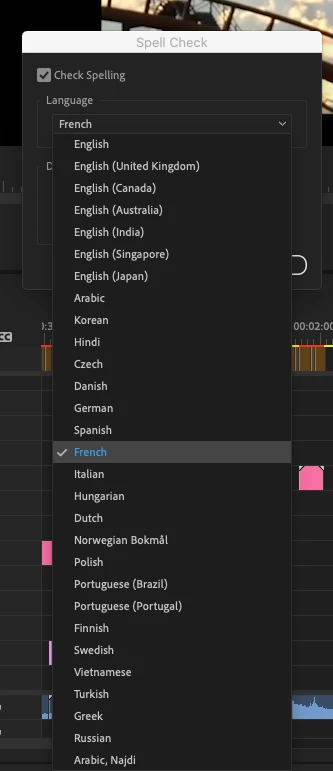
 

Note: Language Options are dependent on what languages are installed on the OS. Mac OS comes pre-installed with a good variety of languages, but Windows requires a manual install of most language packs.


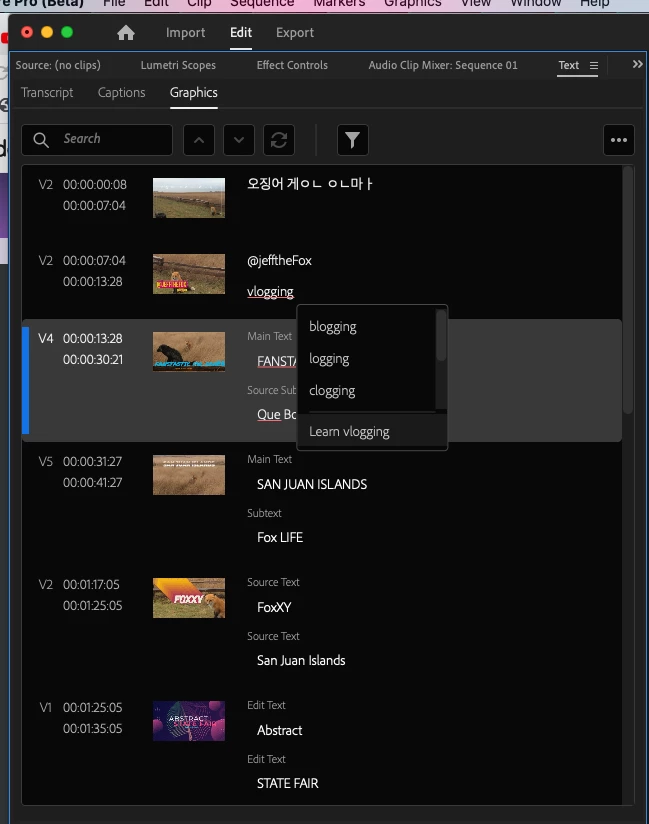
Like most apps, misspelled words will appear with a red underline when spell check is enabled. Right-clicking on these words will display a list of suggested words to correct the spelling quickly.
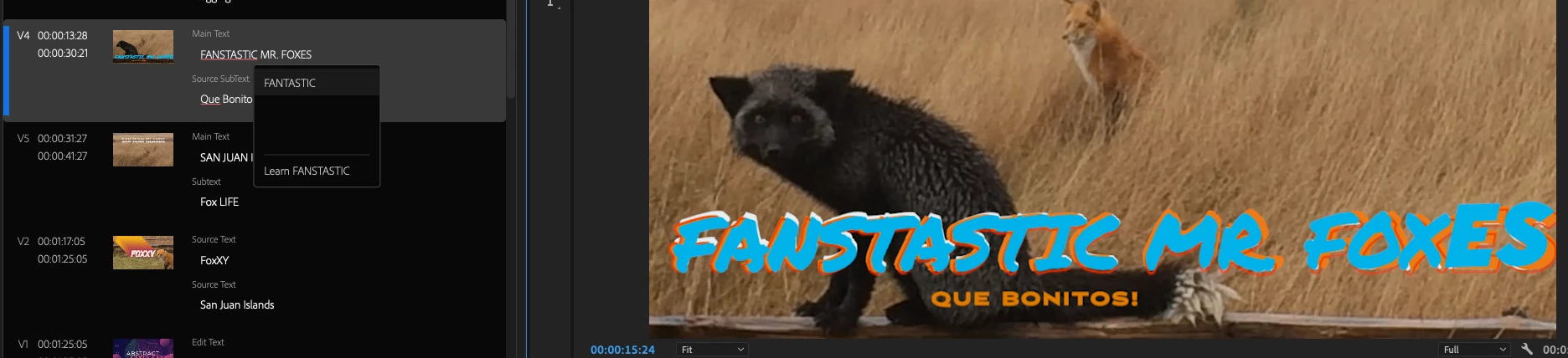
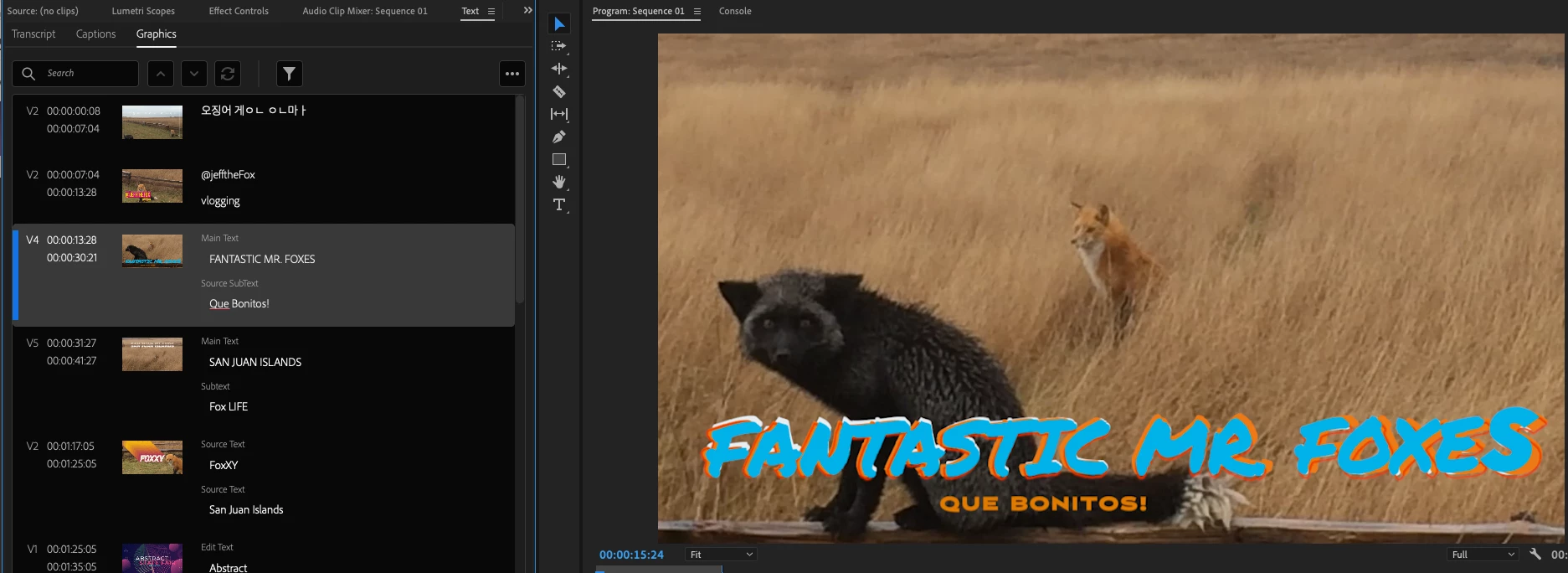
And if this word is a name or word that isn't actually misspelled in your context, then this right-click context menu will also give you the ability to "Learn" the word so that it won't be highlighted in red again. 
Search & Replace: 
While previously available for Captions and Transcripts, the new Graphics Tab also incorporates the power of Search & Replace for all of your text elements. Simply search for a word and use the previous and next arrows to navigate to all of the instances of that word in your sequence. Use the Replace icon to open the UI that will allow you to type your new text. Like most modern word editing apps, you have the option to Replace one or all of the searched-for words. Voila!!!
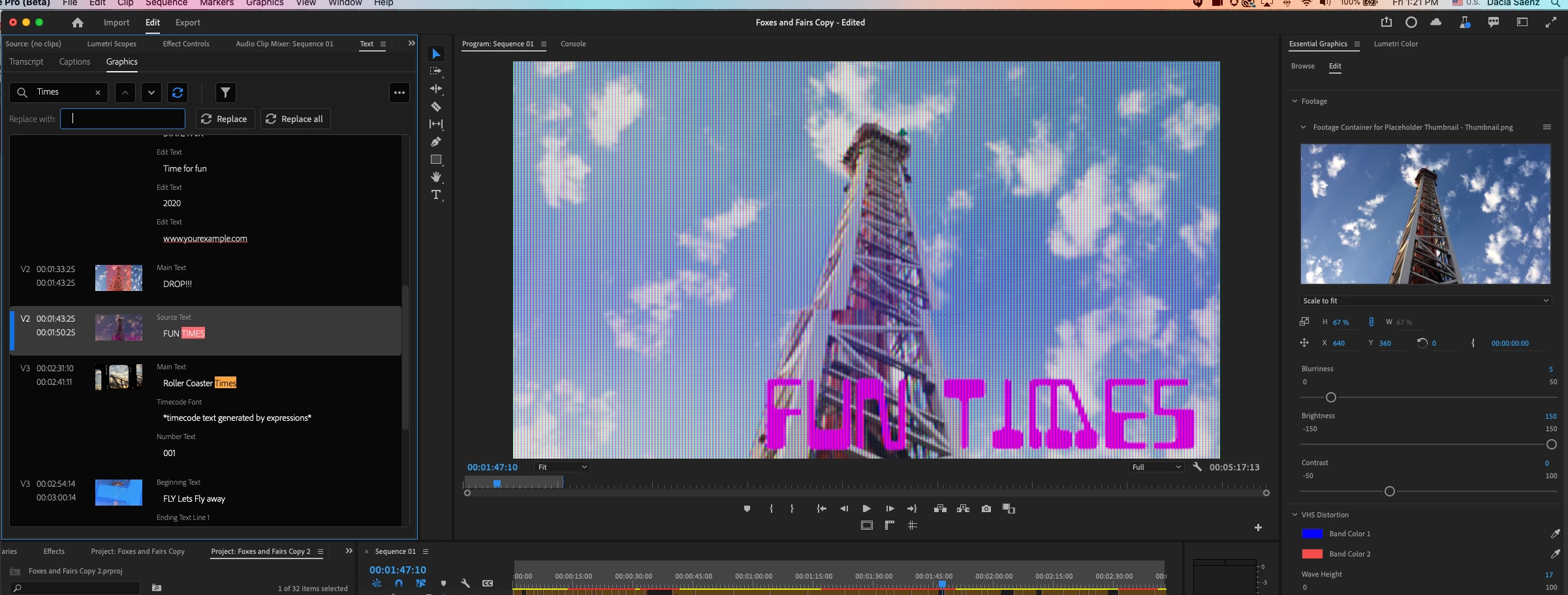
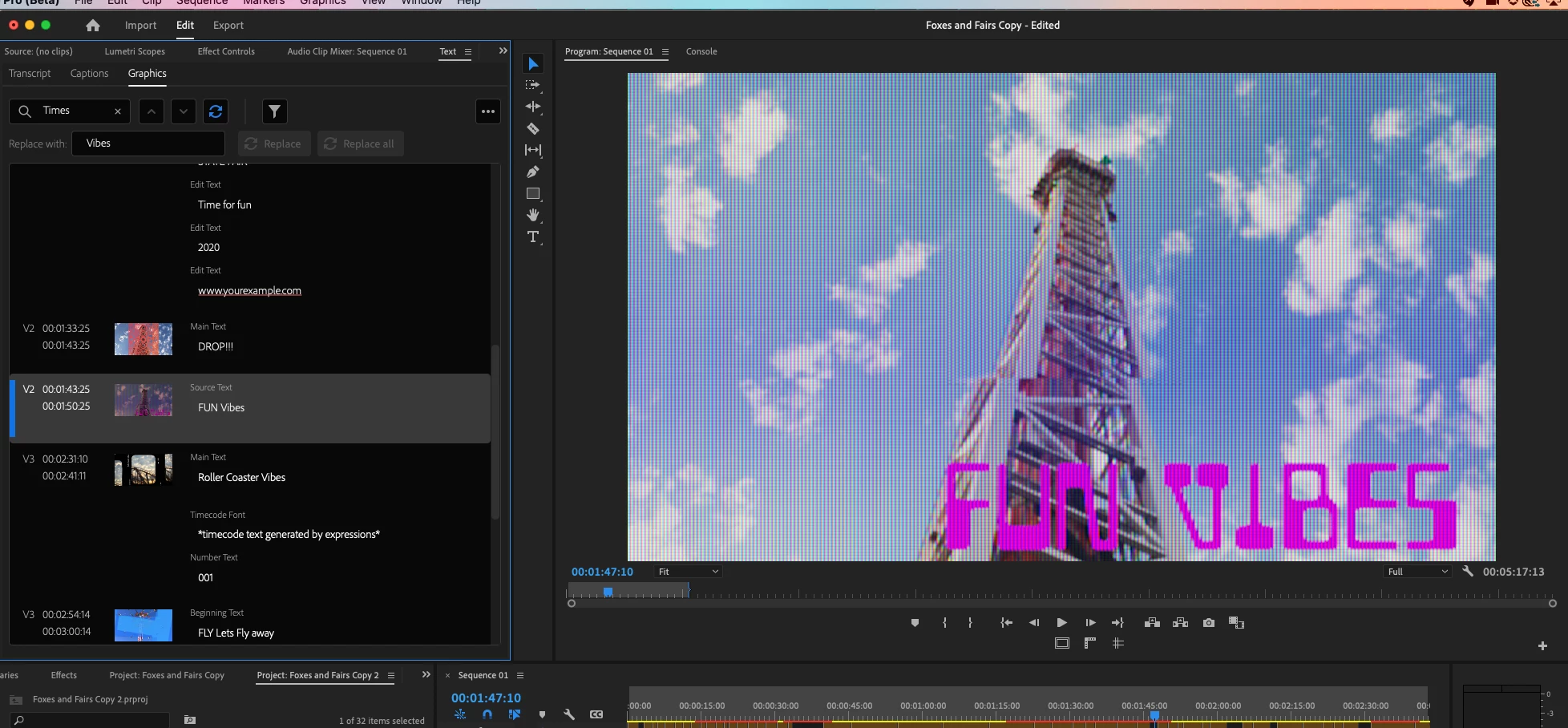
 

Note: If you don't see the UI for the Search Arrow Navigation or Replace Icons, make the Text Panel wider.


While we are still actively working on improvements and a few known bugs, we are excited to hear your feedback and any hurdles that you might encounter while using the new Graphics Tab!

Please give it a spin and let us know what you think!


Cheers,
Dacia


p.s. Text from Spreadsheet Controls from Data-Driven Mogrts or Expression-driven text from Dropdowns in AE Mogrts will not display in this view.

This topic has been closed for replies.

9 replies

Words In Motion
Participant
May 12, 2022

This has been a huge asset so far. Very excited about it's release.


I'd love to be able to export this list as a simple text file. Often we need customers to proofread these cards and a simple txt file is best way to share those cards.


Any chance of this happening?

Adobe Employee
May 12, 2022

Stay tuned to the beta announcements: you should see something you'll like shortly.


Mike

Words In Motion
Participant
May 12, 2022

Most excellent.

alphabetikal
Participating Frequently
April 22, 2022

hey

Thanks for this feature update. 

Question for you - why is it that the Text panel can not close with the standard CMD + W shortcut? 

Thanks!

Professor Panda
Inspiring
December 16, 2021

Issue: Can't move caption text beyond title safe areas. Previous workaround no longer works.


A previous revamp of Premiere's captioning feature removed the ability to freely position caption objects like video clips by allowing users to change the position values in the Motion section of Effect Controls. This simple workaround gave users full flexibility with caption positioning, even when the internal Caption positioning controls did not allow moving objects beyond title safe.


Since caption objects are no longer video objects, there are no associated Motion Effect Controls to adjust. No more workaround. You simply cannot move anything beyond title safe. (Unless I nest the captions in sequence, which would be a less-than-ideal workaround)


There are many non-broadcast special use cases where precise positioning of stylized captions are necessary. It's essential that editors and designers have this flexibility. This is the current behavior with 22.1.1 and the latest Beta build 47.


Also note that the slider values continue to update, even as the caption object has stopped moving.

Professor Panda
Inspiring
December 16, 2021

@DaciaSaenz I'm loving the new Graphics tab!


I wanted to mention that there are a few existing designer quirks with the Premiere's text engine when it comes how it handles background fills in text blocks. 


Issue: Semi-transparent background fills will overlap when set to "per-line" mode.

Workaround: While it is possible to fiddle with the leading and background padding, it's not possible to entirely eliminate a visible overlap/gap between the two lines. Here's how the workaround looks like.


Inspiring
December 6, 2021

When will this come to a come out of Beta to a full release?

R Neil Haugen
Legend
December 6, 2021

That sort of information is never given, as their lawyers do not allow them to. On account of being a publicly traded company and blah and on.


We'll see it when it is ... that's the best we can get.


Neil

Everyone's mileage always varies ...
Rag and Bone
Community Expert
Community Expert
November 6, 2021

Great addition. Looking forward to checking it out.

Szalam
Community Expert
Community Expert
November 6, 2021

DACIA! This is sooooo cool and useful! Thank you!

DaciaSaenz
Community Manager
Community Manager
November 8, 2021

MICHAEL!!! Its so exciting!! I'm thrilled you're excited 🥰.  Also, I miss you!!!

- Dacia Saenz, AE & PR Engineering Teams
Szalam
Community Expert
Community Expert
November 8, 2021

Miss you too! Watching you get to hang out with @Kyle Hamrick on the recent live stream made it even worse because I miss BOTH of you.

Kes Akalaonu
Inspiring
November 5, 2021

I was wondering what the purpose of the Graphics tab in the Text panel was for. Very welcomed addition

Kes Akalaonu
Inspiring
November 5, 2021

I feel like this can be expanded in the feature beyond globally editing graphics. It could be a more robust way to enable and disable items on the timeline like video and audio similiar to what FCP currently has

DaciaSaenz
Community Manager
Community Manager
November 5, 2021

OOO 🤔 🤔... tell me more... is there a specific panel in FCP you're referring to like the Inspector? 

- Dacia Saenz, AE & PR Engineering Teams
R Neil Haugen
Legend
November 5, 2021

Dacia,


THANK YOU!


This should be so useful once it's fully ready for prime-time ...


Neil

Everyone's mileage always varies ...
Adobe Employee
November 5, 2021

We hope it is ready for prime time now. Please let us know if you disagree.


Mike

R Neil Haugen
Legend
November 5, 2021

Will do, Mike ... you know how shy and retiring I am ... lol

Everyone's mileage always varies ...