



Premiere Rush Guided Workflow — Exporting: Export video to Behance
Export video to Behance
You can directly export your videos to Behance.
- Sign in to Behance (if you are not already signed in).
- Under Settings, set the following options:
Description: Help viewers understand more about the video by adding a description. This description displays at the bottom of the video after it is published live on Behance.
Tags: Add suitable tags to your video. Tags allow other users find your video by linking common words associated with your video.
Preset: The default preset on all platforms is Automatic where Resolution and Frame Rate are set to Automatic, Audio Channels is set to Stereo, and Quality is set to High. However, you can select any preset from the drop-down list based on the nature of your video and your publish destination.
The following elements define a preset. When you change any of these elements, the preset automatically becomes a custom preset. After you create a custom preset, you can save the preset.
| Preset component | What it means |
| Resolution | Various resolution options are available depending on the type of video and publish destination. |
| Frame Rate | Various frame rate options ranging from 23.976 fps to 60 fps are available. |
| Audio Channels | You can choose between mono, stereo, or no audio options. |
| Quality | Set the quality of the video. While setting the quality, keep in mind that high-quality videos take up more hard drive space and can take longer to load if viewed over the Internet. |
To save a custom preset, click the Save Preset icon next to the Preset pop-up menu. Name your preset and click OK. Your custom preset is now available for you to use from the Preset pop-up menu.
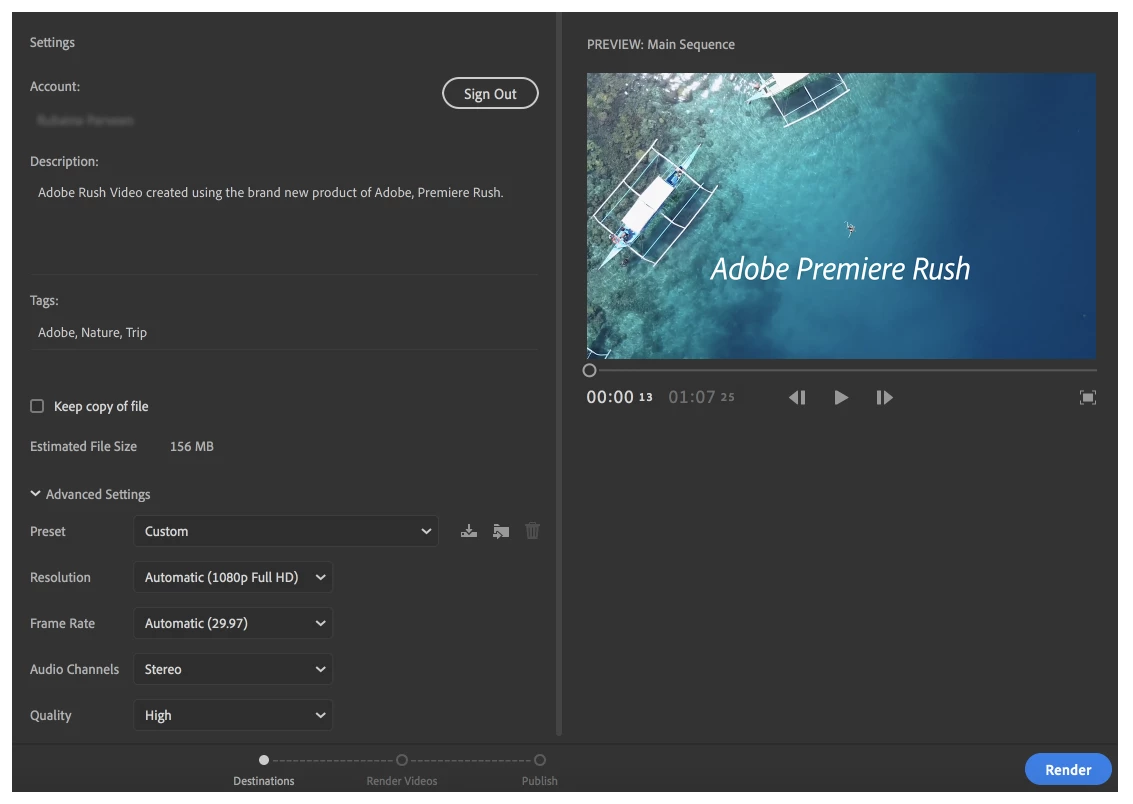
- Under Preview: Preview your video before you render and export your video to Behance.
- Click Export. Premiere Rush renders your video, using the export settings you have chosen. You have a chance to preview your video before publishing it your social media channels.
- After Premiere Rush completes rendering successfully, your video is ready to be published on Behance. Click Publish. Premiere Rush publishes the video directly to Behance, and notifies you when publishing is completed.
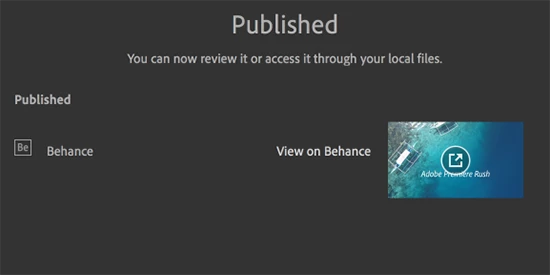
You now have exported your movie. Congratulations!
Mobile Guide
Adobe Premiere Rush workflow on iOS
Adobe Premiere Rush workflow on Android
More from the User Guide:
< Effects and Color Grading — Export >
Home: Editing Overview
 AdChoices